Prompt Shortcuts
A prompt shortcut is a short word you give to a saved prompt. Type a semicolon and that word in a supported AI chat box, press Enter, and Kortex inserts the whole prompt. Your hands never leave the keyboard.

Why use a shortcut?
It works like a text shortcut on your phone. You type ;sum and a whole paragraph shows up. Your hands never leave the keyboard.
How to give a prompt a shortcut
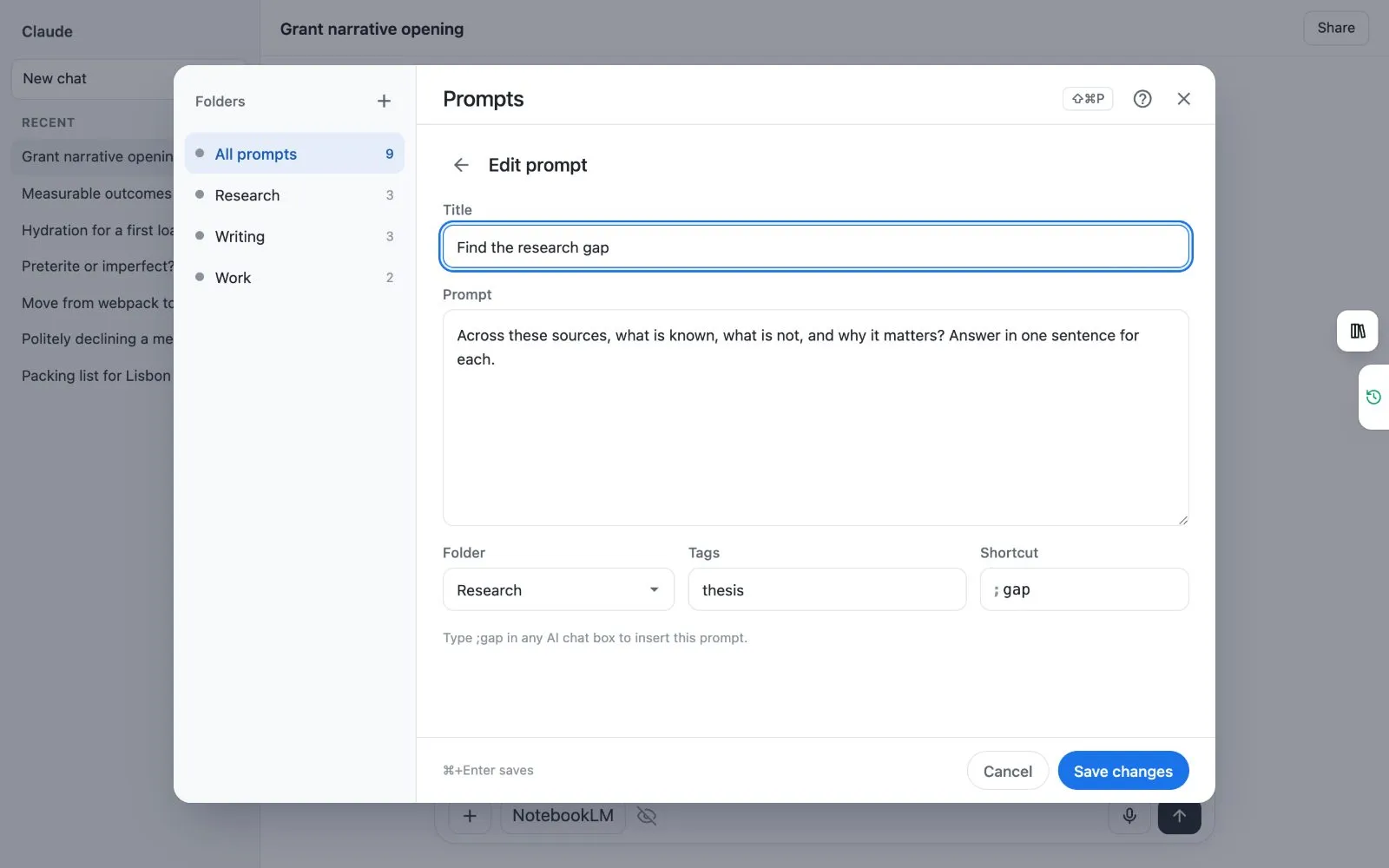
- Open your prompts. The easiest way is the side panel's Prompts tab, or the Library's Prompts view.
- Make a new prompt, or edit one you have.
- Fill in the Shortcut box with one short word, such as
sum. - Save the prompt.
How to use a shortcut
- Click in the chat box of an AI site.
- Type
;. A menu opens with your prompts. Prompts you use most come first. - Type the shortcut, or the first letters of a title, to narrow the list.
- Press Enter or Tab to put the prompt in the chat box.
There is a faster way. Type the whole shortcut and then a space, such as ;sum . The prompt goes in straight away. Press Esc to close the menu.

Which sites does it work on?
The ; menu works in the chat box on the AI sites Kortex supports. These are ChatGPT, Claude, Gemini, Perplexity, Grok, Genspark, Kimi, Merlin and OpenEvidence. On any other site, use the prompt panel.
How do I turn it off?
- Open the side panel and click the three dots (⋯) in its top right corner.
- Choose Manage features.
- Switch off Prompt Shortcuts.
The ;ref, ;ask, ;me and ;pack commands share this switch, so they stop too.
- If your own prompt uses a word that is also a Kortex command, your prompt wins.
- Prompts with blanks open a small form first. See Prompts with blanks.
Next: Prompts with blanks, The ; commands.