Bulk Import
Import multiple links into Gemini Notebooks at once using various methods.
Video walkthrough
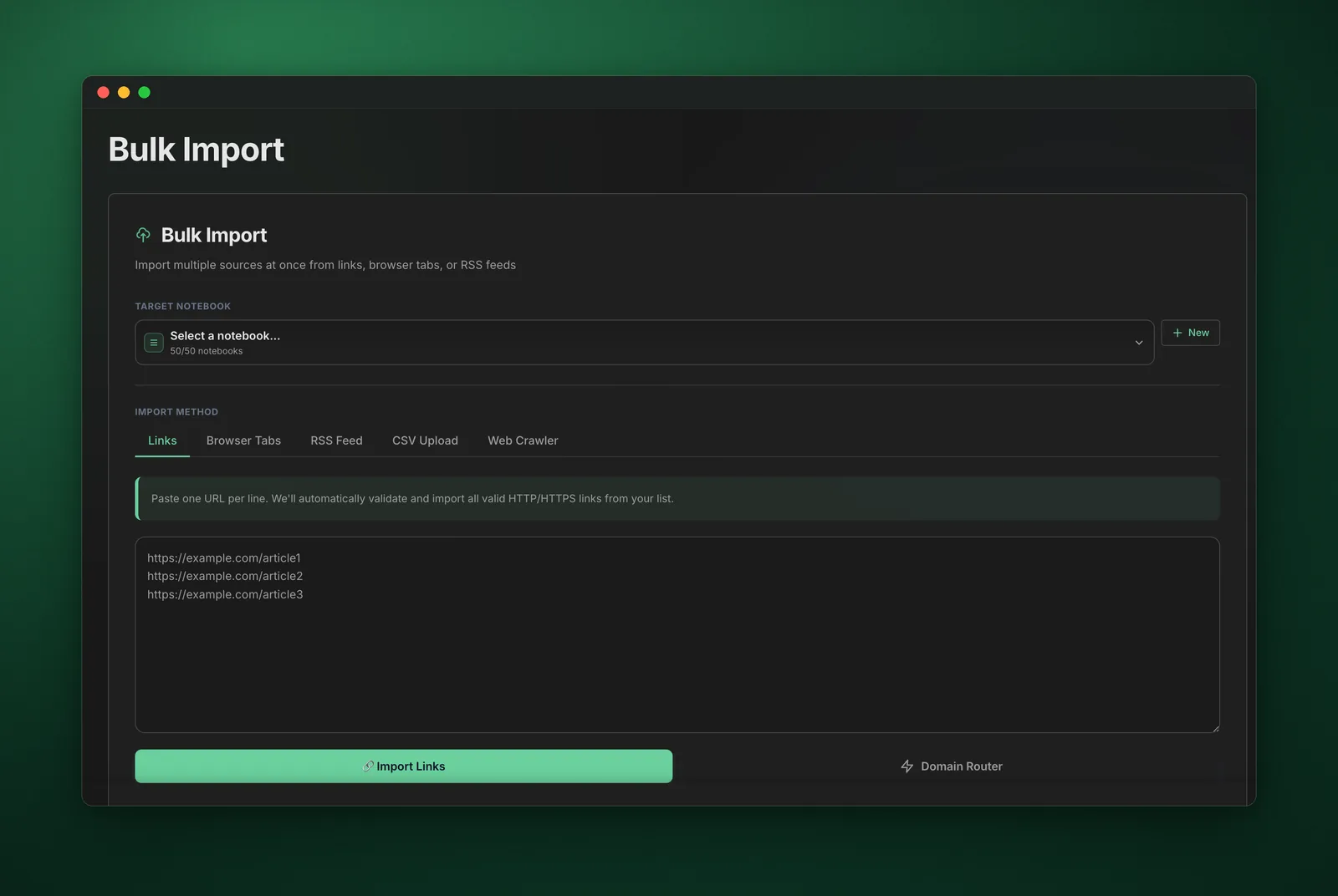
What It Does
Bulk Import allows you to add multiple web links to your Gemini Notebooks at once using various import methods, saving time when building comprehensive research collections.
Import Methods
- Paste Links - Paste multiple URLs line by line
- Browser Tabs - Import all open tabs from your browser
- CSV Upload - Upload a CSV file containing URLs
- RSS Feed - Import articles from RSS/Atom feeds
- Web Crawling - Crawl a website to discover and import links
How to Use
- Click "Bulk Import" in the dashboard sidebar
- Choose your import method (paste, tabs, CSV, RSS, or crawl)
- Provide the links or source based on your chosen method
- Select target notebook or create a new one
- Click "Import" to start the process
- Wait for all links to be imported
Method Details
- Paste Links - Enter one URL per line in the text area
- Browser Tabs - Automatically captures all open tabs in current window
- CSV Upload - Upload a CSV with URLs in the first column
- RSS Feed - Enter RSS/Atom feed URL to import articles
- Web Crawling - Enter starting URL and set crawl depth/filters
Use Cases
- Research projects with multiple web sources
- Importing bookmarked articles and resources
- Building knowledge bases from blog posts
- Archiving news articles from RSS feeds
- Discovering and importing related content via crawling
Pro Tips
- Use browser tabs method to quickly capture research sessions
- CSV upload is great for pre-organized link collections
- RSS feeds enable automatic content discovery
- Set crawl depth carefully to avoid importing too many pages
- Review imported sources before processing with AI