Prompt Holder Button
Save and reuse your favorite prompts across all your Gemini Notebooks.
Video walkthrough
What It Does
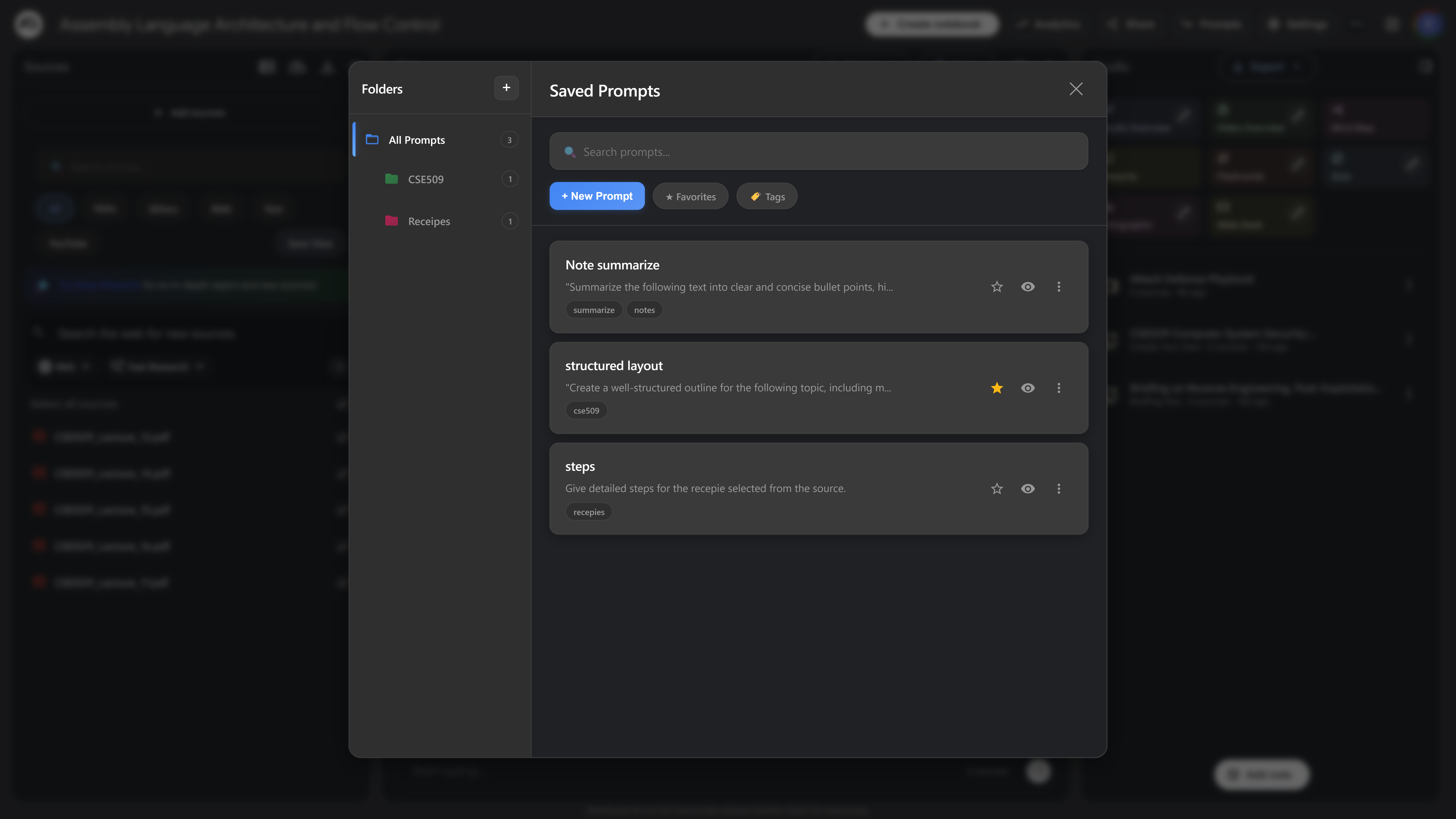
The Prompt Holder button appears next to the share button in Gemini Notebook. It lets you save frequently used prompts and quickly insert them into your chat.
How to Use
- Click the Prompt Holder button (bookmark icon) in the header
- Click "Add New Prompt" to save a new prompt
- Enter your prompt text and give it a name
- Click "Save" to add it to your library
- To use a saved prompt, click the Prompt Holder button and select it
- The prompt will be inserted into the chat input
Prompt Holder Limits
Prompt limits work on a slot-based system:
- Basic: 10 saved prompts in total
- Pro: Unlimited slots
Note: You have a fixed number of slots. When you delete a prompt, that slot becomes available again.
Use Cases
- Research Prompts - "Summarize the key findings from these sources"
- Writing Prompts - "Write a blog post about..."
- Analysis Prompts - "Compare and contrast..."
- Study Prompts - "Create flashcards for..."
Pro Tips
- Organize prompts with descriptive names
- Use placeholders like [TOPIC] that you can fill in later
- Prompts are synced across all your devices
- You can edit or delete saved prompts anytime