Where Kortex shows up
Kortex is a Chrome extension that adds memory and AI tools to Gemini Notebook (formerly NotebookLM). It shows up in six places: the side panel, the dashboard, the chat Library, buttons on AI sites, a bar on Gemini Notebook, and the right-click menu.

Why use this map?
Think of Kortex as a toolbox with a few drawers. You open the drawer that fits the job. Each drawer below says what it is for.
The side panel
The side panel is a narrow strip that opens beside the page you are reading. You open it by clicking the Kortex icon in Chrome's toolbar. From there you can import the page you are on into a notebook, find a notebook, search your saved AI chats, and pick a prompt.
The dashboard
The dashboard is a big page that lists every notebook you have, with its sources, tags and collections beside it. Use it when you want to tidy up, search across everything, or work on many notebooks at once. Open it with the Dashboard button at the top of the side panel.

The chat Library
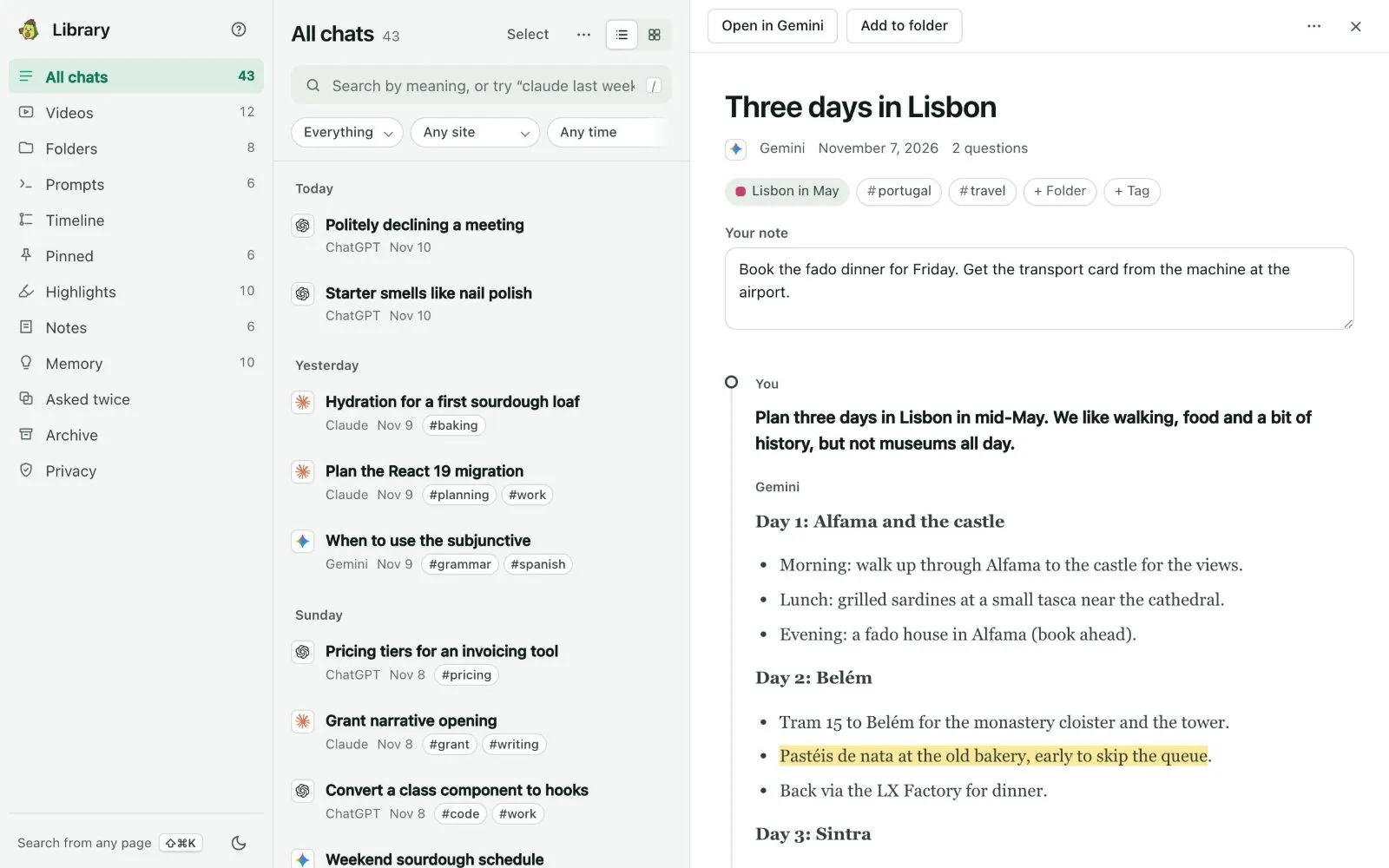
The Library is a page that keeps your chats with AI assistants on your own computer, so you can search them later. Think of it as a filing cabinet for every conversation you have had. Kortex asks before it saves anything.
The Kortex tab and buttons on AI sites
On sites such as ChatGPT, Claude, Gemini and Perplexity, Kortex adds a NotebookLM button. One click sends the whole chat into a notebook. Next to a saved chat you also see a small Kortex tab with your note, your pins and your highlights for that chat.

Read about the buttons on AI sites and the Kortex tab
The Kortex bar on Gemini Notebook
Gemini Notebook (formerly NotebookLM) is Google's notebook site. When you open a notebook there, Kortex adds one bar across the top. It holds your collections, copy and export buttons for the chat, your sources and Studio, and your prompts.

The right-click menu
On any web page, select some text and right-click. Kortex adds an entry named Send highlight to NotebookLM. Pick it, then choose the notebook the quote should go to.

Read about highlight and snipe
- You do not need to learn all of this at once. Start with the side panel.
- If a button is missing, reload the page once after installing Kortex.