Workflows & Schedules
Some jobs are five steps every time. A workflow is one of those jobs, done once and kept, so the second time is a sentence. A schedule is the same job with the asking removed.
How one gets made
You do not write a workflow, and Kortex does not guess one. You give the whole instruction — every step, in order — your assistant carries it out, and then you keep it:
Add these five URLs to my Competitor notebook, wait until they
finish processing, then generate a briefing doc and export it to
Google Docs.

Save that as a workflow called "Competitor brief"
The saved thing is the sequence of tool calls that actually ran — not the sentence. So it repeats exactly what happened, and "run my competitor brief" does all four steps again.

A step can wait. An Audio Overview takes minutes, and a step that needs it will not start until it exists.
Running one
Ask for a workflow by name and it runs. Ask which ones you have and your client can show them, with their step count and the inputs each one wants:
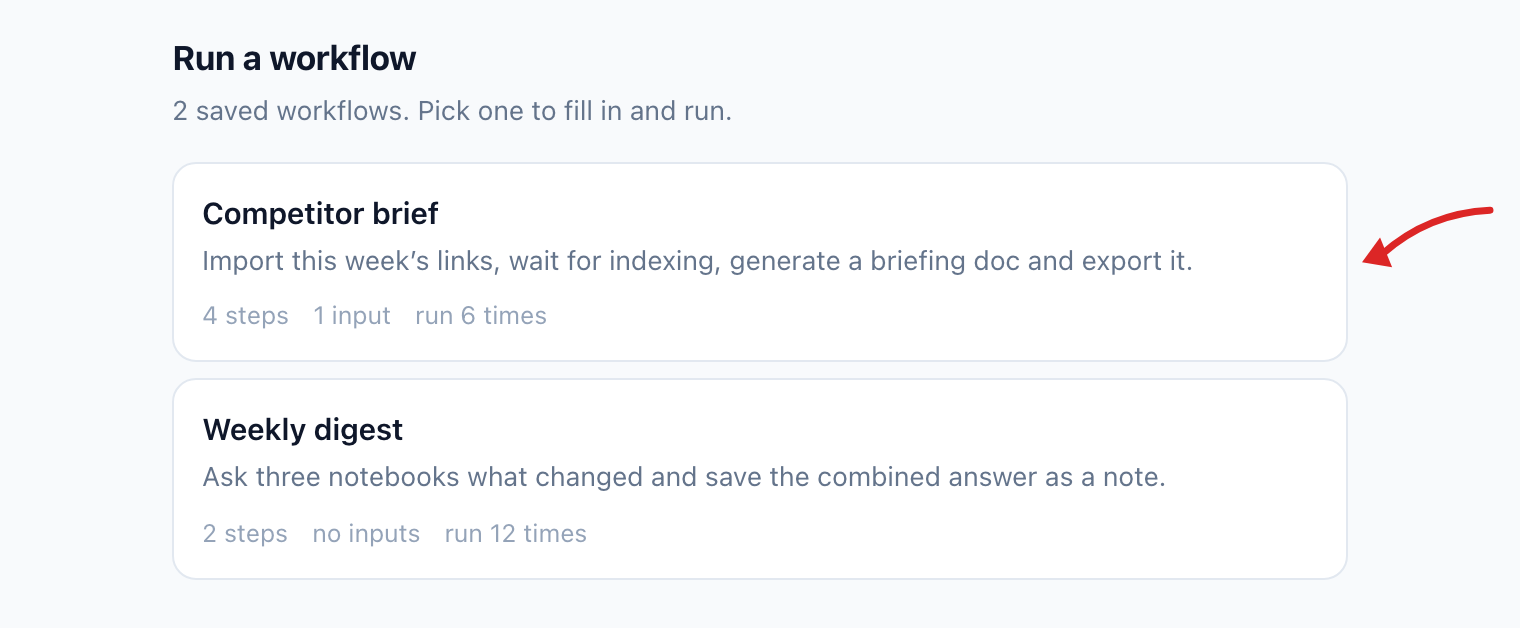
Pick one and it asks for its inputs before anything happens — and shows you the steps it is about to run, so a workflow you saved months ago is never a surprise.
Make it reusable
Name a value as an input and one workflow serves every target:
Save that as "Set up a course notebook", and make the subject an input
Then "run set up a course notebook for Organic Chemistry". Ask for it without a required input and it tells you what is missing rather than running half-configured.
Where they live
Everything you have saved is listed in the Kortex dashboard, under Workflows. You do not build them there — that is what the conversation is for — but it is where you check what exists, see the sentence that runs each one, and put one on a clock.
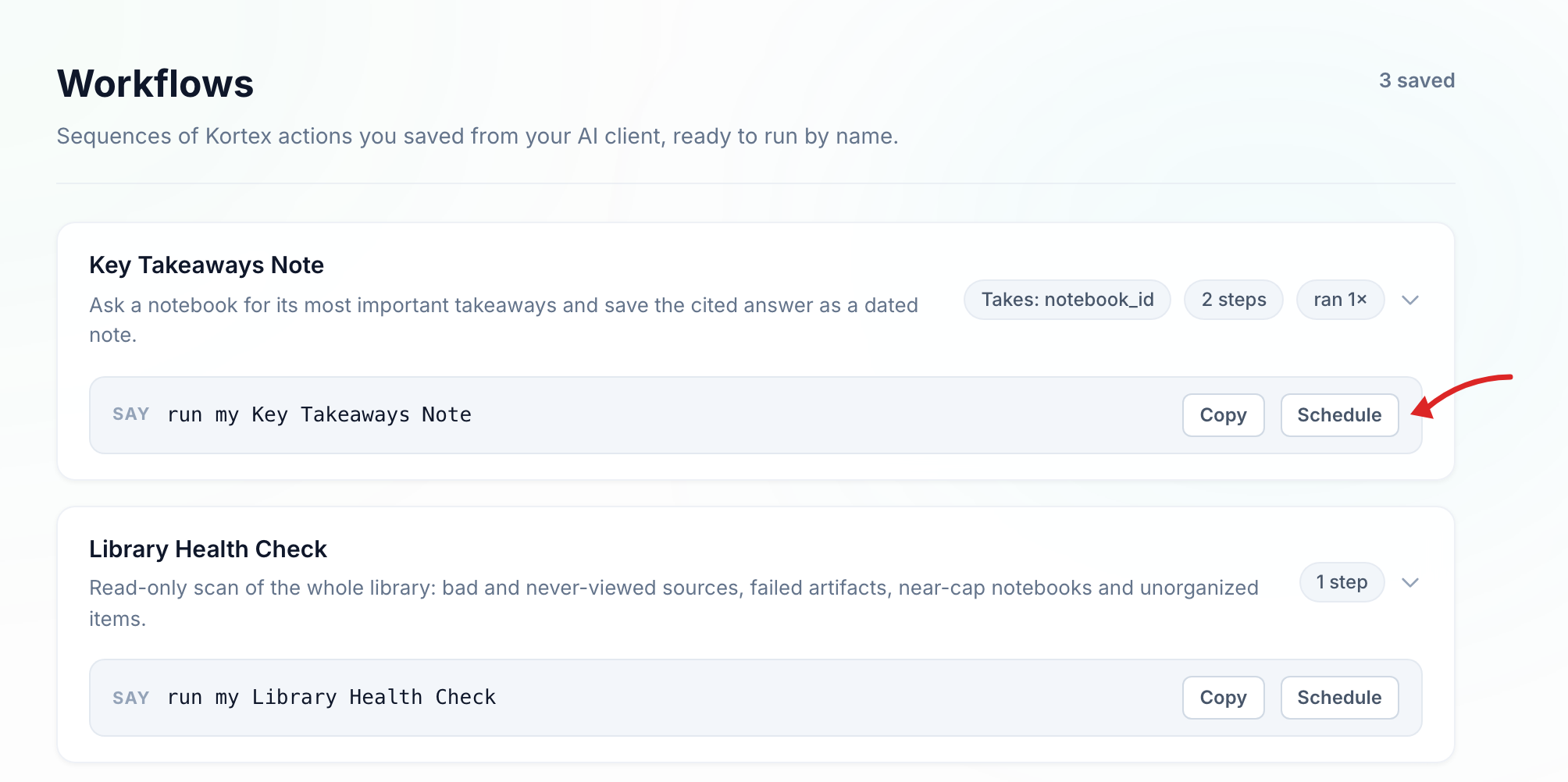
Each card shows what the workflow takes and how many steps it runs. Open one and you can see what was actually saved:
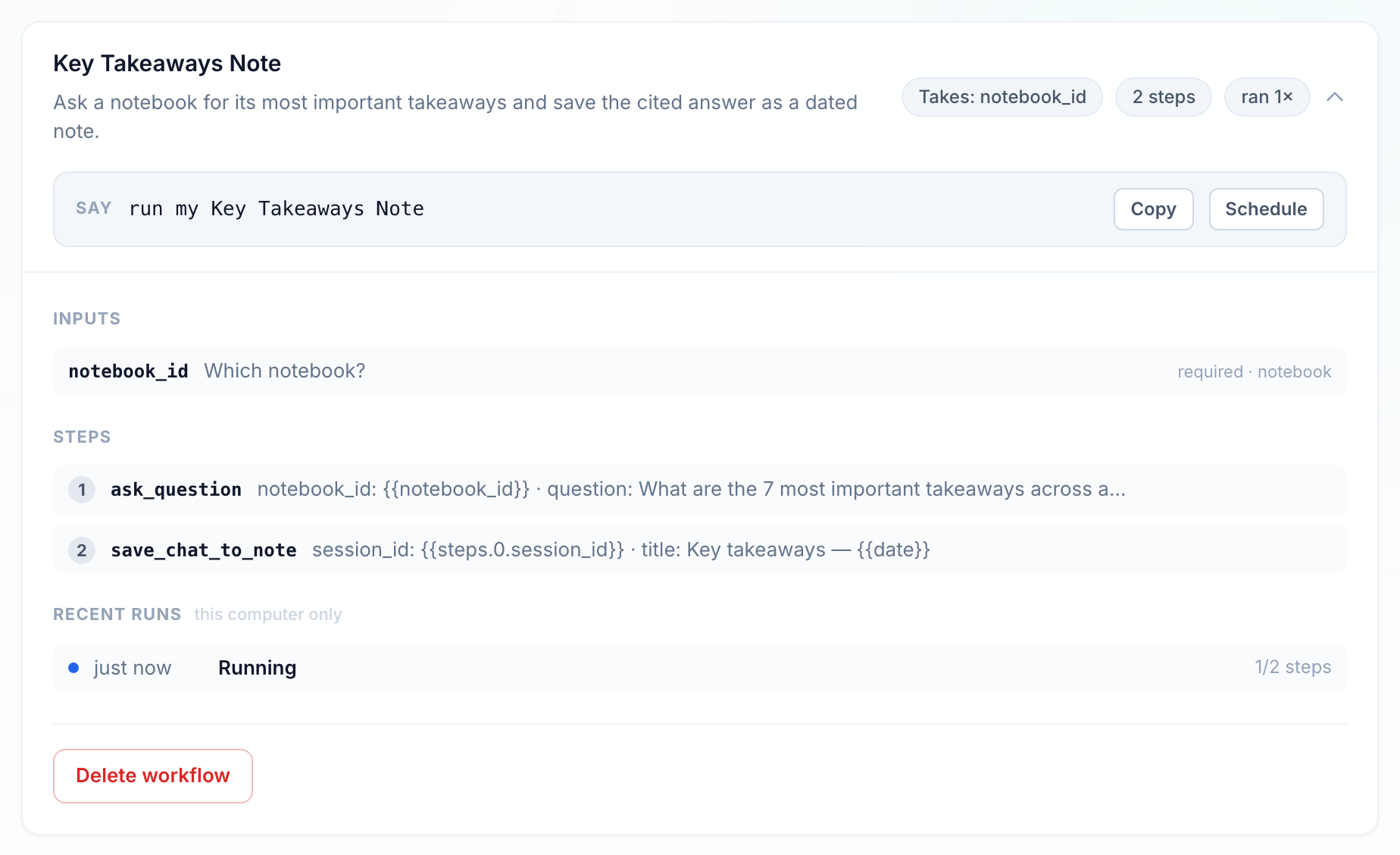
The steps are the real tool calls, with the values that vary left as placeholders — {{notebook_id}} is the input you supply, and {{steps.0.session_id}} is step 2 reading something step 1 produced. That chaining is what lets a later step use an answer, a session or an artifact an earlier one created.
Underneath, the runs recorded on this computer, and the one irreversible thing on the page.
Instructions worth keeping
Each of these is one thing to say, and several tools underneath. Say it, check it did what you wanted, then save it.
Research
- "Add these URLs to my Competitor notebook, wait until they finish processing, generate a briefing doc, and export it to Google Docs."
- "Generate an Audio Overview of this notebook, wait for it to finish, add it to my Papers podcast, and give me the feed URL."
- "Read the summary of every source in this notebook and tell me which ones are actually about pricing, then tag those."
- "Ask my Pricing, Support and Product notebooks what changed this week, and save the combined answer as a note in my Weekly notebook."
- "Compare my two research notebooks by source, tell me what only one of them has, and move those sources into the other."
- "Search my library for anything about the Henderson account, ask the notebook you find what the current status is, and save the answer as a note."
Studying
- "Generate a study guide, a flashcard deck and a quiz from this notebook."
- "Create a notebook called Organic Chemistry, apply my course template, tag it #coursework, and move it into my Semester 2 collection."
- "Import this YouTube playlist into a new notebook, wait for the transcripts to process, then generate a briefing doc."
- "List the sources added to this notebook in the last week, then generate a quiz from just those."
- "Generate a slide deck from this notebook, export it, and save the export link as a note."
Work
- "Create a notebook for Acme Corp from my client template, add these three documents, tag it #client, and file it in my Clients collection."
- "Ask my support notebook this customer question, then draft a reply using the answer and its citations."
- "Add these meeting notes as a source, ask the notebook what decisions were made this quarter, and save that as a note."
- "Generate a briefing doc for this notebook, export it to Google Docs, then share the notebook with my team as viewers."
- "Import every URL in this list, tell me which ones failed, and delete the ones that came back empty."
Housekeeping
- "Find every source in this notebook that failed to process, delete them, then refresh the notebook."
- "Give me a library health report, then save it as a note in my Admin notebook."
- "List every notebook with no tags, read what each one is about, and tag them."
- "Run a duplicate scan across my library and show me the pairs." (It reports; it never deletes.)
- "List every source I have never opened, grouped by notebook, and save that list as a note."
Schedules
A schedule runs a job on a clock instead of on your say-so. You describe when, once.
Every Monday at 8, generate an Audio Overview of my Research
notebook and add it to my Papers podcast
A schedule can also run a workflow you already saved, which is the general case — if the job takes more steps than a single instruction sensibly holds, save it as a workflow first and schedule that.
Or set it from the dashboard
Every workflow card has a Schedule button. It writes the same rule your assistant would — how often, at what hour, and anything the workflow needs supplied up front:
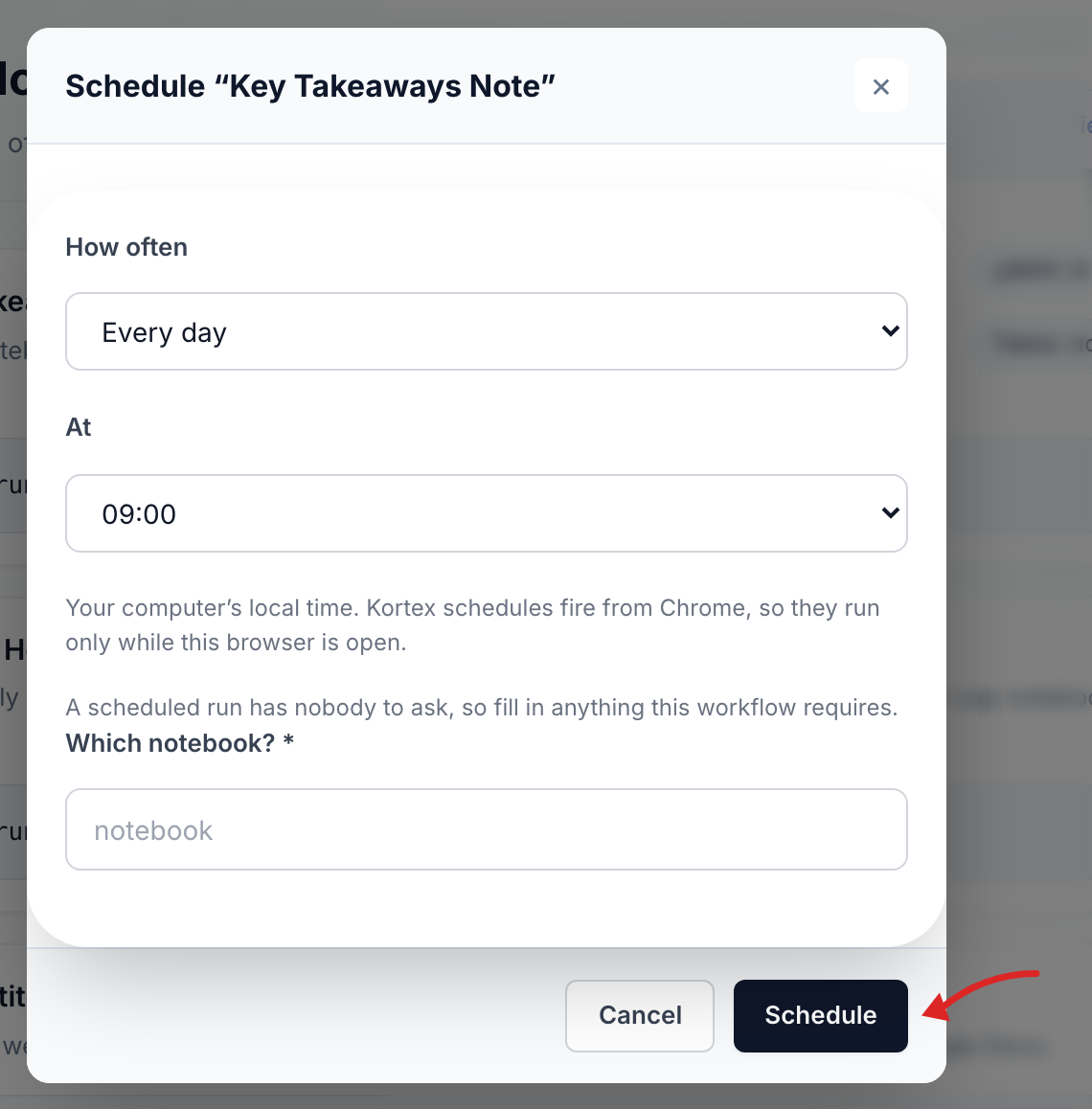
Required inputs matter more here than anywhere else. A scheduled run has nobody to ask, so a workflow that takes a notebook needs that notebook chosen now, not at 09:00 when no one is watching.
Worth scheduling
- "Every Monday at 8, generate an Audio Overview of my Research notebook and add it to my Papers podcast."
- "Every night, ask my course notebook what was added today and save the answer as a source."
- "Every morning at 7, ask my three client notebooks what changed and save one combined digest as a note."
- "Every day, re-read the Google Docs linked in my Team notebook."
- "Every Friday, save a library health report as a note in my Admin notebook."
- "Every Sunday, generate a study guide from my course notebook."
- "Every hour, run my 'New sources' workflow."
What to expect
| Thing | How it behaves |
|---|---|
| How often | Every hour, every day at an hour you choose, or one weekday each week. There is no "every fifteen minutes". |
| Timing | Kortex checks every fifteen minutes, so a rule fires within that window of its hour. Times are your computer's local time. |
| Your browser | Schedules fire from Chrome. It can be minimised and no notebook tab needs to be open — but a closed laptop runs nothing. |
| Scope | By default a schedule applies to every notebook in the account. Narrow it to one notebook, a tag or a collection unless you really mean all of them. |
| Loops | An action cannot re-trigger its own rule, and the same event inside a minute only counts once. A rule that watches for a tag and also adds that tag runs once, not forever. |
| History | Every run is recorded — what fired, which steps ran, what failed — so an unattended job is never a black box. |
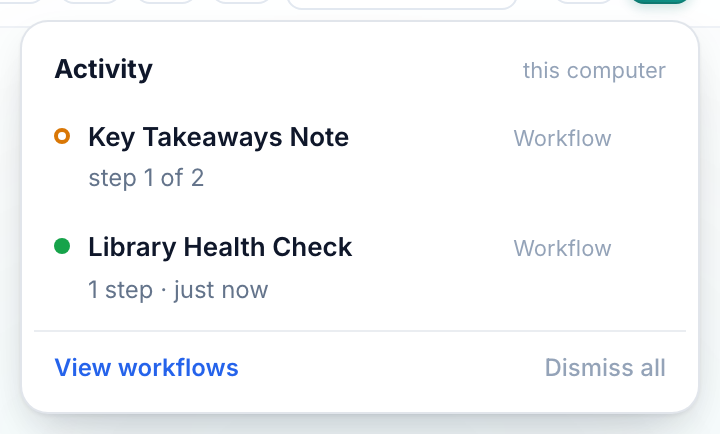
While something is running, the activity panel in the dashboard header shows it step by step — and keeps the result there afterwards until you dismiss it:
One thing to be deliberate about. A scheduled run happens with nobody watching, so a workflow that deletes will delete on its own schedule. Read the steps before you put one on a clock, and keep irreversible jobs as workflows you run by hand.