# Workflows & Schedules
Some jobs are five steps every time. A workflow is one of those jobs, done once and kept, so the second time is a sentence. A schedule is the same job with the asking removed.
## How one gets made
You do not write a workflow, and Kortex does not guess one. You give the whole instruction — every step, in order — your assistant carries it out, and then you keep it:
```
Add these five URLs to my Competitor notebook, wait until they
finish processing, then generate a briefing doc and export it to
Google Docs.
Save that as a workflow called "Competitor brief"
```
The saved thing is the _sequence of tool calls that actually ran_ — not the sentence. So it repeats exactly what happened, and "run my competitor brief" does all four steps again.
 A step can wait. An Audio Overview takes minutes, and a step that needs it will not start until it exists.
### Running one
Ask for a workflow by name and it runs. Ask which ones you have and your client can show them, with their step count and the inputs each one wants:
A step can wait. An Audio Overview takes minutes, and a step that needs it will not start until it exists.
### Running one
Ask for a workflow by name and it runs. Ask which ones you have and your client can show them, with their step count and the inputs each one wants:
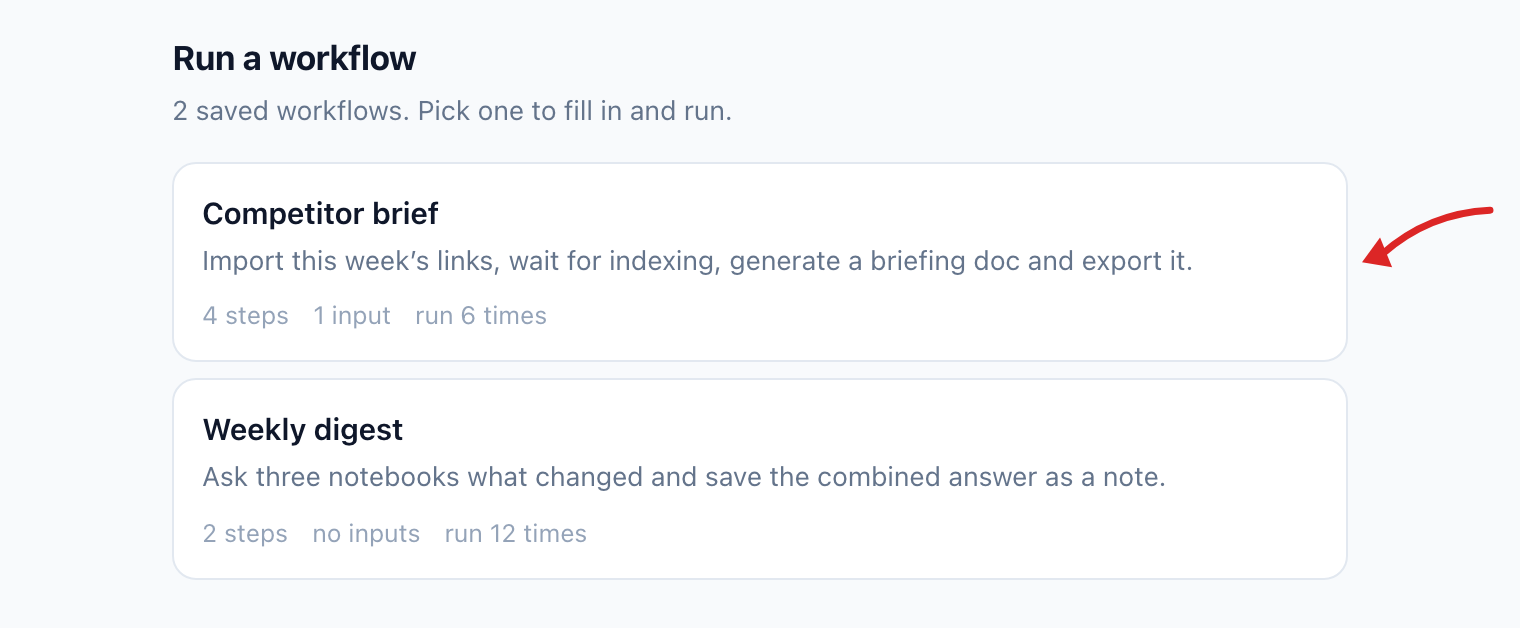 Pick one and it asks for its inputs before anything happens — and shows you the steps it is about to run, so a workflow you saved months ago is never a surprise.
### Make it reusable
Name a value as an input and one workflow serves every target:
```
Save that as "Set up a course notebook", and make the subject an input
```
Then _"run set up a course notebook for Organic Chemistry"_. Ask for it without a required input and it tells you what is missing rather than running half-configured.
### Where they live
Everything you have saved is listed in the Kortex dashboard, under **Workflows**. You do not build them there — that is what the conversation is for — but it is where you check what exists, see the sentence that runs each one, and put one on a clock.
Pick one and it asks for its inputs before anything happens — and shows you the steps it is about to run, so a workflow you saved months ago is never a surprise.
### Make it reusable
Name a value as an input and one workflow serves every target:
```
Save that as "Set up a course notebook", and make the subject an input
```
Then _"run set up a course notebook for Organic Chemistry"_. Ask for it without a required input and it tells you what is missing rather than running half-configured.
### Where they live
Everything you have saved is listed in the Kortex dashboard, under **Workflows**. You do not build them there — that is what the conversation is for — but it is where you check what exists, see the sentence that runs each one, and put one on a clock.
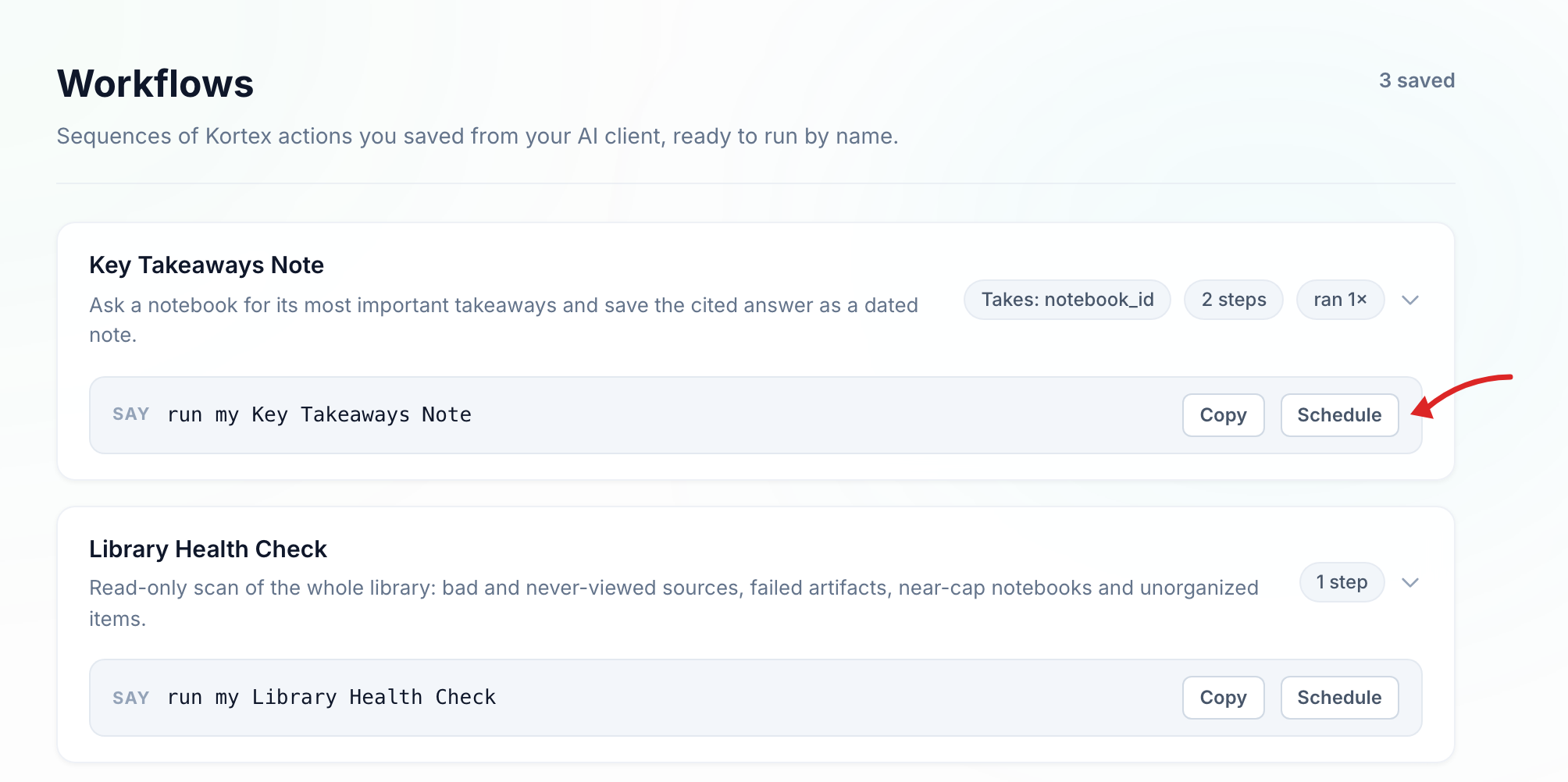 Each card shows what the workflow takes and how many steps it runs. Open one and you can see what was actually saved:
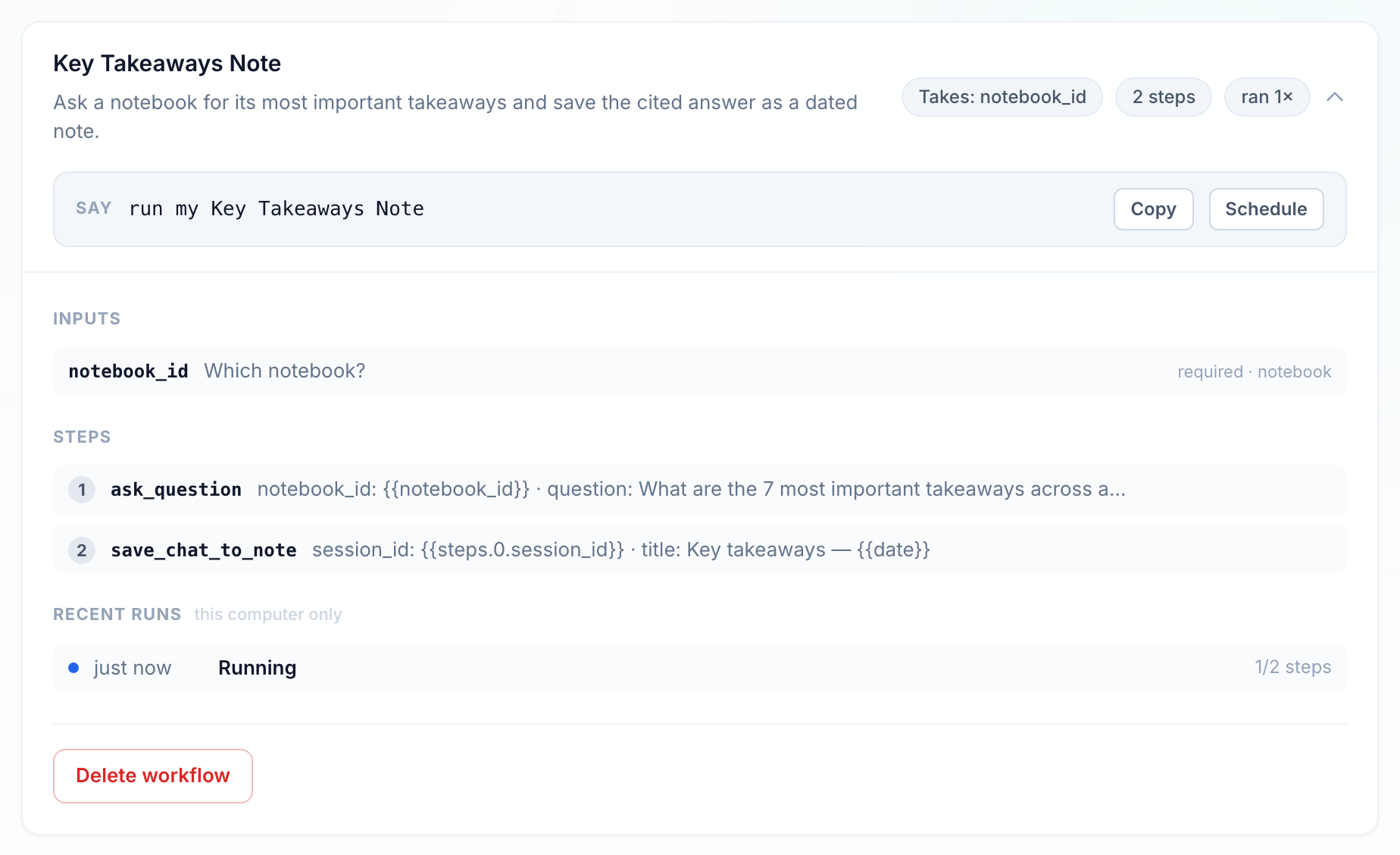 The steps are the real tool calls, with the values that vary left as placeholders — `{{notebook_id}}` is the input you supply, and `{{steps.0.session_id}}` is step 2 reading something step 1 produced. That chaining is what lets a later step use an answer, a session or an artifact an earlier one created.
Underneath, the runs recorded on this computer, and the one irreversible thing on the page.
## Instructions worth keeping
Each of these is one thing to say, and several tools underneath. Say it, check it did what you wanted, then save it.
### Research
- "Add these URLs to my Competitor notebook, wait until they finish processing, generate a briefing doc, and export it to Google Docs."
- "Generate an Audio Overview of this notebook, wait for it to finish, add it to my Papers podcast, and give me the feed URL."
- "Read the summary of every source in this notebook and tell me which ones are actually about pricing, then tag those."
- "Ask my Pricing, Support and Product notebooks what changed this week, and save the combined answer as a note in my Weekly notebook."
- "Compare my two research notebooks by source, tell me what only one of them has, and move those sources into the other."
- "Search my library for anything about the Henderson account, ask the notebook you find what the current status is, and save the answer as a note."
### Studying
- "Generate a study guide, a flashcard deck and a quiz from this notebook."
- "Create a notebook called Organic Chemistry, apply my course template, tag it #coursework, and move it into my Semester 2 collection."
- "Import this YouTube playlist into a new notebook, wait for the transcripts to process, then generate a briefing doc."
- "List the sources added to this notebook in the last week, then generate a quiz from just those."
- "Generate a slide deck from this notebook, export it, and save the export link as a note."
### Work
- "Create a notebook for Acme Corp from my client template, add these three documents, tag it #client, and file it in my Clients collection."
- "Ask my support notebook this customer question, then draft a reply using the answer and its citations."
- "Add these meeting notes as a source, ask the notebook what decisions were made this quarter, and save that as a note."
- "Generate a briefing doc for this notebook, export it to Google Docs, then share the notebook with my team as viewers."
- "Import every URL in this list, tell me which ones failed, and delete the ones that came back empty."
### Housekeeping
- "Find every source in this notebook that failed to process, delete them, then refresh the notebook."
- "Give me a library health report, then save it as a note in my Admin notebook."
- "List every notebook with no tags, read what each one is about, and tag them."
- "Run a duplicate scan across my library and show me the pairs." _(It reports; it never deletes.)_
- "List every source I have never opened, grouped by notebook, and save that list as a note."
## Schedules
A schedule runs a job on a clock instead of on your say-so. You describe when, once.
```
Every Monday at 8, generate an Audio Overview of my Research
notebook and add it to my Papers podcast
```
A schedule can also run a workflow you already saved, which is the general case — if the job takes more steps than a single instruction sensibly holds, save it as a workflow first and schedule that.
### Or set it from the dashboard
Every workflow card has a **Schedule** button. It writes the same rule your assistant would — how often, at what hour, and anything the workflow needs supplied up front:
The steps are the real tool calls, with the values that vary left as placeholders — `{{notebook_id}}` is the input you supply, and `{{steps.0.session_id}}` is step 2 reading something step 1 produced. That chaining is what lets a later step use an answer, a session or an artifact an earlier one created.
Underneath, the runs recorded on this computer, and the one irreversible thing on the page.
## Instructions worth keeping
Each of these is one thing to say, and several tools underneath. Say it, check it did what you wanted, then save it.
### Research
- "Add these URLs to my Competitor notebook, wait until they finish processing, generate a briefing doc, and export it to Google Docs."
- "Generate an Audio Overview of this notebook, wait for it to finish, add it to my Papers podcast, and give me the feed URL."
- "Read the summary of every source in this notebook and tell me which ones are actually about pricing, then tag those."
- "Ask my Pricing, Support and Product notebooks what changed this week, and save the combined answer as a note in my Weekly notebook."
- "Compare my two research notebooks by source, tell me what only one of them has, and move those sources into the other."
- "Search my library for anything about the Henderson account, ask the notebook you find what the current status is, and save the answer as a note."
### Studying
- "Generate a study guide, a flashcard deck and a quiz from this notebook."
- "Create a notebook called Organic Chemistry, apply my course template, tag it #coursework, and move it into my Semester 2 collection."
- "Import this YouTube playlist into a new notebook, wait for the transcripts to process, then generate a briefing doc."
- "List the sources added to this notebook in the last week, then generate a quiz from just those."
- "Generate a slide deck from this notebook, export it, and save the export link as a note."
### Work
- "Create a notebook for Acme Corp from my client template, add these three documents, tag it #client, and file it in my Clients collection."
- "Ask my support notebook this customer question, then draft a reply using the answer and its citations."
- "Add these meeting notes as a source, ask the notebook what decisions were made this quarter, and save that as a note."
- "Generate a briefing doc for this notebook, export it to Google Docs, then share the notebook with my team as viewers."
- "Import every URL in this list, tell me which ones failed, and delete the ones that came back empty."
### Housekeeping
- "Find every source in this notebook that failed to process, delete them, then refresh the notebook."
- "Give me a library health report, then save it as a note in my Admin notebook."
- "List every notebook with no tags, read what each one is about, and tag them."
- "Run a duplicate scan across my library and show me the pairs." _(It reports; it never deletes.)_
- "List every source I have never opened, grouped by notebook, and save that list as a note."
## Schedules
A schedule runs a job on a clock instead of on your say-so. You describe when, once.
```
Every Monday at 8, generate an Audio Overview of my Research
notebook and add it to my Papers podcast
```
A schedule can also run a workflow you already saved, which is the general case — if the job takes more steps than a single instruction sensibly holds, save it as a workflow first and schedule that.
### Or set it from the dashboard
Every workflow card has a **Schedule** button. It writes the same rule your assistant would — how often, at what hour, and anything the workflow needs supplied up front:
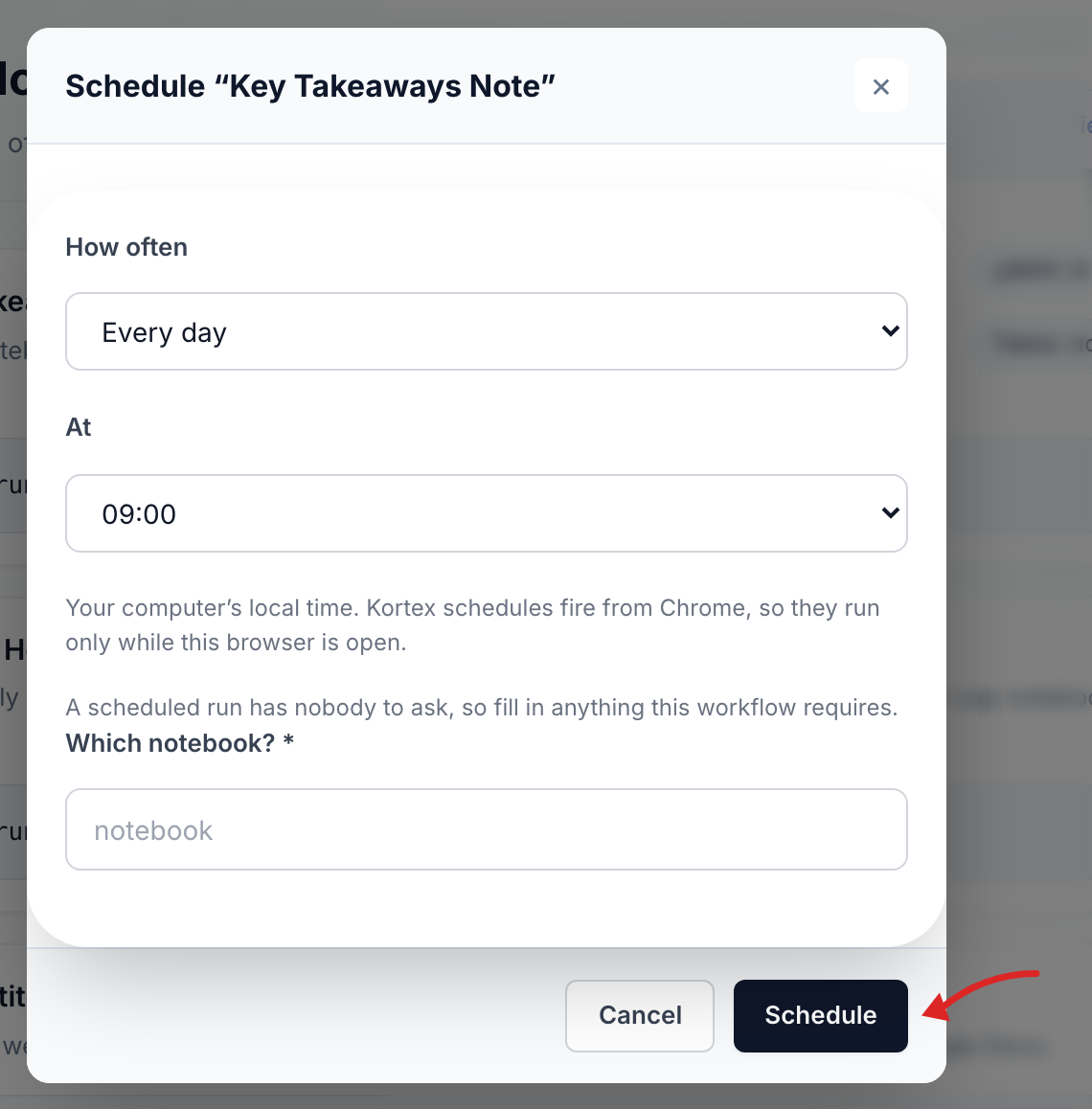 Required inputs matter more here than anywhere else. A scheduled run has nobody to ask, so a workflow that takes a notebook needs that notebook chosen now, not at 09:00 when no one is watching.
### Worth scheduling
- "Every Monday at 8, generate an Audio Overview of my Research notebook and add it to my Papers podcast."
- "Every night, ask my course notebook what was added today and save the answer as a source."
- "Every morning at 7, ask my three client notebooks what changed and save one combined digest as a note."
- "Every day, re-read the Google Docs linked in my Team notebook."
- "Every Friday, save a library health report as a note in my Admin notebook."
- "Every Sunday, generate a study guide from my course notebook."
- "Every hour, run my 'New sources' workflow."
## What to expect
| Thing | How it behaves |
| --- | --- |
| How often | Every hour, every day at an hour you choose, or one weekday each week. There is no "every fifteen minutes". |
| Timing | Kortex checks every fifteen minutes, so a rule fires within that window of its hour. Times are your computer's local time. |
| Your browser | Schedules fire from Chrome. It can be minimised and no notebook tab needs to be open — but a closed laptop runs nothing. |
| Scope | By default a schedule applies to every notebook in the account. Narrow it to one notebook, a tag or a collection unless you really mean all of them. |
| Loops | An action cannot re-trigger its own rule, and the same event inside a minute only counts once. A rule that watches for a tag and also adds that tag runs once, not forever. |
| History | Every run is recorded — what fired, which steps ran, what failed — so an unattended job is never a black box. |
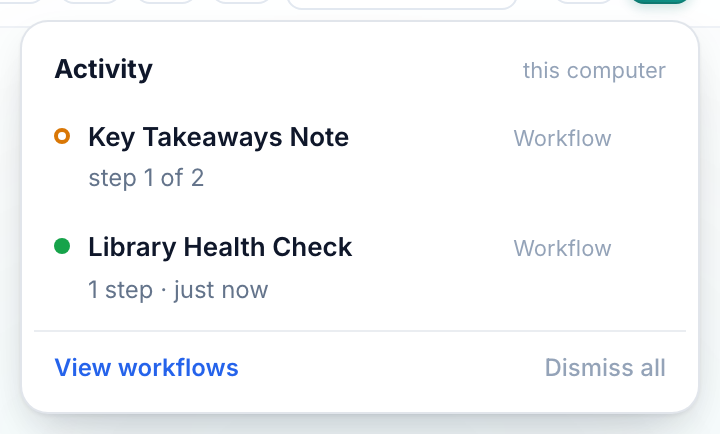
While something is running, the activity panel in the dashboard header shows it step by step — and keeps the result there afterwards until you dismiss it:
Required inputs matter more here than anywhere else. A scheduled run has nobody to ask, so a workflow that takes a notebook needs that notebook chosen now, not at 09:00 when no one is watching.
### Worth scheduling
- "Every Monday at 8, generate an Audio Overview of my Research notebook and add it to my Papers podcast."
- "Every night, ask my course notebook what was added today and save the answer as a source."
- "Every morning at 7, ask my three client notebooks what changed and save one combined digest as a note."
- "Every day, re-read the Google Docs linked in my Team notebook."
- "Every Friday, save a library health report as a note in my Admin notebook."
- "Every Sunday, generate a study guide from my course notebook."
- "Every hour, run my 'New sources' workflow."
## What to expect
| Thing | How it behaves |
| --- | --- |
| How often | Every hour, every day at an hour you choose, or one weekday each week. There is no "every fifteen minutes". |
| Timing | Kortex checks every fifteen minutes, so a rule fires within that window of its hour. Times are your computer's local time. |
| Your browser | Schedules fire from Chrome. It can be minimised and no notebook tab needs to be open — but a closed laptop runs nothing. |
| Scope | By default a schedule applies to every notebook in the account. Narrow it to one notebook, a tag or a collection unless you really mean all of them. |
| Loops | An action cannot re-trigger its own rule, and the same event inside a minute only counts once. A rule that watches for a tag and also adds that tag runs once, not forever. |
| History | Every run is recorded — what fired, which steps ran, what failed — so an unattended job is never a black box. |
While something is running, the activity panel in the dashboard header shows it step by step — and keeps the result there afterwards until you dismiss it:
 :::note
**One thing to be deliberate about.** A scheduled run happens with nobody watching, so a workflow that deletes will delete on its own schedule. Read the steps before you put one on a clock, and keep irreversible jobs as workflows you run by hand.
:::
:::note
**One thing to be deliberate about.** A scheduled run happens with nobody watching, so a workflow that deletes will delete on its own schedule. Read the steps before you put one on a clock, and keep irreversible jobs as workflows you run by hand.
:::