Smart Sort
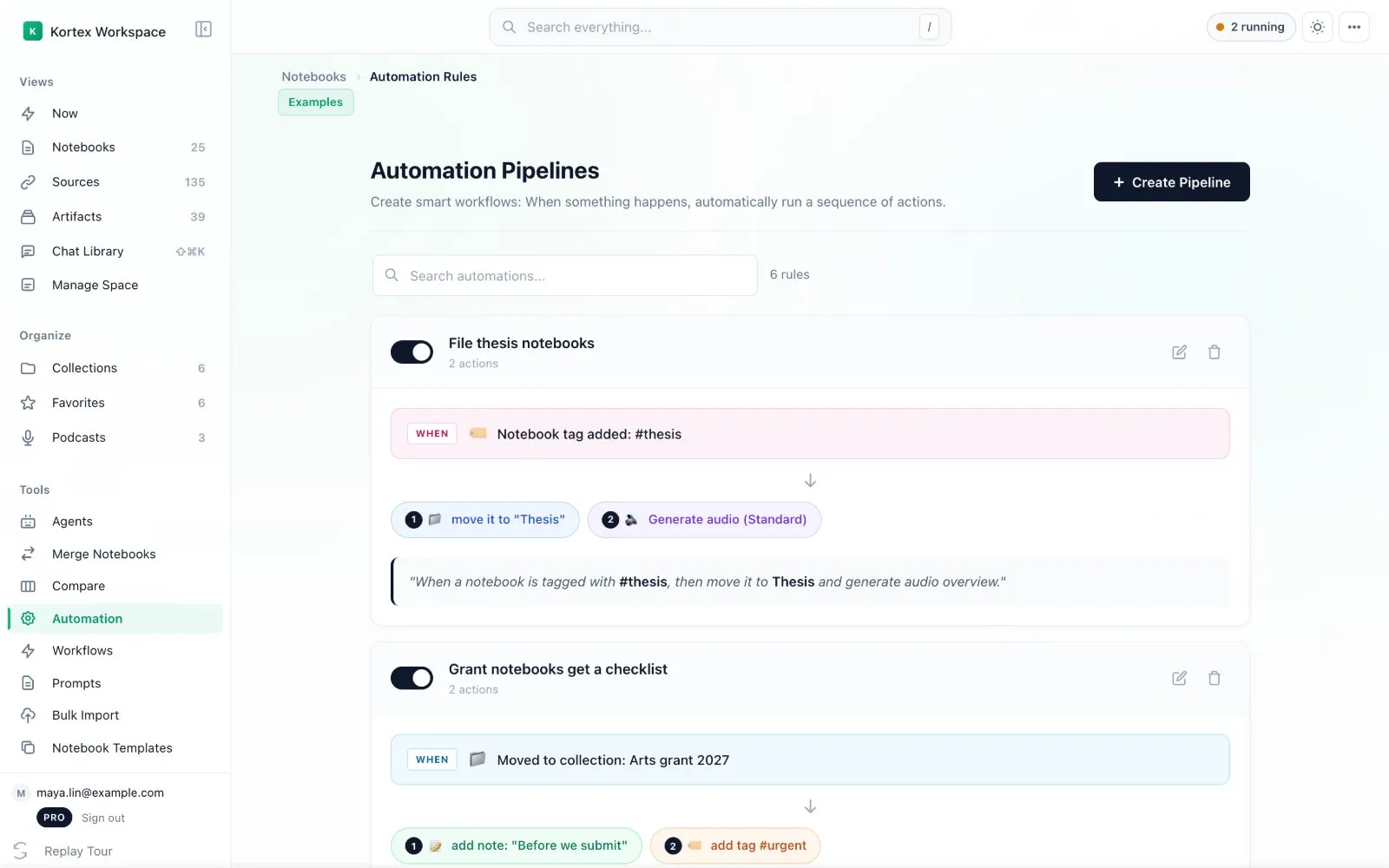
Smart Sort moves a Gemini Notebook (formerly NotebookLM) notebook into the right collection as soon as you give it a tag. You build it in Kortex Automation with the trigger Notebook tag added and the action Move to collection.
This needs Kortex Pro. See pricing.

Why use Smart Sort?
It is like a mail sorter. You stick a coloured label on a letter, and it drops into the matching tray by itself.
- Tagging becomes filing. You do one thing, not two.
- Notebooks always land where they belong.
- You drag and drop much less.
How do I set it up?
- Open Automation in the dashboard and click Create Pipeline.
- Name it, for example "File thesis notebooks". Press Next.
- For the trigger, click Notebook tag added. Choose your tag in the Select Notebook Tag box. Press Next.
- For the action, choose Move to collection and pick the collection.
- Press Next, check the summary, and save.
Example
- Trigger: the tag
#biologyis added. - Action: move the notebook to the collection Science.
Now when you tag a notebook #biology, it jumps into Science.
Good to know
- Older versions of Kortex had a separate Smart Sort screen. Today it is simply a pipeline built in the same wizard as every other rule. If you had a Smart Sort rule before, Kortex moved it into a pipeline once, named after the old type.
- You can add more actions to the same rule, such as making an Audio Overview after the move.
What other triggers can I use?
A rule can start when a notebook tag or a source tag is added, when a notebook moves to a collection, or when its title contains some text. A trigger can also need a minimum number of sources. Rules run in the background whenever Chrome is open.
Related: Automation Rules, Collections, The Escalator.