The Kortex Notebook Bar
When you open a notebook in Gemini Notebook (formerly NotebookLM), Kortex adds one thin bar under the title. It holds the Kortex tools for that notebook: Collections, Chat, Sources, Studio and Prompts.

Why use the Kortex bar?
Think of the bar as a tool belt. Instead of hunting through menus, you reach for the tool you need. Each group of tools sits next to the part of the page it works on.
What is in the bar
The bar has five groups, from left to right. Each group has a small label so you can tell them apart.
- Collections: the groups this notebook belongs to, shown as little tags. Click Add to put the notebook in another one. See Collections on Gemini Notebook.
- Chat: Copy and Export for the conversation. See Export chat.
- Sources: four small icon buttons. In order, they download your sources (Download sources), sync your Google Docs (Sync Google Docs), open your saved filters (Source views) and delete sources (Delete sources). Rest your mouse on an icon to see its name.
- Studio: a count of what you have made (audio, notes, mind maps) and an Export button. See Export Studio outputs.
- Prompts: the button at the far right. It opens your saved prompts. See Prompts button.
Two more things are not in the bar but belong with it. A search box and filter buttons sit above your source list (Source search). A small checkbox sits under every answer in the chat, for picking answers.

The first visit
The first time you open Gemini Notebook after installing Kortex, a small window says Welcome to Kortex! It asks you to open any notebook to see everything Kortex adds. Click Got it! to close it.

The guided tour
The first time you open a notebook, a short tour starts. It has five steps. Click Next to move on, or Skip Tour to stop at any time.
- Welcome to Kortex! It points you to the Kortex button in the browser's toolbar. That is where your account, your usage and your settings are.
- Prompt Holder. It points at the Prompts button.
- Your notebook toolbar. It points at the bar and lists what it holds.
- Kortex Works Everywhere. It lists the other sites where Kortex adds its buttons.
- Pin Kortex for Quick Access. It shows how to pin Kortex to the browser's toolbar: click the puzzle-piece icon, find Kortex, then click the pin.
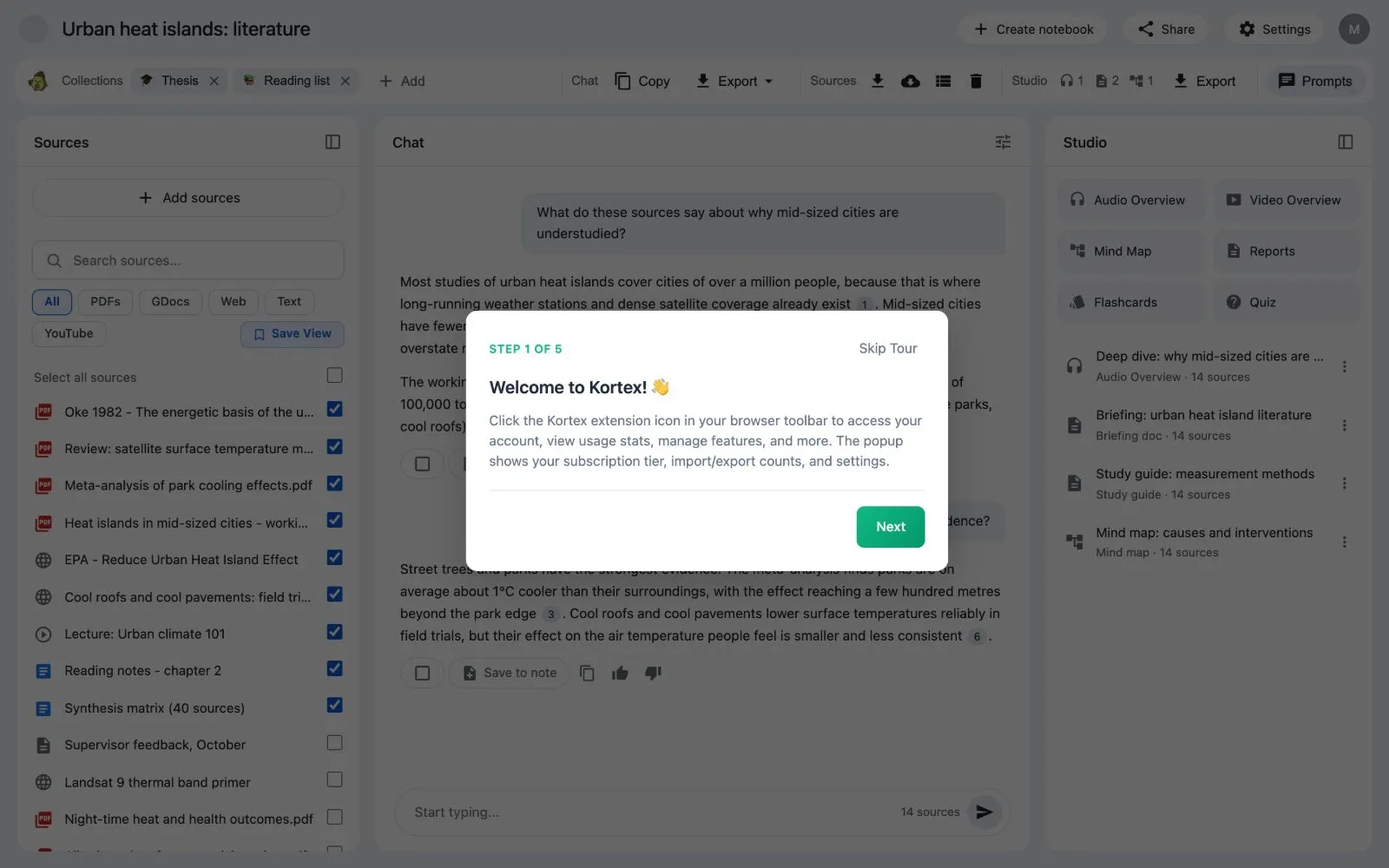

- The bar follows Gemini Notebook into dark mode.
- You can hide most buttons you do not use in the side panel's Manage features. Only Delete sources always stays.
- If the page has no title area to sit under, the bar sits at the bottom of the window.

What if something goes wrong?
If you do not see the bar, reload the page. Check that Kortex is on in chrome://extensions.