Platform Integrations
Import content from various platforms directly into Gemini Notebook with one click.
What It Does
Kortex adds "Import to Gemini Notebook" buttons across multiple platforms, allowing you to save conversations, threads, posts, and documents directly to your Gemini Notebooks for research and analysis.
Supported Platforms
AI Chat Platforms
- ChatGPT - Import full conversations with all messages and responses
- Claude - Save Claude conversations for research and reference
- Gemini - Seamless workflow between Google's AI platforms
- Perplexity - Import research threads with citations and sources
- Grok - Save Grok conversations for analysis
- Kimi - Import Kimi AI interactions
- Genspark - Save Genspark research and insights
Social Media Platforms
- X (Twitter) - Import entire threads with all tweets and context
- Reddit - Save posts with top comments for research
- LinkedIn - Import professional posts and articles with author info
Document Platforms
- Google Docs - Quick import with live sync capability and resync feature
How to Use
- Visit any supported platform
- Look for the Kortex "Import to Gemini Notebook" button (appears in the chat interface, thread header, or post action bar)
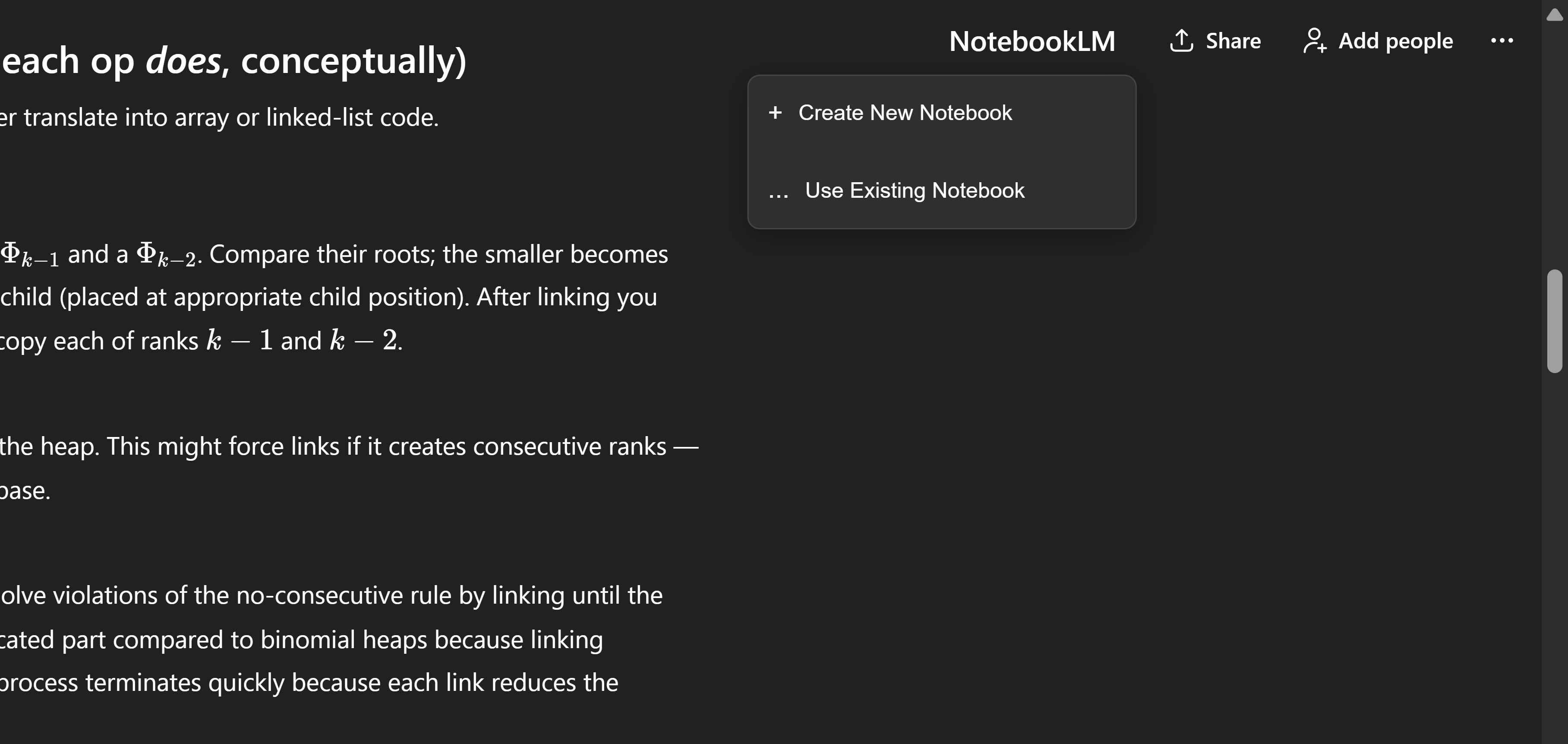
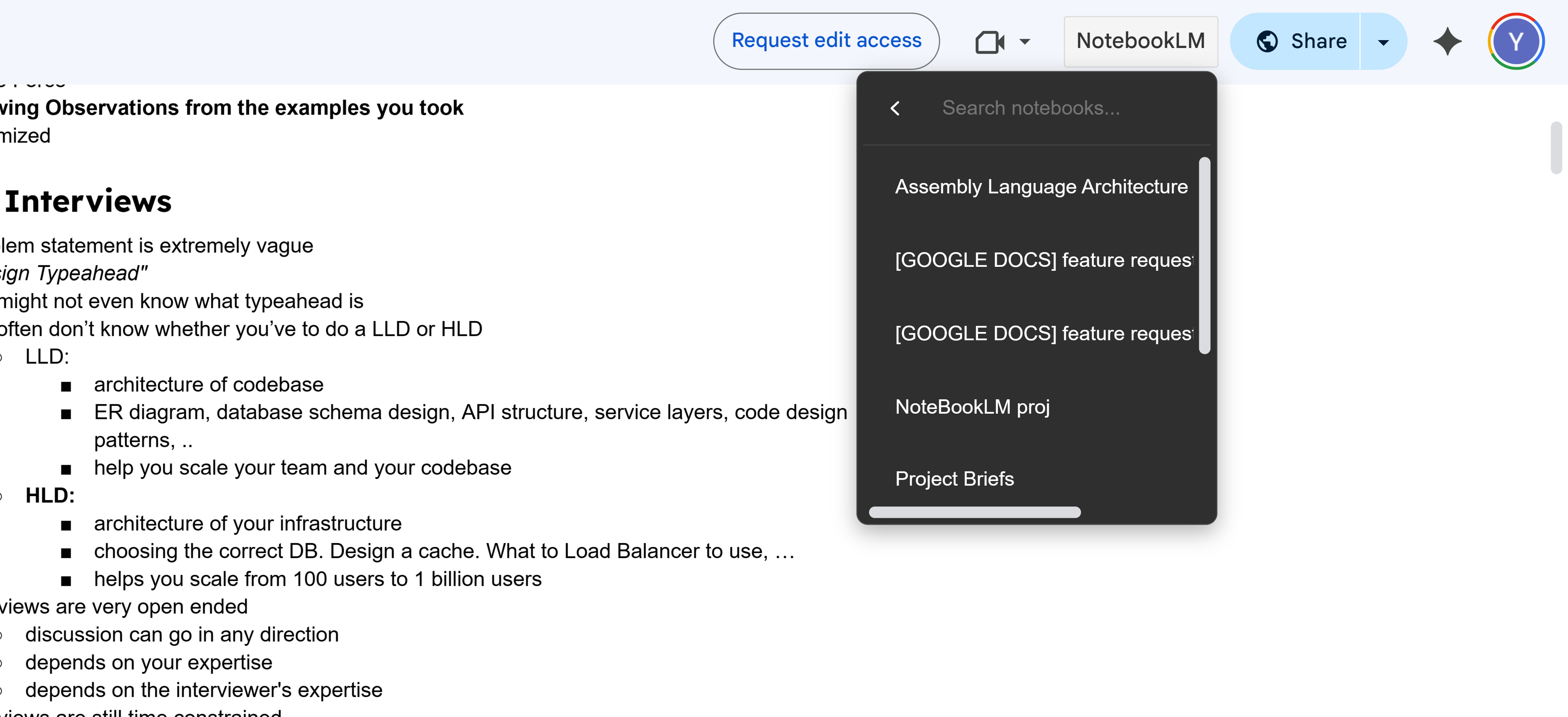
- Click the button to open the notebook selector
- Choose to create a new notebook or add to an existing one
- Content will be imported as a source in Gemini Notebook
- Open the notebook to continue your research
What Gets Imported
- AI Chats - Full conversation history with user messages and AI responses
- Social Media - Thread/post content, author information, and top comments
- Documents - Full document content with formatting preserved
- All content is formatted in markdown for readability
- Source metadata (title, author, URL, date) is preserved
Import Limits
Import limits depend on your subscription tier:
- Basic: 10 imports per day (free)
- Pro: Unlimited imports
Note: Import limits reset daily for the Basic tier. Each import from any platform costs 10 credits from your account balance and counts against your daily import limit.
Resync Feature for AI Chats
When you import the same AI conversation multiple times, Kortex provides a smart resync feature:
- No Duplicates - Resync updates the existing source instead of creating a new one
- Automatic Detection - Kortex detects if you've already imported a conversation
- One-Click Update - Click "Resync" instead of "Import" to update the existing source
- Preserves Organization - Keeps your notebook clean without duplicate sources
- Latest Content - Updates the source with the newest messages from the conversation
This is especially useful when you want to import an ongoing conversation multiple times as it progresses, ensuring you always have the latest version without cluttering your notebook with duplicates.
Use Cases
- Building comprehensive research notebooks from multiple AI conversations
- Saving expert insights from social media discussions
- Archiving important threads and posts for reference
- Combining insights from different AI platforms
- Creating knowledge bases from professional content
- Analyzing trends and opinions across platforms
- Collaborative research with live-synced Google Docs
Pro Tips
- Organize related content from different platforms in the same notebook
- Use Gemini Notebook to synthesize insights from multiple sources
- Import conversations before they expire or get deleted
- Combine AI chat insights with social media discussions
- Use the resync feature to keep Google Docs sources up-to-date
- Create thematic notebooks by importing content from multiple platforms