The Generator
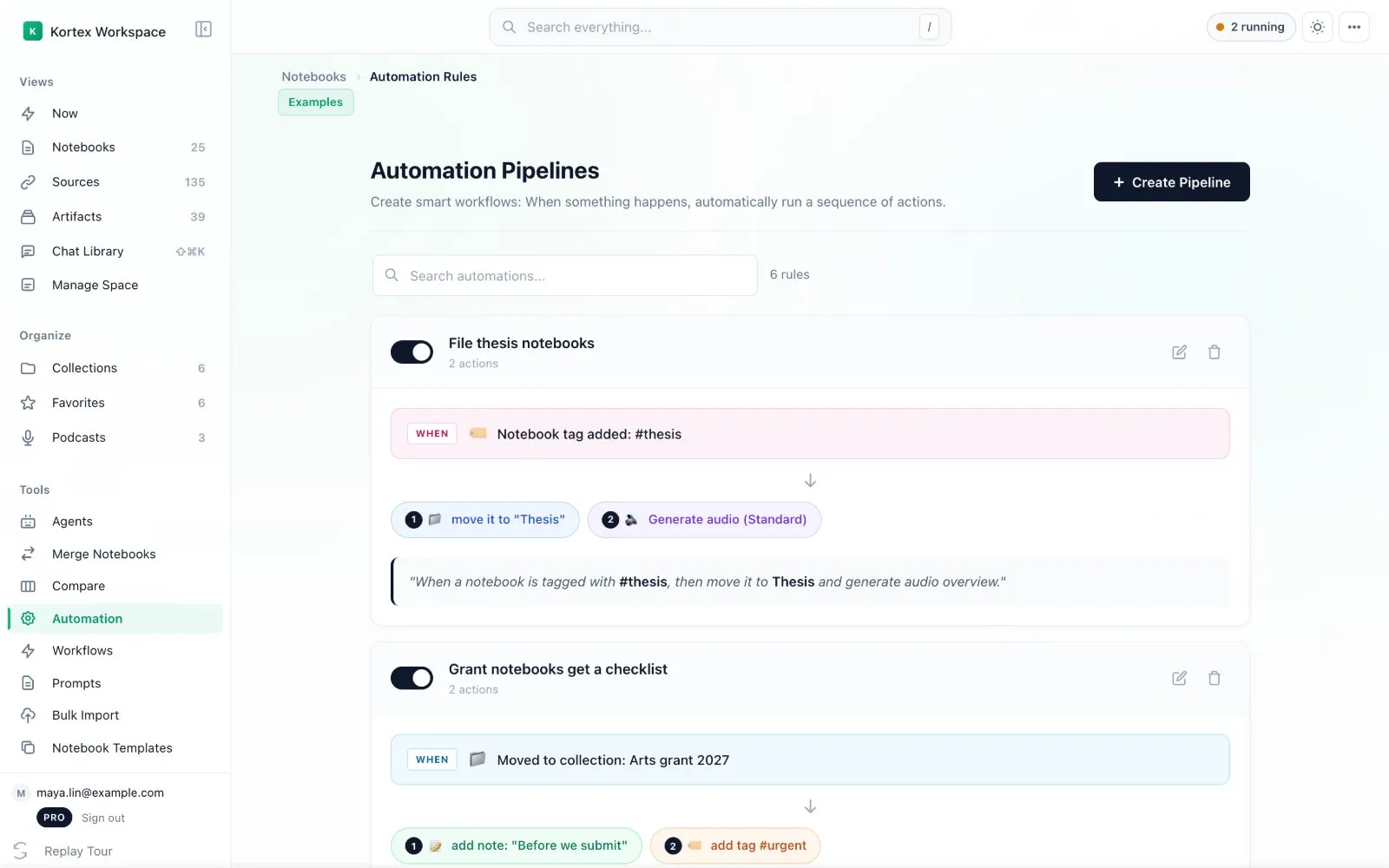
The Generator starts an Audio Overview for a Gemini Notebook (formerly NotebookLM) notebook when you file it. An Audio Overview is a spoken talk about your sources. You can set the style, the length and your own instructions.
This needs Kortex Pro. See pricing.

Why use the Generator?
It is like putting laundry in the machine and walking away. When you come back, it is done.
- The audio is ready sooner. File the notebook, then listen later.
- Certain kinds of notebook always get audio.
- It is handy for class notes. File them and get study audio.
How do I set it up?
- Open Automation and click Create Pipeline.
- Name it, for example "Audio for Daily Read". Press Next.
- For the trigger, click Moved to collection and pick the collection.
- For the action, choose Generate audio.
- Pick an Audio Style (Deep Dive, Brief, Critique or Debate) and an Audio Length. You can type your own instructions in Custom Prompt.
- Press Next and save.
Example
- Trigger: a notebook enters Daily Read.
- Action: make a Brief Audio Overview.
Good to know
- Older versions of Kortex had a separate Generator screen. Today it is simply a pipeline built in the same wizard as every other rule. If you had a Generator rule before, Kortex moved it into a pipeline once, named after the old type.
- Making audio takes a few minutes. Watch it in the activity list at the top of the dashboard.
- Add the action Send to podcast to the same rule, to put the audio in a podcast feed.
Related: Automation Rules, The Pipeline, Podcasts.