Kortex MCP Server
Kortex MCP connects Claude, ChatGPT and other AI apps to your Gemini Notebook (formerly NotebookLM) notebooks and saved chats. MCP is a standard way to let AI apps like Claude or ChatGPT use Kortex's tools. They can only do what you allow, through a key you control.
This needs Kortex Pro. See pricing.
What is MCP?
Picture a helper who works in your house. You hand them a spare key. They can open the doors you chose, and no others. You can ask for the key back at any time.
MCP works the same way. The letters stand for Model Context Protocol, but you never need to say that. Kortex gives your AI assistant a key. With it, the assistant can look inside your Gemini Notebook (formerly NotebookLM) notebooks and your saved AI chats, and help you with them.
Why use Kortex MCP?
- You stay in the assistant you already like. You do not switch tabs.
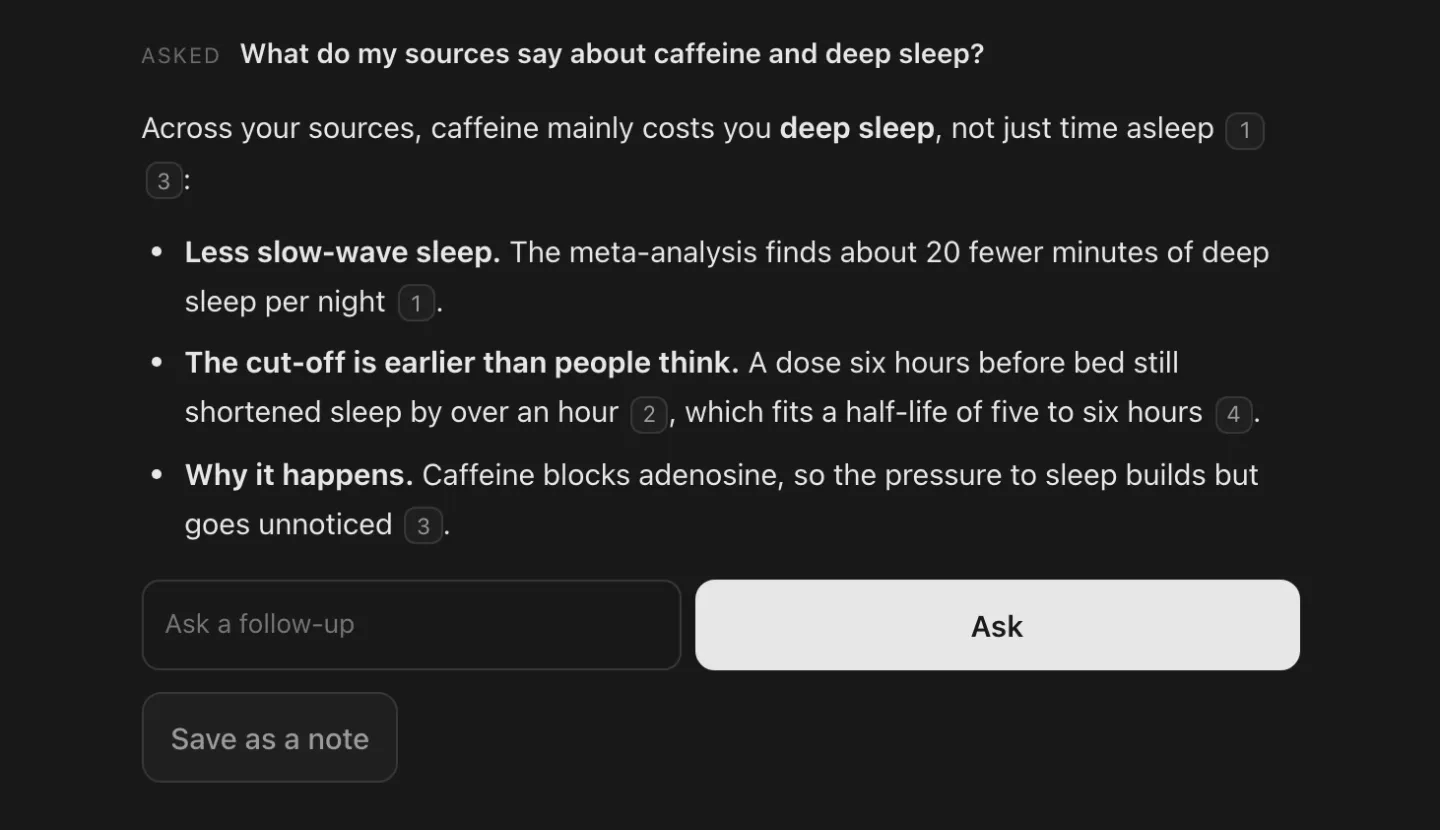
- You can ask things like "what do my three research notebooks disagree about?" and get an answer with sources.
- The assistant can add links to a notebook, tag things, make study guides and tidy up for you.
- It can find what you worked out in an earlier chat with any AI.
How does Kortex MCP work?

- You ask your assistant something about your notebooks.
- The assistant sends the request to Kortex.
- Kortex hands the job to the Kortex extension in your own Chrome.
- The extension does the job and sends the answer back the same way.
Google offers no public NotebookLM API for personal accounts (only an enterprise one). So Kortex does the job inside your own browser, where you are already signed in. Two things follow:
- Chrome must be open, with the Kortex extension installed and signed in. If Chrome is closed, nothing can answer.
- Kortex never stores your Google password or cookies. Your Google sign-in stays in your browser.
Your saved chats are read from your own computer. Those tools do not reach out to Gemini Notebook or to an AI site.
What can I ask my AI app to do?
- Ask across your library. "What do my three competitor notebooks disagree about?"
- Fill notebooks from the chat. Add web links, YouTube channels, Google Docs, pasted text or PDFs without opening a tab.
- Tidy in bulk. Tag, file, rename, merge and clean up many notebooks at once.
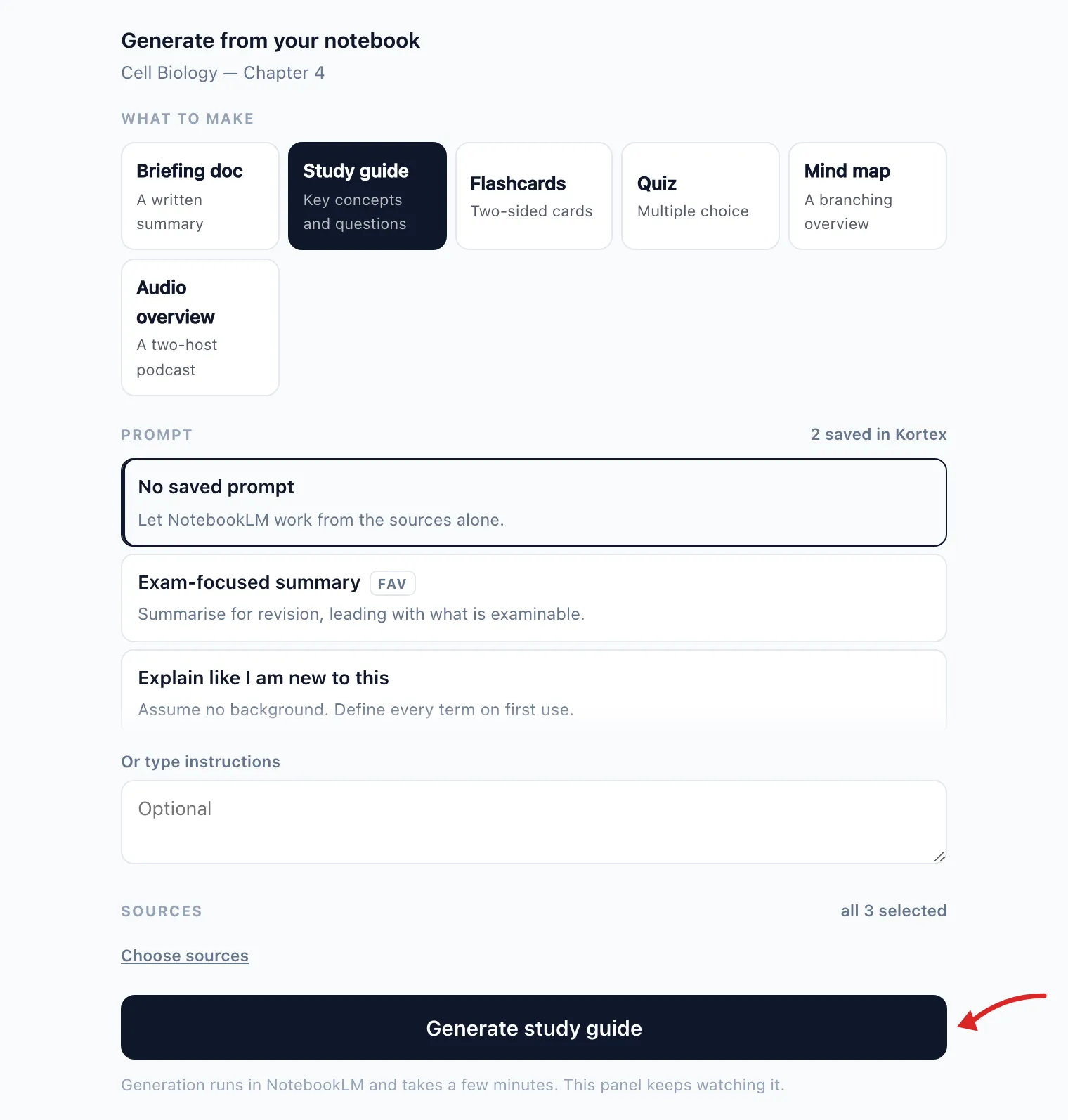
- Make and save things. Start Audio Overviews and study guides, then export them.
- Remember. "What did I decide about pricing in my earlier chats?"
Panels you can click
Sometimes your assistant opens a small panel right in the chat instead of a wall of text. You click in the panel, and your click does the real job. Examples are choosing what to make from a notebook, flipping flashcards, comparing two notebooks, and running a saved workflow.
What do I need?
- Kortex Pro.
- The Kortex extension installed in Chrome, and signed in.
- Chrome open. It can be minimised. No notebook tab has to be open.
- An AI app that can use MCP. This includes Claude, ChatGPT, Claude Code, Cursor, VS Code and more.
- The first request after Chrome has been idle can take up to 30 seconds. After that it is fast.
- You decide how much your assistant may do. See Security and Limits.
- Many of the things you ask for rely on your assistant's own connections too, such as email or files. Kortex supplies the notebook half.
Next steps
- Quickstart: connect in one step.
- Connect your assistant: steps for Claude, ChatGPT, Cursor, VS Code and more.
- API keys: what a key is and how to make one.
- What your assistant can do: the full list.
- Security and Limits: keep it safe.