# Kortex MCP Server
Connect Claude, Cursor, VS Code, or any other MCP client to your Gemini Notebooks. Your AI assistant can then read your sources, ask grounded questions, and organise your library — without you leaving the chat.
:::note
**In one sentence:** Kortex MCP turns your Gemini Notebook library into tools your AI assistant can call. You paste one config into your AI client, and it gains 145+ notebook tools.
:::
## What is Kortex MCP?
Kortex MCP is a server that hands your Gemini Notebook library to your AI assistant as a set of tools it can call. It speaks the [Model Context Protocol](https://modelcontextprotocol.io), the open standard AI clients use to reach outside systems, so anything that speaks MCP — Claude, Cursor, VS Code, and others — can use it.
The reason this is worth its own product: **Google publishes no public API for Gemini Notebook.** Kortex reaches your notebooks through the same authenticated path the extension already uses in your browser, which is why no other tool can offer this.
That shapes how it works. Your AI client talks to a Kortex endpoint; the endpoint hands the job to _your_ Chrome extension, which makes the Gemini Notebook call using your existing Google session; the answer travels back the same way.
 Two consequences worth knowing up front:
- **Chrome must be running** with the Kortex extension installed and signed in. The extension is what holds your Google session — no extension, no answers.
- **Kortex never stores your Google password or cookies.** Nothing about your Google account leaves your browser.
## What you can do with it
"What do my three competitor notebooks disagree about?" Kortex asks each notebook and returns grounded answers with real citations.
Add URLs, YouTube channels, RSS feeds, Google Docs, pasted text, or local PDFs as sources without opening a tab.
Tag, file, collect, rename, merge, dedupe and clean up hundreds of notebooks and sources in one instruction.
Kick off Audio Overviews, study guides, video overviews and data tables, then export them to Markdown, Docs or Sheets.
## Panels you act in
Some tools answer with a panel rather than text. Your assistant opens it in the conversation, you use it, and what you do there runs as a real call — no copying ids back and forth.
Two consequences worth knowing up front:
- **Chrome must be running** with the Kortex extension installed and signed in. The extension is what holds your Google session — no extension, no answers.
- **Kortex never stores your Google password or cookies.** Nothing about your Google account leaves your browser.
## What you can do with it
"What do my three competitor notebooks disagree about?" Kortex asks each notebook and returns grounded answers with real citations.
Add URLs, YouTube channels, RSS feeds, Google Docs, pasted text, or local PDFs as sources without opening a tab.
Tag, file, collect, rename, merge, dedupe and clean up hundreds of notebooks and sources in one instruction.
Kick off Audio Overviews, study guides, video overviews and data tables, then export them to Markdown, Docs or Sheets.
## Panels you act in
Some tools answer with a panel rather than text. Your assistant opens it in the conversation, you use it, and what you do there runs as a real call — no copying ids back and forth.
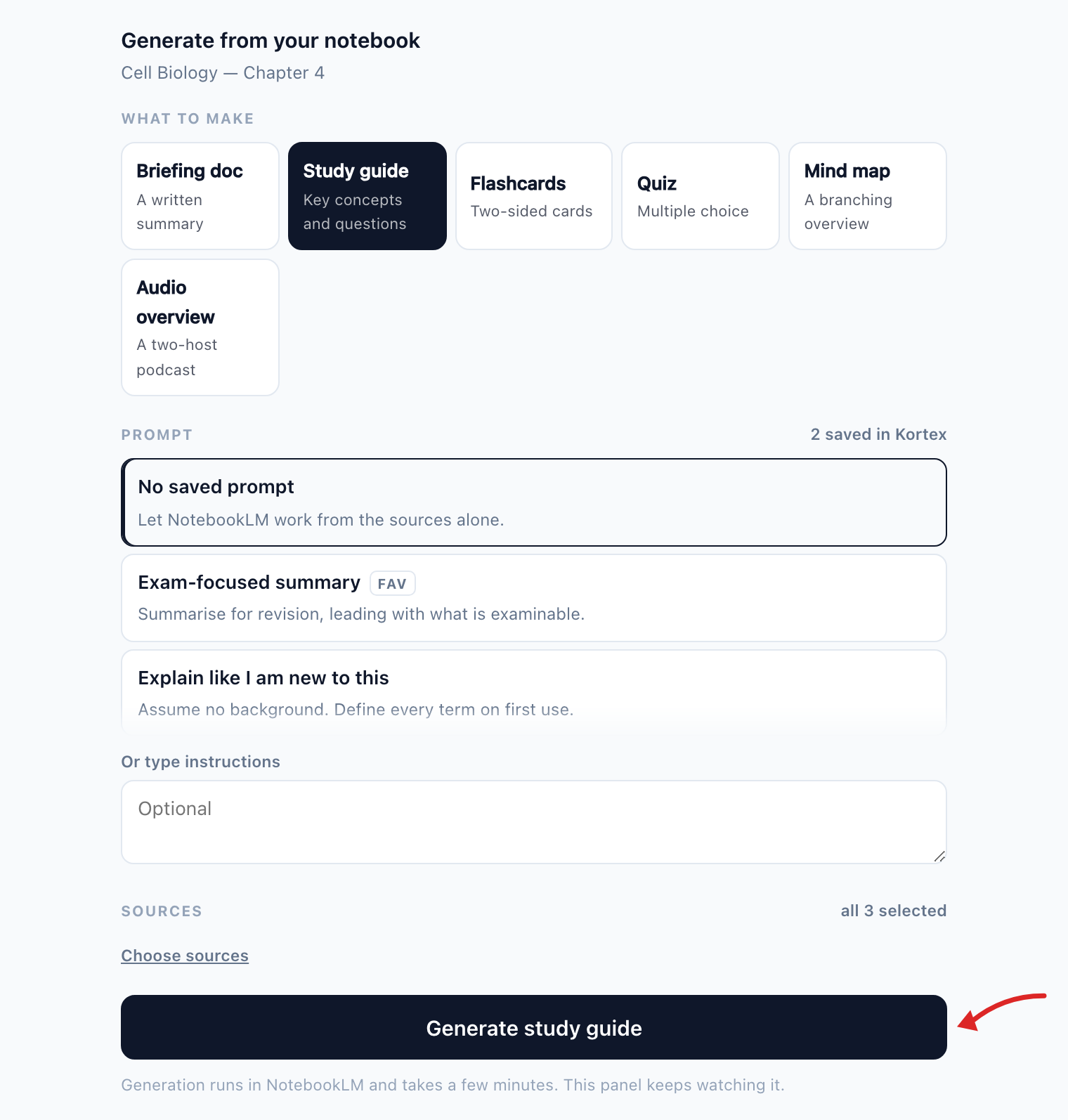 Ask for something to be generated and this is what you get: pick the artifact, pick a saved prompt, narrow the sources, and go. The same happens for flashcards and quizzes, for comparing two notebooks, for managing a podcast feed, and for running a saved workflow.
## What it looks like in practice
The tools above are the parts. What makes them worth connecting is that your assistant already reaches your other systems — Kortex is what lets it put any of that into a Gemini Notebook, and use what is in one everywhere else. Neither tool can do that alone.
| You say | What happens |
| --- | --- |
| "Go through my inbox for every email from my landlord this year and put them in one notebook." | Your assistant reads Gmail. Kortex writes the sources. There is no import screen for this. |
| "Read every PDF in this folder and import the ones that mention the tariff change." | It decides which ones qualify. You do not sort them first. |
| "Turn last month of product feedback from Slack into a notebook." | Same for Drive, Linear, Notion, or anything else your assistant can already reach. |
| "Answer this customer question from my support notebook and draft the reply." | Your notebooks become the grounding for work happening outside Gemini Notebooks. |
| "Read all 200 of my sources and tag the ones that are actually about pricing." | Judgement across the whole library, not a filter on file names. |
| "Create a notebook for each of these 20 topics and put 20 sources in each." | One `bulk` call rather than forty, run at the safe concurrency for the work. |
| "Every Monday, summarise last week's sources and save the digest as a new source." | Saved once as an automation; it keeps running without you. See [Workflows & Schedules](/docs/mcp-workflows). |
These depend on which connectors your own AI client has. Kortex supplies the notebook half; your client supplies Gmail, Slack, Drive or your filesystem.
## Requirements
| Requirement | Detail |
| --- | --- |
| Extension | Kortex installed in Chrome and signed in to the same account. |
| Browser | Chrome running. It can be minimised; no Notebook tab needs to be open. |
| Client | Any MCP client that supports remote HTTP servers with a custom header. |
## Next steps
1. [Quickstart](/docs/mcp-quickstart) — generate a key and make your first call.
1. [Connect your client](/docs/mcp-clients) — copy-paste config for Claude, Cursor, VS Code and more.
1. [Tools reference](/docs/mcp-tools) — everything your assistant can do.
1. [Security & limits](/docs/mcp-security) — key profiles, rate limits, safe defaults.
Ask for something to be generated and this is what you get: pick the artifact, pick a saved prompt, narrow the sources, and go. The same happens for flashcards and quizzes, for comparing two notebooks, for managing a podcast feed, and for running a saved workflow.
## What it looks like in practice
The tools above are the parts. What makes them worth connecting is that your assistant already reaches your other systems — Kortex is what lets it put any of that into a Gemini Notebook, and use what is in one everywhere else. Neither tool can do that alone.
| You say | What happens |
| --- | --- |
| "Go through my inbox for every email from my landlord this year and put them in one notebook." | Your assistant reads Gmail. Kortex writes the sources. There is no import screen for this. |
| "Read every PDF in this folder and import the ones that mention the tariff change." | It decides which ones qualify. You do not sort them first. |
| "Turn last month of product feedback from Slack into a notebook." | Same for Drive, Linear, Notion, or anything else your assistant can already reach. |
| "Answer this customer question from my support notebook and draft the reply." | Your notebooks become the grounding for work happening outside Gemini Notebooks. |
| "Read all 200 of my sources and tag the ones that are actually about pricing." | Judgement across the whole library, not a filter on file names. |
| "Create a notebook for each of these 20 topics and put 20 sources in each." | One `bulk` call rather than forty, run at the safe concurrency for the work. |
| "Every Monday, summarise last week's sources and save the digest as a new source." | Saved once as an automation; it keeps running without you. See [Workflows & Schedules](/docs/mcp-workflows). |
These depend on which connectors your own AI client has. Kortex supplies the notebook half; your client supplies Gmail, Slack, Drive or your filesystem.
## Requirements
| Requirement | Detail |
| --- | --- |
| Extension | Kortex installed in Chrome and signed in to the same account. |
| Browser | Chrome running. It can be minimised; no Notebook tab needs to be open. |
| Client | Any MCP client that supports remote HTTP servers with a custom header. |
## Next steps
1. [Quickstart](/docs/mcp-quickstart) — generate a key and make your first call.
1. [Connect your client](/docs/mcp-clients) — copy-paste config for Claude, Cursor, VS Code and more.
1. [Tools reference](/docs/mcp-tools) — everything your assistant can do.
1. [Security & limits](/docs/mcp-security) — key profiles, rate limits, safe defaults.