Notebook Detail
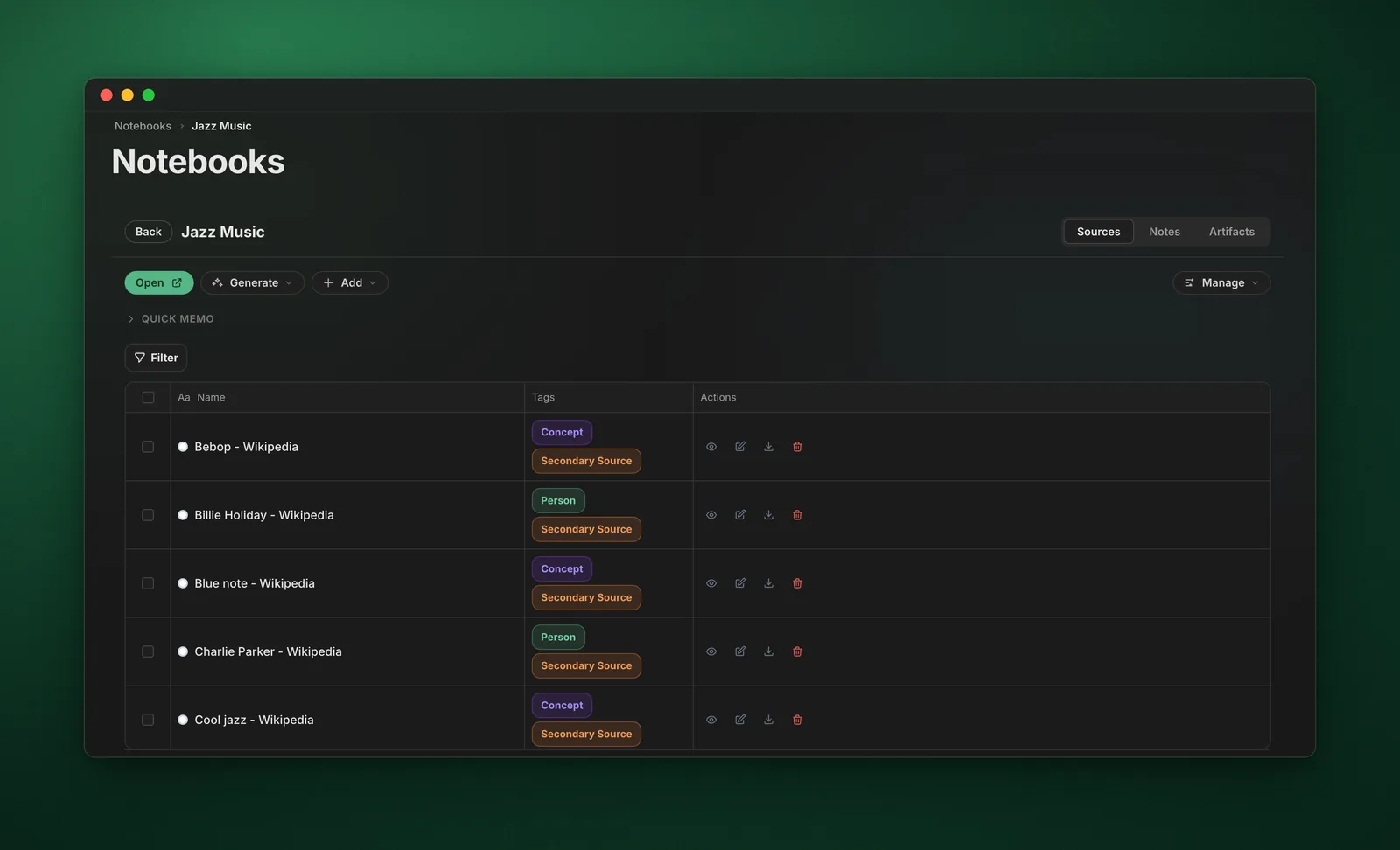
Open a notebook’s detail view to see everything about it in one place: sources, artifacts, tags, collections, and quick actions.
Video walkthrough
What It Is
The Notebook Detail page is a single notebook “command center.” Instead of hunting across multiple screens, you get the notebook’s context, content, and actions consolidated.
What You Can Do From Here
- Review sources - See what inputs the notebook is built from
- Review artifacts - Quickly access notes, study guides, briefings, FAQs, and more
- Organize - Add/remove tags, move between Collections
- Quick actions - Common actions like open in Gemini Notebook, export, sync, or share (depending on your setup)
How to Access
- Open All Notebooks
- Click a notebook card/row to open its detail view
- Use the detail view to take action or jump into Gemini Notebook
Best Practices
- Use tags as workflow states - e.g.
#inbox,#active,#archive - Pair Collections with Automation Rules - for example, use Smart Sort to auto-file notebooks into collections based on tags
- Keep a “hot” collection - e.g. This Week or Now for active work