The Dashboard
The Kortex dashboard is a full browser tab where you manage all your Gemini Notebook (formerly NotebookLM) notebooks at once. It has tables for notebooks, sources and Studio outputs. You can search, tag, file and act on many items together.

Why use the dashboard?
Gemini Notebook shows one notebook at a time. The dashboard shows all of them in tables. You can search them, tag them, sort them into collections and act on many at once.
How do I open it?
- Open the Kortex side panel by clicking the Kortex icon in the Chrome toolbar.
- Click the dashboard button in the header of the side panel.
- A new tab opens. It starts on your notebooks, unless you chose another start page (see below).
Finding your way: the sidebar
The sidebar on the left has three groups. Press Ctrl+\ to hide it or bring it back.
Views
- Now: what is running and what needs you. See Now.
- Notebooks: all your notebooks in one table. See All Notebooks.
- Sources: every source from every notebook. See All Sources.
- Artifacts: everything Studio has made. See All Artifacts.
- Chat Library: opens your saved AI chats in a new tab. See Chat Library.
- Manage Space: your tags, collections and more. See Manage Space.
Organize
- Collections: folders for notebooks. See Collections.
- Favorites: notebooks you starred. See Favorites.
- Podcasts: your private podcast feeds. See Podcasts.
Tools
- Agents and Workflows: see Agents and Workflows.
- Merge Notebooks and Compare: see Merge Notebooks and Compare Notebooks.
- Automation: rules that run by themselves. See Automation Rules.
- Prompts: see Prompts Library.
- Bulk Import: see Bulk Import.
- Notebook Templates, Source Templates and Note Templates: see Templates.
Some of these need Kortex Pro. Each page says so near the top. See pricing.
Search everything
The search box at the top says Search everything.... Press / anywhere to jump into it. Type a few letters. Kortex looks through your notebooks, collections, tags, podcasts, sources and notes at the same time.

The command palette
The same box is also a list of commands. Press Ctrl+K (⌘K on a Mac) and leave it empty. You will see things you can do without touching the mouse:
- Jump to any page.
- Make a new notebook, collection or podcast.
- Switch light or dark mode.
- Switch row density. Compact rows fit more on the screen.
- Show the keyboard shortcuts, or replay the tour.

Keyboard shortcuts
Press Ctrl+/ to see the list. Here are the main ones.
Ctrl+\: hide or show the sidebar./: search.Ctrl+R: refresh your data.Esc: close a window.CthenN,CorP: make a new notebook, collection or podcast.GthenN,S,PorA: go to Notebooks, Sources, Podcasts or Automation.

What's New
After Kortex updates, a slim bar appears above the page that says what is new. Click it to open it. It shows one new feature at a time, with a picture. Use Back and Next to go through them.


The Get started checklist
New users see a small Get started card in the bottom corner. It lists first steps, such as tagging a notebook, connecting an AI assistant, making a rule and taking the tour. It ticks each step as you do it. Click Dismiss to hide it. When every step is ticked it says Kortex is yours now and goes away.

The guided tour
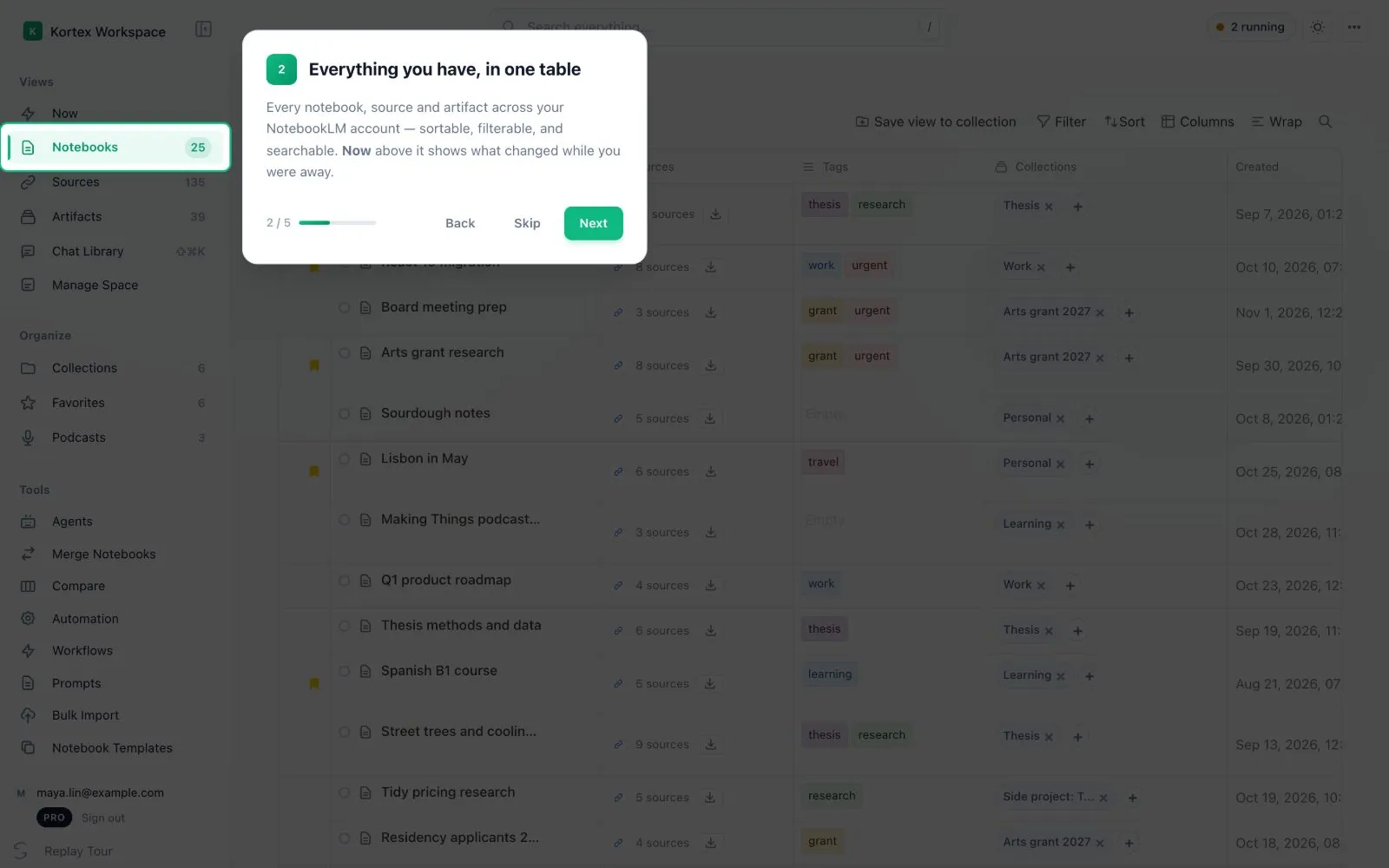
The tour is a two-minute walk through the dashboard. It lights up one part of the page at a time and says what it is for. To see it again, click Replay Tour at the bottom of the sidebar.
Light, dark and language
- The round sun button in the top bar switches between light and dark.
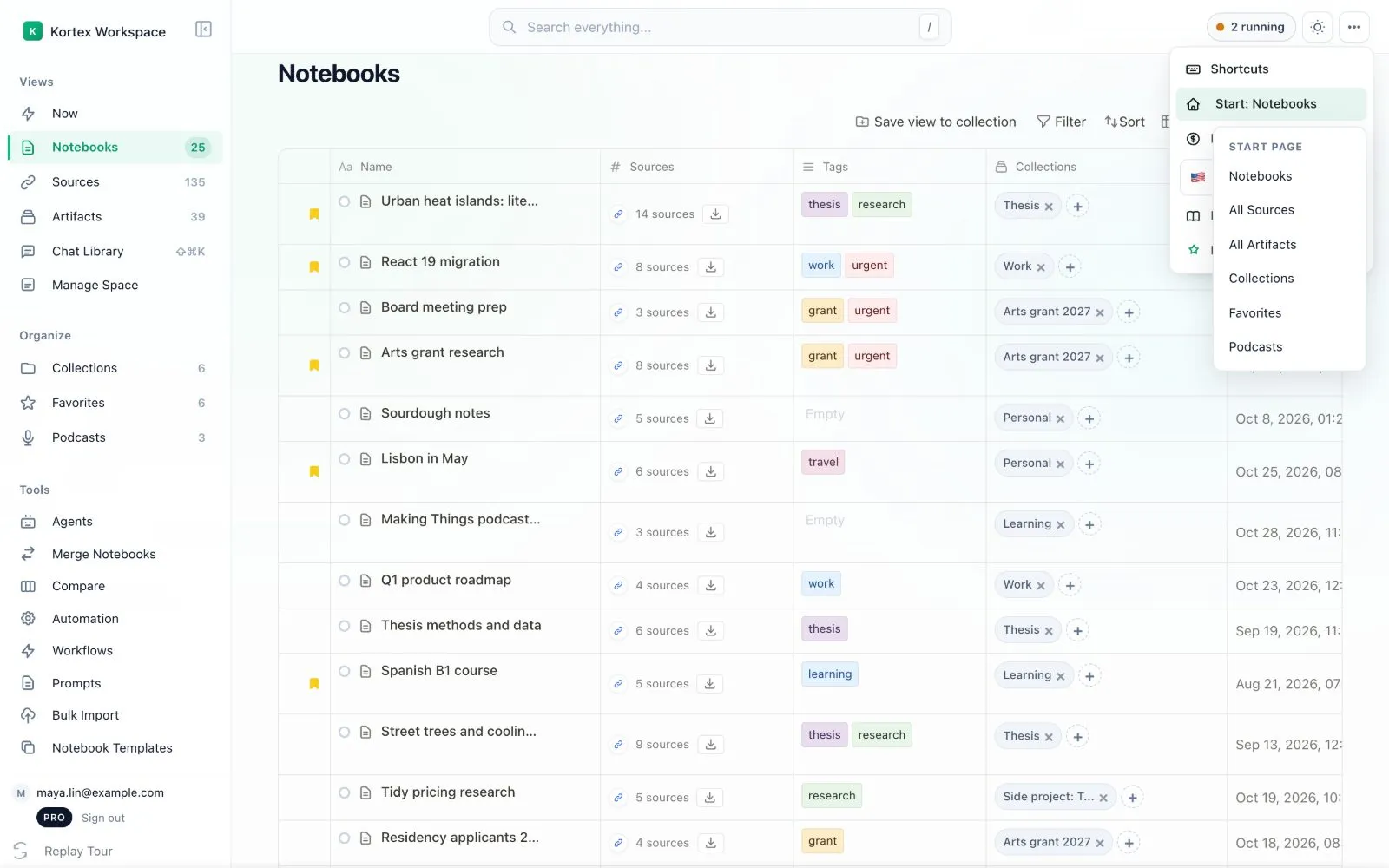
- The three dots (⋯) in the top right open a menu with shortcuts, the Start Page, Buy Minutes, the language, the docs and the Kortex Notebook link.
- Start Page picks which page the dashboard opens on.
- The language menu changes the dashboard into one of ten languages: English, Spanish, Chinese, French, German, Japanese, Turkish, Italian, Vietnamese or Russian.



The activity pill
While something is running, a pill in the top bar says so, for example 2 running. Click it to see what ran lately on this computer: workflows, automations and Audio Overviews being made. Hiding a row there does not stop the work.

The account footer
The bottom of the sidebar shows the Google account whose notebooks you are looking at, your Kortex plan, Sign out and Replay Tour. If you use more than one Google account with Gemini Notebook, a switcher called Notebooks from lets you change between them.

- The dashboard reads your notebooks from Gemini Notebook. You need to be signed in to Google in the same Chrome.
- Your tags and collections are kept for you by Kortex. Some features need Kortex Pro.