The Chats tab
The Chats tab in the Kortex side panel lists the chats Kortex saved from AI assistants such as ChatGPT, Claude and Gemini. You can search them in plain words, sort them into folders, and send any chat to a Gemini Notebook (formerly NotebookLM) notebook.

Why use the Chats tab?
Have you ever lost a good answer in a long chat history? This tab is a filing cabinet for all of them, in one list. Kortex asks before it saves any chat. See the chat Library for how saving works.
How to find a chat
- Open the side panel and click Chats.
- Click the search box and type in plain words. You can write
claude last week. Kortex turns it into a Claude filter and a Last week filter. - Click a chat to open it.

To see the whole list in a full tab, click the Open the Library button beside the search box.
On the free plan, the list opens the last 30 days. Older chats that match show their title, site and date, and a line says how many are locked. Pro opens them.
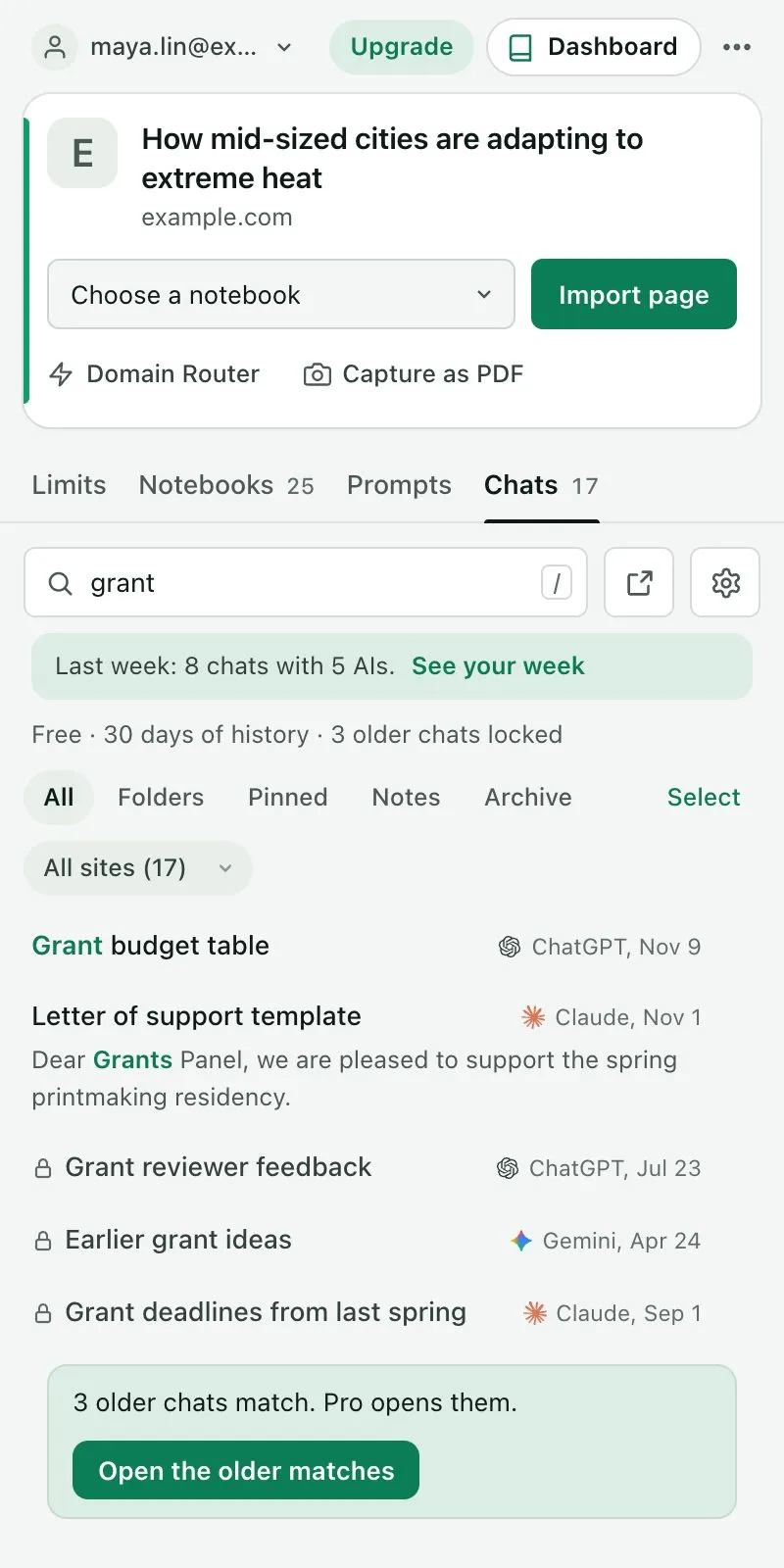

Older chats are locked, not deleted. A card near the top tells you when your 7-day trial is about to end. See the free plan and the trial.
What are the sections?
Under the search box is a row of buttons. Each one changes what you look at.
- All: every chat, newest first.
- Folders: your folders. They can hold chats from any AI, and can sit inside each other.
- Pinned: answers you pinned, from any chat.
- Notes: notes you wrote on chats, and notes of your own. Use New note to write one.
- Archive: chats you put aside. They stay searchable.

How to work on several chats at once
- Click Select.
- Tick the chats you want.
- Use the bar that appears: Add to folder, To notebook, Download or Archive.

What is in the ⋯ menu on a chat?
Each chat has three dots (⋯) at its right edge. The menu has these choices:
- Add to folder…
- Send to a notebook…
- Copy chat
- Download as Markdown and Download as PDF
- Open in Google Docs
- Archive, or Move out of the archive for an archived chat

How to send a chat to a notebook
- Click ⋯ on the chat and choose Send to a notebook….
- Pick a notebook. The one the chat fits best is first, marked Suggested.
- Or click New notebook, type a name, and the chat goes into a fresh notebook.

What is the weekly recap line?
Once a week, a short line appears near the top of the tab. It says how many chats you had last week and the main topic. Click See your week to open the full recap in the Library.
- Each chat you send counts as an import. The free plan has 10 a day. See Free and Pro.
- Click the Saving your chats button beside the search box to choose which sites Kortex saves from.
- While Kortex is saving, a line under the filters says which site it is working on.