Download All Sources Button
Quickly download all sources from your Gemini Notebook in one click.
Video walkthrough
What It Does
The Download All Sources button appears in the source panel header on Gemini Notebook. It allows you to download all sources from your current notebook in various formats.
How to Use
- Open any notebook in Gemini Notebook
- Look for the download icon button in the source panel header
- Click the button to start downloading all sources
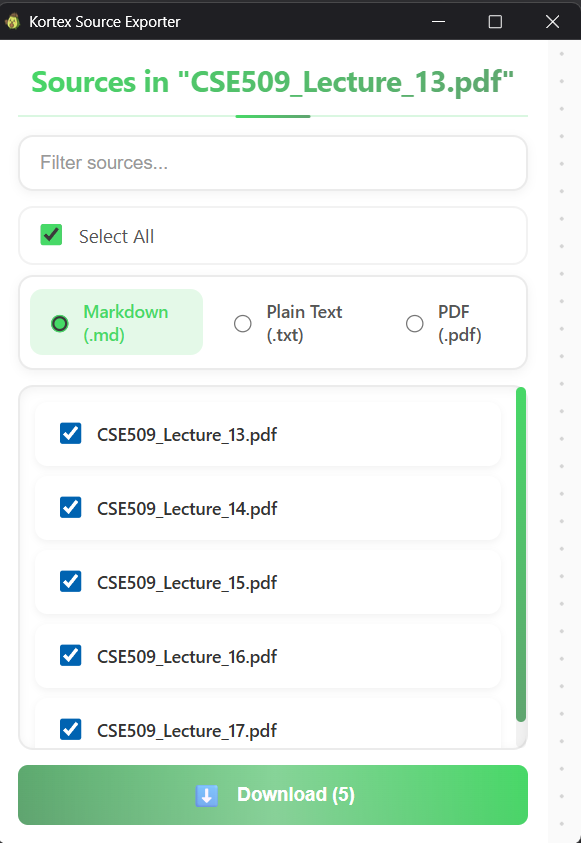
- Choose your preferred format (PDF, Markdown, Text, or ZIP)
- Wait for the download to complete

Supported Formats
- PDF - All sources combined into a single PDF document
- Markdown - All sources as markdown files in a ZIP
- Text - Plain text format
- ZIP - All sources packaged together
Pro Tips
- Use ZIP format for large notebooks with many sources
- Markdown format preserves formatting and is great for archiving
- PDF format is best for sharing or printing