Export Chat Conversations
Copy or export your Gemini Notebook chat conversations to save, share, or reference later.
Video walkthrough
What It Does
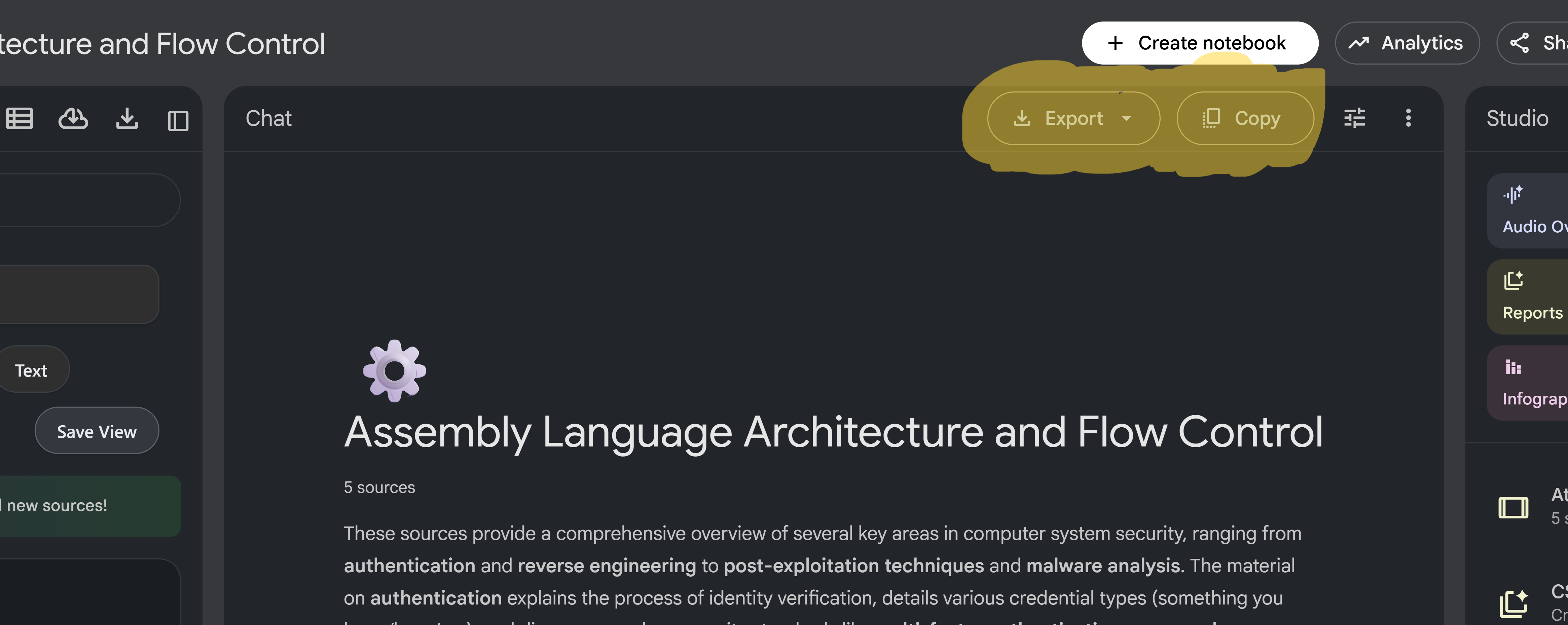
Two buttons appear in the chat header: Copy and Export. Copy sends the conversation straight to your clipboard in markdown format — a free feature with no limit. Export downloads it as a file in your choice of format. Both support curated selection, so you can grab the whole conversation or just the messages that matter.
How to Use
- Navigate to your Gemini Notebook chat
- Use the "Copy" button to copy the entire conversation to clipboard (free feature)
- Use the "Export" button to export the conversation in various formats
- In the export dropdown, toggle "Include user messages" on/off to control what's exported
- Select specific messages using checkboxes for curated export or copy
- Choose your preferred format (Markdown, Text, PDF, or JSON) when exporting
Curated Selection with Message Checkboxes
Checkboxes appear next to each AI response, letting you select specific messages instead of the whole conversation:
- Hover over any AI message to see the checkbox icon
- Click the checkbox to select that message
- Select multiple messages across the conversation
- Click Copy or Export — only the selected messages are included
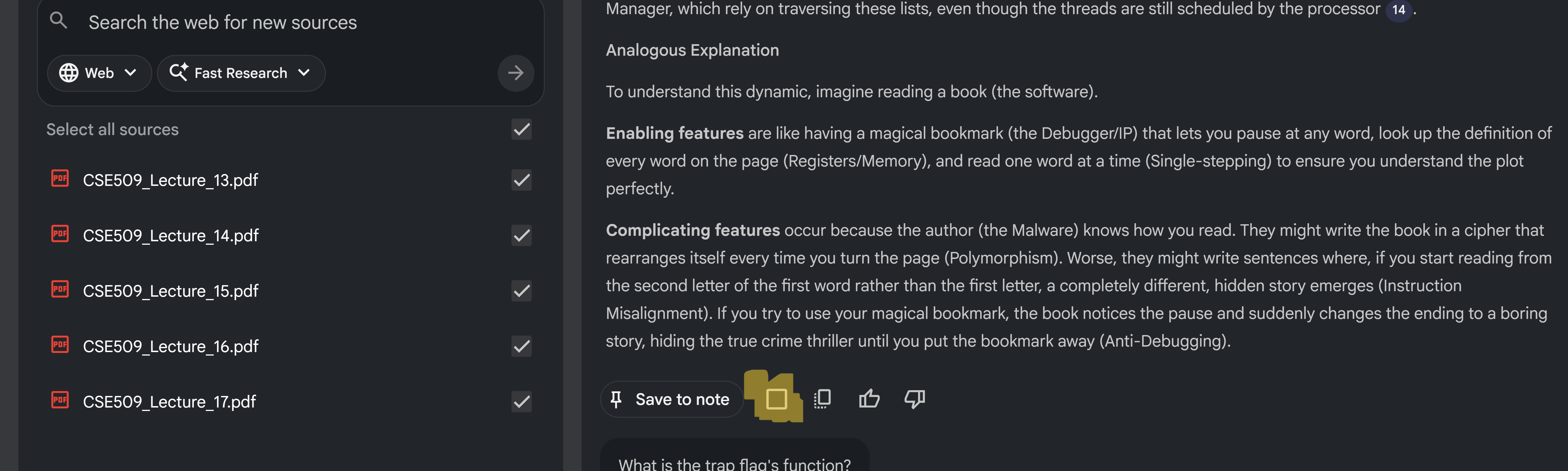
Checkboxes only appear on AI responses, not user messages. Selected messages are highlighted for easy identification, and you can deselect by clicking the checkbox again. Selection persists until you refresh the page.
Export Formats
- Markdown (.md) - Intelligently formatted markdown with proper hierarchy (headings, lists, paragraphs)
- Text (.txt) - Plain text format, universal compatibility
- PDF (.pdf) - Professional format, great for sharing and printing
- JSON (.json) - Structured data format
Features
- Full Conversation Export - Export entire chat conversations
- Curated Briefings - Select specific messages to export or copy (checkbox selection)
- Copy to Clipboard - Quick copy without using export credits (free feature)
- Multiple Formats - Export as Markdown, Text, PDF, or JSON
- User Messages Toggle - Control whether user messages are included in exports (default: ON)
Use Cases
- Key Insights - Export only the most important findings
- Specific Topics - Select messages about a particular topic
- Clean Exports - Exclude trial-and-error or irrelevant messages
- Saving important insights, sharing findings with colleagues, creating documentation, or archiving conversations