Importing old exports
Kortex saves each AI site's newest 500 chats. To add older ChatGPT, Claude or Gemini chats, import the export file the site gives you. Kortex reads the file on your computer. This needs Pro.
This needs Kortex Pro. The free plan does not add older chats from export files. See pricing.
Why import an export file?
You have years of chats, and the Library only reached the newest. An export file is a copy of everything, which the site will email or let you download.
What it reads
- ChatGPT's export .zip. There is no need to unzip it.
- Claude's export .zip, or the
conversations.jsoninside it. - Google Takeout's My Activity for Gemini Apps, as HTML or JSON.
How do I import an export file?
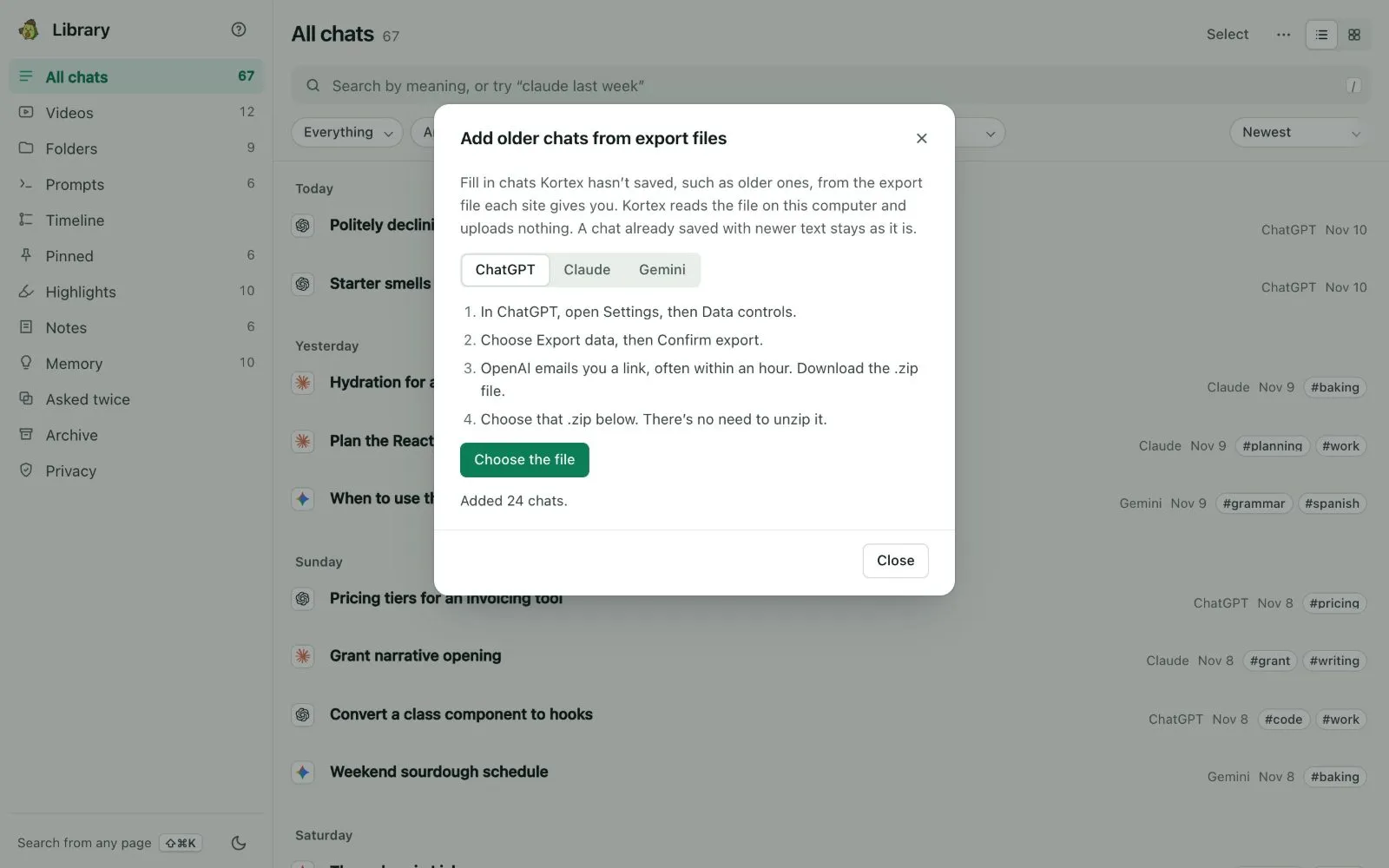
- Download the export from the site. For ChatGPT: open Settings, then Data controls, choose Export data, then Confirm export. OpenAI emails you a link.
- In the Library, open ⋯ on All chats and choose Add older chats from export files….
- Pick the site, then click Choose the file. The dialog says how many chats it added.
Good to know
- A chat already saved with newer text stays as it is, and nothing is added twice.
- The file is read on your computer. It is not uploaded.