The chat Library
The Kortex chat Library saves your chats from ChatGPT, Claude, Gemini, Perplexity and Grok on your own computer. You can search all your AI chat history in one place, sort chats into folders, and ask your saved chats questions.
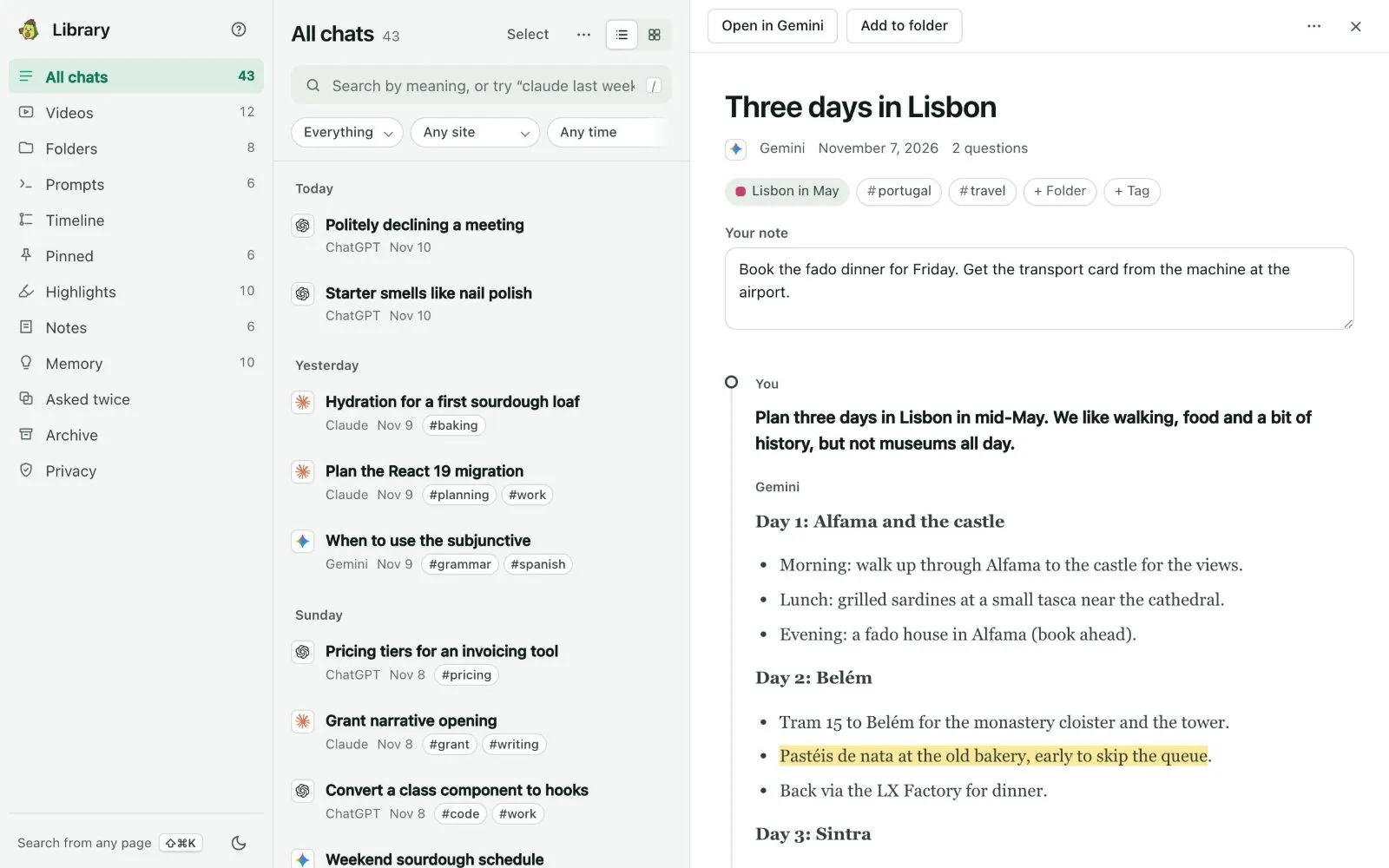
It also holds the YouTube videos and Gemini Notebook (formerly NotebookLM) notebooks you file with your chats. You can search it, read chats offline, sort them into folders, carry what a chat decided into another AI, and ask your chats questions.
Everything is stored on this computer, in a database inside Chrome. Kortex asks before it saves anything. Privacy covers what leaves and when.
Why save your AI chats?
- You talked to an AI about something last month, and now you can't find where. Search finds it.
- You use three different AIs. The Library puts all their chats in one place.
- You want a new chat to know what an old one decided.
On the free plan and the trial
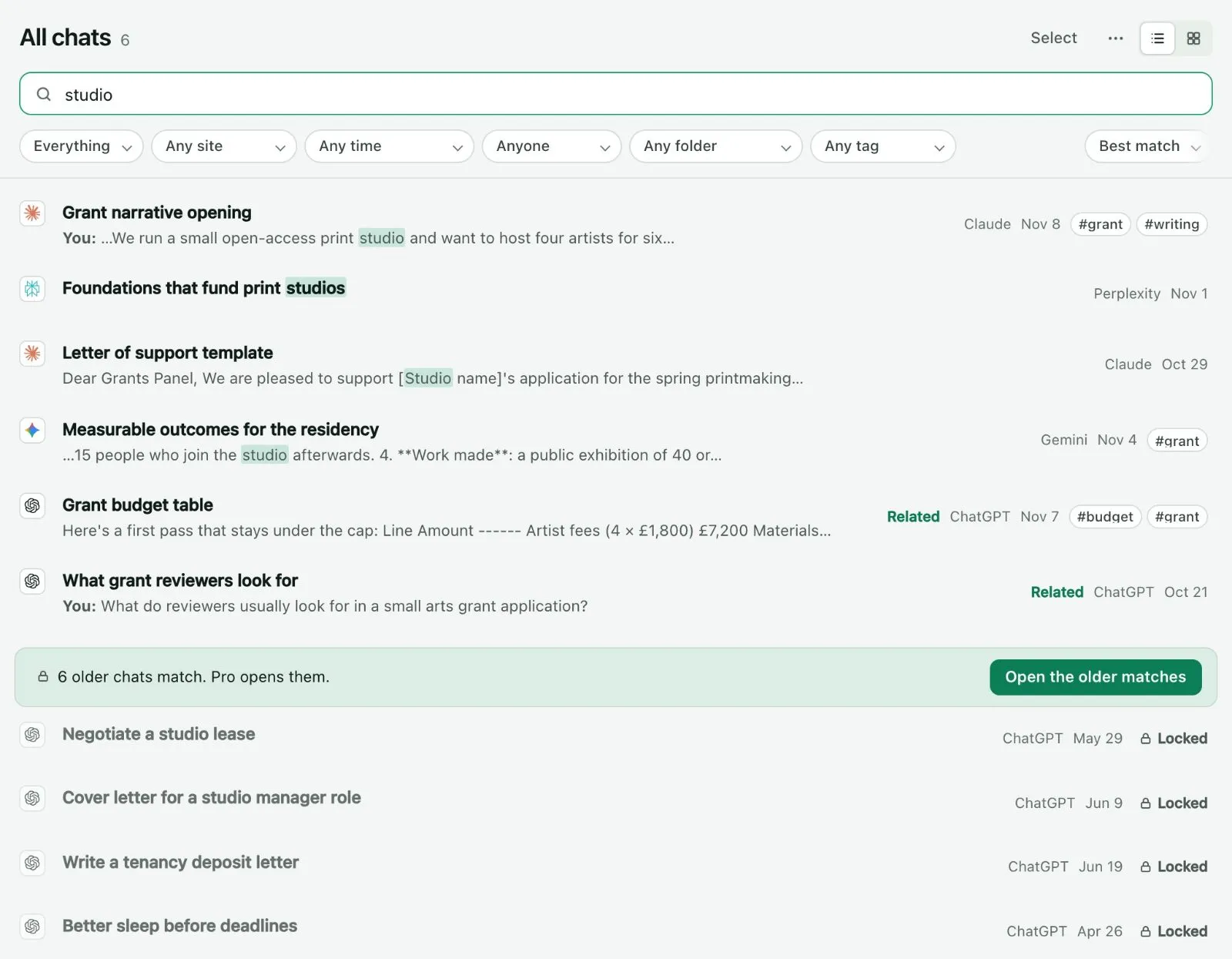
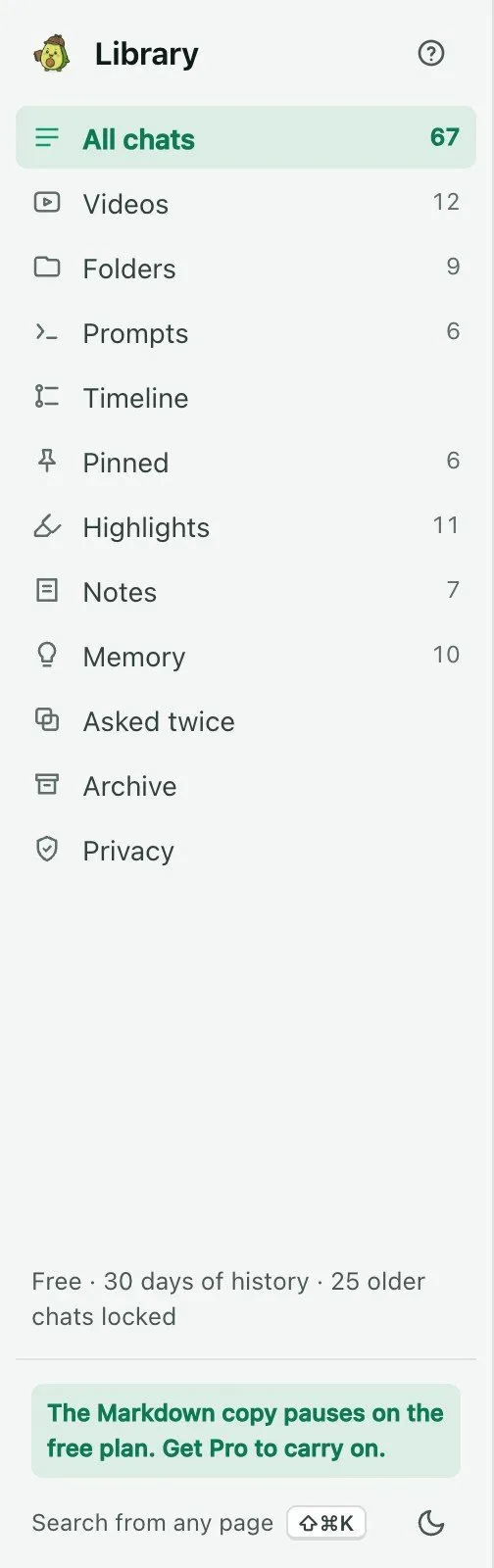
Saving is free and never has a limit. Every chat you keep stays saved. The free plan uses the last 30 days of your Library. Older things are locked.
Think of a photo album with the older pages taped shut. You can see the album is there, and the date on each page. You can't open the pages. Nothing is thrown away. Pro peels off the tape, and every page opens at once.
Here is what the free plan gives you:
- Save every chat from every AI.
- Search, read and open anything from the last 30 days.
- Keep 20 highlights, 20 pins, 10 notes, 25 Memory facts and 5 folders.
- Ask your chats 3 times a week.
- Carry context into another AI 3 times a week.
;ref,;pack,;meand Continue in another AI… share those 3. - Download one chat at a time, even a locked one. Your own data is always yours.
The free plan does not search from any page, and it does not add older chats from export files.
The 7-day trial
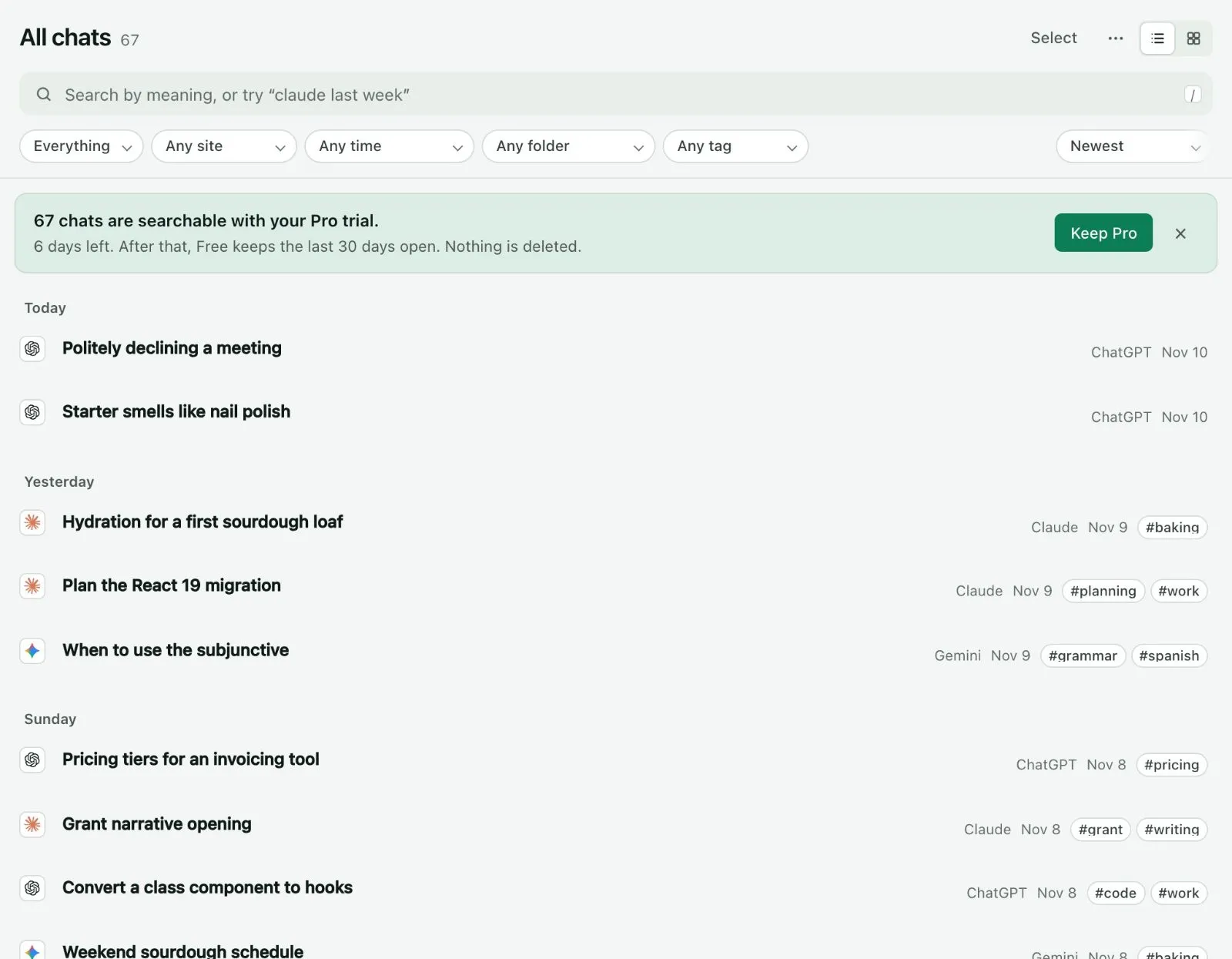
When you click Keep my chats for the first time, you get 7 days of the full Library. Everything is open. A quiet line at the top shows how many days are left and what is searchable.
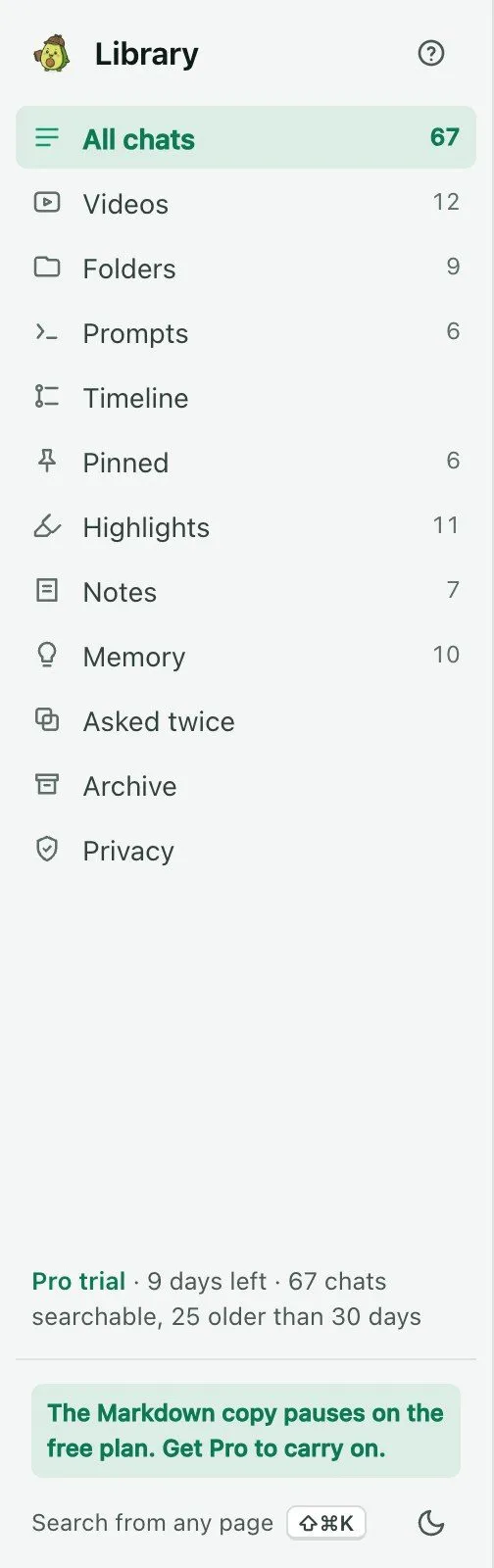
Before it ends, Kortex tells you which chats will lock. When it ends, you are on the free plan. Nothing is deleted. Pro opens it all again.
When you reach a limit
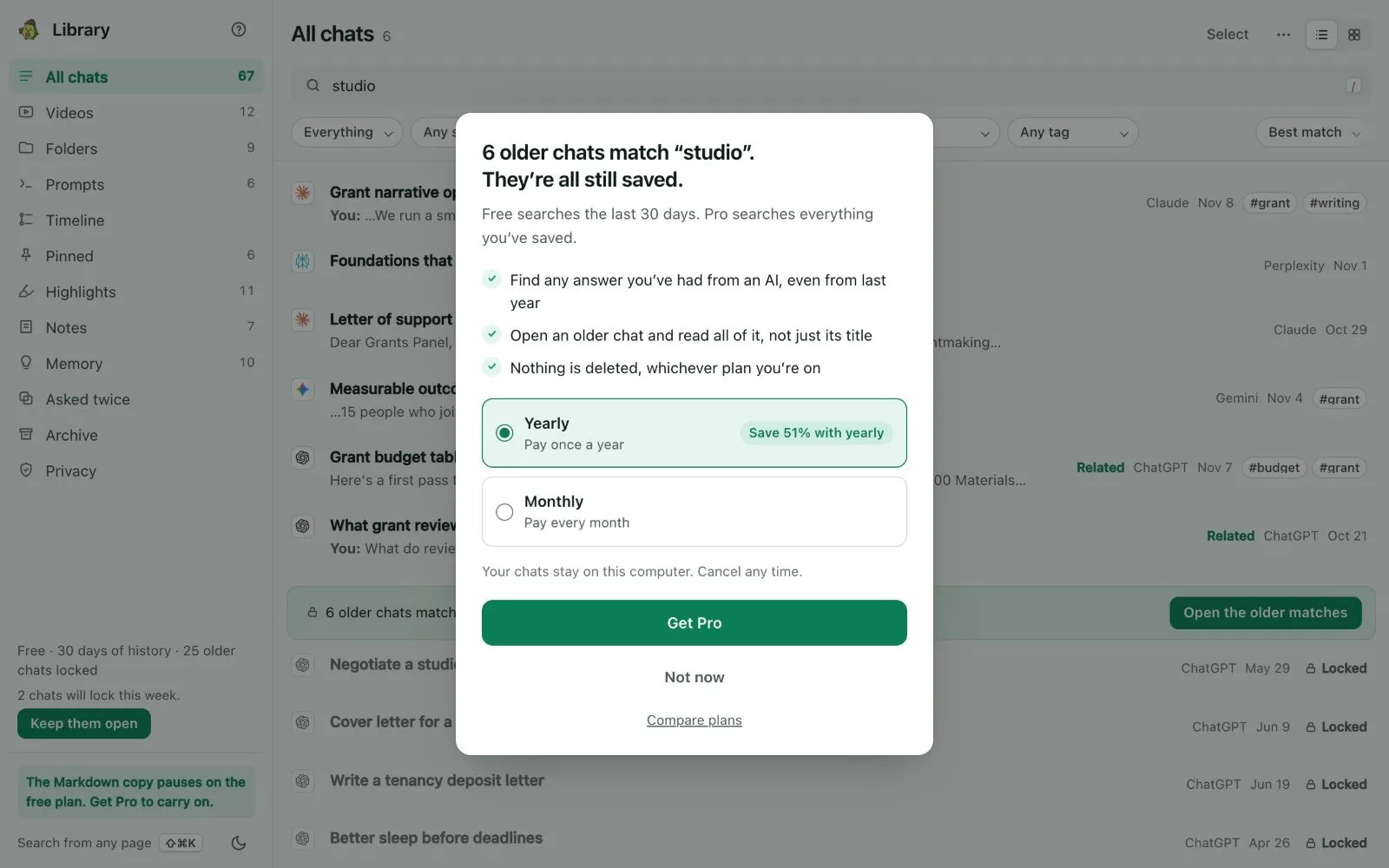
Kortex does not hide the limit. It says it in a plain line where you are, with your own numbers. A bigger box shows the first time each day. The buttons are Get Pro and Not now.
In these docs
- Saving your chats: the notice, what saves when, and how to stop or delete.
- Search and Ask my chats: finding a chat by words or meaning, and asking your chats a question.
- Folders: filing chats, notebooks and videos by topic.
- The other views: Timeline, Pinned, Highlights, Notes, Asked twice, Archive and the reader.
- Memory: facts about you that you approved.
- Prompts in the Library: writing and keeping prompts.
- YouTube videos: the Videos view and Save to folder.
- Suggestions and your week: the For you cards, the weekly recap and Your year in AI.
- Moving context between AIs: handoff packs,
;ref,;meand;pack. - Importing old exports: chats older than saving can reach.
- Privacy: what stays, what leaves and how to check.
- Connecting an assistant over MCP: a key with Just my chats.
How do I open the Library?
Pick any of these:
- The side panel's Chats tab.
- Read in the Library in the Kortex tab's ⋯ menu on an AI site.
- Chat Library in the dashboard's sidebar.
- The button above the Kortex tab, which opens it over the page.
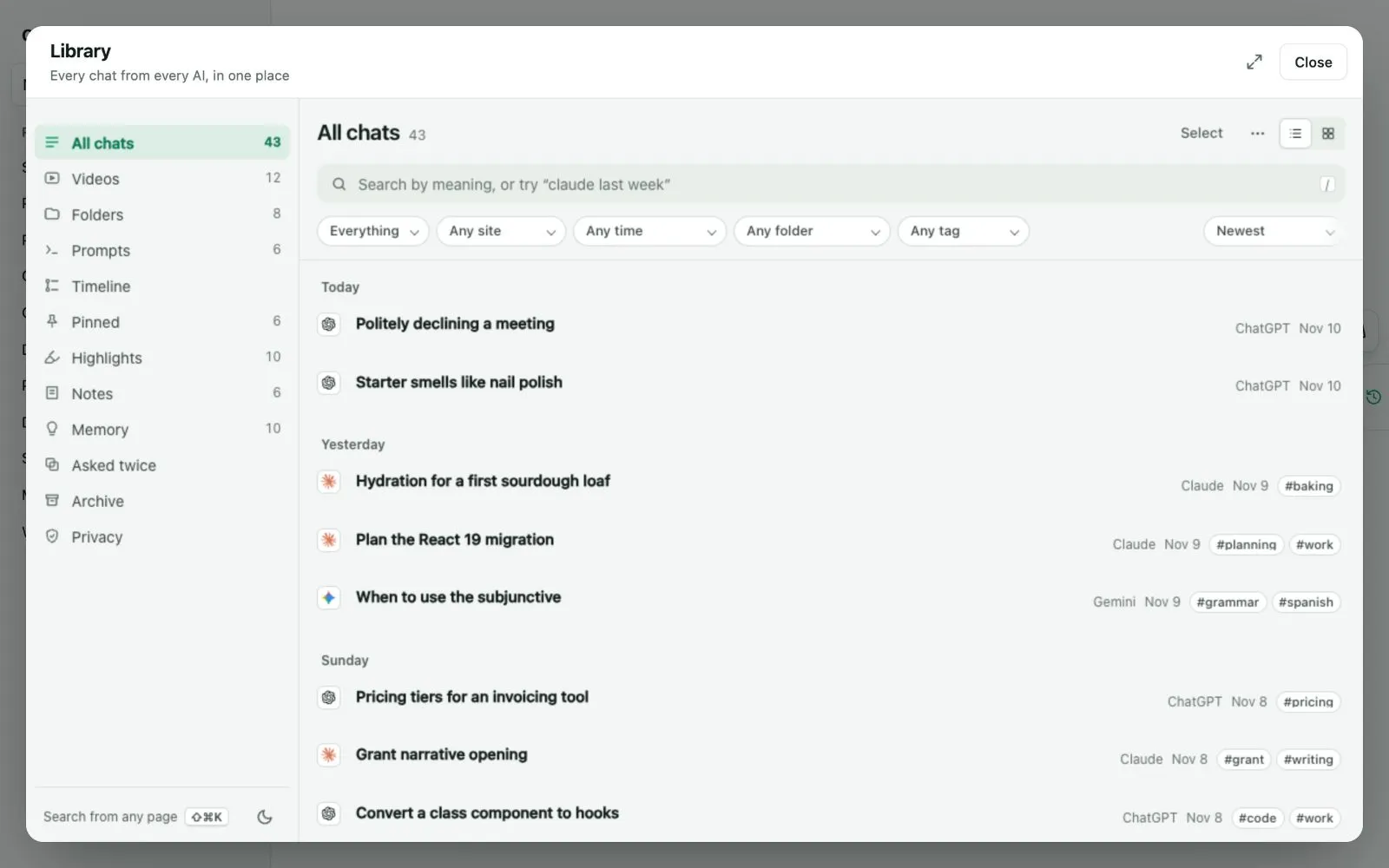
The left column lists the views: All chats, Videos, Folders, Prompts, Timeline, Pinned, Highlights, Notes, Memory, Asked twice, Archive and Privacy.
On every AI site
A small tab on the right edge of ChatGPT, Claude, Gemini, Perplexity and Grok opens a panel about the chat you are in. It is the Kortex tab.
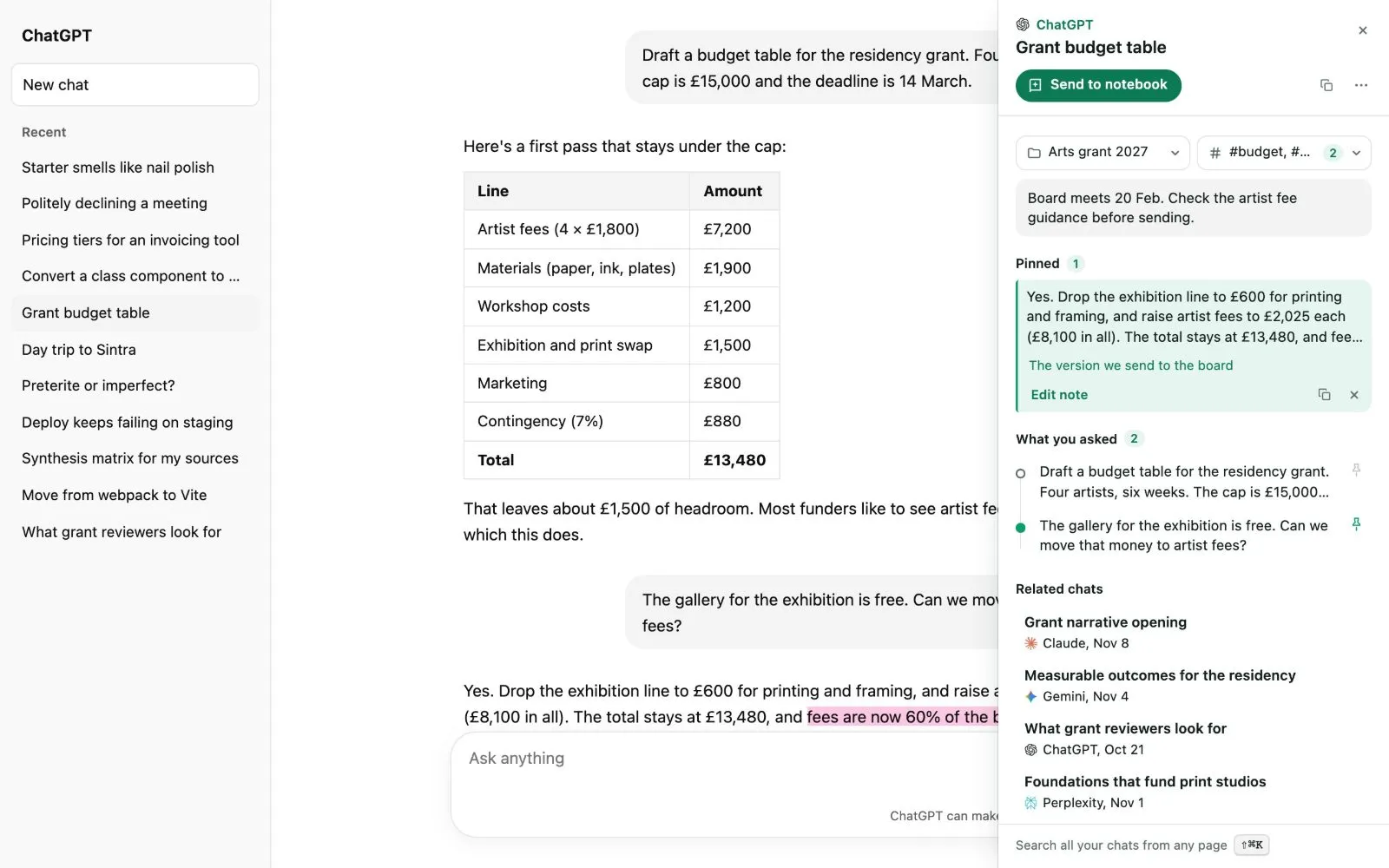
It shows the chat's folders and tags, your note, the answers you pinned, the questions you asked, and related chats from any AI.
Highlights and pins
Select words in an answer and a small bar appears.
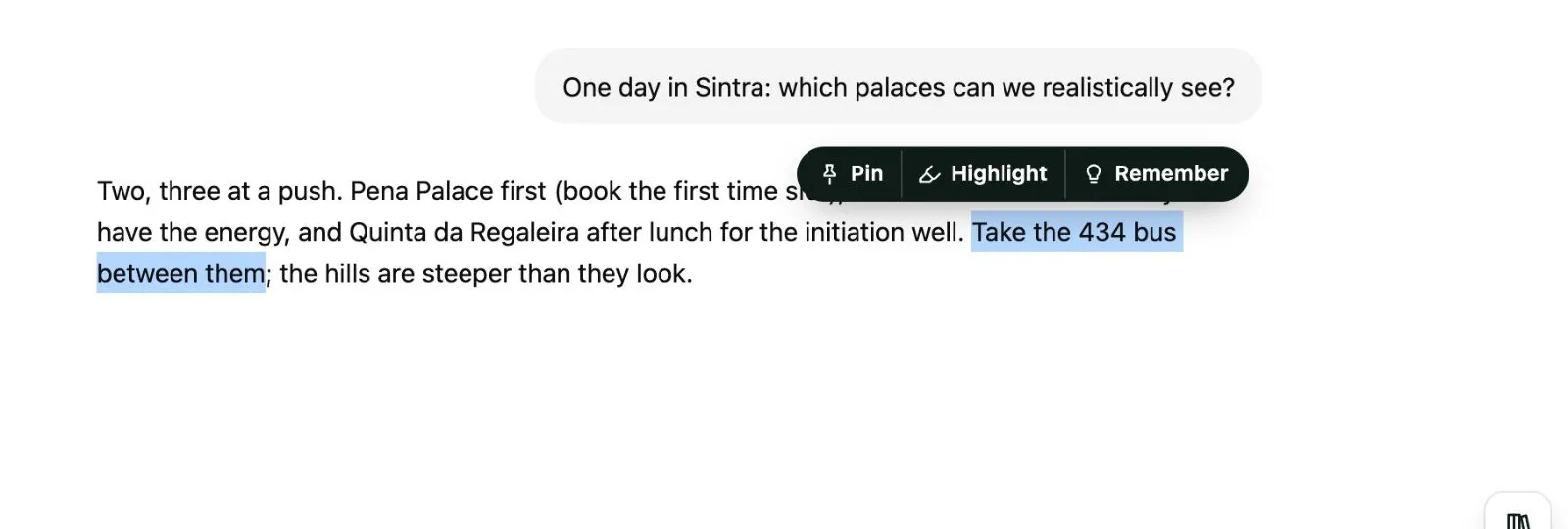
- Pin keeps the passage with the chat.
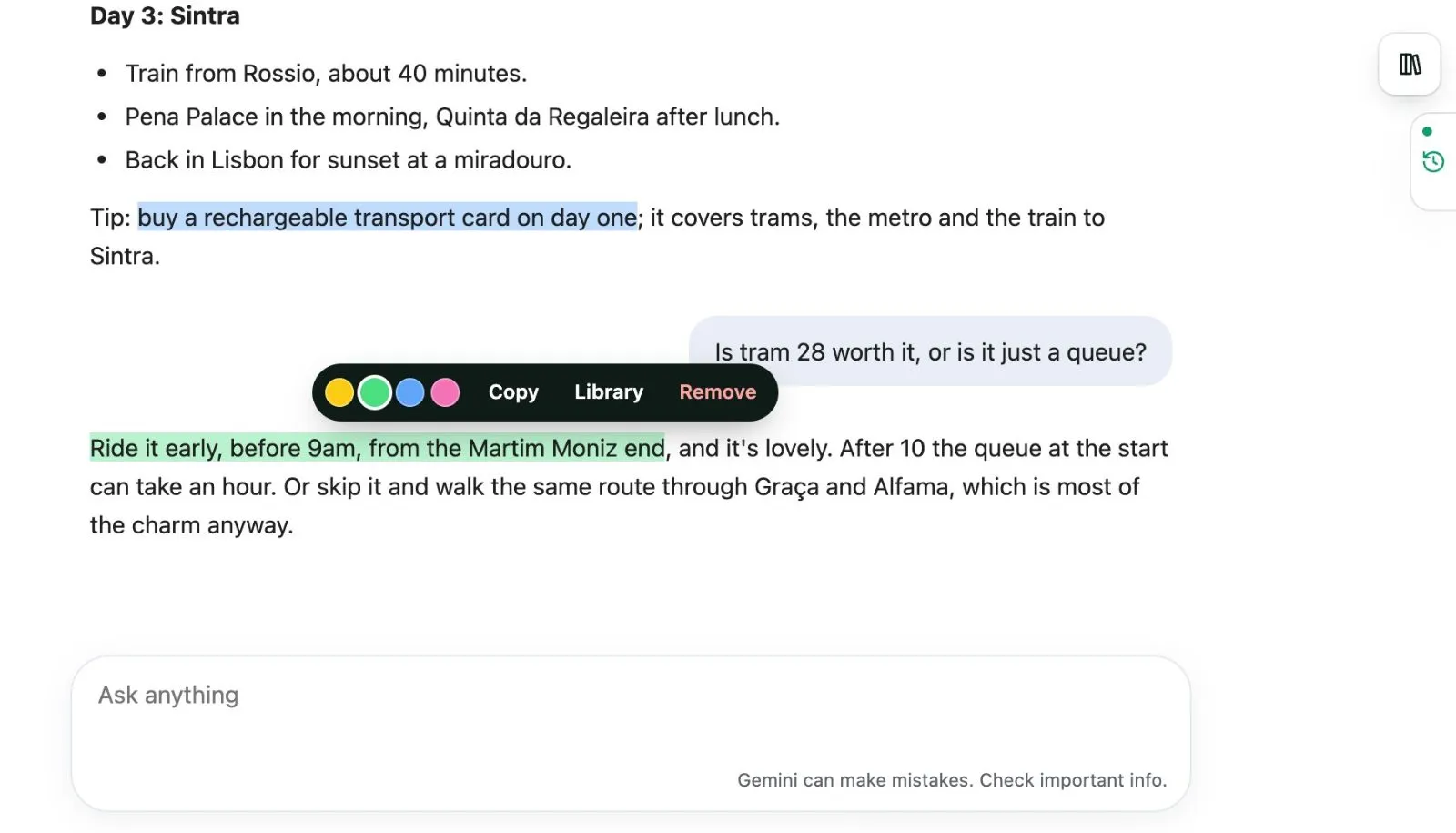
- Highlight marks it in yellow, green, blue or pink. Highlights come back when you reload the page. Click one to recolour it, copy it, open it in the Library or remove it.
- Remember adds it to your Memory as a fact.
The tour
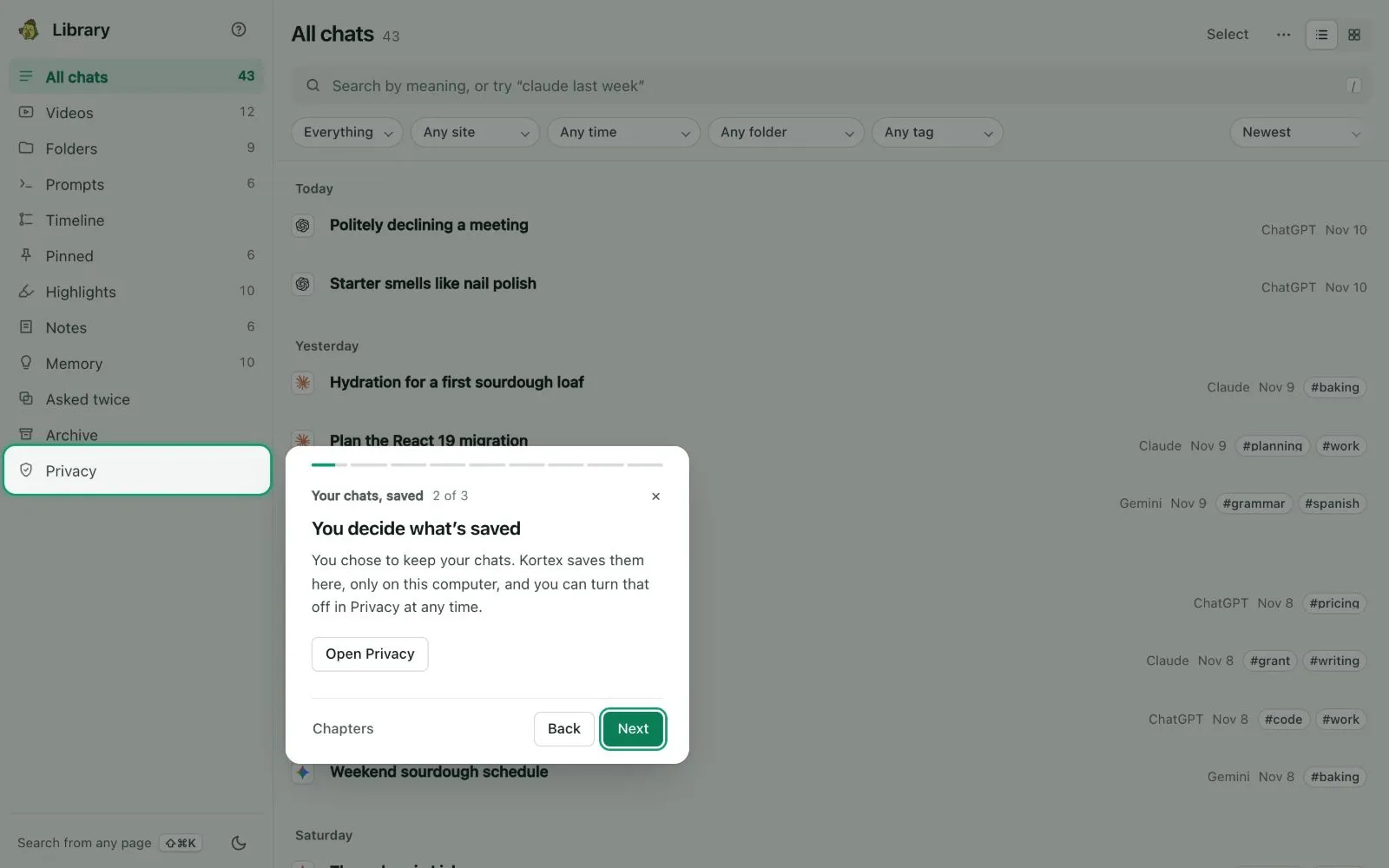
The Library has a short tour. It starts once, after you answer the saving notice. Take it again from the ? beside the Library's name.