Create an API key
Kortex MCP is in private beta. The connection details on this page are placeholders — the real endpoint is handed out when your beta invite arrives. Everything else here is accurate, so you can read ahead and turn up ready. Join the beta waitlist →
Only needed when your client cannot open a browser — CI, scripts, curl. Everything else should sign in instead, which needs no key at all.
Generate the key
- Click the Kortex icon in Chrome to open the popup.
- Go to Settings → General → MCP Connection.
- Give the key a label you will recognise later (for example
CI — nightly report). - Choose a profile. New keys default to Read-only, which is the right choice unless you know you need writes.
- Click Generate and copy the key. It starts with
kx_mcp_.
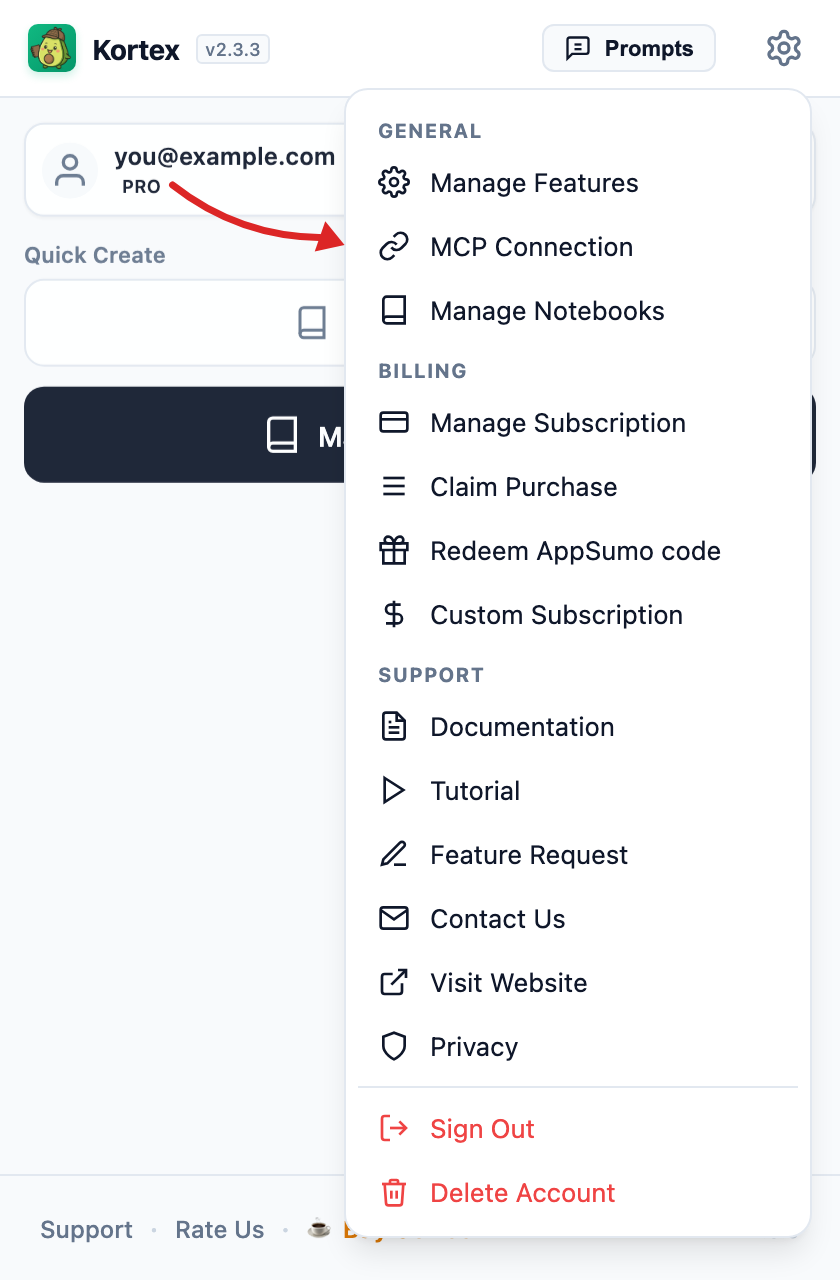
The panel that opens does all of it — mint a key, see whether the extension is currently reachable, copy the set-up snippet for your client, and revoke anything you no longer use:
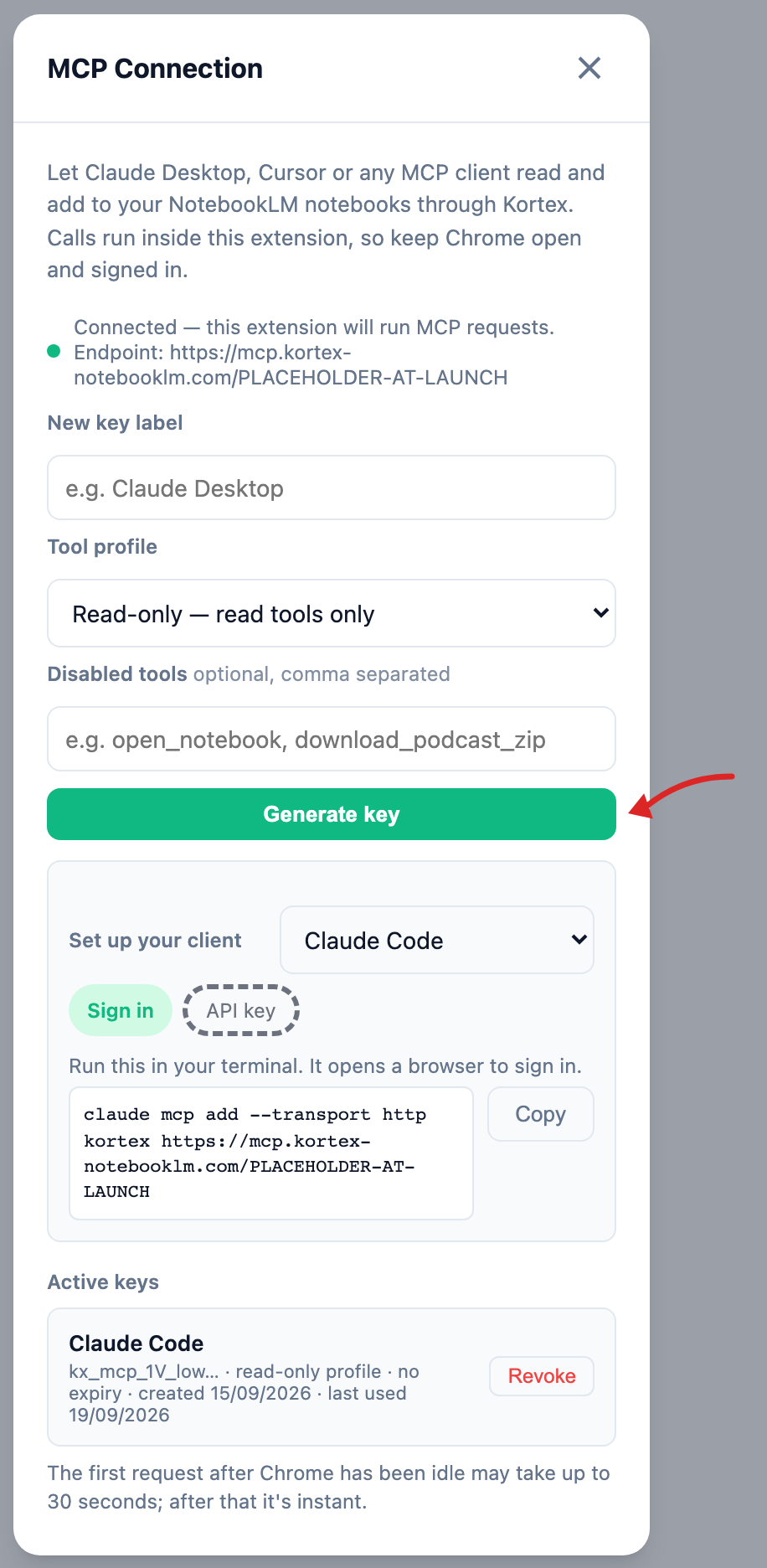
The key is shown once. Kortex stores only a hash of it, so it can never be displayed again. If you lose it, revoke it and generate a new one.
Profiles
A profile decides which tools the key can reach at all. Pick the narrowest one that does the job.
| Profile | Reaches |
|---|---|
| Read-only (default) | Read tools only. Nothing that writes or deletes |
| Minimal | Reads plus additive writes — adding sources, creating notebooks and notes |
| Standard | Adds renames and moves on top of that. Still never deletes |
| Full | Everything, including deletes |
The popup uses the same four words, so what you pick there and what you read here cannot drift. For what each one means tool by tool, see Security & limits.
You can also name individual tools to disable, which is applied on top of the profile.
A profile is per key, not per account, so you can hand a read-only key to a client you trust less and keep a fuller one for yourself.
Use it
Same URL as signing in — the server takes either credential:
claude mcp add --transport http kortex \
  https://mcp.kortex-notebooklm.com/PLACEHOLDER-AT-LAUNCH \
  --header "Authorization: Bearer kx_mcp_your_key_here"
Sending a key is what selects the key path. Omit the header and the same URL starts the sign-in flow instead.
The popup shows a ready-made snippet for your client once a key exists — switch the panel from Sign in to API key. For every client's format, see Connect your client.
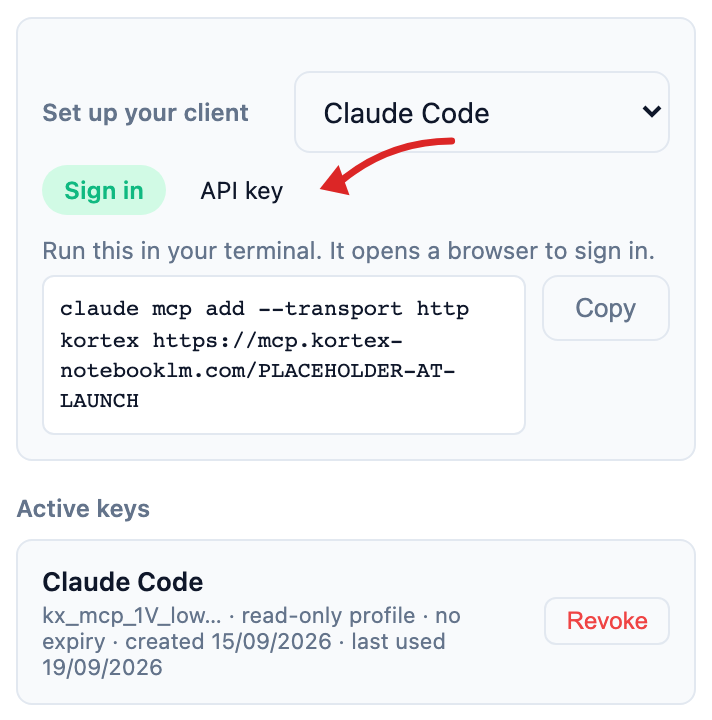
Pick your client from the dropdown and the snippet comes filled in for it — there is no placeholder left to hand-edit. Below it, every active key with the date it was last used, and a Revoke that takes effect on the next call.
Check a key works
Ask the server for its tool list with any HTTP client:
curl -X POST https://mcp.kortex-notebooklm.com/PLACEHOLDER-AT-LAUNCH \
  -H "Authorization: Bearer kx_mcp_your_key_here" \
  -H "Content-Type: application/json" \
  -d '{"jsonrpc":"2.0","id":1,"method":"tools/list"}'
A list of tools means the key is valid and Kortex is reachable. An error tells you which of the two is wrong.
Revoking
The same panel lists active keys with the date each was last used, and revokes any of them immediately. Revoke rather than delete-and-hope if a key may have leaked: revocation takes effect on the next call.