MCP Tools Reference
147 tools, grouped by what they touch. You never call these by hand — your assistant picks them. This page is here so you know what to ask for, and what a key profile is letting through.
Naming conventions. Tools starting with list_, get_, search_, ask_, compare_ or is_ only read. Tools that change something are labelled WRITE, and irreversible ones are labelled DESTRUCTIVE — good clients ask you to confirm those.
Connection & account
| Tool | What it does |
|---|---|
get_status | Whether the extension is connected, which Google account calls run as, and the extension version |
list_accounts | Every Gemini Notebook account available to this Kortex user |
get_usage | Your Kortex quota usage for imports, exports, prompts and source views |
get_notebooklm_usage | Google's own account state — the Google-side limits that account has hit. A different ceiling from the one above, and the one that stops an Audio Overview generating |
get_account_metadata | The raw Kortex metadata blob for the active account |
get_job | The result of a long-running tool. Anything that may outlast the request hands back a job id instead of timing out; your assistant polls this until it is done |
Notebooks & sources
| Tool | What it does |
|---|---|
list_notebooks, get_notebook | List notebooks, or read one with its full source list |
list_sources, list_all_sources | Sources in one notebook, or across your whole library. notebook_id is optional — omit it and you get every source, each row carrying the notebook it belongs to, instead of listing notebooks and asking once per notebook |
get_source_content | Read a source page by page, as text or HTML, with a cursor for the next page |
get_source_summaries | Gemini Notebook's own summary and key topics for your sources, without reading a word of the source text. Omit the ids and it does the whole notebook in one call — the cheap way to find out what is in a library |
get_notebook_guide | The notebook's own summary plus the questions Gemini Notebook suggests about it, each with the ready-made prompt behind it |
get_formatted_content | Return a source or all notes as Markdown or plain text, with no download |
create_notebook, rename_notebook, duplicate_notebook | Create, rename or clone a notebook |
merge_notebooks, move_sources_between_notebooks, compare_notebooks | Combine notebooks, move sources between them, or diff two by source title |
rename_source, is_source_ready, refresh_notebook_data | Rename a source, check ingestion status, force a data refresh |
delete_sources, delete_notebook, delete_bad_sources | Destructive. Permanent deletion of sources, a notebook, or every failed/empty source |
set_notebook_language, list_supported_languages | Set the language a notebook answers and generates in |
share_notebook, open_notebook | Read sharing, publish to anyone with the link, or invite someone by email as viewer or editor; open a notebook in your browser |
compare_notebooks is one of the tools that answers with a panel instead of a list, because the useful part of a diff is deciding what to do about it:
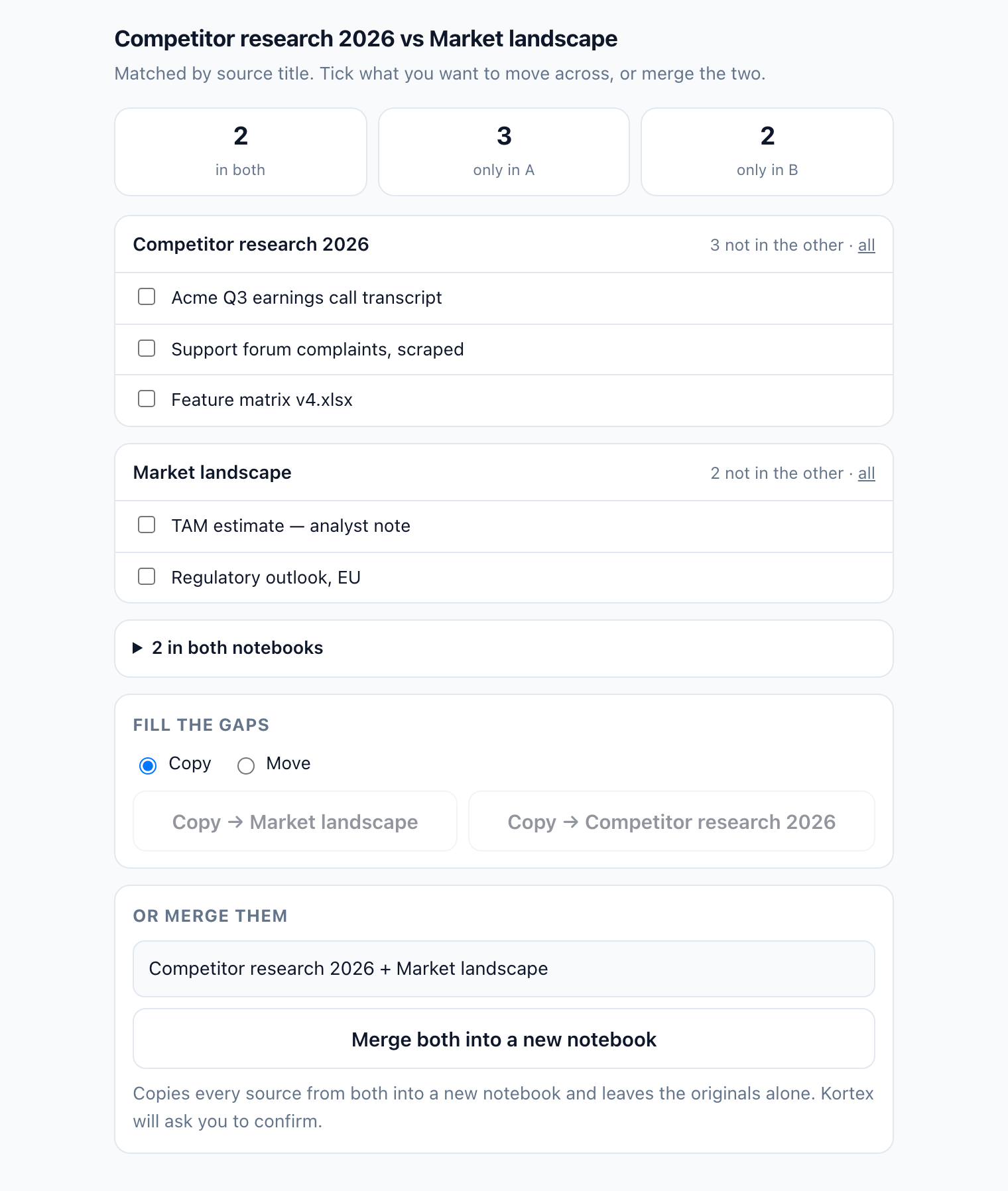
Tick the sources that are missing from one side, copy or move them across, or merge both into a new notebook. Every button there runs the real tool.
Asking questions
| Tool | What it does |
|---|---|
ask_question | A grounded question against one notebook. Returns the answer, citations and a session_id for follow-ups |
ask_library | The same question across up to three notebooks, chosen by id, tag or collection |
list_chat_sessions, reset_chat_session, close_chat_session | Manage the durable conversation threads behind session_id |
batch_to_vault | Run a long list of questions against a notebook and keep every answer with its citations |
save_chat_to_note | Save the latest answer, citations included, as a native Notebook note |
Adding sources
| Tool | What it does |
|---|---|
add_url_source, add_text_source | Add web pages, YouTube links, or pasted text |
add_google_doc, sync_google_docs | Link a Google Doc as a live source and re-read it later |
save_url, save_snippet, fetch_url | Fetch and clean a public page, save a passage, or read a page without saving it |
start_file_upload, upload_file_chunk, finish_file_upload, cancel_file_upload | Upload a local PDF, DOCX or TXT in chunks (50 MiB max, one-hour staging) |
import_youtube | Import up to 50 videos from a channel, playlist or search page |
import_pipeline | Bulk-import from a link list, CSV, RSS/Atom feed, or a bounded site crawl |
import_social_post, export_chat_to_notebook | Import a Reddit post, or an AI chat conversation from a supported platform |
research_sources | Start, poll and import source discovery — Fast, or Deep Research for a thorough pass that takes minutes |
Studio artifacts & podcasts
| Tool | What it does |
|---|---|
generate_audio_overview, generate_artifact | Start an Audio Overview, study guide, video overview or data table |
list_artifacts, export_artifact, delete_artifact | Check generation status, export to media/Markdown/CSV/Docs/Sheets, or delete. list_artifacts takes an optional notebook_id: omit it to sweep every notebook in one call, with anything unreadable reported rather than failing the sweep |
get_artifact_content | The cards, questions or nodes inside a flashcard deck, quiz or mind map — the parts the list view does not carry |
open_artifact_studio | Open the interactive Studio view in your client, to pick sources and options before generating |
rename_artifact | Retitle a Studio artifact, so a column of identical "Briefing Doc" rows becomes navigable |
revise_slide_deck | Revise named slides of an existing deck. Expected to produce a new deck and leave the original alone; the reply tells you which happened |
list_podcasts, create_podcast, update_podcast, delete_podcast | Manage Kortex podcasts built from Audio Overviews |
add_podcast_episode, remove_podcast_episode, reorder_podcast_episodes | Manage the episode list |
get_podcast_feed_url, download_podcast_zip | Get the public RSS URL, or download every episode as a ZIP |
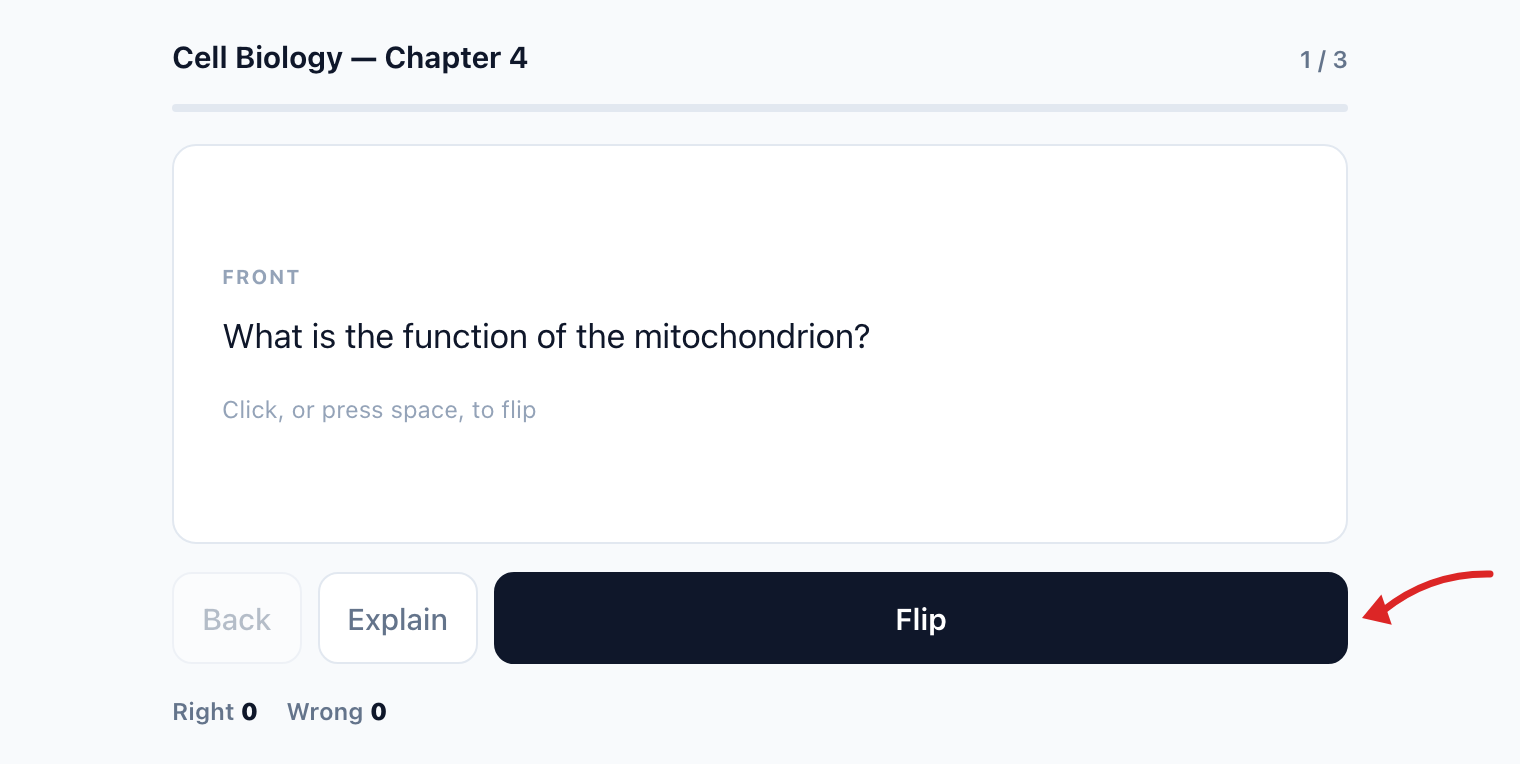
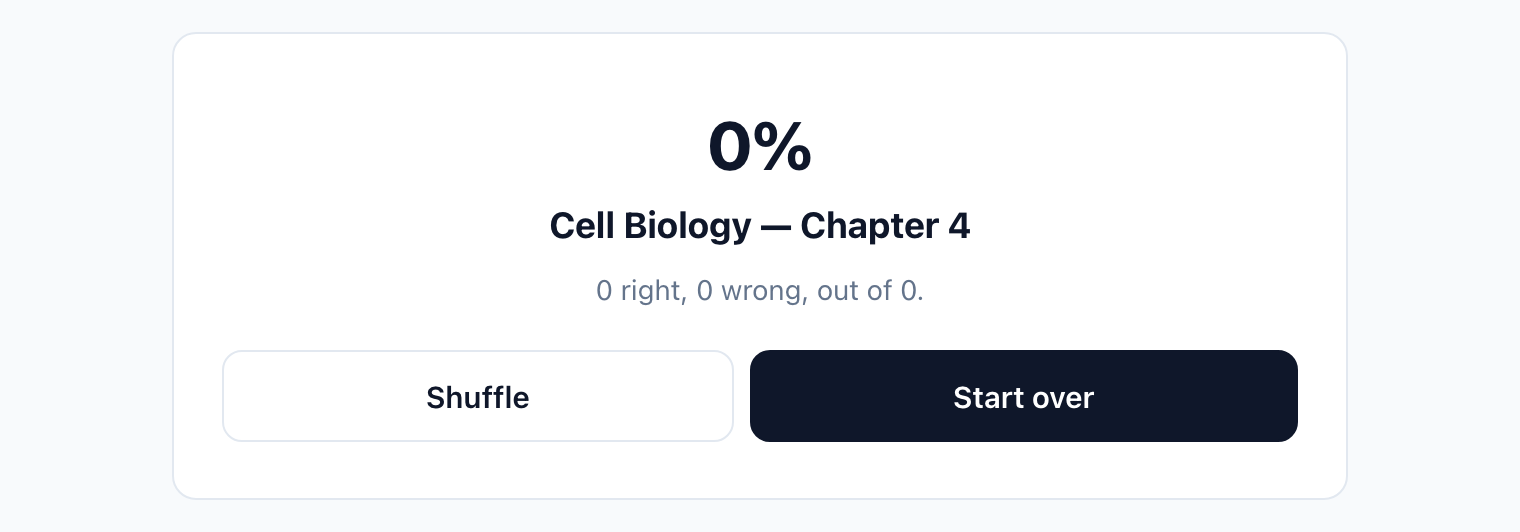
A finished flashcard deck or quiz comes back as something you work through, not as a wall of JSON:
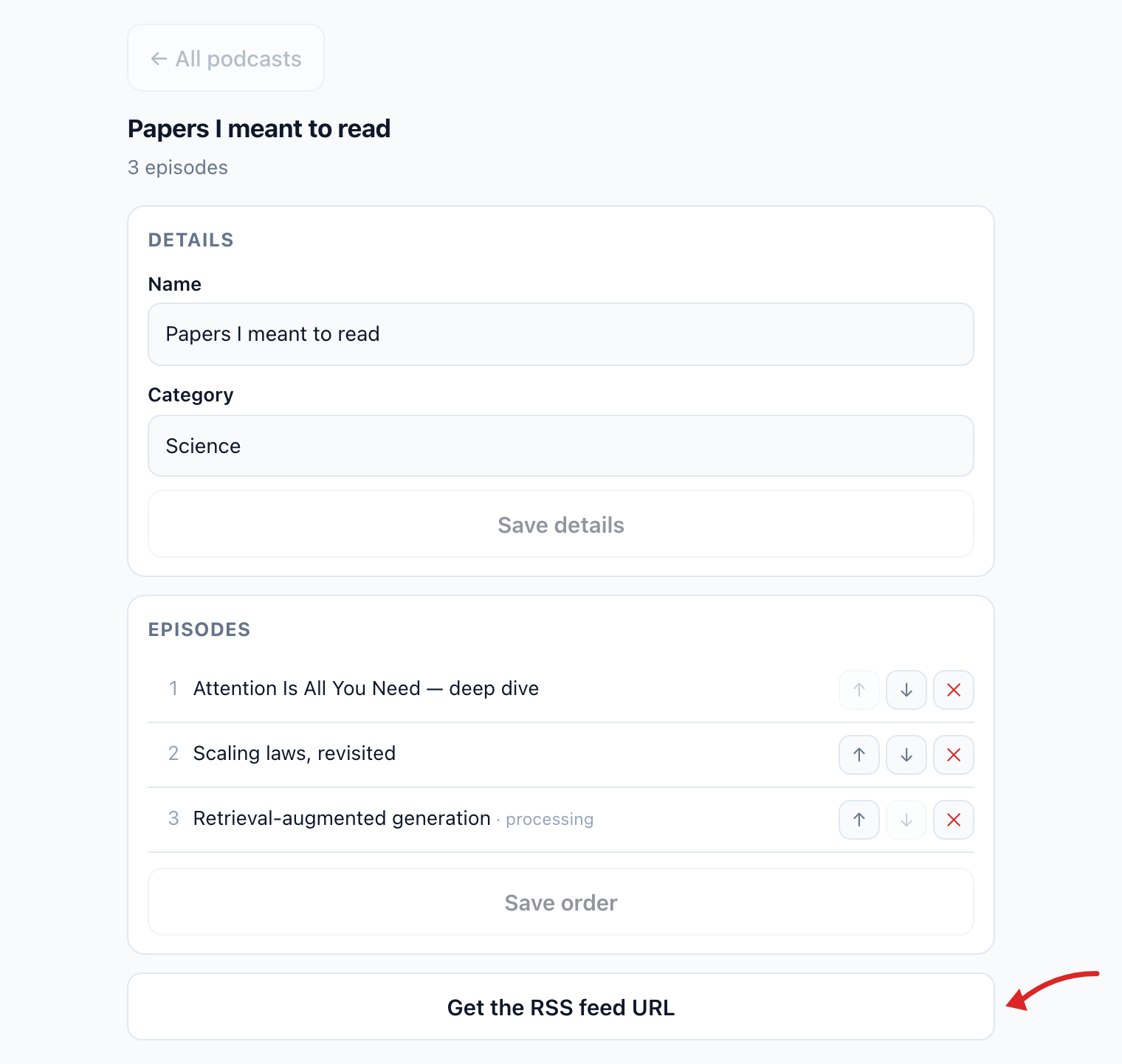
The podcast tools do the same — the feed's details, its episodes and their order in one view, with the RSS URL a click away:
Notes
| Tool | What it does |
|---|---|
list_notes | Native Notebook notes and generated artifacts |
create_notebooklm_note, update_notebooklm_note, delete_notebooklm_note | Write to Gemini Notebook's own Studio notes |
convert_note_to_source | Turn a note into a new source in the same notebook |
list_kortex_notes, save_kortex_note, delete_kortex_note | Kortex's own notes, attached to a notebook in the dashboard |
list_note_templates, save_note_template, delete_note_template | Reusable note bodies |
Organising your library
| Tool | What it does |
|---|---|
list_collections, create_collection, rename_collection, move_collection, pin_collection, delete_collection | Kortex collections (the folders in your dashboard) |
move_notebook_to_collection | File a notebook into a collection |
list_notebooklm_collections, create_notebooklm_collection, migrate_collections_to_notebooklm | Gemini Notebook's own native collections, and a one-way migration from Kortex folders |
update_notebooklm_collection, delete_notebooklm_collection | Rename a native collection, set its emoji, add or remove notebooks, or delete the grouping. The notebooks themselves are never deleted |
list_tags, tag_notebook, untag_notebook, delete_tag, set_favorite | Notebook tags and favourites |
list_source_organizers, create_source_folder, assign_source_to_folder, tag_source, bulk_assign_source_organizers | Source tags and folders, one at a time or in bulk |
delete_source_folder, delete_source_tag | Destructive. Remove a source folder or tag everywhere |
list_source_labels, create_source_label, update_source_label, delete_source_labels | Gemini Notebook's native source labels, with emoji |
auto_label_sources | Let Gemini Notebook invent labels for a notebook and file every source under them. Its own auto-organise, not a Kortex guess |
set_source_highlight, set_source_note | Private colour highlights and notes on a source |
list_source_views, save_source_view, delete_source_view | Named subsets of sources you can re-select later |
list_notebook_templates, save_notebook_as_template, apply_notebook_template | Reusable presets of tags and collections |
list_source_templates, save_source_as_template, apply_source_template | Reusable presets of source tags and a folder |
Doing many things at once
Every Kortex call is a job the extension runs, and jobs run one at a time — Gemini Notebooks tolerates concurrent requests poorly. So twenty separate calls are twenty round trips, and your assistant cannot speed that up by issuing them in parallel: the server accepts at most three at once and the extension still works through them in order.
bulk is the way round it. One call, many targets, run concurrently inside that single job at the safe rate for the work — five reads, three writes, or two generations at a time.

| Tool | What it does |
|---|---|
bulk | Run one tool over many targets in a single call. Reach for it whenever the same tool is about to be called more than about three times |
Creating and filling in one step. A create_notebook entry may carry its own urls, so each item creates the notebook and adds its sources. The new notebook's id never has to come back to your assistant and go out again:
bulk(tool: "create_notebook", calls: [
  { title: "Ancient Rome",       urls: [...] },
  { title: "Deep Sea Creatures", urls: [...] }
])
If it does not all fit. A long batch stops cleanly at the request budget rather than timing out. Unfinished entries come back marked "Not attempted" with a task_id; calling bulk again with that id carries on where it stopped.
What it will not do. bulk runs a fixed list of safe tools — creating notebooks, adding sources, tagging, renaming, generating artifacts and reading. It refuses every destructive tool by name, because a single confirmation covering twenty deletions is exactly what the confirm step exists to prevent. Delete one at a time, on purpose.
Search, health & prompts
| Tool | What it does |
|---|---|
search_everything | One search across notebooks, sources, notes, artifacts, collections, tags and podcasts |
get_library_health | Bad sources, never-viewed sources, failed artifacts, notebooks near their cap |
dedupe_library | A resumable duplicate scan across every notebook's sources |
semantic_library_metadata | Build and maintain a searchable description of each notebook, so your assistant can pick the right one |
list_prompts, save_prompt, delete_prompt | Your Kortex prompt library |
pick_prompt | Choose a saved prompt and fill its placeholders, without pasting the text yourself |
list_prompt_folders, create_prompt_folder, delete_prompt_folder | Prompt folders |
Workflows
A workflow is a sequence of tool calls saved under a name, so a multi-step job you repeat becomes one request. Unlike an automation it runs when you ask, not on a schedule, and a step can wait for a generation to finish before the next one starts — which is what lets a later step use an Audio Overview an earlier step kicked off.
You do not write them in a config file. You do the job once by asking, then ask for it to be saved:
Save that as a workflow called "Competitor brief"
What people save
| Workflow | The steps behind it |
|---|---|
| "Run my competitor brief" | Add this week's URLs to the notebook, wait until they finish indexing, generate a briefing doc, export it to Google Docs. |
| "Set up a new course notebook for {subject}" | Create the notebook, apply your notebook template, tag it, file it into the right collection. The {subject} is a declared input, so one workflow serves every course. |
| "Run my weekly digest" | Ask the same question across three notebooks, stitch the answers together, save the result as a note. |
| "Turn this notebook into an episode" | Generate an Audio Overview, wait for it to finish, add it to a podcast as an episode, return the feed URL. |
| "Ingest today's reading" | Import a list of URLs, delete anything that failed to extract, then report what actually landed. |
Inputs. A workflow can declare inputs — a notebook, a subject, a date — so the same saved sequence works on different targets. Ask for one without its required inputs and it tells you what is missing rather than running a half-configured job.
Workflows can be scheduled. A saved workflow becomes an automation action, so anything you can do by hand you can put on a clock. See Workflows & Schedules.
Tools
| Tool | What it does |
|---|---|
list_workflows | Your saved workflows, with their steps and declared inputs |
create_workflow, update_workflow | WRITE. Save or change a named sequence of steps |
run_workflow | WRITE. Run one, optionally with inputs. Returns a run id |
get_workflow_run | Progress of a run: each step's tool, whether it succeeded, and the final result |
delete_workflow | DESTRUCTIVE. Remove a saved workflow |
Automations
Eight tools create and manage standing rules that Kortex runs on its own — list_automations, create_automation, update_automation, set_automation_enabled, delete_automation, run_automation, list_automation_runs and run_scheduled_automations. Because a rule keeps acting after the conversation ends, they have their own page.