# Save ChatGPT and Claude Chats to NotebookLM
Kortex adds a **NotebookLM** button to AI chat sites such as ChatGPT, Claude, Gemini and Perplexity. One click saves the chat you are reading into a notebook in Gemini Notebook (formerly NotebookLM) as a text source.
 ## Why use the NotebookLM button?
- It is like clipping an article from a newspaper and pinning it to your board. The chat or post goes into a notebook, ready to study.
- You do not copy and paste. You do not leave the page.
## Where the button shows up
The button is in a different spot on each site. Here is where to look.
- **ChatGPT**, **Claude** and **Gistr**: in the chat box.
- **Gemini**: beside the microphone.
- **Perplexity**: in the chat box. It saves the answer, or the links it cites.
- **Grok**: beside **Share** at the top of the chat.
- **Genspark**: at the top right of the chat.
- **Kimi**: beside the chat's title.
- **Merlin**: with the chat box's tools.
- **OpenEvidence**: beside the site's name. It saves the answer with its references.
- **Google Docs**: beside **Share**. It adds the document as a Google Docs source.
- **LinkedIn**: on every post, beside **Repost** and **Send**.
- **Reddit**: on a post, beside **Share**. It saves the post and its thread.
- **X**: in the header of a post. It saves the whole thread.
- **YouTube**: beside **Like** and **Share**. See [YouTube](/docs/youtube).


 ## How to save a chat
1. Open a chat on one of the AI sites above.
1. Click the **NotebookLM** button. A small menu opens.
1. Choose **Create New Notebook**, or **Use Existing Notebook**.
1. Wait a moment. The chat is added as a source, titled with the site and the chat's name, such as "[CHATGPT] Trip plan".
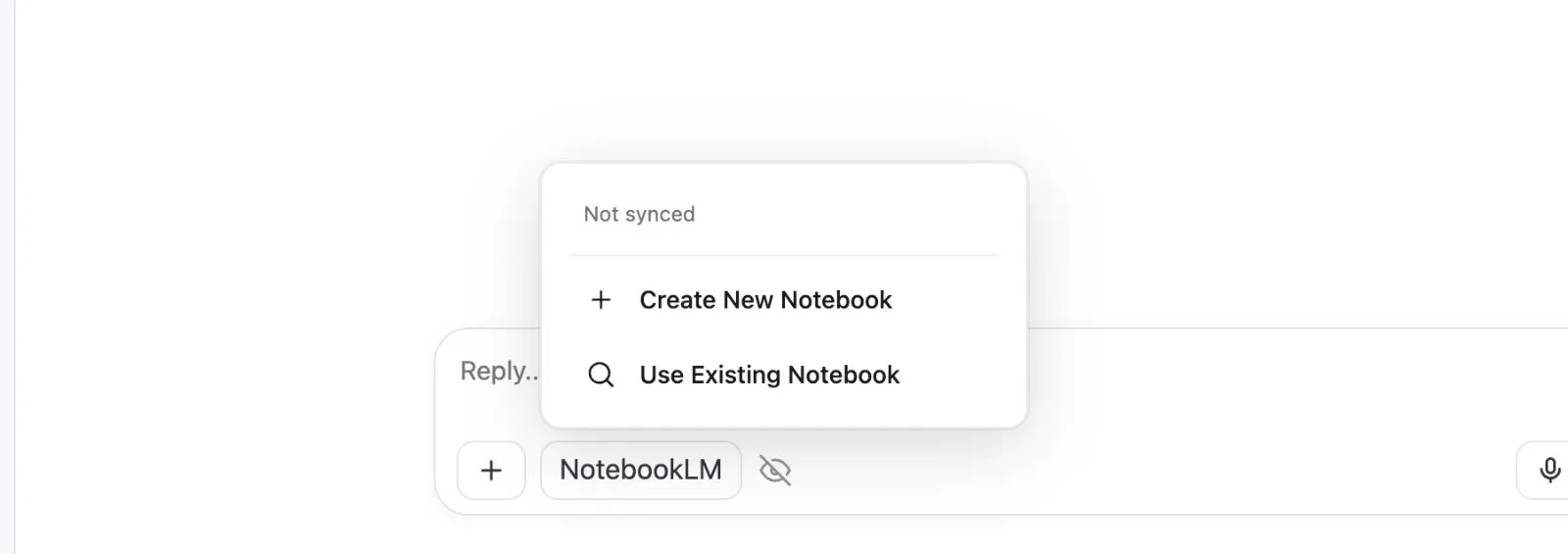 ## Use an existing notebook
Pick this to add the chat to a notebook you already have.
1. Choose **Use Existing Notebook**.
1. Look through the list. Recent notebooks come first. The notebook that fits the chat best is on top, marked **Suggested**.
1. Or type in **Search notebooks...** to find one.
1. Click the notebook.
 ## Create a new notebook
If you use collections, source tags or folders, a window opens first so you can sort the new notebook before it is made.
1. Choose **Create New Notebook**.
1. Under **Collection**, pick a collection, or leave **No collection**.
1. Under **Source tags**, tick any tags to put on the chat.
1. Under **Folder**, pick a folder, or leave **No folder**.
1. Click **Create Notebook**.
 ## Good to know
- If the notebook already has the chat, Kortex tells you and offers **Add anyway**. **Re-sync Conversation** replaces the old copy with the chat as it is now. This needs Kortex Pro. See [pricing](https://www.kortex-notebooklm.com/#pricing).
- On Gemini, Canvas content is included. On Perplexity, a second **NotebookLM** button in the Sources panel saves every cited link as its own source.
- On the free plan you can import 10 times a day. Kortex Pro has no daily limit. See [Plans](/docs/plans).
- On X, **Archive thread to NotebookLM** collects the author's own thread, skips other replies, and lets you check it before saving.
- You can hide the button on one site with **Hide NotebookLM button on this site**. You can also turn buttons off in the side panel under **Manage features**.
:::info Two different kinds of saving
The NotebookLM button puts a chat into a _notebook_. Separately, the [Chat Library](/docs/chat-library) keeps your chats on your own computer. You can use both.
:::
## What if something goes wrong?
If you cannot see the button, the site may have changed its layout. Right-click the page and choose **Save this page to NotebookLM**. See [Save any page](/docs/save-any-page).
Next: [The Kortex tab](/docs/kortex-tab), [YouTube](/docs/youtube), [Save any page](/docs/save-any-page).