Source Views
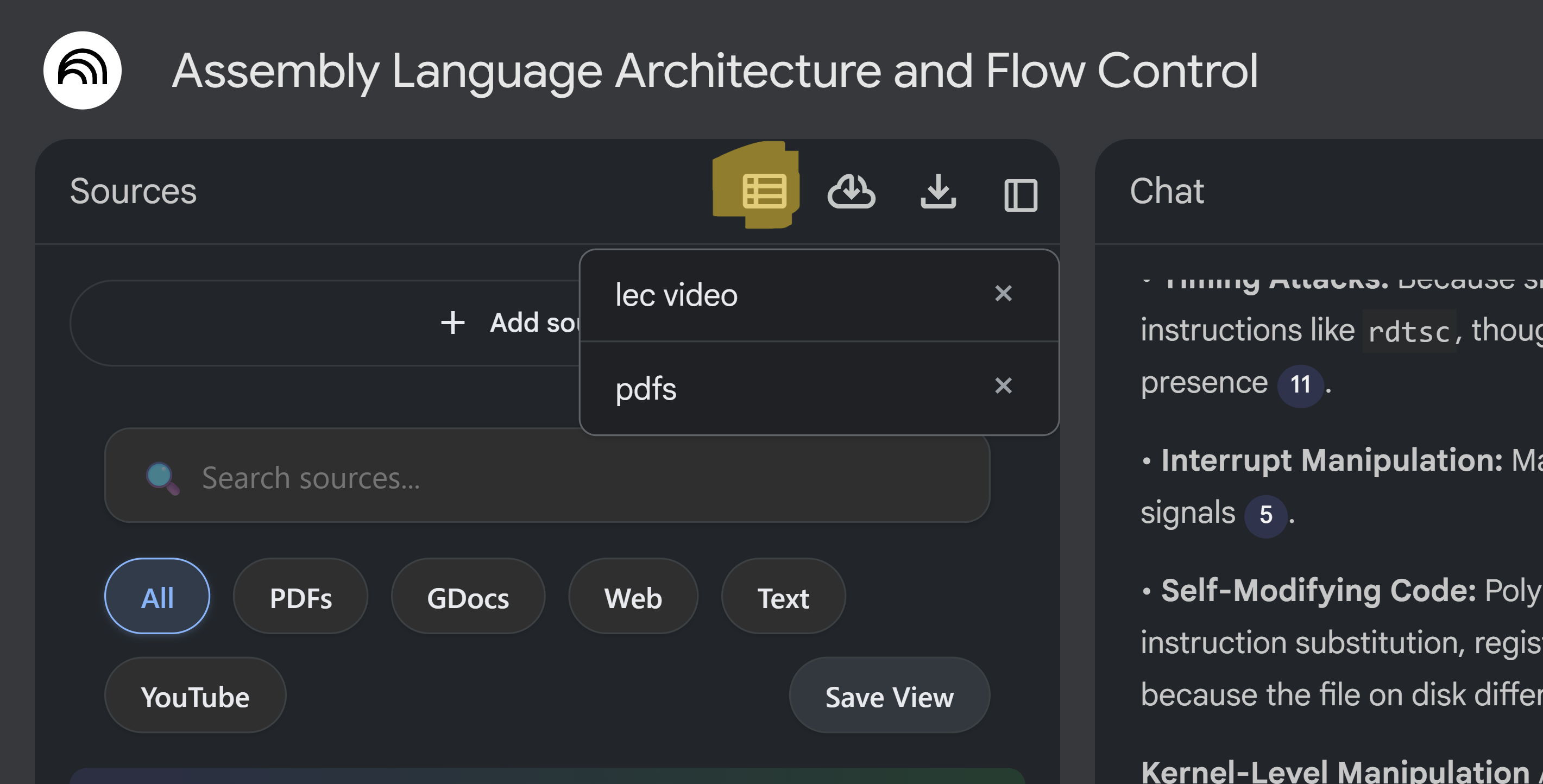
View and filter notebook sources with custom views. Save your favorite source filters for quick access.
If you haven't installed the extension in your browser, please install it first.
How it works
- Navigate to your NotebookLM notebook
- Access source view features (all tiers)
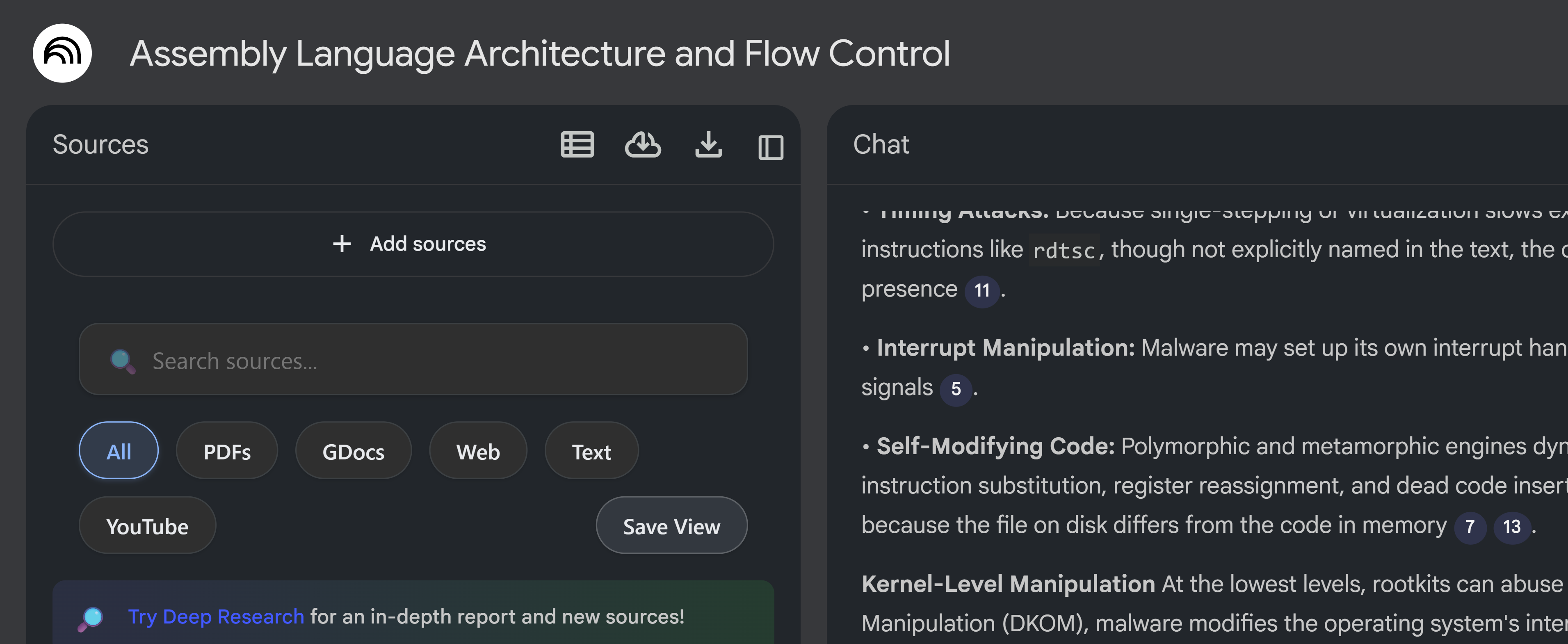
- Use the search bar to find sources by name
- Apply filters to show specific source types (PDFs, GDocs, Web, Text, YouTube)
- Save views for quick access
- Apply saved views to filter sources
Available Filters
Source Views includes the following filter options:
- All: Show all sources (default)
- PDFs: Filter to show only PDF documents
- GDocs: Filter to show only Google Docs
- Web: Filter to show only web sources
- Text: Filter to show text-based sources (descriptions, notes, text files)
- YouTube: Filter to show video sources (YouTube videos, video content)
You can combine filters with the search bar to quickly find specific sources in your notebook.
Source View Limits
Source view limits work on a slot-based system:
- Basic: 5 slots available
- Lite: 30 slots available
- Pro: Unlimited slots
Note: You have a fixed number of slots. When you delete a source view, that slot becomes available again. Views are synced across all your devices via Firestore.