
How to save and reuse prompts in NotebookLM (Gemini Notebook) and AI chats
Quick answer
Install the Kortex extension, open Prompts in the Workspace or side panel, and click New prompt. Give it a title, the text and a Shortcut. In any supported AI chat box, type ; and the shortcut. Or press Cmd+Shift+P (Ctrl+Shift+P on Windows). The prompt goes in.
Watch it first
-
Create a prompt
Open the Prompts page in the Kortex Workspace, or the Prompts tab in the side panel. Click New prompt. Enter a title and the prompt's text.
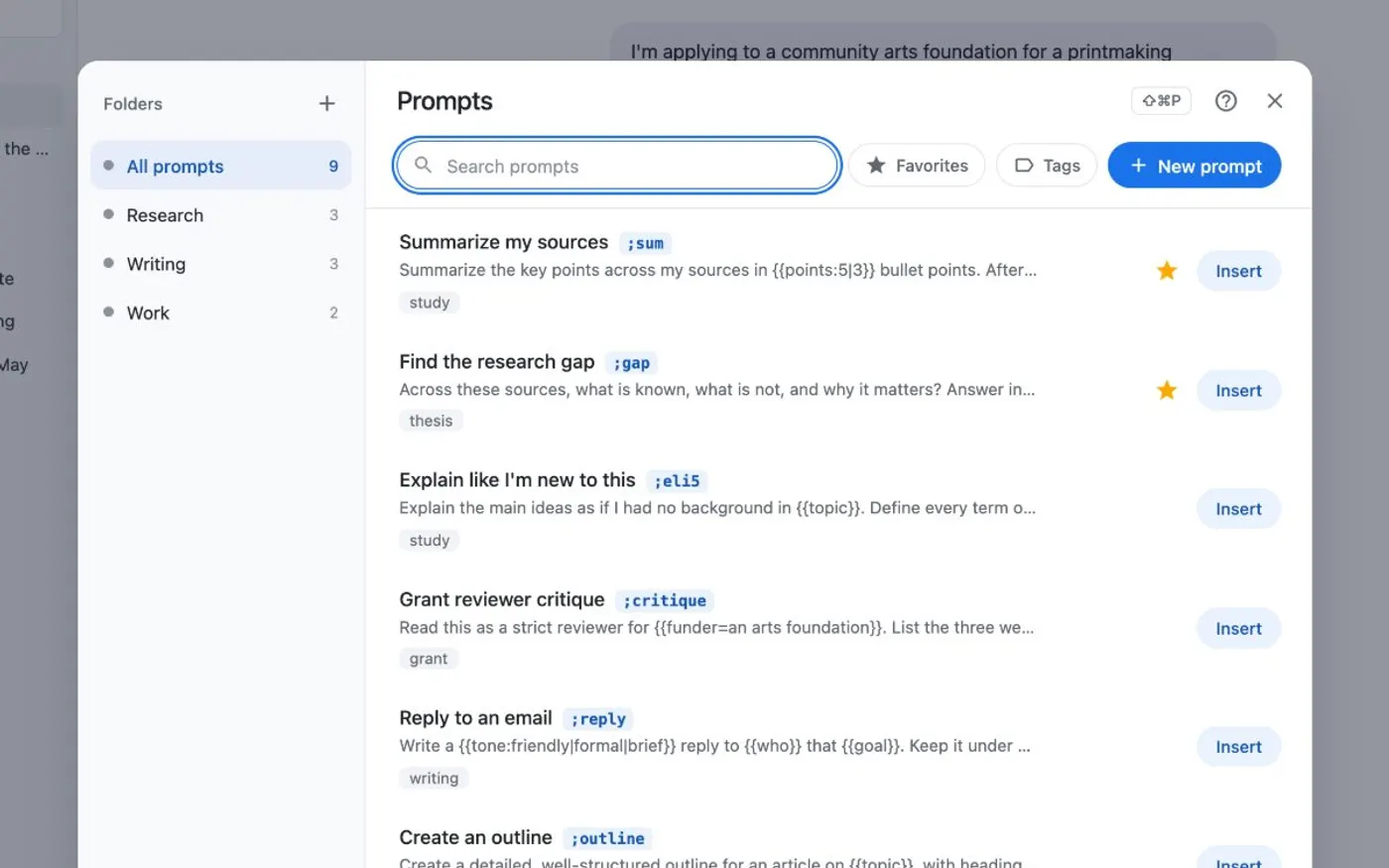
Press Cmd/Ctrl+Shift+P on any AI site to open your prompts. -
Give it a shortcut
Type a short word in Shortcut, such as sum. You can also put the prompt in a folder, add tags or star it.
-
Add a blank for the part that changes
Write {{audience}} where you want to fill in something new each time. Use {{audience=my team}} to set a usual answer. Use {{tone:formal|friendly}} to give a choice.
-
Insert it with ; in a chat box
In the chat box of a supported AI site, type ; and then the shortcut, or the first letters of the title. Press Enter or Tab. If the prompt has blanks, a small form opens first.
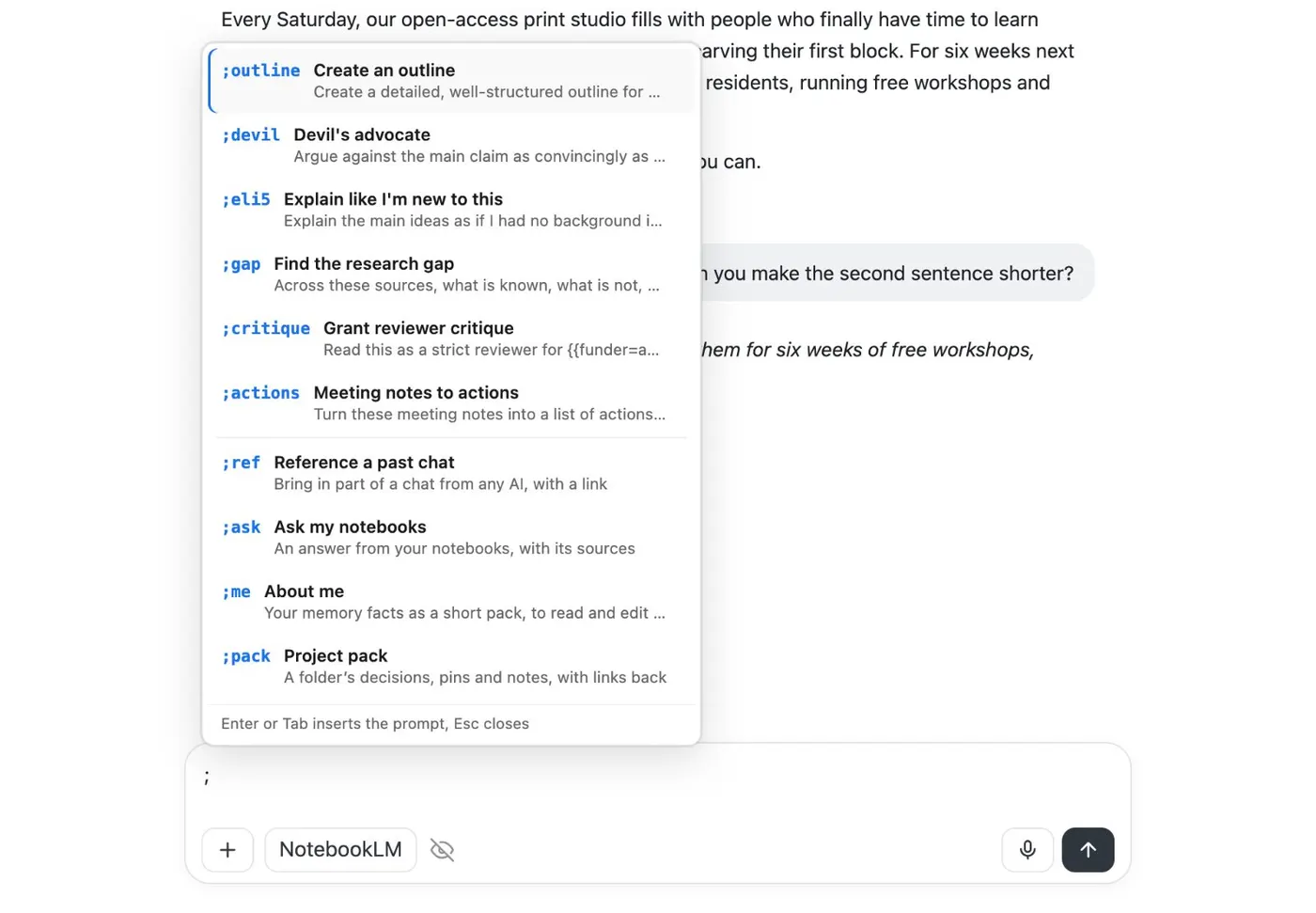
Type ; in a chat box for your saved prompts and commands. -
Open the Prompts panel anywhere
Press Cmd+Shift+P (Ctrl+Shift+P on Windows) on any page. Then click Insert. On NotebookLM, the Prompts button at the end of the Kortex bar opens the same panel.
-
Save a prompt from selected text
Select text on a page, right-click and choose Save selection as a Kortex prompt. To use a prompt on selected text, choose Use a Kortex prompt on the selection.
If it doesn’t work
- Typing ; shows no menu
- The ; menu works in the chat box of AI sites that Kortex supports. Reload the tab. Check that you have at least one saved prompt.
- Cmd/Ctrl+Shift+P does nothing
- Reload the page once. On chrome:// pages, the shortcut opens the Workspace's Prompts page instead of the panel.
- I deleted a prompt by mistake
- Open the Prompts view's ⋯ menu and choose Recently deleted. A deleted prompt stays there for 30 days.
Questions people ask
Something we missed? Ask us.
Do prompts work in NotebookLM itself?
Yes. The **Prompts** button at the end of the Kortex bar on a notebook opens the Prompts panel. Cmd/Ctrl+Shift+P opens it on any page.
Can I organize prompts in folders?
Yes. A prompt can have a folder, tags and a favorite star. The Prompts view lists prompts by folder.
Can I export my prompts?
Yes. The Prompts view's ⋯ menu has Export all as a file, which writes one JSON file. It also has Export all as Agent Skills. Import prompts reads a Kortex export, a JSON list or a CSV with a prompt column.
Can I use a prompt in Claude or Cursor over MCP?
Each saved prompt is a my-name command in Claude Desktop, Claude Code and Cursor over Kortex MCP.
Keep going
More tutorials
Do it on your own notebooks.
Install the Kortex extension and follow these steps on a notebook you already have.
100,000+ users, rated 4.5 on the Chrome Web Store.