
How to use prompt variables in ChatGPT
Quick answer
Install Kortex and write a prompt with a blank in double braces, such as {{audience}}. Save it with a Shortcut. In ChatGPT, type ; and the shortcut. A small form opens above the chat box. Fill in the blanks, press Enter, and the finished prompt goes into the chat.
Watch it first
-
Open New prompt
Press Cmd+Shift+P (Ctrl+Shift+P on Windows) on an AI site and click New prompt. Or open the Prompts view in the Library and click New prompt.
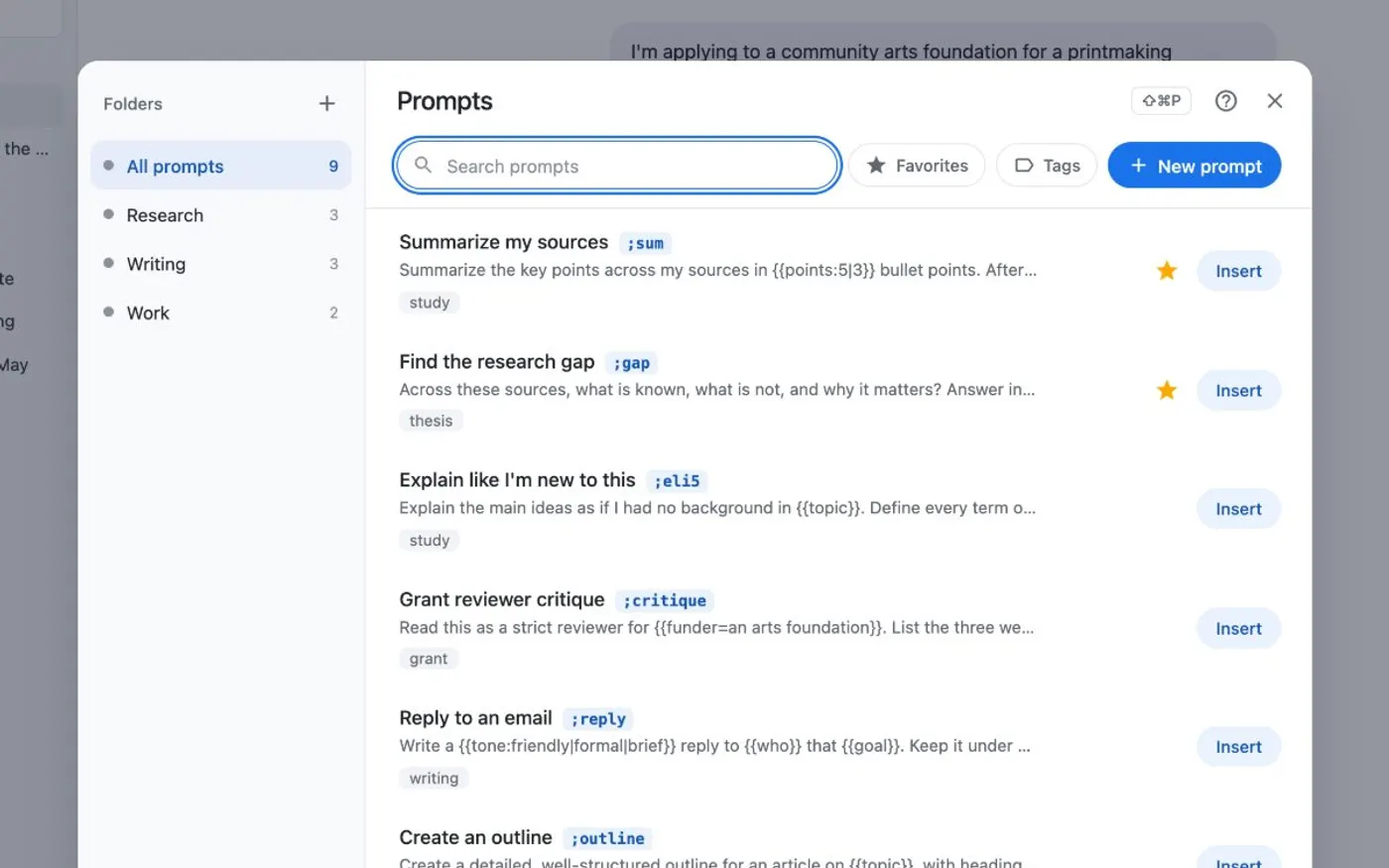
Press Cmd/Ctrl+Shift+P on any AI site to open your prompts. -
Write a blank in double braces
Type the prompt, and put a name between double braces where the text changes.
{{audience}}is a blank you fill in each time.{{audience=my team}}is a blank with its usual answer filled in.{{tone:formal|friendly}}is a choice, and the first one is the default. -
Let Kortex fill some blanks for you
A few names are filled in by Kortex:
{{selection}},{{clipboard}},{{date}},{{time}},{{page}}and{{url}}. To reuse another saved prompt's text, write{{>sum}}with its shortcut. -
Use Add a blank to avoid typos
In the Library's editor, click Add a blank to insert any of these. Selecting words offers to turn them into a blank. The editor flags likely mistakes, such as a blank spelled two ways, but it never stops you saving.
-
Give it a Shortcut and save
Type a short word in the Shortcut box, for example reply, then save the prompt. To split a long prompt into steps, put a line that holds only
>>>between them. -
Type ; and the shortcut in ChatGPT
In the chat box, type ; and the shortcut. A small form opens above the chat box, filled with your last answers. Press Tab to move between fields and Enter to put the finished prompt into the chat. With steps, the first goes in, and after you send it Insert next step offers the next.
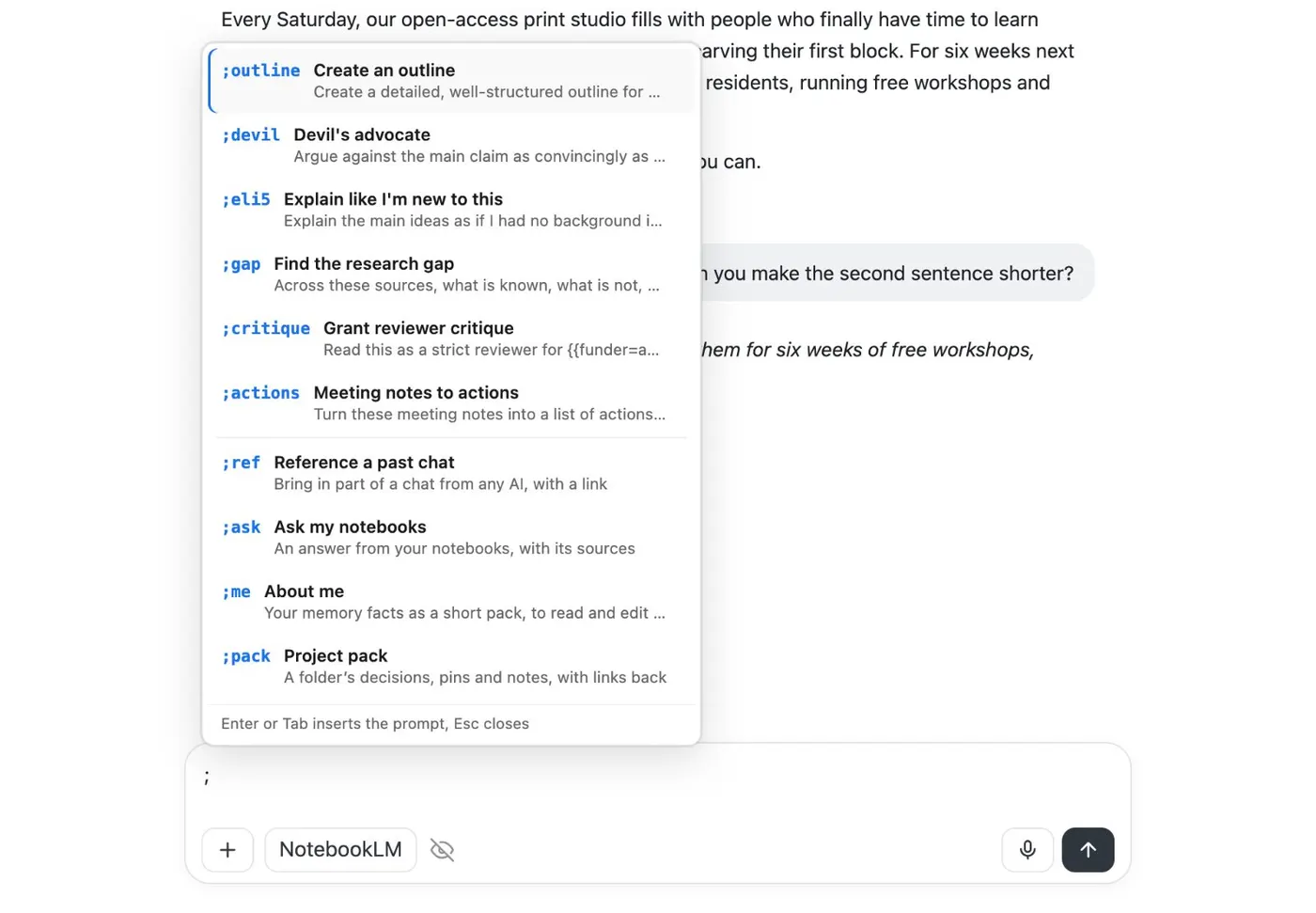
Type ; in a chat box for your saved prompts and commands.
If it doesn’t work
- The form does not open and the prompt goes in with the braces
- Kortex opens the form only when the prompt holds blanks written with two braces on each side, like {{topic}}. Check for a single brace or a missing one, and open the prompt in the Library editor, which flags likely mistakes.
- The same blank asks me twice
- A blank spelled two ways counts as two blanks, for example {{Topic}} and {{topic}}. The Library editor flags this. Use one spelling everywhere in the prompt.
- I want a blank to start with a usual answer
- Write the answer after an equals sign: {{audience=my team}}. For a short list of choices, use a colon and a bar: {{tone:formal|friendly}}. The first choice is the default.
Questions people ask
Something we missed? Ask us.
What are prompt variables?
They are blanks in a saved prompt, written in double braces like {{topic}}. Each time you use the prompt, a small form asks for the parts that change, and Kortex fills in the finished text.
Do variables work in Claude and Gemini too?
Yes. Prompts with blanks work from the ; menu in every AI chat box Kortex supports. The same form opens above the chat box each time.
Does Kortex remember my answers?
The form opens filled with your last answers, so you only change what is different. For a fixed usual answer, write it into the blank, like {{audience=my team}}.
Can one prompt use another prompt's text?
Yes. Write {{>sum}} to insert the text of the prompt with the shortcut sum. A line holding only >>> splits one prompt into steps.
Keep going
More tutorials
Do it on your own notebooks.
Install the Kortex extension and follow these steps on a notebook you already have.
100,000+ users, rated 4.5 on the Chrome Web Store.