How to Export Gemini Notebook (formerly NotebookLM) Sources
How to export NotebookLM sources, notes and chats to PDF or Markdown: every native download, the Gemini app's 11 file types and one-click export with Kortex.
You’ve spent weeks building a notebook: 40 sources, a stack of notes, a chat full of good answers. Now you want it somewhere else. A PDF for a colleague, Markdown for Obsidian, or just a backup. Gemini Notebook (formerly NotebookLM) makes that surprisingly hard. It downloads a few Studio outputs and sends notes to Google Docs, but no button exports a notebook’s sources or chats in one go. Here’s how to export every part of it.
Key Takeaways
- Gemini Notebook downloads Slide Decks as PDF or PowerPoint (Gemini Notebook Help, 2026) and exports notes to Google Docs or Sheets.
- It can’t export one notebook’s sources or chats, and deleted notes can’t be recovered.
- Its chat and the Gemini app can both write new files from your sources.
- Kortex exports everything in one click.
Can you export sources and chats from Gemini Notebook?
Only piece by piece. Google’s help center documents downloads for individual outputs, such as Slide Decks as PDF or PowerPoint, and sending each note to Google Docs or Sheets (Gemini Notebook Help, 2026). However, it documents no way to export one notebook’s sources or chats. The only bulk routes are account-wide: an admin’s Data Export tool on Workspace, which covers chat history, uploaded content, generated notes and audio overviews (Workspace Admin Help, 2026), and Google Takeout on personal accounts (Android Police, 2025). In other words, you can’t pull one project out on its own. That gap matters more than it looks, because an export is also your only undo. Google says there’s no way to recover deleted notes (Gemini Notebook Help, 2026). So what happens after one mistaken click on the wrong note? Without a copy outside Gemini Notebook, nothing brings it back.
How many copies is enough? The US Cybersecurity and Infrastructure Security Agency recommends a 3-2-1 rule for important files (CISA):
- 3 copies of important files.
- 2 different types of storage media, like a hard drive and the cloud.
- 1 copy stored off-site.
Gemini Notebook holds the first copy of your notebook. Thus, an export on your laptop and a second one in a different cloud folder cover the rest.
Plenty of people feel this gap. We analyzed 776 Kortex MCP waitlist answers (Sep-Oct 2026), and 72 people asked to get notes and outputs back out; 56% of them described a manual workaround they use today. One asked to “Download all files from all Notebooks in one shot”. Similarly, we analyzed 1,451 Google autocomplete suggestions in October 2026, and typing “export notebooklm” brought up “export notebooklm sources”, “export notebooklm chat”, “export notebooklm to pdf” and “export notebooklm flashcards to anki”.
A backup of every notebook, before you need one
Kortex adds export buttons inside Gemini Notebook, so sources, notes and chats leave as PDF, Markdown, text or ZIP in one click. Free on Chrome.
What does Gemini Notebook let you download natively?
Several Studio outputs have a native route out, while sources and whole chats have none. Slide Decks download as .pdf or .pptx, and Audio and Video Overviews download as media files from their Download buttons (Gemini Notebook Help, 2026). Infographics save as PNG images, and flashcards download as a CSV file (Gemini Notebook Help, 2026). In addition, notes export to Google Docs, and any data tables inside them go to Google Sheets, one tab per table (Gemini Notebook Help, 2026). The mobile app also saves Audio Overviews for offline listening (Google, 2025). For example, a study group can download a flashcard deck as CSV and open it in any spreadsheet. Sources and whole chats, by contrast, have no export button at all. For every Docs route, including using a notebook as a source inside Docs, see our Gemini Notebook and Google Docs guide.
| What | Native option |
|---|---|
| Slide Deck | Menu, then Download PDF Document (.pdf) or Download PowerPoint (.pptx) |
| Audio and Video Overviews | Download from the player. Audio Overviews also save offline in the mobile app |
| Infographic | Download as a PNG file |
| Flashcards | Download as a CSV file |
| A chat reply | Copy it, or save it to a note |
| A new file from your sources | Ask the chat for one; creating downloadable files is one of its agentic actions |
| Notes | Hover over the note in the Sources panel, select More, then Export to Docs. Data tables in a note go to Google Sheets, one tab each |
| Sources | Open each one. No bulk download |
| A whole chat | No export |
| Everything in the account | Google Takeout (personal) or the admin Data Export tool (Workspace), as one archive |
Two caveats apply, however. Edits you make in the new Doc or Sheet don’t sync back to the note. And when you revise a slide, Google’s help center says sources aren’t taken into account (Gemini Notebook Help, 2026). Therefore, check revised slides against your material before you present them.
How do you turn a notebook into a PDF or Word file with Gemini?
Use the Gemini app. Gemini can generate 11 file types from a chat, including PDF, Word, Excel, Markdown and Google Docs, Sheets and Slides, which you can download or export to Drive (Google, 2026). Notebooks in Gemini are notebooks inside the Gemini app that sync sources both ways with Gemini Notebook (Google, 2026). As a result, your material is already there when you open the Gemini app. Put the two together and you get a native route that most guides miss. For instance, you can ask for a Word summary with one heading per source, then download it. One catch: shared notebooks from Gemini Notebook don’t appear in the Gemini app, even ones you own (Gemini Notebook Help, 2026).
Here’s the route, step by step:
- Open gemini.google.com and find your notebook in the Notebooks section.
- Ask for a file, for example: “Create a Word document that summarizes the key findings from these sources, with a heading for each source.”
- Download the file or save it to Drive.
Know what you’re getting, though. It’s a new document Gemini writes from your material, not a copy of your notes or chat. That’s useful for a brief. It isn’t a backup, however, and it deserves a fact-check before you send it. Don’t see Notebooks in the Gemini app? Our comparison of Gemini Notebook and Notebooks in Gemini explains who has it.
There’s also a route inside Gemini Notebook itself. Google’s chat help lists “creating downloadable files, charts, and images” among the chat’s agentic actions (Gemini Notebook Help, 2026), so you can ask the notebook’s own chat for a file. Likewise, it writes something new rather than exporting your notes.
How to export all sources, notes and chats at once
Kortex is a free Chrome extension we built to add export buttons directly inside Gemini Notebook, and its users have run 200,000+ exports (Kortex, 2026). In contrast to the Gemini route, it exports what already exists in your notebook, word for word, rather than generating something new. The free plan includes 10 exports a day.
- Install Kortex and open any notebook at notebook.google.com. The old notebooklm.google.com address works too.
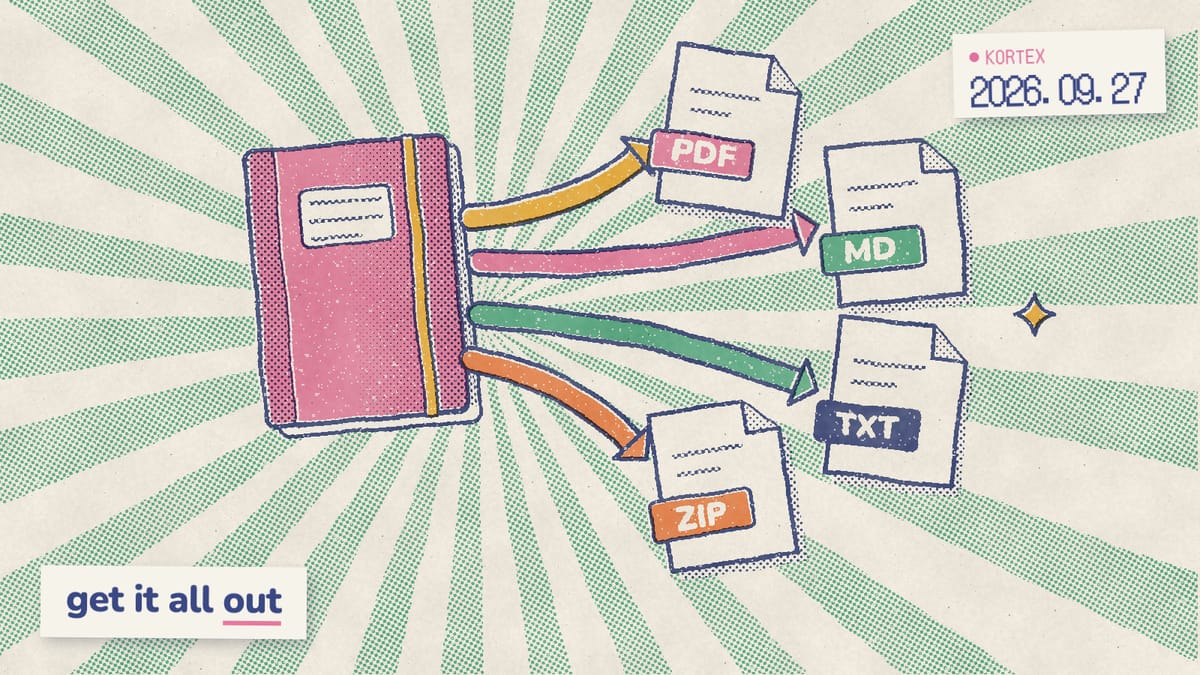
- Download every source. Use the button above the sources panel and save them all as PDF, Markdown, text or a ZIP.
- Export the Studio. The Export button in the Studio panel header saves every note and artifact at once, as PDF, Markdown or a ZIP.
- Export a single note as Markdown, or convert it to PDF.
- Export a chat. The Export button in the chat header saves the whole conversation, or only the replies you tick, as Markdown, text, PDF or JSON. You choose whether your own questions are included.
- Or just copy it. The Copy button puts a chat on your clipboard as Markdown. It’s free and never counts toward a limit.
In other words, that’s every source, note and chat out of the notebook, word for word, without opening each one.
Your whole notebook in one download
Install Kortex and the export buttons appear in the sources panel, the Studio and the chat, with 10 exports a day on the free plan. Free on Chrome.
How do you back up a notebook automatically?
Pro removes the daily limit, at $9.99 a month or $4.92 a month billed yearly, and includes every automation rule. Among them are rules that export a notebook on a schedule or when it’s gone untouched for 30 days (Kortex pricing, 2026). Our Kortex automation workflows guide has ready-made rules for both. Combined with the 3-2-1 rule above, that gives you a fresh copy outside Google without remembering to make one.
Should you save it as PDF or Markdown?
Match the format to where the file is going. Markdown is the safest archive format, because it’s plain text that almost any tool can open. Obsidian, for example, stores notes as “Markdown-formatted plain text files in a vault”, which is simply a folder on your computer (Obsidian Help, 2026). PDF suits sharing and printing, since the layout stays fixed. On the other hand, PDF text is awkward to edit or import again later. Meanwhile, JSON suits anyone processing chats in a script, and ZIP suits large notebooks. Want a note as Markdown without an extension? Send it to Google Docs, then download it as Markdown: Docs imports and exports Markdown (Google Workspace Updates, 2024). Specifically, you’ll find it under File, Download, Markdown. Drive also previews .md files and opens them in Docs without converting them; see how Google Drive Markdown works.
| Format | Best for |
|---|---|
| Sharing with people who don’t use Gemini Notebook, printing, email attachments | |
| Markdown | Obsidian, Notion, Logseq, static sites, and archives that stay readable |
| Plain text | Pasting into anything, including other AI tools |
| JSON | Developers who want to process chats in a script |
| ZIP | Large notebooks, when you want everything in one download |
How do you move a notebook into Obsidian or Notion?
Export the sources and the Studio as Markdown in a ZIP, then unzip them into your vault. Obsidian reads them as they are, since a vault is just a folder of Markdown files. Notion imports the same files through Settings, Import, then Text & Markdown, and each file becomes its own page (Notion Help, 2026). In fact, Notion also takes a whole folder at once as a ZIP. Additionally, chat exports in Markdown keep their headings, lists and paragraphs, so they read cleanly as notes. Deciding how the two tools should split the work? Our Gemini Notebook vs Notion guide covers when to use each. Still deciding which app should hold your notes long term? See how Gemini Notebook compares with Obsidian.
Want it done every week without unzipping anything? Our guide to sending notebook notes into Notion or Obsidian with your AI assistant has Claude or ChatGPT carry them over through Kortex MCP. That said, Kortex MCP is included with Kortex Pro and Lifetime.
Your notebook is only as safe as the last copy you made.
Make the first copy of your notebook today
Kortex saves every source, note and chat in Gemini Notebook as PDF, Markdown, text or ZIP, in one click. Free on Chrome.
Frequently asked questions
Can you export a Gemini Notebook?
Partly. Gemini Notebook downloads some Studio outputs, such as Slide Decks as PDF or PowerPoint, and exports notes to Google Docs or Sheets from each note’s menu. It can’t export one notebook’s sources or chats. Account-wide archives through Google Takeout or a Workspace admin’s Data Export tool are the only bulk routes, which is the gap export extensions fill.
How do I export Gemini Notebook to PDF?
For a Slide Deck, open its menu and choose Download PDF Document. A note can go to Google Docs first and download as PDF from there. For sources and chats there’s no native PDF export, so ask the Gemini app for a PDF or use an extension that saves the originals.
How do I export my chat history from Gemini Notebook?
Google documents no chat export, so natively you copy replies one at a time or select Save to Note on each one, then export that note to Google Docs. Kortex’s Export button in the chat header saves the whole conversation, or only the replies you tick, as Markdown, text, PDF or JSON, and its Copy button is free.
Can I export Gemini Notebook notes to Markdown?
Yes, in two steps: hover over the note in the Sources panel, select More, then Export to Docs, and in Docs use File, Download, Markdown. To export every note at once, Kortex saves them all as Markdown files in a ZIP.
Can Gemini create a Word or PDF file from my notebook?
Yes. Gemini Notebook’s own chat lists creating downloadable files among its agentic actions, and the Gemini app can generate 11 file types, including PDF, Word, Excel and Markdown (Google, 2026), and notebooks sync between Gemini Notebook and the Gemini app. The result is a newly written document, so check it against your sources before sharing.
Is exporting from Gemini Notebook free?
Native downloads are free, and so is the Gemini app’s file generation. Kortex’s free plan includes 10 exports a day plus unlimited copy-to-clipboard for chats, while Pro, at $9.99 a month or $4.92 a month billed yearly, removes the export limit and adds scheduled backups.
Editorial note: fact-checked against the official help pages and docs linked above on October 26, 2026. Spotted something out of date? Contact us and we will fix it, or read more about Kortex.