
AI assistants
Prompt library and shortcuts
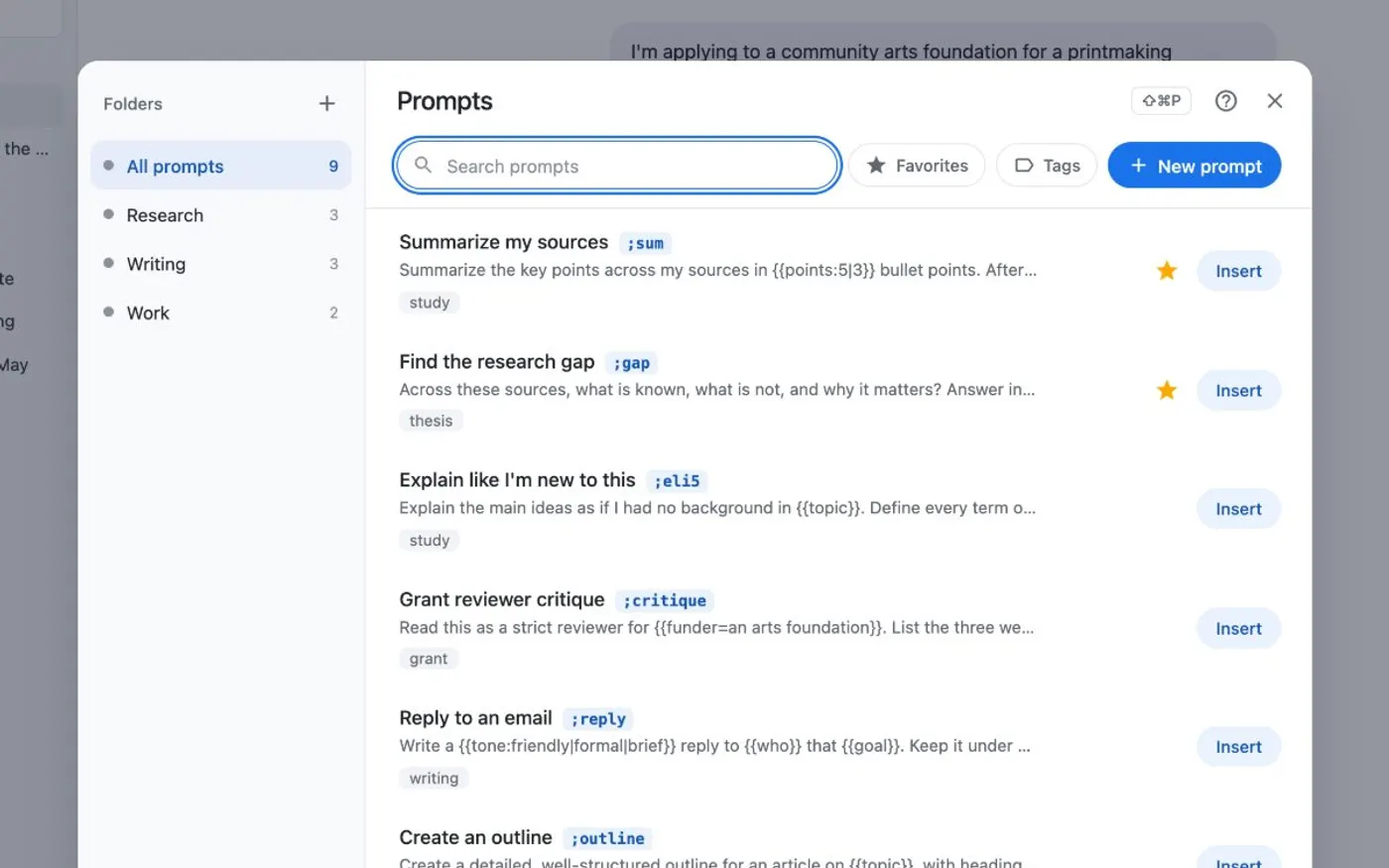
The Kortex Prompts Library saves your best prompts for Gemini Notebook (formerly NotebookLM) and AI chats, with folders, tags, favorites and blanks you fill in each time. Type ; in a supported AI chat box to insert one, or press Cmd+Shift+P (Ctrl+Shift+P on Windows).
What does the Kortex prompt library do?
The Prompts Library saves your prompts with folders, tags, favorites and blanks you fill in each time. Type ; in the chat box of a supported AI site to insert one. Or press Cmd+Shift+P (Ctrl+Shift+P on Windows) on any page.
What you get
-
Your best prompt, two keystrokes away
Type ; and a few letters in a chat box. Press Enter to put the prompt in. The prompts you use most come first.
-
Blanks that ask you
Write {{audience}} in a prompt. Kortex opens a small form above the chat box, filled with your last answers.
-
One library, every surface
The same prompts show in the Library, the Workspace, the side panel, the Prompts panel and the right-click menu.
-
Safe to edit
When you change a prompt, Kortex keeps the old version, up to 10 per prompt. You can get a deleted prompt back for 30 days.
Where do my prompts live?
You write prompts once and use them in four places. The Kortex Library has a Prompts view for writing and organizing. The Workspace’s Prompts page shows the same view. The side panel has a Prompts tab. The Prompts button at the end of the Kortex bar opens the Prompts panel on Gemini Notebook. Cmd+Shift+P (Ctrl+Shift+P on Windows) opens that panel on any page.
A prompt has a title, the text, an optional Shortcut, a folder, tags and a favorite star.
How do I insert a prompt with ;?
In a supported AI site’s chat box, type ; and then a shortcut or the first letters of a title. Press Enter or Tab to put the prompt in. If you type a full shortcut and a space, it goes in right away.
You can also right-click a chat box and choose Insert a Kortex prompt to see the 15 you used last.
Blanks and steps
| Write | What happens |
|---|---|
{{audience}} | A blank you fill in each time |
{{audience=my team}} | A blank with its usual answer |
{{tone:formal|friendly}} | A choice. The first is the default |
{{selection}} {{clipboard}} {{date}} {{page}} {{url}} | Filled in by Kortex |
A line with only >>> splits a prompt into steps. The first step goes in. After you send it, Insert next step offers the next one.
Keeping them safe
When you edit a prompt’s title or text, Kortex keeps the old one, up to 10 per prompt. Recently deleted keeps a deleted prompt for 30 days. Versions and Recently deleted stay on this computer.
Prompts are not templates. Templates organize notebooks. Prompts are what you ask.
How it works
Want every step? Follow the tutorial.
-
Write a prompt
Click New prompt in the Library, the Workspace, the side panel or the Prompts panel. Give it a title and the text. You can add a Shortcut too.
-
Add blanks
Use {{name}} for something you fill in each time. Kortex fills in {{selection}}, {{clipboard}}, {{date}}, {{page}} and {{url}} for you.
-
Insert it with ;
In a chat box on an AI site, type ; then the shortcut or the start of the title. Press Enter or Tab to insert it.
-
Open the panel anywhere
Press Cmd+Shift+P (Ctrl+Shift+P on Windows) on any page to open your prompts. Then click Insert.
Questions people ask
Something we missed? Ask us.
Which sites does the ; shortcut work on?
Every AI site Kortex supports, including ChatGPT, Claude, Gemini and Perplexity. The Cmd/Ctrl+Shift+P panel opens on any page.
What does Cmd/Ctrl+Shift+P do on a chrome:// page?
On chrome:// pages the shortcut opens the Workspace's Prompts page instead of the panel.
Can I organize prompts in folders?
Yes. A prompt has a folder, tags and a favorite star. The Prompts page lists them by folder.
Can I use a prompt on text I selected?
Yes. Right-click selected text and choose Use a Kortex prompt on the selection. The selection, the page title and its address fill the built-in blanks. Save selection as a Kortex prompt does the opposite.
Can I take my prompts with me?
Yes. A prompt's ⋯ menu has Export as an Agent Skill. The Prompts view has Export all as a file, which writes one JSON file.
Does the prompt library work with NotebookLM?
Yes. The Prompts button in the Kortex bar opens the Prompts panel on Gemini Notebook (formerly NotebookLM). Cmd+Shift+P (Ctrl+Shift+P on Windows) opens that panel on any page.
Try it on your own notebooks.
100,000+ people use the Kortex extension. Install it and try prompt library and shortcuts on a notebook you already have.
100,000+ users, rated 4.5 on the Chrome Web Store.