
Import
Send AI chats to a notebook
Kortex adds a button to ChatGPT, Claude, Gemini, Perplexity and other AI sites that saves a chat to Gemini Notebook (formerly NotebookLM). One click sends the whole chat as a text source to a new or existing notebook. Re-sync Conversation updates it later.
What does Send AI chats to a notebook do?
It adds a button to the chat box on AI sites such as ChatGPT, Claude, Gemini and Perplexity. One click saves the whole chat as a text source in a new or existing notebook in Gemini Notebook. Your questions and the replies are labeled.
What you get
-
Your research does not stay buried in chat history
A chat you saved is a source. Gemini Notebook can answer from it, cite it, and mix it with your PDFs and web pages.
-
Ten sites, one habit
The same button works on ChatGPT, Claude, Gemini, Perplexity, Grok, Genspark, Kimi, OpenEvidence, Merlin and Gistr.
-
Nothing to copy and paste
You do not need an export file or any fixing. The source is titled with the site and the chat's title, like [CHATGPT] Trip plan.
-
The right notebook, suggested
Kortex marks the notebook that fits the chat best as Suggested. It warns you if the notebook already has the chat.
Where does the button appear?
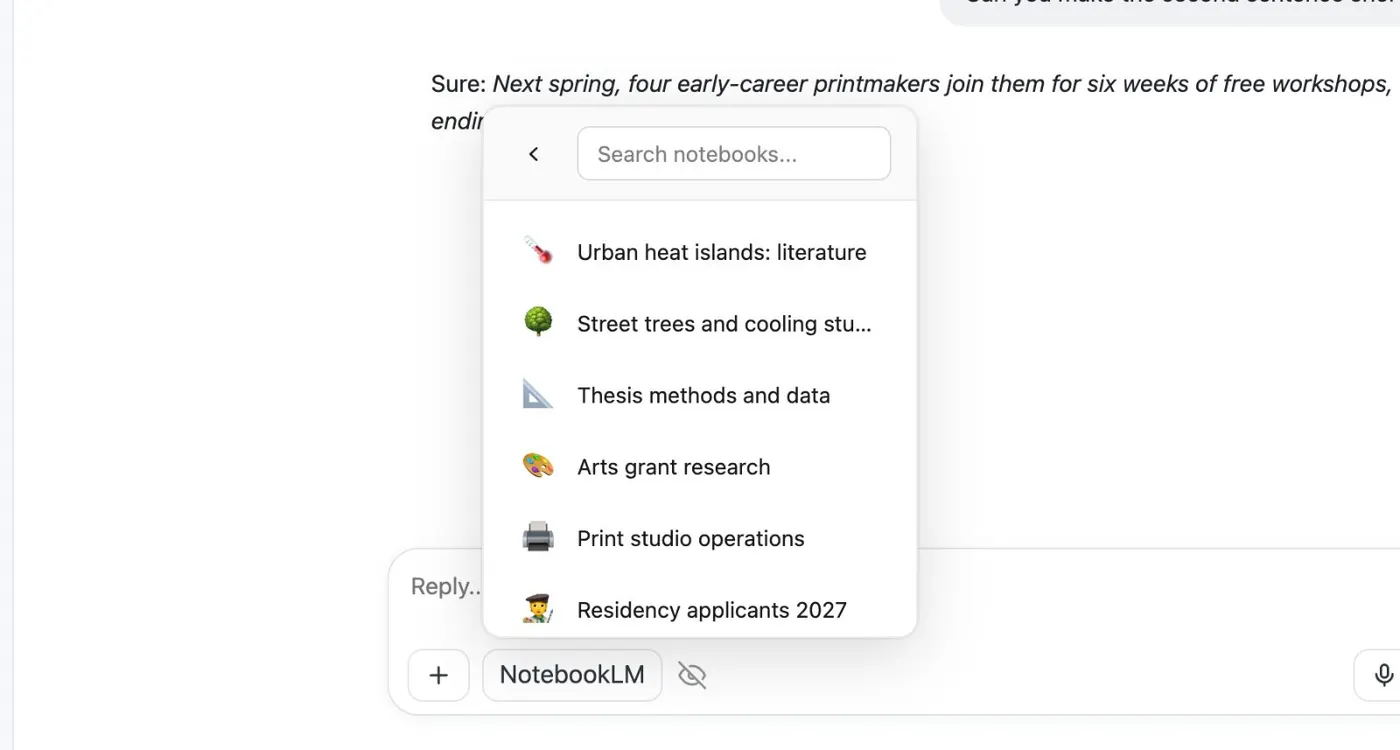
On a supported AI site, Kortex adds a small button to the chat box. It says NotebookLM, the name Kortex’s screens still use. Click it and a menu opens with two choices: Create New Notebook and Use Existing Notebook. The menu also says when you last saved this chat.
If you use tags, folders or collections, a window opens first. You can file the new notebook or source as it is created.
What does the button save?
The chat arrives as one text source. Its title is the site and the chat’s title in brackets, for example [CHATGPT] Trip plan. Your questions and the AI’s replies are marked, so Gemini Notebook can tell who said what when it cites the source.
The button works on more than ChatGPT. Claude, Gemini, Perplexity, Grok, Genspark, Kimi, OpenEvidence, Merlin and Gistr get the same button. Perplexity has a second one in its Sources panel that imports every cited link as its own source.
Keeping a chat current
Kortex does not watch the chat. Say you save a chat, keep talking, and save it again. Kortex warns you that the notebook already has it. Add anyway makes a second copy. Re-sync Conversation replaces the first copy with the chat as it is now. This keeps the notebook free of near-duplicates.
What it is not
It is not a backup of your AI account, and it does not change the chat. It puts what an AI told you into the place where you read and study. To bring in research from many places at once, use bulk import and highlight and send for pages, tabs and links.
How it works
Want every step? Follow the tutorial.
-
Open a chat
Go to a chat on a supported AI site. The Kortex button, called NotebookLM, is in the chat box.
-
Choose where it goes
Click it, then pick Create New Notebook or Use Existing Notebook. Existing notebooks show recent ones first, and you can search.
-
Find it in the notebook
Open the notebook in Gemini Notebook. The chat is a source named after the site and the chat.
-
Keep it current
If you send a chat again, Kortex asks before it adds a second copy. Re-sync Conversation replaces the old copy with the chat as it is now.
Questions people ask
Something we missed? Ask us.
Which AI sites does the button work on?
ChatGPT, Claude, Gemini, Perplexity, Grok, Genspark, Kimi, OpenEvidence, Merlin and Gistr. On Perplexity, a second button in the Sources panel imports every cited link as its own source. On Gemini, Canvas content is included.
Why does the button say NotebookLM?
Google renamed NotebookLM to Gemini Notebook on July 16, 2026. It is the same product, and the Kortex button still carries the old name.
Does one chat make one source?
Yes. The whole chat arrives as a single text source. Your questions and the replies are labeled.
What if I keep chatting after I saved?
The saved source does not change by itself. If you send the chat again, Kortex tells you the notebook already has it. An Add anyway choice makes a second copy. Re-sync Conversation replaces the old copy instead.
Can I hide the button on a site?
Yes. Use Hide NotebookLM button on this site in the button's menu, or turn the buttons off under Manage features in the side panel.
Is this the same as Gemini Notebook's own import?
No. Gemini Notebook can add web pages, files and YouTube links. It cannot take a chat from another AI site. This button does that.
Try it on your own notebooks.
100,000+ people use the Kortex extension. Install it and try send ai chats to a notebook on a notebook you already have.
100,000+ users, rated 4.5 on the Chrome Web Store.