
AI assistants
Kortex MCP
Kortex MCP is a server that lets an AI assistant such as Claude, ChatGPT, Cursor or Codex work in your Gemini Notebook (formerly NotebookLM) notebooks. It can ask questions about your sources, import, tag, export and generate. It runs through the Kortex extension, so Chrome must be open.
What is Kortex MCP?
Kortex MCP is a server that gives an AI assistant such as Claude, ChatGPT, Cursor or Codex tools for your Gemini Notebook notebooks. The assistant can ask questions about your sources, import sources, tag, export and generate. It runs through the Kortex extension, so Chrome must be open.
What you get
-
Your assistant works in the notebooks
Ask Claude to list notebooks, read a source, or answer from a notebook with citations. You do not need to open a tab.
-
Fill and tidy notebooks from the chat
Add links, YouTube videos, Google Docs or pasted text as sources. Tag, file, rename or merge notebooks.
-
Your Google login stays in Chrome
Calls go to your own Chrome extension, which holds the Google session. Kortex never stores your Google password or cookies.
-
One key per app, with only the access you choose
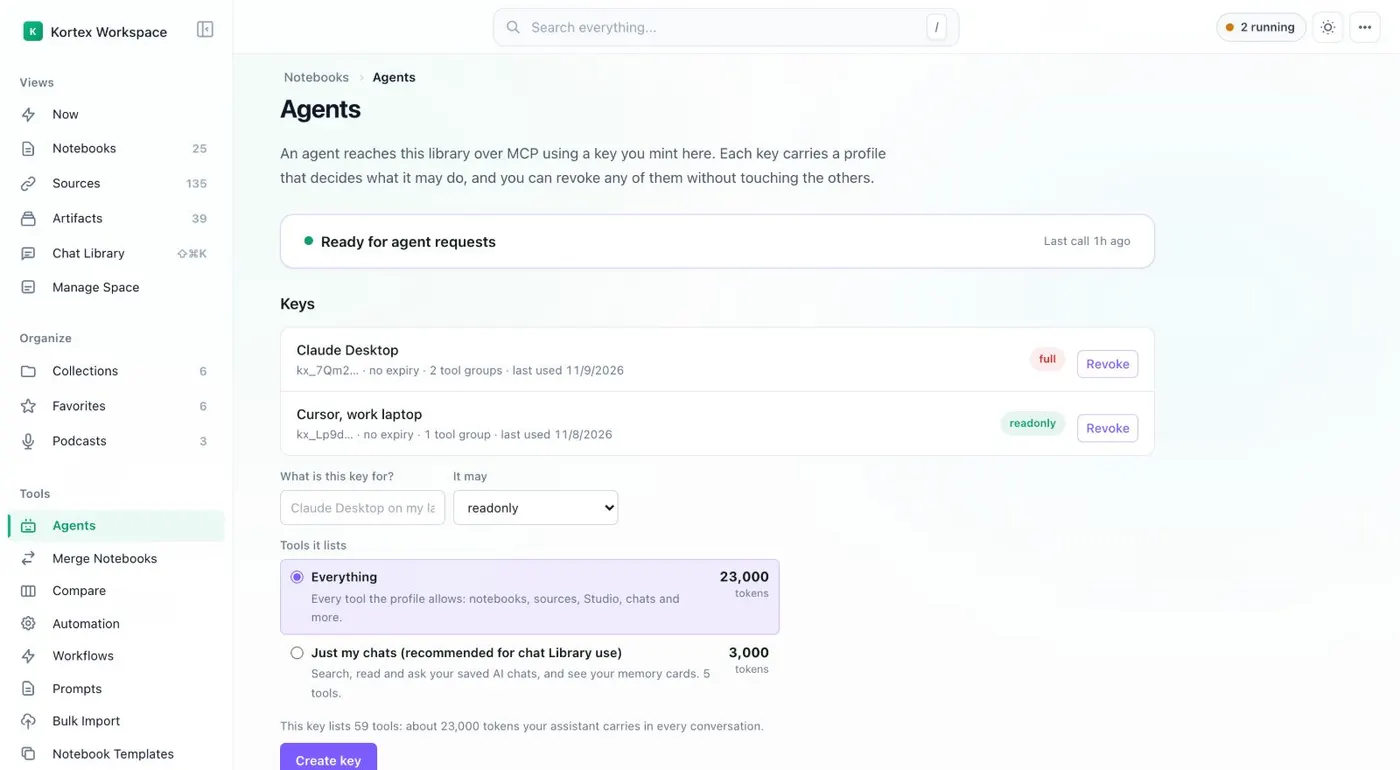
Each key has a profile: Read-only, Minimal, Standard or Full. The Agents page lists the keys and what each can do.
What it is
Google has no public API for Gemini Notebook. Kortex reaches your notebooks the way the extension already does in your browser. MCP gives that to an AI assistant as tools it can call. MCP is the Model Context Protocol, the open standard that assistants use to reach outside systems.
Your assistant talks to a Kortex address. The address passes the job to the Kortex extension in your Chrome. The extension asks Gemini Notebook with your own Google session. The answer goes back the same way. Nothing runs without Chrome.
What you can ask for
- Ask a notebook a question and get an answer with citations
- Read a source’s content, or list every source in your library
- Add web addresses, YouTube videos, Google Docs, pasted text or files as sources
- Tag, file, rename, merge and clean up notebooks and sources
- Generate Audio Overviews and study material, then export them
Signing in
Sign in with your Kortex account and connect. Chrome has to be open with the Kortex extension signed in to the same account, because every call runs there.
Keys and limits
Sign-in (OAuth) needs no key. Cursor and Codex use an API key. So does any setup with no browser. Each key has a profile. Read-only is the default. Minimal adds writes that only add things. Standard adds renames and moves. Full includes deletes. The limits are 60 calls a minute per key and 120 across all your keys.
The Agents page lists every key in the Workspace. For the steps, see how to connect Claude to Gemini Notebook with Kortex MCP. Prompts you save also show up as commands in some apps. See the prompt library.
How it works
Want every step? Follow the tutorial.
-
Check Chrome
You need Chrome open with the Kortex extension signed in to your Kortex account.
-
Add the server in your assistant
The address is https://mcp.kortex-notebooklm.com/mcp. Claude, Claude Code and ChatGPT sign in with OAuth. Cursor and Codex use an API key.
-
Make a key if the app needs one
In the side panel, open the menu and choose MCP Connection. Or use Create key on the Agents page of the Workspace.
-
Ask for something
Try 'List my Gemini notebooks.' The first call after Chrome has been idle can take up to 30 seconds.
Questions people ask
Something we missed? Ask us.
Do I need a Kortex account?
Yes. You sign in with your Kortex account and connect. Claude, Claude Code and ChatGPT sign in through the browser. Cursor and Codex use an API key made in Kortex.
Do I need Chrome open?
Yes. Every call runs inside your Chrome extension, which holds your Google session. Chrome can be minimized. No notebook tab needs to be open.
Why was my first call slow?
Chrome puts idle extensions to sleep. The first call of a session can take up to 30 seconds while Kortex wakes up. Later calls are fast.
Can my assistant delete things?
Only if the key's profile allows it. Read-only is the default for a new key. Standard never permanently deletes. Full does. Tools that delete ask for confirmation first.
Which apps does it work with?
The setup guide covers Claude Code, Claude Desktop and web, ChatGPT, Cursor and Codex. Any other app that supports remote MCP servers over HTTP can use the same address.
Does Kortex see my Google password?
No. Kortex never stores your Google password or cookies. The call is handed to your own Chrome extension, which uses your existing Google session.
Try it on your own notebooks.
100,000+ people use the Kortex extension. Install it and try kortex mcp on a notebook you already have.
100,000+ users, rated 4.5 on the Chrome Web Store.