
How to connect Claude to NotebookLM (Gemini Notebook) with Kortex MCP
Quick answer
With Chrome open, run claude mcp add --transport http kortex https://mcp.kortex-notebooklm.com/mcp in Claude Code. Sign in when the browser opens. Claude Desktop, Claude on the web and ChatGPT use the same address as a custom connector. Cursor and Codex use an API key.
Watch it first
-
Connect Claude Code
Run this in a terminal:
claude mcp add --transport http kortex https://mcp.kortex-notebooklm.com/mcp. Your browser opens a Kortex consent page. Sign in to connect. -
Connect Claude Desktop or Claude on the web
In the message box, open +, then Connectors, Add connector and Add custom connector. Name it Kortex. Paste
https://mcp.kortex-notebooklm.com/mcpinto the URL field and press Continue. Sign in on the Kortex page. -
Connect ChatGPT
Turn on developer mode under Settings, Security and login, Developer mode. Open Plugins, then the Personal tab, then Add and Create MCP App. Name it Kortex. Put the address in Server URL. Set Authentication to OAuth. Tick the warning box and click Create.
-
Make an API key for Cursor or Codex
In the Kortex side panel, open the ⋯ menu and choose MCP Connection. Name the key, pick a profile, and click Generate key. You can also click Create key on the Workspace's Agents page. The key starts with kx_mcp_. Kortex shows it only once.
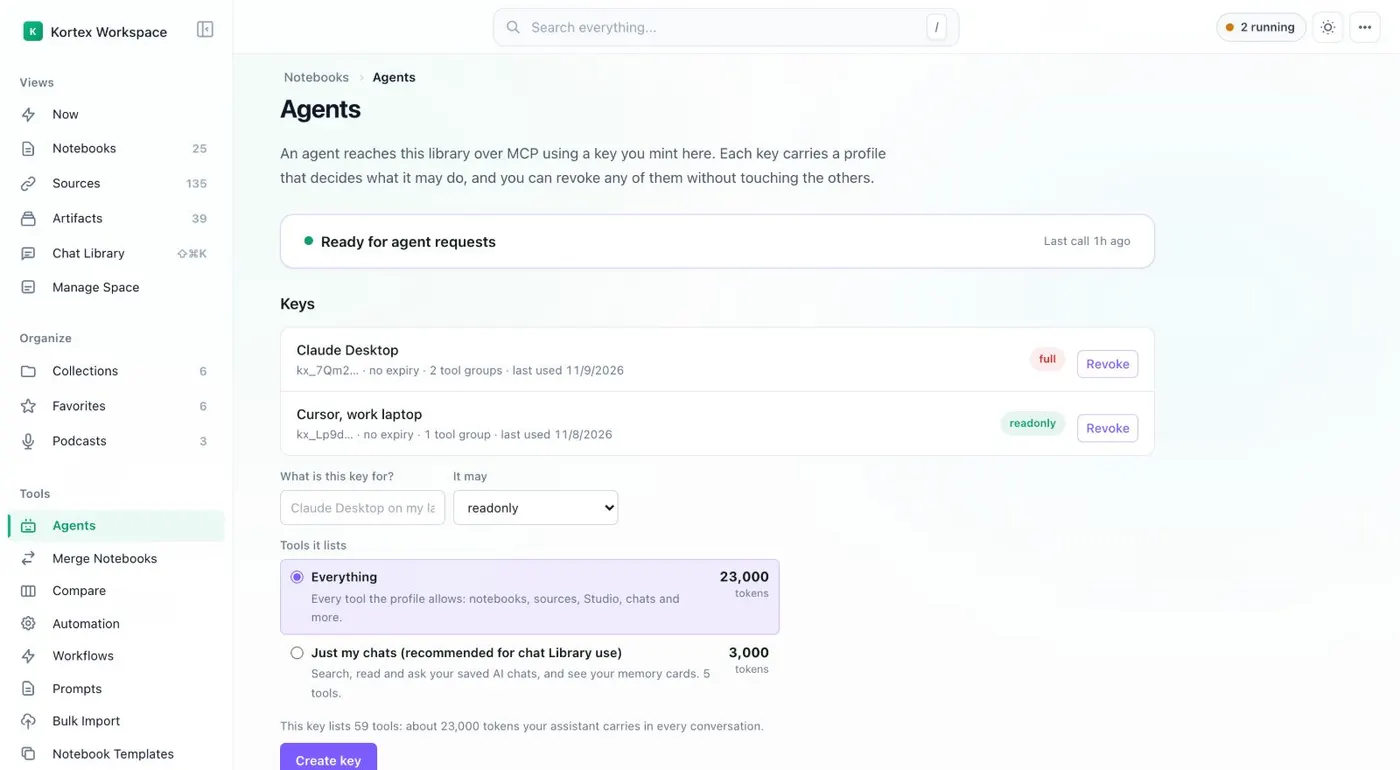
Agents: one key for each AI app, and what each can do. -
Connect Cursor
Add this to
.cursor/mcp.jsonin your project, or to~/.cursor/mcp.jsonfor every project: akortexentry undermcpServers. Set the address asurl. Add aheadersobject whoseAuthorizationisBearerand your key. Then check Settings, MCP for a green light. -
Connect Codex
Add a
[mcp_servers.kortex]block to~/.codex/config.toml. Setcommandtonpx. Setargsto-y,mcp-remote, the address,--headerandAuthorization: Bearerfollowed by your key. -
Ask your first question
With Chrome open and Kortex signed in, ask your assistant 'List my Gemini notebooks.' The first call after Chrome has been idle can take up to 30 seconds.
If it doesn’t work
- Tools are listed but every call fails or times out
- Kortex needs Chrome running, with the extension on and signed in to the same account. A minimized window is fine. A quit Chrome is not. Ask your assistant to call get_status.
- The first call is very slow
- Chrome pauses idle extensions, so Kortex can take up to 30 seconds to wake. Later calls are fast. If your client has a short tool timeout, raise it to at least 60 seconds.
- The assistant says a tool does not exist
- The key's profile hides it. A Read-only key does not show write tools. Make a Standard key if the assistant needs to make changes.
- Claude Desktop or Codex shows no Kortex tools
- These use npx mcp-remote, so you must install Node.js. Check the JSON or TOML for a typo. Then fully quit and reopen the app.
- I lost my key
- Kortex shows a key once and stores only a hash of it. Revoke it on the Agents page and generate a new one.
Questions people ask
Something we missed? Ask us.
Do I need a Kortex account?
Yes. You sign in with your Kortex account. Claude Code, Claude Desktop, Claude on the web and ChatGPT connect through the browser. Cursor and Codex use a key.
Do I need an API key?
Not for Claude Code, Claude Desktop, Claude on the web or ChatGPT. They sign in with OAuth (a sign-in through your browser). Cursor and Codex use a key. So does any setup with no browser.
Which key profile should I pick?
Start with Read-only, the default. Use Standard for renames and moves. Full includes deletes, so use it only when you are watching.
Can I keep Claude from deleting things?
Yes. In Claude's connector settings you can set a tool to ask every time, or to never run. A Read-only or Standard key never allows deletes. Both limits apply together.
Keep going
More tutorials
Do it on your own notebooks.
Install the Kortex extension and follow these steps on a notebook you already have.
100,000+ users, rated 4.5 on the Chrome Web Store.