
How to archive ChatGPT chats and find them again

1 minute 6 steps Updated

Quick answer

Open your chat history, select the ••• menu beside a chat, and select Archive. No confirmation is needed. To find archived chats, open Settings, then Data controls, then Archived chats. There you can Unarchive or Delete. Archived chats stay saved and searchable.

Watch it first

How to archive ChatGPT chats and find them again
Read the transcript

Here's how to archive a chat in ChatGPT, and how to find it again. Archiving clears your sidebar without deleting the chat. Open your chat history in the sidebar.

Select the three-dot menu beside a chat, then select Archive. ChatGPT asks for no confirmation. The chat leaves your sidebar, but it stays saved.

To find it again, open Settings, then Data controls. Select Archived chats. Some devices say View archived chats.

If you see Manage, select it. Archived chats also stay searchable. In the archived list, select Unarchive to move a chat back to your history.

Or select Delete to remove it for good. To archive every chat at once, open Settings, then Data controls. Select Archive all chats.

Review the message, then continue. This can affect the chats in your current account or workspace, including chats in projects. Kortex keeps a copy of your chats on your computer.

In its Library, a chat's menu has Archive too. It hides the chat from every view and search except the Archive view. This tidies your Library copy only.

Archived chats stay saved until you delete them.
  1. Open your chat history

    In ChatGPT, open the list of your chats in the sidebar. Find the chat you want to move out of the way.

  2. Archive the chat

    Select the more options menu (•••) beside the chat, then select Archive. ChatGPT asks for no confirmation. The chat leaves your regular sidebar but is not deleted.

  3. Find your archived chats again

    Open Settings, then Data controls. Select Archived chats, or View archived chats on some devices. If Manage appears, select it. Archived chats also stay searchable, so search can find them.

  4. Unarchive or delete a chat

    In the archived list, select Unarchive to move a chat back to your regular history. Select Delete to remove it for good.

  5. Archive every chat at once

    Open Settings, then Data controls, and select Archive all chats. Review the message and continue. This can affect chats in your current account or workspace, including chats in projects.

  6. Optional: archive in a searchable copy outside ChatGPT

    Kortex keeps a copy of your chats on your computer. In its Library, a chat's menu has Archive, which takes the chat out of every view and search except the Archive view. It tidies your Library copy only.

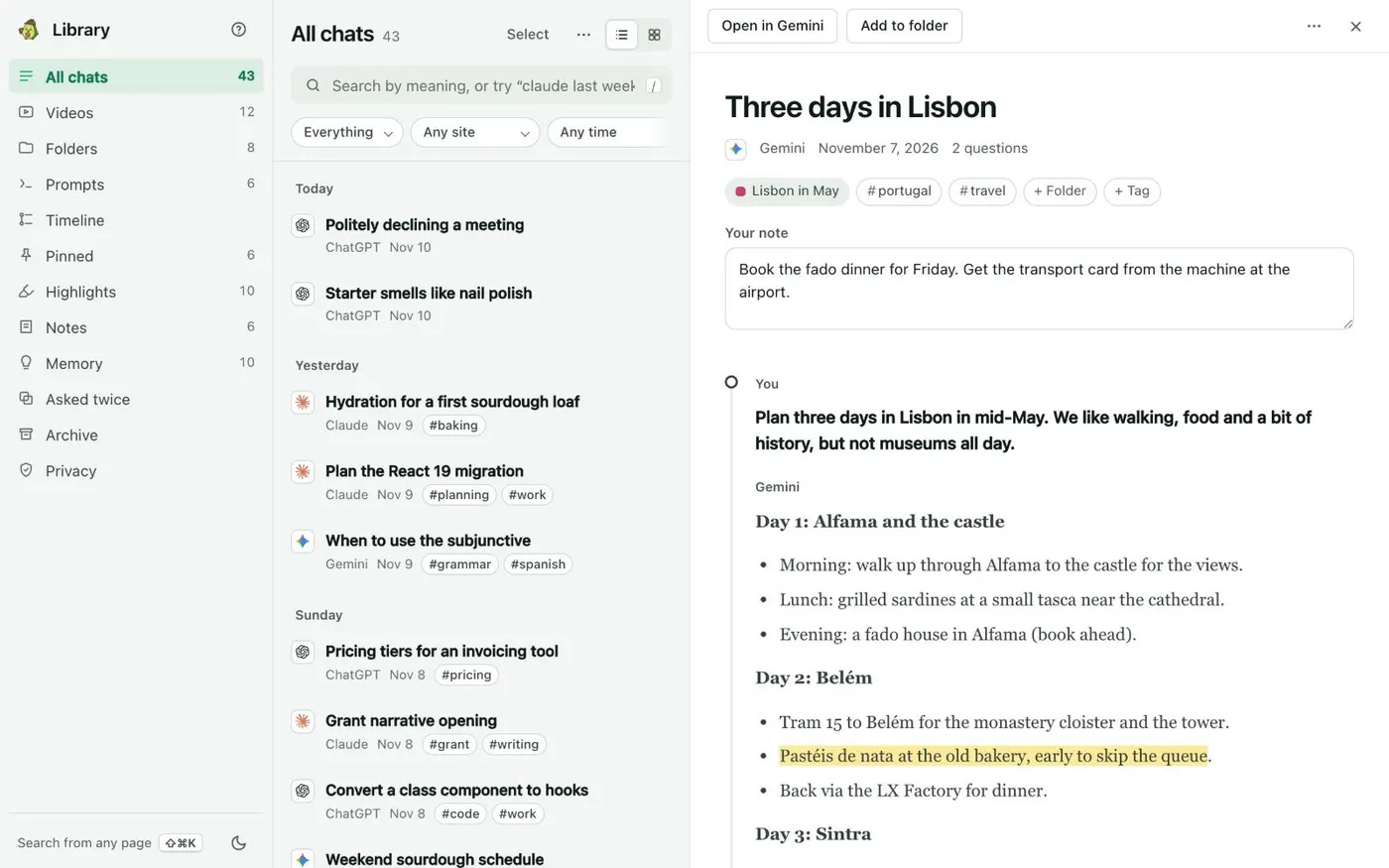
    The Kortex Library All chats view with a list of saved chats by day and one chat open in the reader beside the list.
    All chats lists every saved chat by day. Open one to read it in full beside the list.

If it doesn’t work

I cannot find my archived chats
Open Settings, then Data controls, then Archived chats or View archived chats. Also check that you are in the right account and workspace. A locked chat sits under Projects, then Locked chats, and needs your PIN.
A scheduled task stopped after I archived its chat
OpenAI warns that archiving a chat used for scheduled-task results can pause the task on a later run. Unarchive the chat, then check the task under Scheduled.
An archived chat still shows up in search
That is normal. OpenAI states that archived chats remain searchable. Archiving only moves a chat out of your regular sidebar. To remove it for good, delete it.

Questions people ask

Something we missed? Ask us.

Does archiving a ChatGPT chat delete it?

No. Archiving removes the chat from your regular sidebar but keeps it in your account. Archived chats remain searchable. Deleting is separate and permanent.

How do I get a chat out of the archive?

Open Settings, then Data controls, then Archived chats. Select Unarchive beside the chat and it returns to your regular history.

Can I archive all my ChatGPT chats?

Yes. In Settings, then Data controls, select Archive all chats and confirm.

Does archiving change how long OpenAI keeps a chat?

No. OpenAI states that archiving a chat does not change its retention period. Regular and archived chats stay saved until you delete them.

Sources

Keep going

More tutorials

All tutorials

Do it on your own notebooks.

Install the Kortex extension and follow these steps on a notebook you already have.

100,000+ users, rated 4.5 on the Chrome Web Store.

Talk to the Kortex team

This opens a pre-filled email in Gmail. We usually reply within a day.