
How to continue a ChatGPT conversation in a new chat

5 minutes 6 steps Updated

Quick answer

Start a new chat, then paste in what the old one decided. On the Free plan, ChatGPT may offer to start a new chat with a summary when a conversation is full. Ask the old chat for its own summary, or move both chats into a Project. Then check the new chat has the details you need.

Watch it first

How to continue a ChatGPT conversation in a new chat
Read the transcript

When a ChatGPT chat gets too long, start a new one and bring the key facts along. Here's how. Your messages and ChatGPT's replies both take up space.

A long chat can show Context window full, or Chat memory full. If the notice offers a new chat with a summary, take it. OpenAI warns a summary may leave out details.

You can also ask the old chat to summarize what you decided, what's still open, and the key facts. Check it, fix any mistakes, and copy it. Select a new chat in the sidebar.

Paste your summary first, then say what you want next. Or keep both chats in a Project. In the old chat's menu, select Move to project.

With project memory, chats can reference others in the same project. Kortex can carry the context for you. In its Library, open a chat's menu and choose Continue in another AI.

It packs what the chat decided, what's still open and the key facts. You pick the AI and edit the pack. In a new chat box, type semicolon ref to bring in a passage from a past chat, with a link back.

Then check the new chat has the details you need.
  1. Know why the chat filled up

    Your messages and ChatGPT's replies both take up space, so a few long exchanges can fill a chat. On the Free plan, ChatGPT can show a Context window full or Chat memory full notice. Deleting saved memories does not make more room.

  2. Use the summary option if ChatGPT offers it

    If the notice offers to start a new chat with a summary, take it. OpenAI warns that a summary may leave out details. The notice may also offer an upgrade to keep going in the original chat.

  3. Ask the old chat for a summary yourself

    In the old chat, ask: Summarize what we decided, what is still open, and the key facts. Check it, fix mistakes, and copy it. This is a general tip, not an OpenAI menu feature.

  4. Start a new chat and paste the summary

    Select a new chat in the sidebar. Paste your summary first and say what you want next. If the old chat is still in your history, reopen it any time and copy over a paragraph you still need.

  5. Or use a Project to keep chats together

    Open the old chat's menu and select Move to project, or start the new chat inside the same project. With project memory, chats can reference other conversations in the same project. They cannot see conversations outside it.

  6. Optional: carry the context with Kortex

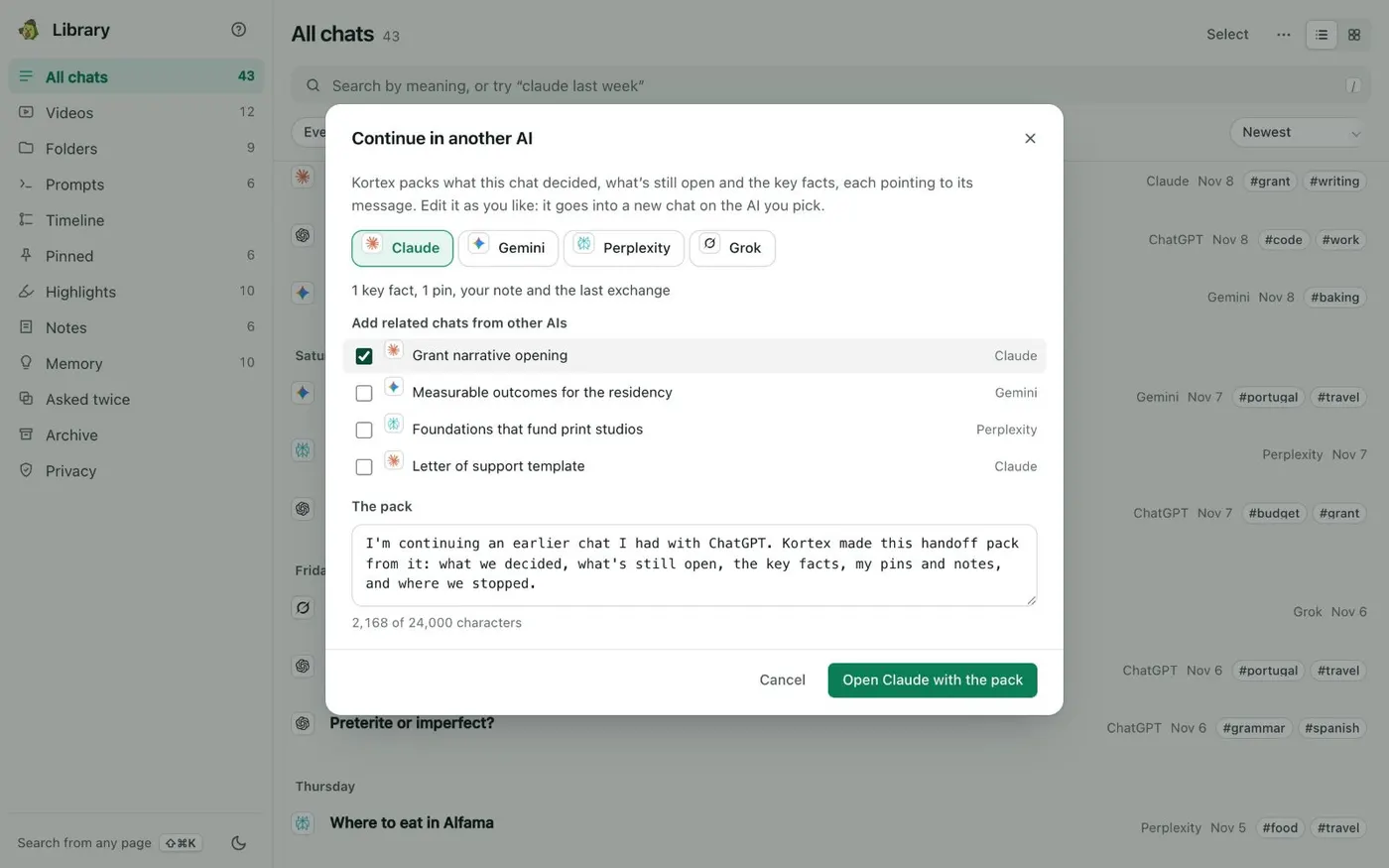
    Kortex is a Chrome extension with a Library of your saved AI chats. In a chat's ⋯ menu, Continue in another AI… builds a handoff pack with what the chat decided, what is still open, key facts, your pins and note. You pick the AI and edit the pack. In a new chat box, type ;ref to bring in a passage from a past chat, with a link back.

    The Kortex Continue in another AI dialog with a choice of AIs, related chats to add, and an editable pack with an Open button.
    You read and edit the pack before it goes anywhere.

If it doesn’t work

The new chat also says it is full
If you continued with a summary, choose New chat in the sidebar and send a short message. If a new chat fills after a few short messages, check OpenAI Status, or try a private browser window. If it keeps happening, contact Support.
The new chat forgot an important detail
A summary may leave out details. Reopen the original chat and copy the paragraph you need. Put key facts at the top of your first message in the new chat.
I cannot move the chat into a project
Chats created with a GPT cannot be moved into a project. Start a new chat inside the project and paste what you need.

Questions people ask

Something we missed? Ask us.

Why does ChatGPT say Context window full?

Your messages and ChatGPT's replies both fill the chat. On the Free plan, a long chat can show a notice. Start a new chat for free, or use the summary option if it is offered.

Will ChatGPT remember my old chat in a new chat?

Not by itself. Memory may carry some details across chats if it is on, but it does not keep every detail. Paste what matters into the new chat. See how to turn off ChatGPT memory to see what it keeps.

Can I continue a chat in a different AI?

Yes. Copy a summary into the other AI, or use a tool that builds a handoff pack. See how to move ChatGPT conversations to Claude.

Can I continue a chat someone shared with me?

Yes. Continuing a shared conversation creates a separate, private conversation in your own account.

Sources

Keep going

More tutorials

All tutorials

Do it on your own notebooks.

Install the Kortex extension and follow these steps on a notebook you already have.

100,000+ users, rated 4.5 on the Chrome Web Store.

Talk to the Kortex team

This opens a pre-filled email in Gmail. We usually reply within a day.