
How to turn off ChatGPT memory (and delete saved memories)

3 minutes 7 steps Updated

Quick answer

Open Settings, then Personalization, then Memory. Turn off Memory, or the controls shown for your account, such as Reference saved memories and Reference chat history. To see what ChatGPT knows, read the memory summary or the saved memories. Turning memory off does not delete your past chats.

Watch it first

How to turn off ChatGPT memory (and delete saved memories)
Read the transcript

Here's how to turn off ChatGPT memory, see what it remembers, and delete what you don't want kept. Open Settings, then Personalization, then Memory. The labels depend on your account.

You may see Memory, Reference saved memories, or Reference chat history. To see what ChatGPT remembers, open the memory summary, or Saved memories. Delete an item you don't want kept, or type a correction in the summary.

To turn memory off, switch off Memory, or the matching control on your screen. Or, in the summary's three-dot menu, choose Delete and turn off memory. Turning memory off doesn't delete your past chats.

A memory can come from a chat, a saved file, or a connected app. Deleting a chat alone may not delete the memory, so delete the saved memory too. For a one-off topic, start a Temporary chat and pick Unpersonalized before your first message.

Temporary chats don't create or update memories. Still want a chat to know your background? Kortex keeps facts you approved in its Library, each linked to where it came from.

Type semicolon me in any AI's chat box, and read and edit the pack before it goes in. Choose what ChatGPT remembers. Full steps and fixes are on our tutorial page.
  1. Open the Memory settings

    Open Settings, then Personalization, then Memory. Depending on your account, you may see Memory, Reference saved memories, Reference chat history, Memory summary, Manage or Saved memories.

  2. See what ChatGPT remembers

    Open the memory summary, or Saved memories if your account shows it. The summary is a high-level view and may not list every detail. You can also ask ChatGPT what it remembers about you.

  3. Delete or correct what you do not want kept

    Delete an item from the saved memories, or enter a correction in the summary. Don't mention this again, when shown, only reduces future mentions. It does not delete the source. Delete and turn off memory, in the ••• menu of the summary, deletes what the summary shows and turns Memory off.

  4. Turn memory off

    Switch off Memory, or the matching control on your screen. If you turn off Reference saved memories, Reference chat history also turns off. If you turn off Reference chat history, saved memories are not deleted.

  5. Clean up the sources

    A memory can come from a chat, a saved file or a connected app. Delete the saved memory and the chat where you first shared the thing. Also remove it from saved files in Library or Space and from connected apps. Deleting a chat alone does not necessarily delete a saved memory.

  6. Use a temporary chat for one-off topics

    To skip memory for a single chat, start a Temporary chat and pick Unpersonalized before you send the first message. Temporary chats do not create or update memories.

  7. Optional: keep facts you choose, on your computer

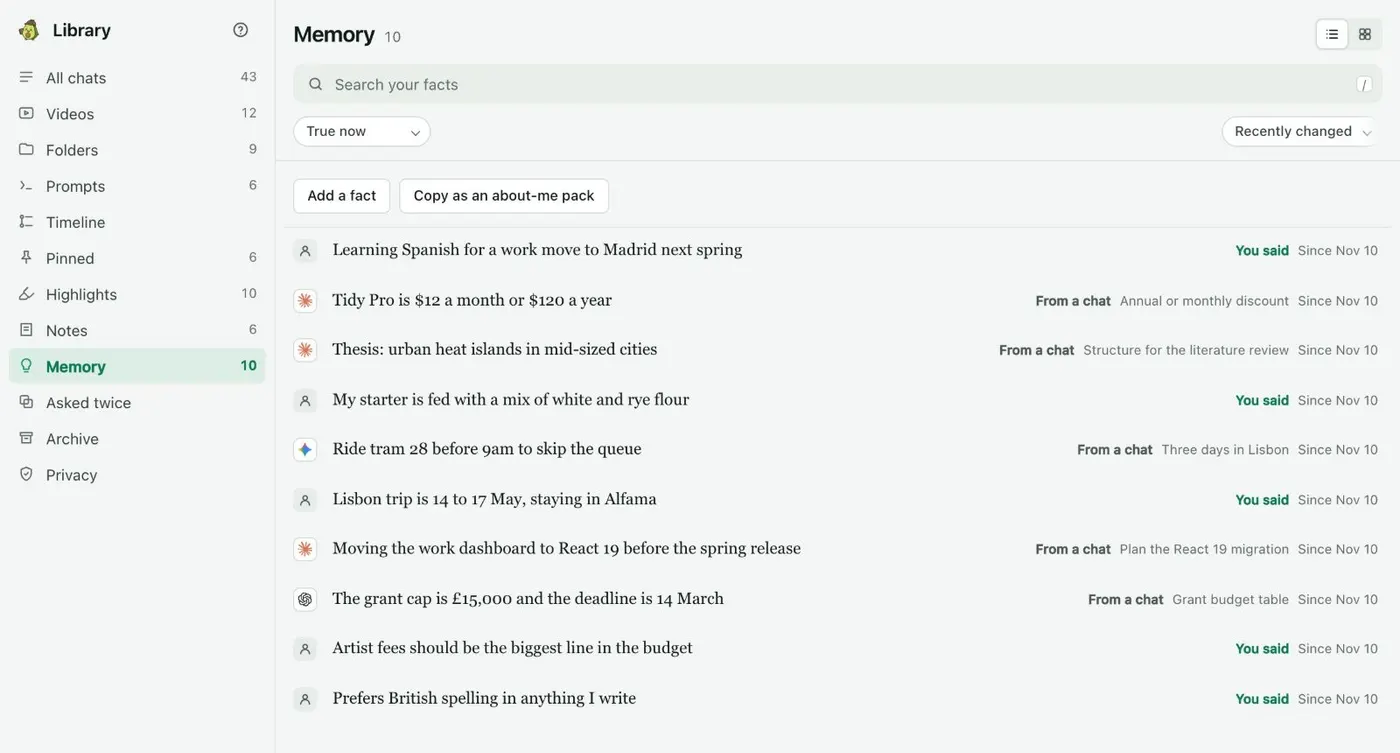
    If you turn ChatGPT memory off but still want to give a chat your background, Kortex has a Memory view in its Library. It holds facts you approved, each linked to where it came from. In any AI's chat box, type ;me to add them as a short about-me pack. You read and edit the pack before it goes in.

    The Kortex Library Memory view: a list of facts, each marked You said or From a chat, with the chat it came from and the date.
    Each fact says whose words they were and which chat they came from.

If it doesn’t work

I do not see a Memory option
OpenAI says memory features and controls vary by plan, region, platform and workspace settings. If a setting is missing, it may not be available for your account yet. In a work workspace, ask your admin.
ChatGPT still knows something after I turned memory off
Information can also come from custom instructions, saved files in Library or Space, or the chat you are in. Check those. Memory is separate from custom instructions.
I deleted a chat but the memory is still there
Saved memories are stored apart from chat history. Delete the memory itself in Settings, then Personalization, then Memory.

Questions people ask

Something we missed? Ask us.

Does turning off ChatGPT memory delete my chats?

No. Turning off Memory does not delete your past chats. If you turn it on later, ChatGPT may create new remembered information from chats that remain in your history.

How long does it take for deleted memories to go away?

It can take time for deletion and updates to spread. OpenAI may keep logs of deleted saved memories for up to 30 days for safety and debugging. If you turn off Reference chat history, information from past chats is scheduled for deletion within 30 days.

Is memory the same as custom instructions?

No. Custom instructions are guidance you write yourself. Memory can use details that build up across conversations and other sources. See how to set custom instructions in ChatGPT.

Do shared chats show my memory?

OpenAI states that memory Sources are not included when you share a conversation through a shared link.

Sources

Keep going

More tutorials

All tutorials

Do it on your own notebooks.

Install the Kortex extension and follow these steps on a notebook you already have.

100,000+ users, rated 4.5 on the Chrome Web Store.

Talk to the Kortex team

This opens a pre-filled email in Gmail. We usually reply within a day.