
How to use ChatGPT Projects to keep chats and files together

5 minutes 7 steps Updated

Quick answer

Select New project in the ChatGPT sidebar and name it. Add files, then open the ••• menu, select Project settings, and add instructions. Start new chats inside the project, or drag old chats onto it. Every chat in the project can use the same files and instructions.

Watch it first

How to use ChatGPT Projects to keep chats and files together
Read the transcript

ChatGPT Projects keep related chats, files and instructions together. Here's how to set one up. Select New project in the sidebar.

Enter a name, then pick an icon and a color. Use one project per ongoing job, like a class or a trip. Add reference files, such as PDFs, spreadsheets, docs, images or pasted text.

Every chat in the project can use them. To add instructions, select the more options menu, then Project settings. For example: Act like my marketing mentor.

Be concise. Use bullet points. They apply only inside the project, and override your custom instructions.

Start new chats inside the project. To bring an old chat in, drag it onto the project, or open its menu and select Move to project. In Project settings, under Memory, pick Default memory or Project-only memory, then select Save.

With project-only memory, chats can't use conversations outside the project. A ChatGPT project holds only ChatGPT chats. Kortex Library folders can hold chats from ChatGPT, Claude, Gemini, Perplexity and Grok.

Drag a chat onto a folder, or use Add to folder in its menu. One job, one project. Full steps and fixes are on our tutorial page.
  1. Create a project

    Select New project in the sidebar. Enter a project name, then pick an icon and a color. Good projects hold one ongoing job, like a class, a client or a trip.

  2. Add files

    Upload reference material to the project, such as PDFs, spreadsheets, docs, images, or pasted text. ChatGPT can use it for more informed answers. File counts depend on your plan: up to 5 on Free, 25 on Go and Plus, and 40 on Pro, Business, Enterprise and Edu.

  3. Add project instructions

    Select the more options menu (•••), then Project settings. Add instructions, for example: Act like my marketing mentor. Be concise. Use bullet points. Project instructions apply only inside the project and override your global custom instructions.

  4. Start chats inside the project

    Open the project and start a new chat there. It uses the project's files and instructions. You can also start on one device and continue on another.

  5. Move an old chat into the project

    Drag a chat onto the project, or open the chat's menu and select Move to project. The chat then uses the project's instructions and file context. Chats made with a GPT cannot be moved in, so start a new chat in the project instead.

  6. Choose a memory setting

    In Project settings, under Memory, pick Default memory or Project-only memory, then select Save. With project-only memory, chats can use other conversations in the same project but not conversations outside it.

  7. Optional: keep chats from other AIs together too

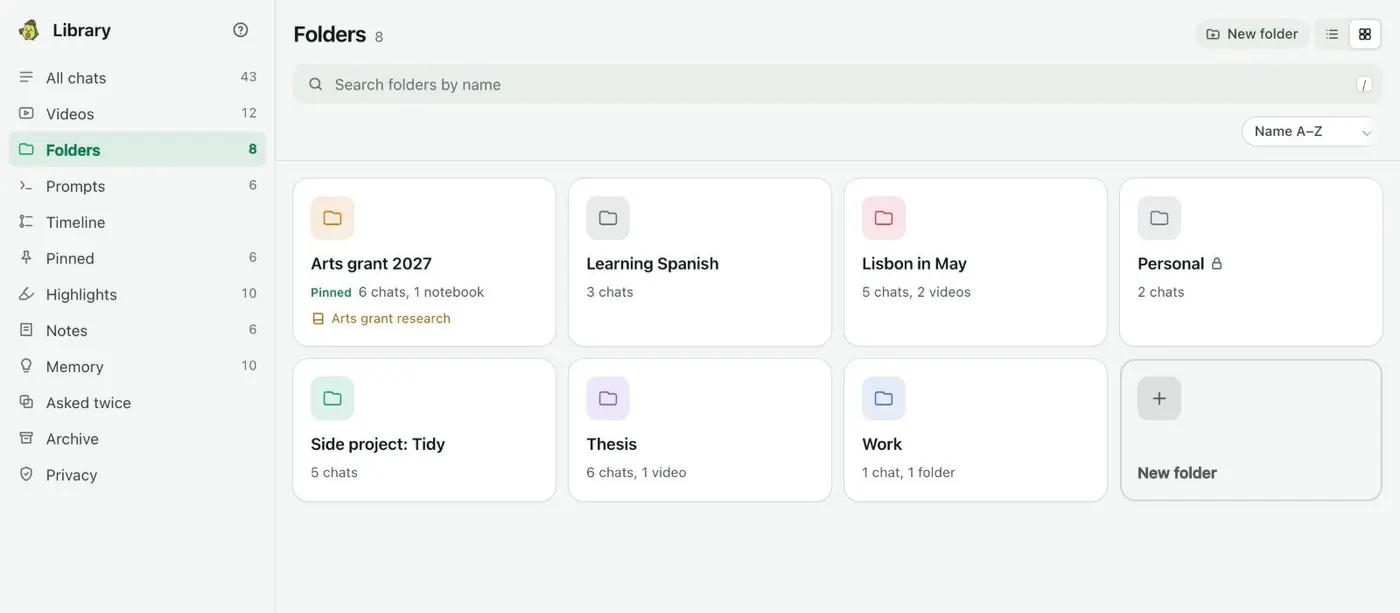
    A ChatGPT project holds ChatGPT chats only. Kortex folders in the Library can hold chats from ChatGPT, Claude, Gemini, Perplexity and Grok, plus videos and notebooks. Drag a chat onto a folder, or use Add to folder… in its menu.

    The Kortex Library Folders view with eight folder cards in different colors, showing chat and video counts, one pinned to the top.
    Folders in six colours, with the number of chats inside.

If it doesn’t work

I do not see Move to project on a chat
The chat may not be eligible. Chats created with a GPT cannot be moved into a project. Start a new chat inside the project instead.
ChatGPT ignores the project instructions
Check the instructions are in Project settings, not in a chat. Keep them short and clear. Project instructions apply only inside the project, so make sure you are chatting there.
I hit the file limit
Limits depend on your plan: 5 files on Free, 25 on Go and Plus, 40 on Pro, Business, Enterprise and Edu. Delete files you no longer need from the project sources list, or merge material into fewer files.

Questions people ask

Something we missed? Ask us.

What is the difference between ChatGPT Projects and custom instructions?

Custom instructions apply to all your chats. Project instructions apply only inside that project and override your global custom instructions.

Can I share a ChatGPT project?

Yes. Select Share and invite people, or share a link. People get either chat access or edit access. Shared projects use project-only memory.

What happens to my chats if I delete a project?

Deleting a project permanently removes its chats and instructions, along with files stored only in the project. It cannot be undone. Files saved separately in Library or Space are not deleted.

Can I add Google Drive or Slack to a project?

Yes. Open your private project, select Add sources, pick Slack or Google Drive, connect the app if asked, paste the link and select Add.

Sources

Keep going

More tutorials

All tutorials

Do it on your own notebooks.

Install the Kortex extension and follow these steps on a notebook you already have.

100,000+ users, rated 4.5 on the Chrome Web Store.

Talk to the Kortex team

This opens a pre-filled email in Gmail. We usually reply within a day.