
How to move a ChatGPT conversation to Claude

3 minutes 6 steps Updated

Quick answer

Install Kortex and let it save your ChatGPT chat. In the chat's ⋯ menu, choose Continue in another AI, pick Claude, and read the pack. Then click Open Claude with the pack. A new Claude chat opens with what the chat decided already in the chat box.

Watch it first

How to move context between ChatGPT, Claude and Gemini with ;ref, ;pack and ;me (Kortex)
Read the transcript

Kortex, for Gemini Notebook, formerly NotebookLM, keeps your AI chats on your computer. Here's how to carry what they know into any other AI. In any AI's chat box, type a semicolon.

A menu opens with your saved prompts and Kortex's commands. Semicolon ref lists your past chats from any AI, the closest to your draft first. Pick one, and the part that matters goes in, with a link back.

Semicolon pack turns a folder into a project brief: what its chats decided, plus your pins and notes. Semicolon me adds an about-me pack from your Memory. You read and edit every pack before it goes in.

To move a whole chat, open its menu and choose Continue in another AI. Pick the AI, check the pack, and Kortex opens a new chat there with it. Memory holds facts about you that you approve.

Select a sentence in an answer and click Remember. If it's close to a fact you have, choose Update it or Keep both. When a fact stops being true, open its menu and choose No longer true.

Kortex keeps it with an end date, and stops using it. Start every new chat with what you already worked out.
  1. Check that Kortex has saved the chat

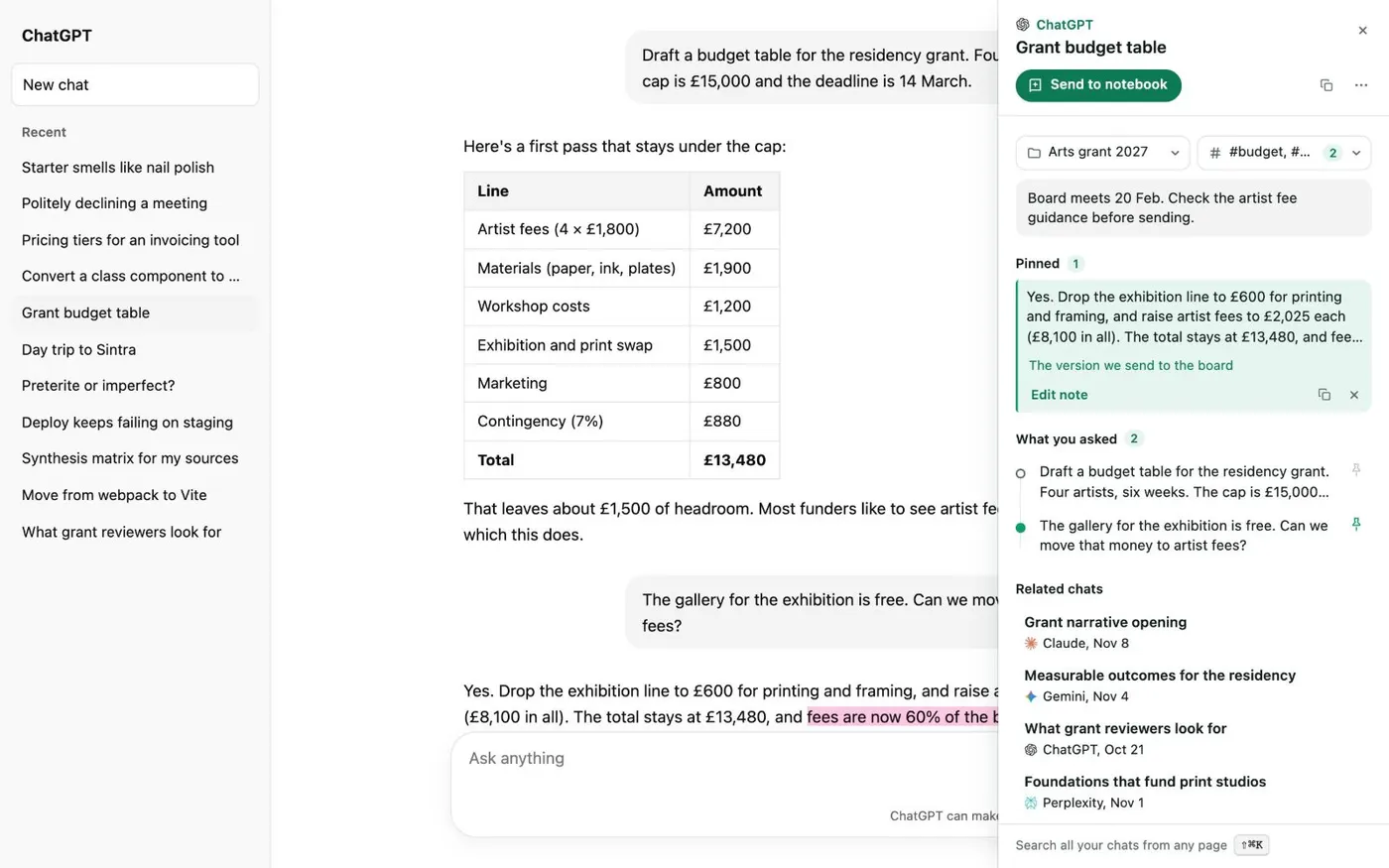
    Open the chat in ChatGPT and click the small Kortex tab on the right edge of the page. Its panel names the chat, so Kortex has it. If a notice asks, Keep your AI chats in your Library?, click Keep my chats in my Library first.

    A ChatGPT chat called Grant budget table with the Kortex tab open on the right: its folder, tags, a note, a pinned answer, the questions asked and related chats.
    The Kortex tab keeps your note, pins and related chats next to the chat.
  2. Choose Continue in another AI…

    Open the ⋯ menu in the Kortex tab, or open the chat in the Library and use its ⋯ menu. Choose Continue in another AI…. Kortex builds a handoff pack: what the chat decided, what is still open, the key facts, your pins and note, and where it stopped.

  3. Pick Claude and add related chats

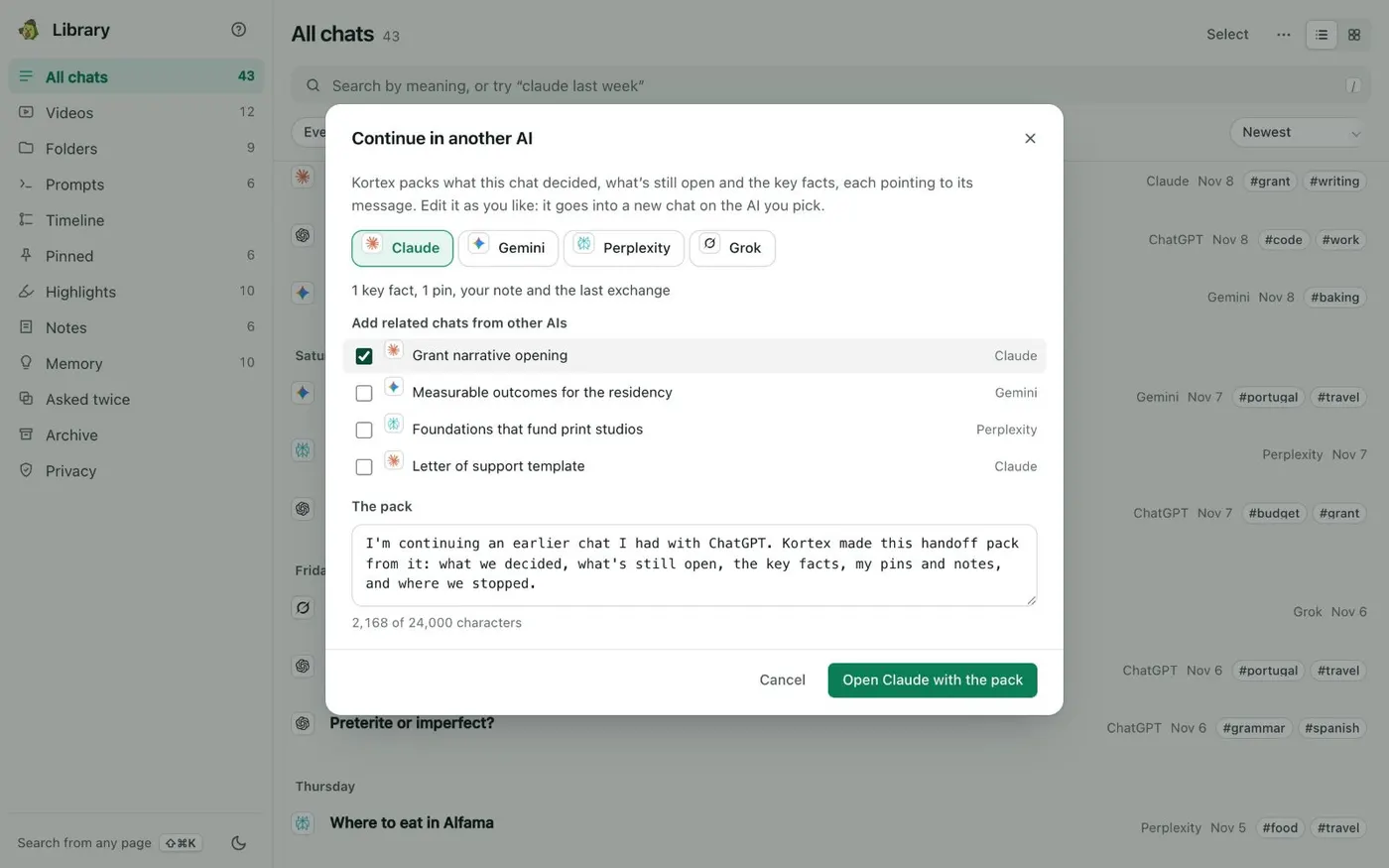
    Click Claude in the row of AIs. Under Add related chats from other AIs, tick any chat whose short summary should go in too. This is optional.

    The Continue in another AI dialog: Claude, Gemini, Perplexity and Grok to pick from, related chats to tick, an editable pack, and an Open Claude with the pack button.
    You read and edit the pack before it goes anywhere.
  4. Read and edit the pack

    The pack is a text box under The pack. Delete what you do not want to share and add what you need. Every line is the chat's own sentences, linked to the message it came from. Nothing in the pack is written by a model.

  5. Click Open Claude with the pack

    A new Claude chat opens with the pack in its chat box. Add your next question under it and send. Claude now has the background without you pasting the whole chat.

  6. Copy the full chat if you need every word

    The pack is a summary of decisions. For the full text, open the chat in the Library, open its ⋯ menu and choose Copy chat, or Download as Markdown. Then paste or attach it in Claude yourself.

If it doesn’t work

Continue in another AI is not in the menu
The chat must be saved first. Open the side panel's Chats tab, click the gear to open Saving your chats, and check that saving is on and the ChatGPT row is on. Then reload ChatGPT and open the chat again.
The pack leaves out something important
Edit the pack before you open Claude. For next time, pin the passages that matter, or add a note to the chat. Pins and your note go into the pack.
I want to see what was sent
Open the Library's Privacy view and look under Sent from this computer. Each send is listed without its text. Kortex masks likely secrets such as API keys and card numbers before anything leaves.

Questions people ask

Something we missed? Ask us.

Does this copy my whole ChatGPT conversation into Claude?

No. It builds a pack of what the chat decided, what is still open, the key facts, your pins and note, and where it stopped. To bring every word, use Copy chat or Download as Markdown and paste or attach the result.

Which AIs can I continue in?

The dialog from a ChatGPT chat offers Claude, Gemini, Perplexity and Grok. The menu is on every saved chat, whichever AI it came from, so you can also go from Claude to another AI.

Can I add what other chats decided?

Yes. The dialog lists related chats from other AIs, found by meaning. Tick the ones you want and their short summaries join the pack.

Is the pack written by an AI?

No. It is made of the chat's own sentences, and each line links back to the message it came from. You read and edit it before it goes anywhere.

Keep going

More tutorials

All tutorials

Do it on your own notebooks.

Install the Kortex extension and follow these steps on a notebook you already have.

100,000+ users, rated 4.5 on the Chrome Web Store.

Talk to the Kortex team

This opens a pre-filled email in Gmail. We usually reply within a day.