
How to switch from ChatGPT to Claude: what to bring over

20 minutes 8 steps Updated

Quick answer

Make a list of what you use in ChatGPT. Import your memory with Claude's import flow under Settings, then Your Claude. Copy your custom instructions into Claude's Instructions field. Rebuild each ongoing topic as a Claude Project. Carry over key chats and saved prompts by hand, or with Kortex.

Watch it first

How to switch from ChatGPT to Claude: what to bring over
Read the transcript

Switching from ChatGPT to Claude? Here's what to bring over, and how. First, list what ChatGPT holds for you: memory, custom instructions, projects, key chats and prompts.

Start with what you use every week. Keep a copy of your chats with ChatGPT's data export. In Claude, open Settings, then Your Claude, and select Start import.

Paste Claude's prompt into ChatGPT, and paste its answer back. Then click Add to memory. Next, copy your custom instructions from ChatGPT's settings.

In Claude, open Settings, then Your Claude, and paste them under Instructions. They apply to all your Claude chats. For each ongoing topic, click Projects, then New Project.

Upload the files it needs, and click Set project instructions. Copy the prompts you reuse into a note. To continue a chat, paste its main points into a new Claude chat.

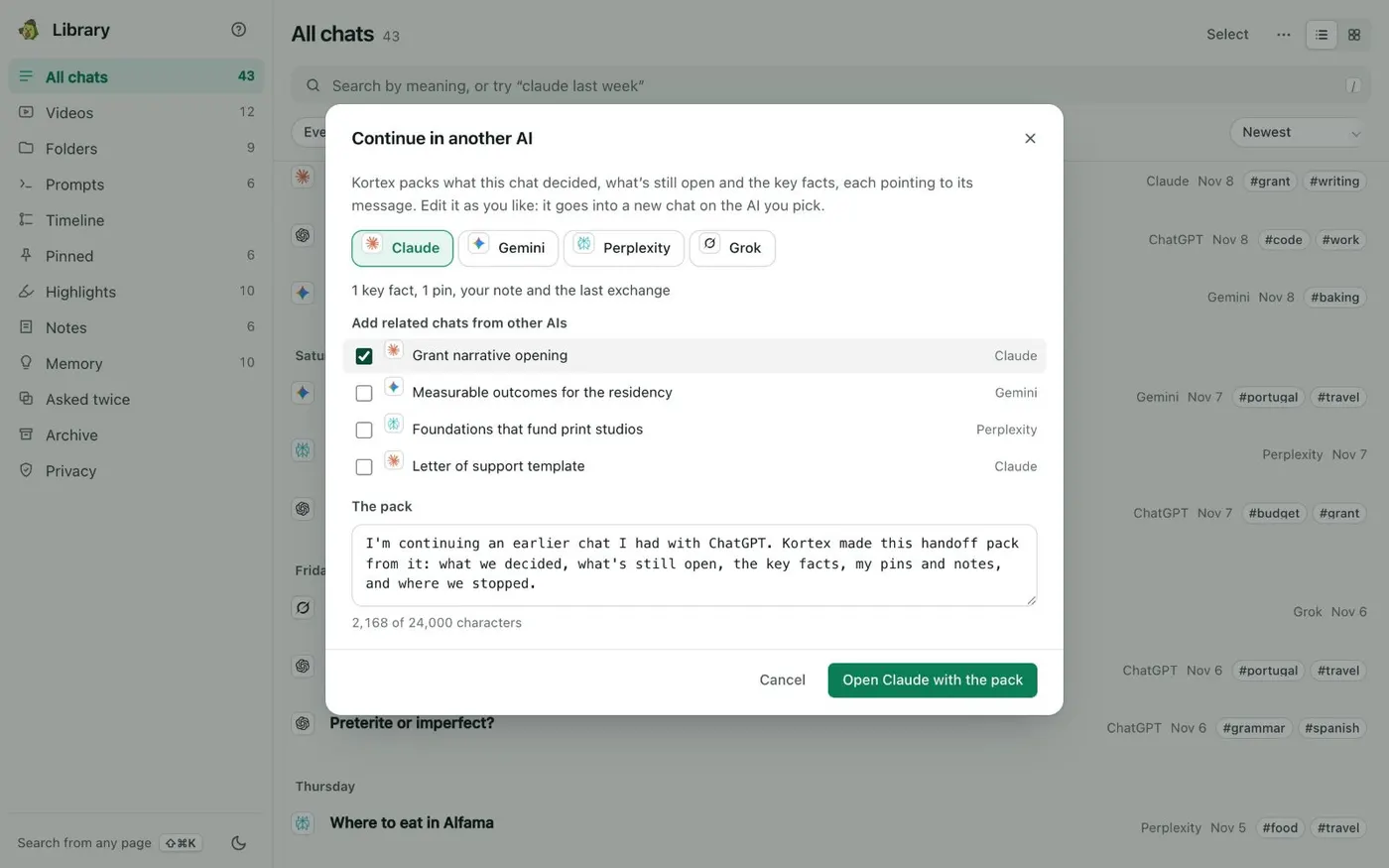
Kortex can help. It saves your ChatGPT chats on your computer. In a saved chat's menu, choose Continue in another AI.

Pick Claude, edit the pack, and open Claude with it. Type semicolon me to add your saved facts, or semicolon pack and a folder name to add what its chats decided. Your saved prompts work in every supported AI.

The full checklist is on the Kortex website.
  1. List what you want to bring

    Write down what ChatGPT knows or holds for you: memory, custom instructions, ongoing projects, key chats, saved prompts and files. You will not move everything, and that is fine. Start with what you use every week.

  2. Copy your ChatGPT data first

    Keep a copy of your ChatGPT chats before you stop using it. ChatGPT has its own data export in its settings, and OpenAI's help center explains the steps. You get a file to keep. Anthropic's import flow is for memory, so it does not read that file.

  3. Import your memory into Claude

    In Claude, open Settings, then Your Claude, and select Start import. Claude shows a prompt. Paste it into ChatGPT and ask it to list what it remembers about you. Copy the answer and paste it into Claude's text box. Click Add to memory. Claude turns it into individual memory entries.

  4. Check what Claude learned

    Click See what Claude learned about you to start a chat that asks Claude what it now knows. Or open Manage next to Your memory to read the entries. Claude's memory focuses on work topics, so it may not keep personal details unrelated to work. To add something, use the Tell Claude what to change or remove box, or ask in chat.

  5. Copy your custom instructions

    Copy your custom instructions from ChatGPT's settings. In Claude, click your initials in the lower left corner, choose Settings, then Your Claude, and paste them under Instructions. They apply to all your chats with Claude.

  6. Rebuild each ongoing topic as a Claude Project

    For each long job, click Projects, then + New Project. Upload the files it needs and click Set project instructions to say how Claude should answer. Chats in a project use that knowledge. See how to use Claude Projects.

  7. Carry over key chats and prompts

    Copy the prompts you reuse into a note, or into a project's instructions. For one chat you want to continue, paste its main points into a new Claude chat. Short and clear beats a very long paste.

  8. Optional: use Kortex for chats, facts and prompts

    Kortex can save your ChatGPT chats on your computer. In a saved chat's menu, choose Continue in another AI, pick Claude, edit the pack and open Claude with it in the chat box. Type ;me to add your own saved facts, or ;pack with a folder name to add what its chats decided. Your saved prompts work in every supported AI.

    The Continue in another AI dialog: a choice of AIs, related chats to add, and an editable pack with a button that reads Open Claude with the pack.
    You read and edit the pack before it goes anywhere.

If it doesn’t work

I don't see Start import
Look under Settings, then Your Claude, or Settings, then Memory in the older layout. Some Team and Enterprise organizations still use an older memory layout, where the import is under Settings, then Capabilities. Anthropic says imports are experimental, and an owner may control memory on those plans.
Claude didn't keep everything I imported
Claude's memory focuses on work-related topics, so it may not retain personal details that aren't related to work. Memory imports are experimental and Claude may not always add every entry. Add important facts by hand with the Tell Claude what to change or remove box.
My old ChatGPT chats aren't in Claude
Claude's import flow is for memory, not chat history. Keep the ChatGPT export file or a Kortex copy for reference. Bring in what a chat decided with a pasted summary or with Continue in another AI.

Questions people ask

Something we missed? Ask us.

Can I import my ChatGPT chat history into Claude?

Anthropic's help article describes importing memory, not chat history. For a single chat, paste its key points into a new Claude chat, or use Kortex. See how to move a ChatGPT conversation to Claude.

How do I move ChatGPT memory to Claude?

Use Claude's import flow: Start import under Your Claude settings, paste the prompt into ChatGPT, then paste the answer into Claude and click Add to memory. See also how to transfer ChatGPT memory to Claude for the Kortex way.

Are my custom instructions copied over for me?

No. Copy them from ChatGPT's settings and paste them into Claude under Settings, Your Claude, Instructions. They apply to all your Claude chats.

Should I delete ChatGPT after I switch?

Not at once. Keep your data export and any chats you still need first. A chat you delete on ChatGPT stays in your Kortex Library if Kortex saved it.

Sources

Keep going

More tutorials

All tutorials

Do it on your own notebooks.

Install the Kortex extension and follow these steps on a notebook you already have.

100,000+ users, rated 4.5 on the Chrome Web Store.

Talk to the Kortex team

This opens a pre-filled email in Gmail. We usually reply within a day.