How to transfer ChatGPT memory to Claude (with Kortex)

5 minutes 6 steps Updated

Quick answer

Kortex does not import ChatGPT's built-in memory. It keeps your own facts in Kortex Memory instead. Add the facts you want, then type ;me in Claude or Gemini. Kortex puts them in your message as an about-me pack that you read and edit first.

Watch it first

How to move context between ChatGPT, Claude and Gemini with ;ref, ;pack and ;me (Kortex)
Read the transcript

Kortex, for Gemini Notebook, formerly NotebookLM, keeps your AI chats on your computer. Here's how to carry what they know into any other AI. In any AI's chat box, type a semicolon.

A menu opens with your saved prompts and Kortex's commands. Semicolon ref lists your past chats from any AI, the closest to your draft first. Pick one, and the part that matters goes in, with a link back.

Semicolon pack turns a folder into a project brief: what its chats decided, plus your pins and notes. Semicolon me adds an about-me pack from your Memory. You read and edit every pack before it goes in.

To move a whole chat, open its menu and choose Continue in another AI. Pick the AI, check the pack, and Kortex opens a new chat there with it. Memory holds facts about you that you approve.

Select a sentence in an answer and click Remember. If it's close to a fact you have, choose Update it or Keep both. When a fact stops being true, open its menu and choose No longer true.

Kortex keeps it with an end date, and stops using it. Start every new chat with what you already worked out.
  1. Open Memory in the Library

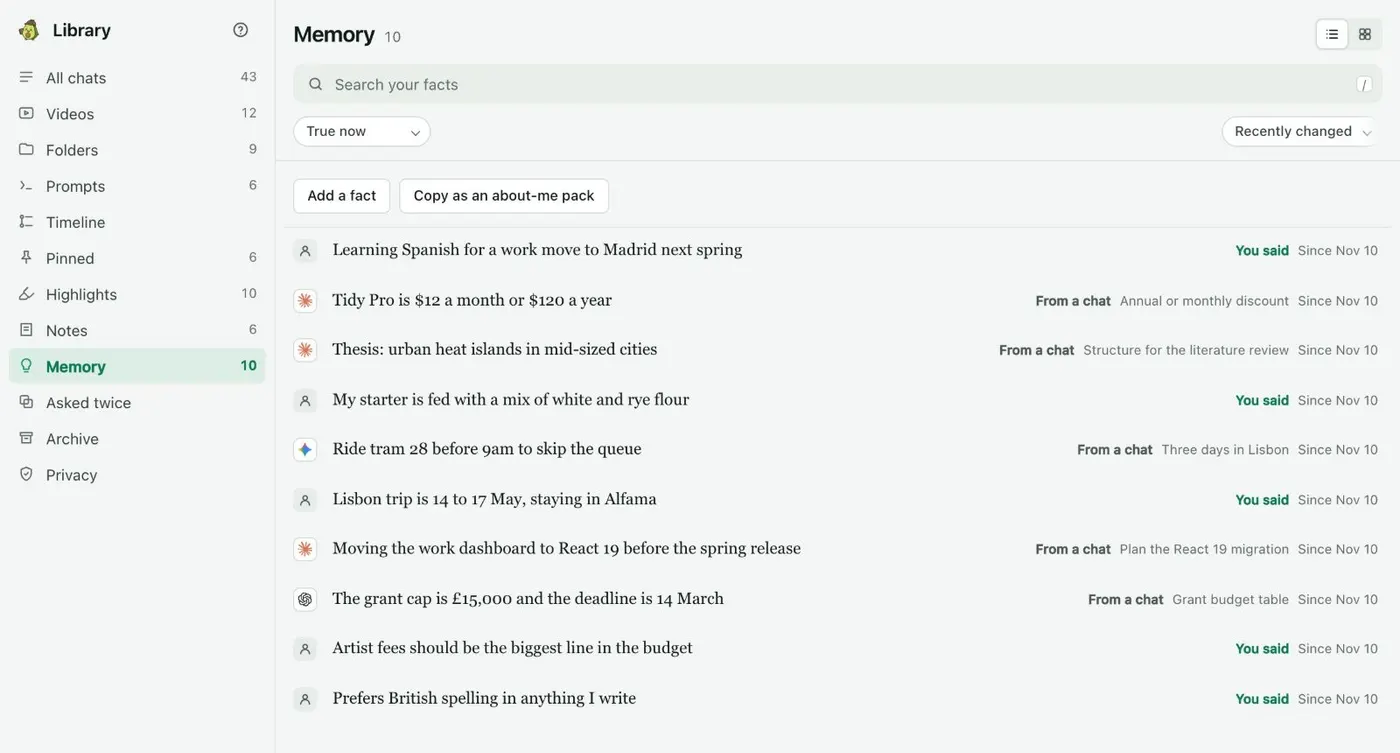
    Click the Kortex icon to open the side panel, open the Chats tab and the Library, then click Memory in the left column. Memory holds facts about you that you approved. Kortex never reads ChatGPT's own memory, so add what you want here.

    The Library's Memory view: a list of facts such as Prefers British spelling in anything I write, each marked You said or From a chat, plus Add a fact and Copy as an about-me pack buttons.
    Each fact says whose words they were and which chat they came from.
  2. Add the facts you want to keep

    Click Add a fact, type one short fact (up to 300 characters), and click Save. For example: Prefers British spelling in anything I write. Look through what ChatGPT remembers about you, and type the facts you want Claude to have.

  3. Or remember a sentence from a chat

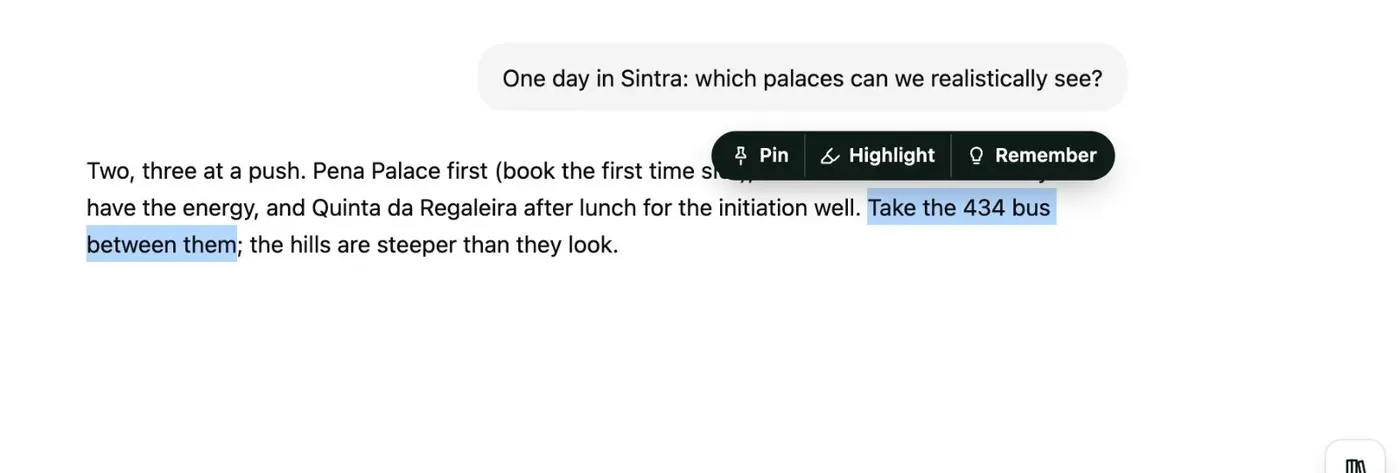
    On ChatGPT, select a sentence in an answer and click Remember in the small bar that appears. The fact links to the message it came from. If it is close to a fact you have, choose Update it or Keep both.

    Words selected in an AI's answer with a small bar above them offering Pin, Highlight and Remember.
    Select text in any answer to pin, highlight or remember it.
  4. Check where each fact came from

    Each fact says You said or From a chat, with the chat's name and date. Open a fact's ⋯ menu to edit it. When a fact stops being true, choose No longer true. Kortex keeps it with an end date and stops using it.

  5. Type ;me in Claude or Gemini

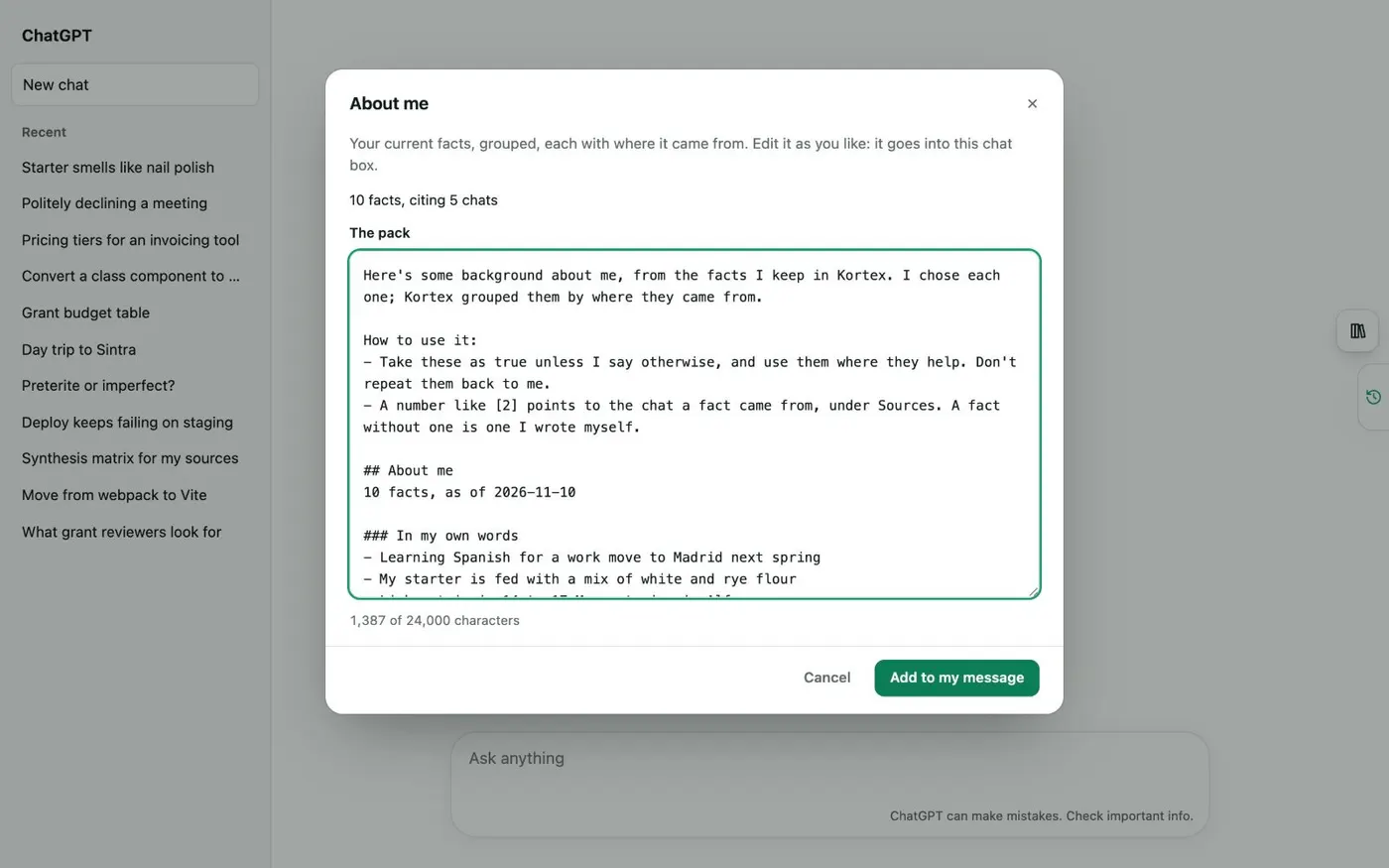
    Open Claude or Gemini, click the chat box and type ;me. An About me sheet opens with your facts as a short text pack. Read it and edit it as you like.

    An About me sheet over a chat: 10 facts citing 5 chats, a text pack you can edit, and a green Add to my message button. The same sheet opens in Claude and Gemini.
    An about-me pack you edit before it goes into the chat box.
  6. Add the pack to your message

    Click Add to my message, then write your question and send. Claude now knows what you chose to tell it. To paste the facts somewhere else, click Copy as an about-me pack in Memory.

If it doesn’t work

My ChatGPT memories are not in Kortex
That is expected. Kortex does not import ChatGPT's built-in memory. Add the facts you want with Add a fact, or select a sentence in a chat and click Remember.
The pack has a fact I no longer want
Delete the line in the pack before you add it to your message. To stop it appearing next time, open the fact in Memory and choose No longer true.
The About me sheet is empty or short
The pack holds only the facts in Memory that are true now. Open Memory, click Add a fact for what is missing, and check that the facts you want are not marked No longer true. Then type ;me again.

Questions people ask

Something we missed? Ask us.

Can Kortex import ChatGPT's memory into Claude?

No. Kortex does not read ChatGPT's built-in memory. You keep your own facts in Kortex Memory, and ;me adds them to Claude, Gemini or any AI's chat box.

Do my facts leave my computer?

Memory is stored on your computer. A fact leaves only when you send it, for example in an about-me pack you add to a message. You read and edit the pack first.

Does ;me work in ChatGPT too?

Yes. The ; menu, with ;me, works in the chat box of every AI site Kortex supports. So one set of facts serves ChatGPT, Claude, Gemini and the rest.

What if a fact changes?

Mark it No longer true. Kortex keeps it with an end date instead of deleting it, and does not use it any more. True again undoes that.

Keep going

More tutorials

All tutorials

Do it on your own notebooks.

Install the Kortex extension and follow these steps on a notebook you already have.

100,000+ users, rated 4.5 on the Chrome Web Store.

Talk to the Kortex team

This opens a pre-filled email in Gmail. We usually reply within a day.