
How to add YouTube videos and playlists to NotebookLM (Gemini Notebook)

1 minute 5 steps Updated

Quick answer

Install the Kortex extension and sign in. Open the YouTube video, playlist, channel or search results, click the NotebookLM button beside Like and Share, and pick a notebook. A batch holds up to 50 videos and starts with one click.

Watch it first

How to add YouTube videos and playlists to NotebookLM (Gemini Notebook)
Read the transcript

Here's how to add YouTube videos to Gemini Notebook, formerly NotebookLM. One video, a channel, a playlist, or a page of search results. Open any video on YouTube.

Kortex adds a NotebookLM button, right beside Like and Share. Click it. Choose Create New Notebook, or Use Existing Notebook to add the video to one you have.

Your notebooks are listed, and the one the video fits best sits on top, marked Suggested. If that notebook already has the video, Kortex warns you first. You can add it anyway, or cancel.

The same button works on a channel, a playlist, or search results. A channel sends its uploads, newest first. A playlist goes in order.

Search results keep your filters. One click starts a batch of up to 50 videos. The button says what it's doing, then how many videos went in.

Then your notebook opens, with each video as its own YouTube source. Once Google has processed them, ask a question. The answer cites the videos.

Add Kortex to Chrome, and any video is one click from your notebook.
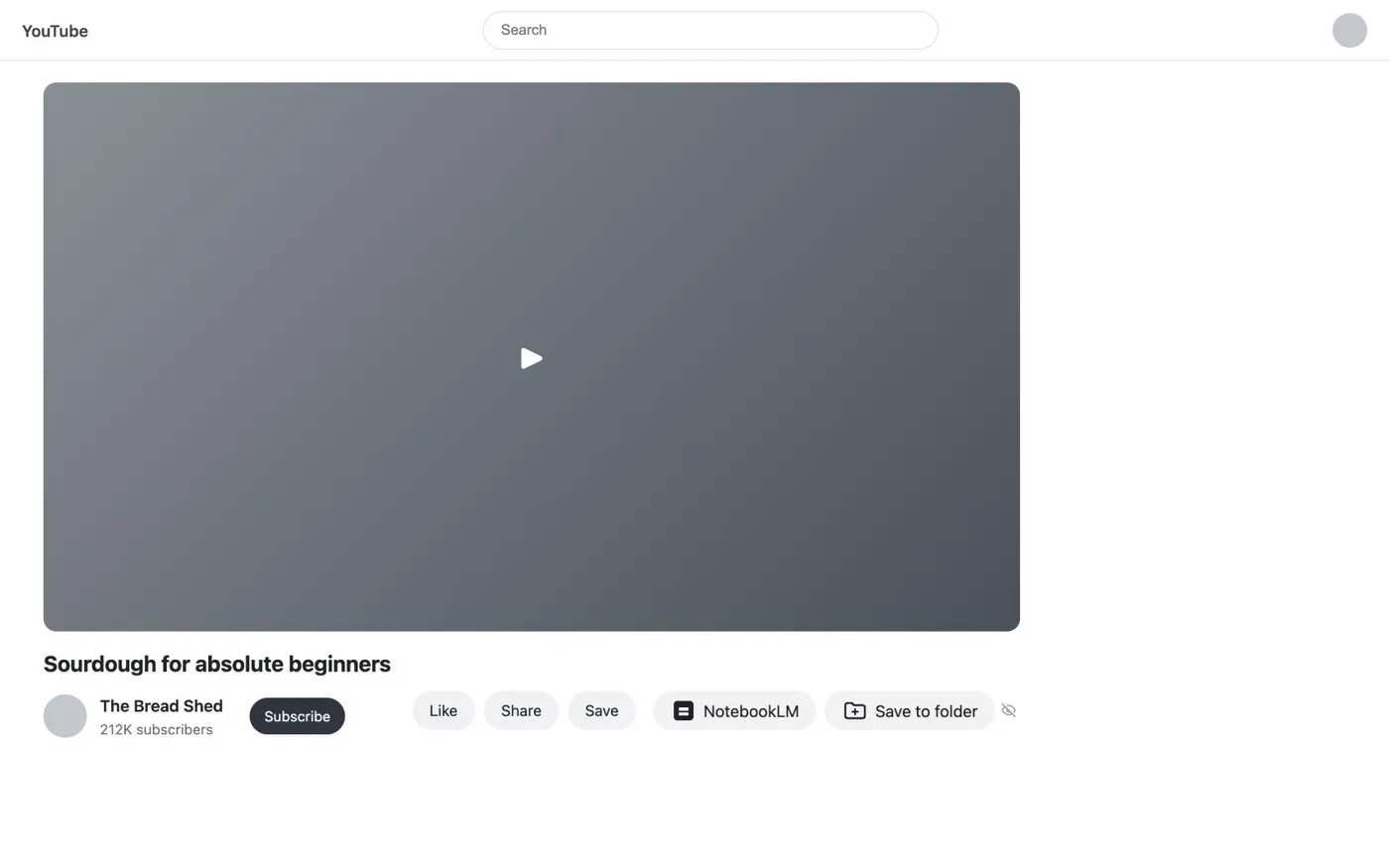
  1. Open the YouTube page

    Go to a video, a playlist, a channel page or a search results page. Set any search filters first. Kortex imports the results as filtered.

    A YouTube video page with a NotebookLM button beside Like, Share and Save under the video.
    On YouTube, the Kortex button sits beside Like and Share.
  2. Click the NotebookLM button

    On a video, the button sits beside Like and Share. Click it to open the notebook menu.

  3. Choose the notebook

    Pick Create New Notebook or Use Existing Notebook. Kortex marks the best match as Suggested. It warns you if the notebook already has one of the videos.

  4. Wait for the import

    A single video imports on its own. A channel imports its uploads, newest first. A playlist imports in order. Search results import as listed. A batch takes up to 50 videos.

  5. Open the notebook

    Open it in Gemini Notebook. Each video is a YouTube source. When Google has processed them, ask a question. The answer comes from the videos and cites them.

If it doesn’t work

The NotebookLM button is not on the YouTube page
Reload the page once. If the button is still missing, open the Kortex side panel and check Manage features. The YouTube button may be switched off.
My playlist has more than 50 videos
A batch imports up to 50 videos. After a long playlist, check the notebook's source count. To add a missing video, open it and click the button.

Questions people ask

Something we missed? Ask us.

Can I add a whole playlist at once?

Yes, up to 50 videos in one batch, in playlist order. The whole batch starts with one click.

Can I add a channel's videos?

Yes. On a channel page the button imports its uploads, newest first, up to 50 in a batch.

Does each video become its own source?

Yes. One click starts the batch, and every video arrives as a separate YouTube source.

Keep going

More tutorials

All tutorials

Do it on your own notebooks.

Install the Kortex extension and follow these steps on a notebook you already have.

100,000+ users, rated 4.5 on the Chrome Web Store.

Talk to the Kortex team

This opens a pre-filled email in Gmail. We usually reply within a day.