
How to save a full web page as a PDF and add it to NotebookLM (Gemini Notebook)

2 minutes 5 steps Updated

Quick answer

Open the page, click the Kortex toolbar icon, and press Capture as PDF in the side panel. Kortex scrolls the page and saves it as one PDF file. It does not add the page to a notebook. Upload the PDF in Gemini Notebook yourself.

Watch it first

How to save a full web page as a PDF and add it to NotebookLM (Gemini Notebook)
Read the transcript

Here's how to save a whole web page as one PDF with Kortex, then add it to Gemini Notebook, formerly NotebookLM. Open the article in a normal browser tab. Wait until it finishes loading, so all the images and text show.

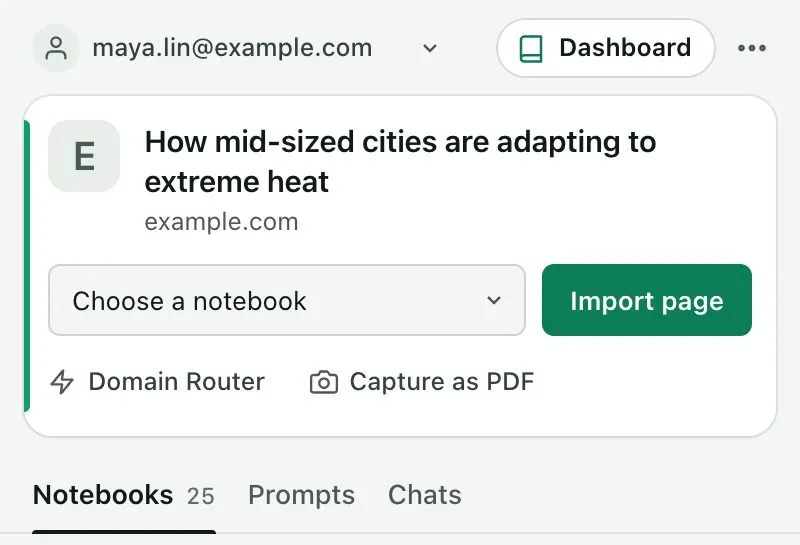
Click the Kortex icon in the toolbar. The side panel opens beside the page. Its top card is about the tab you're on.

Click Capture as PDF. Kortex scrolls the page from the top, hides sticky bars and builds the PDF. Leave the tab open until it finishes.

Don't use Import page for this. It adds the page to a notebook, and makes no file. The PDF is a file on your computer.

If you can't find it, check your browser's downloads. Then open the notebook in Gemini Notebook, choose to add a source, and upload the PDF. Kortex isn't part of this step.

Find the full steps and fixes on the Kortex website.
  1. Open the page you want to keep

    Go to the article or page in a normal browser tab. Wait until it finishes loading, so all the images and text show.

  2. Open the Kortex side panel

    Click the Kortex icon in the browser toolbar. The panel opens beside the page. Its top card is about the tab you are on.

    The Kortex side panel beside a web page: a Choose a notebook picker, an Import page button, Domain Router and a Capture as PDF button.
    The side panel imports the current page, or captures it as a PDF.
  3. Click Capture as PDF

    Kortex scrolls the page from the top, hides sticky bars and builds the PDF. Leave the tab open until it finishes. Do not use Import page for this. It adds the page to a notebook and makes no file.

  4. Find the PDF

    The PDF is a file on your computer. If you cannot find it, check your browser's downloads.

  5. Add the PDF to a notebook

    Open the notebook in Gemini Notebook, choose to add a source, and upload the PDF file. Kortex is not part of this step.

If it doesn’t work

Capture as PDF is not in the side panel
The card shows the capture button on ordinary web pages. On a page the browser protects, such as the new tab page, it says there is nothing to import. Open a normal page and look again.
The PDF stops partway down a long page
An extremely long page can be cut off. Then the PDF has only the top of the page. If you need all the text, use Import page to add the page as a web source instead.
A header or a pop-up is still in the PDF
Kortex hides fixed and sticky elements, but some pages show overlays in other ways. Close any pop-ups first. Then capture again.

Questions people ask

Something we missed? Ask us.

Does Capture as PDF add the page to my notebook?

No. It only saves a PDF file. Add the file to Gemini Notebook yourself. Or use Import page in the side panel to add the page as a web source.

Is a capture the same as an import?

No. Capture as PDF saves a file on your computer. Import page adds the page to a notebook as a source.

When should I capture instead of import?

Capture when the page may change or disappear, or when Import page cannot read it. Import when you want the live page as a source.

Keep going

More tutorials

All tutorials

Do it on your own notebooks.

Install the Kortex extension and follow these steps on a notebook you already have.

100,000+ users, rated 4.5 on the Chrome Web Store.

Talk to the Kortex team

This opens a pre-filled email in Gmail. We usually reply within a day.