
Import
Full-page capture
Capture as PDF in the Kortex side panel saves the whole web page you are on as one PDF file, not just the part on screen. It does not add the file to Gemini Notebook (formerly NotebookLM). You add the PDF to a notebook yourself.
What does Capture as PDF do?
Capture as PDF, in the Kortex side panel, saves the whole page you are on as a PDF file, not just the part on screen. It does not import anything into a notebook. You add the file to Gemini Notebook yourself if you want it there.
What you get
-
The whole page, in one file
Kortex scrolls the page from the top and joins what it sees. A long article comes out as one PDF, not a screenshot of the first screen.
-
Sticky bars stay out of the way
Kortex hides fixed and sticky parts, such as headers and cookie bars, during the capture. They do not cover your text.
-
Pages that import badly still work
If a page will not import as a web source, you can still keep it as a PDF and upload the file.
-
A file you control
The PDF is yours. Keep it, upload it, share it or print it. It is not tied to a notebook.
What it does, exactly
Capture as PDF is a button in the Kortex side panel. When you are on a web page, it saves the whole page as a PDF file. That is all. It does not add anything to Gemini Notebook (formerly NotebookLM).
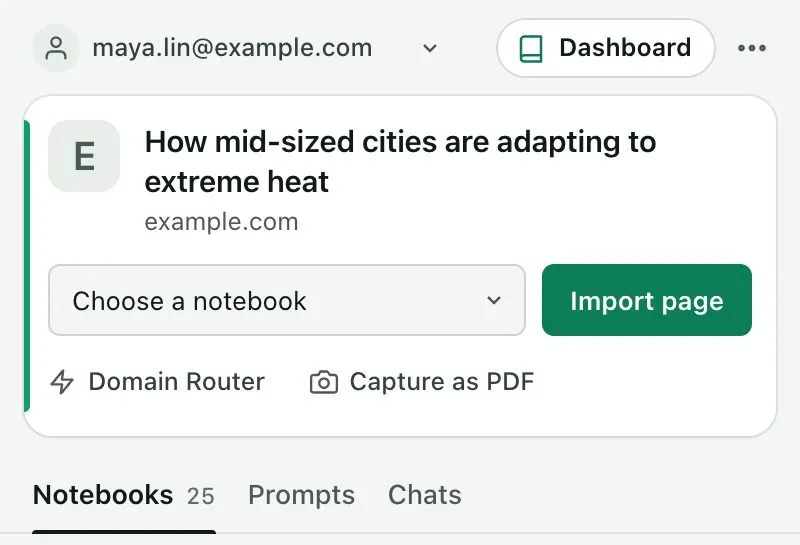
People often mix it up with Import page, which sits in the same card. Import page adds the page to a notebook as a source. Capture as PDF keeps a picture of the page as a file.
How does the capture work?
Kortex scrolls the page from the top, takes it in pieces and joins them into one PDF. Before it starts, it hides fixed and sticky parts, such as headers that follow you down the page. They would repeat over the text. Kortex also finds the part of the page that scrolls. This matters on web apps that scroll inside a panel instead of the whole window.
Leave the tab open while it works. A page that is extremely long can be cut off. Then the PDF covers only the top of the page.
When a PDF is the better choice
- The page may change or be taken down, and you want it as you saw it.
- A site blocks importing, or the importer misses some of the text.
- You need a file for someone else, or for printing.
For a single passage, Highlight and send is lighter. For many links at once, use Bulk import.
How it works
Want every step? Follow the tutorial.
-
Open the page
Go to the web page you want to keep. Capture works on ordinary web pages. It does not work on browser pages, such as the new tab page.
-
Open the side panel
Click the Kortex toolbar icon. The card at the top of the This tab view is about the page you are on.
-
Click Capture as PDF
Kortex scrolls the page, hides sticky bars and builds the PDF. Leave the tab open until it finishes.
-
Use the file
To read it in Gemini Notebook, add the PDF as a file source with Gemini Notebook's own upload. Or skip the file and use Import page.
Questions people ask
Something we missed? Ask us.
Does Capture as PDF add the page to a notebook?
No. It saves a PDF file and imports nothing. To put the page in a notebook, use Import page in the same card, or upload the PDF in Gemini Notebook.
Is a capture the same as an import?
No. Capture as PDF saves a file on your computer. Import page, in the same card, adds the page to a notebook as a source.
Can it capture very long pages?
Mostly. A page that is extremely long can be cut off. Then the PDF covers only the top of the page.
Why would I capture a page instead of importing it?
A PDF keeps the page as you saw it. That helps when the page may change or disappear, or when the importer cannot read it.
Does Capture as PDF work with NotebookLM?
It makes a PDF file only. It does not add anything to Gemini Notebook (formerly NotebookLM). Add the file to a notebook yourself, or use Import page in the same card to add the page as a source.
Try it on your own notebooks.
100,000+ people use the Kortex extension. Install it and try full-page capture on a notebook you already have.
100,000+ users, rated 4.5 on the Chrome Web Store.