
Workspace
Side panel
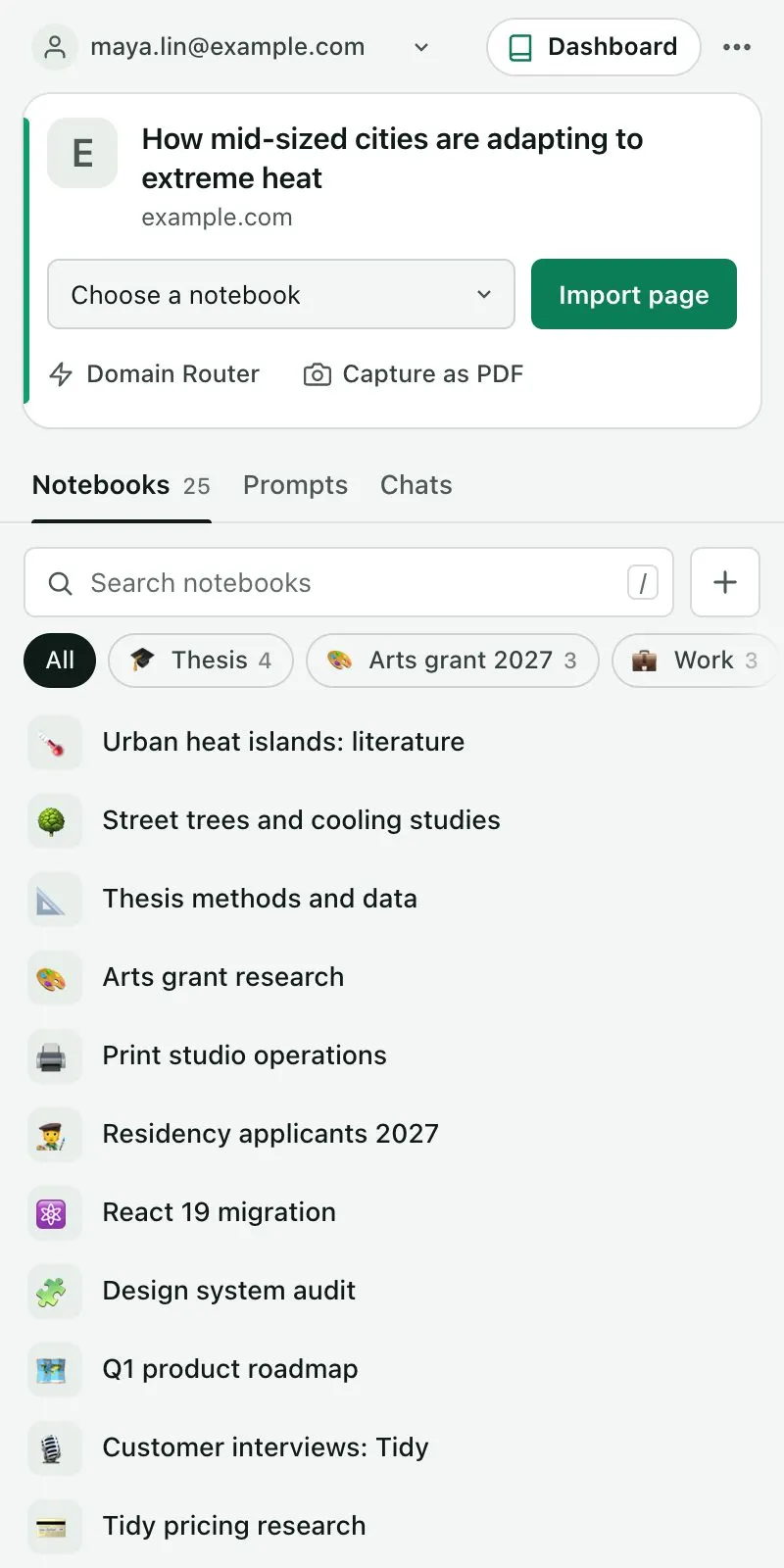
The Kortex side panel opens beside the page you are on when you click the Kortex toolbar icon in Chrome. Its top card imports or captures the page for Gemini Notebook (formerly NotebookLM). Its tabs hold your notebooks, your saved AI chats and your prompts.
What is the Kortex side panel?
The Kortex side panel opens when you click the toolbar icon, beside the page you are on. Its top card imports or captures that page. Its tabs hold your notebooks, your saved AI chats and your prompts. In a browser without a side panel, the same page opens as a popup.
What you get
-
Kortex stays beside the page
The panel sits next to your tab. You can read the page and file it without switching windows.
-
The page card knows where you are
On a web page, it offers Import page. On a notebook, it offers Export sources. On the notebook home page, it offers New notebook.
-
Your notebooks, searchable
The Notebooks tab lists the notebooks of the account you picked. It has a search box and your collections as filters.
-
Your prompts, one click from the chat box
The Prompts tab lists your saved prompts. Click one to put it in the chat box of the page you are on.
What does the top card do?
The card at the top is about the tab beside the panel. What it offers depends on the page.
- A web page. Choose a notebook and click Import page. On a site with a Kortex button, it saves the way that button does. On other sites, it adds the page’s address. If the notebook already has the page, the button becomes Import anyway. Capture as PDF saves the page as a PDF file instead, and imports nothing. Domain Router imports into the notebook your rules pick.
- A notebook. Export sources, Add from Zotero and Copy BibTeX.
- The notebook home page. New notebook.
- A page Kortex cannot read. It says there is nothing to import.
The tabs
- Notebooks. Search your notebooks, filter by collection and make a New notebook. If you use several Google accounts, the header lets you choose whose notebooks you see.
- Prompts. Search and filter your prompts, make a New prompt, and click one to put it in the chat box of the page you are on.
The header and menu
The header has a button that opens the Kortex Workspace and a light and dark theme switch. The three-dot menu has Manage features, MCP Connection, billing, Documentation and Sign out.
What if my browser has no side panel?
A browser without Chrome’s side panel opens the same page as a popup. Nothing else changes.
How it works
Want every step? Follow the tutorial.
-
Click the Kortex icon
Click the Kortex icon in the browser toolbar. The side panel opens beside the page. If you cannot see the icon, pin it from the extensions menu.
-
Use the top card
Choose a notebook and click Import page to add the page you are on. Or click Capture as PDF to save it as a file.
-
Switch tabs
Notebooks lists your notebooks. Prompts holds your prompts.
-
Open settings
The three-dot menu has Manage features, MCP Connection, billing, help and Sign out.
Questions people ask
Something we missed? Ask us.
How do I open it?
Click the Kortex icon in the browser's toolbar. If the icon is hidden, open the extensions menu and pin Kortex first.
What if my browser has no side panel?
The same page opens as a popup instead. It has the same card and tabs.
What does the Prompts tab do?
It lists your saved prompts, with search and filters. Click one to put it in the chat box of the page you are on. You can also make a New prompt there.
Where do I turn Kortex buttons off?
In the three-dot menu, under General, choose Manage features. You can turn single Kortex buttons and features on or off there.
Does the side panel replace the Workspace?
No. The Workspace is the full dashboard. It has tables of notebooks and sources, collections, Bulk Import and more. A button in the panel's header opens it.
Is there a NotebookLM side panel?
Yes. Click the Kortex toolbar icon and Chrome’s side panel opens beside the page. Its Notebooks tab searches your Gemini Notebook (formerly NotebookLM) notebooks, and its Prompts tab holds your prompts.
Try it on your own notebooks.
100,000+ people use the Kortex extension. Install it and try side panel on a notebook you already have.
100,000+ users, rated 4.5 on the Chrome Web Store.