
Workspace
Kortex Workspace dashboard
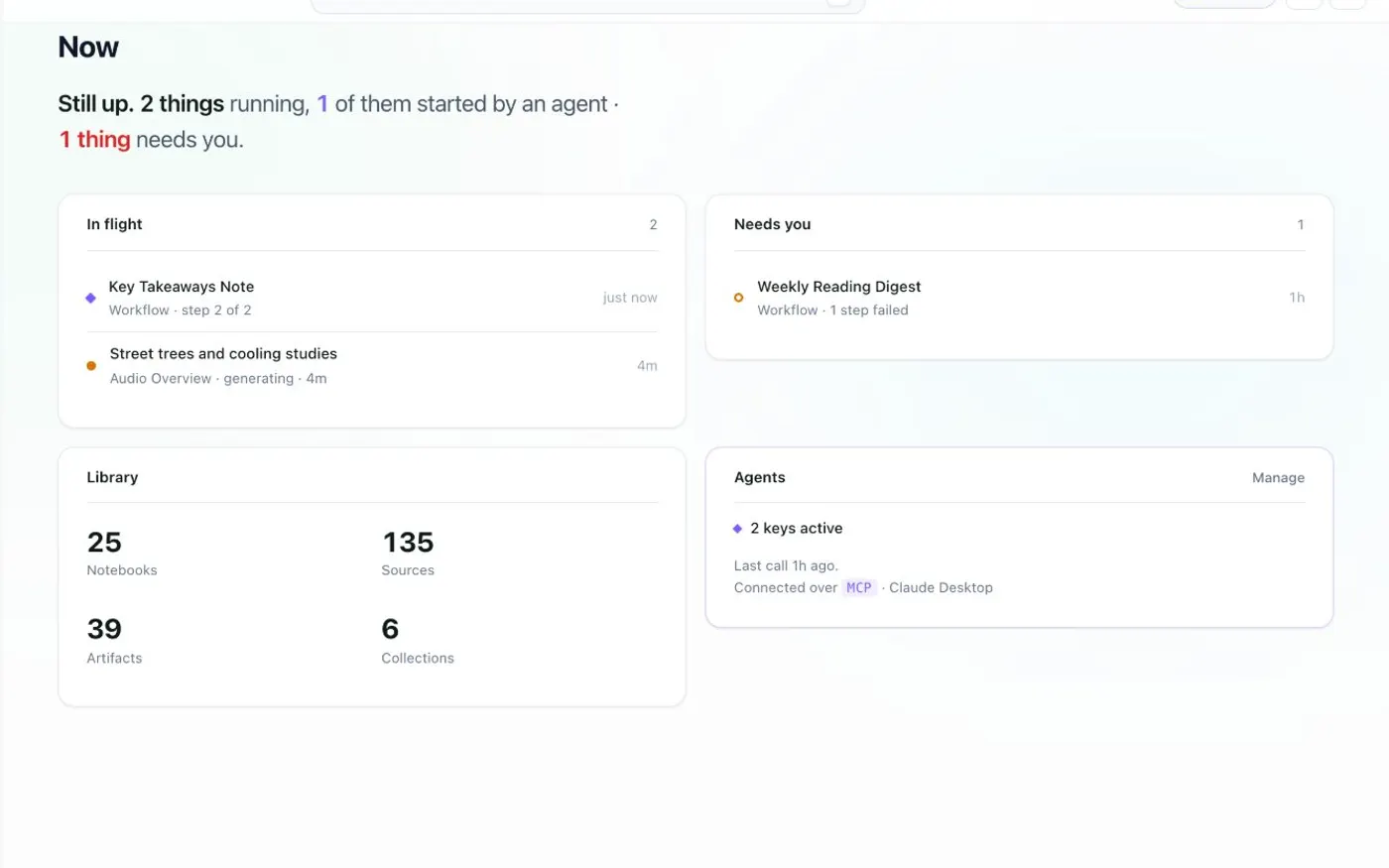
The Kortex Workspace is a full browser tab that lists every Gemini Notebook (formerly NotebookLM) notebook, source and Studio output in tables. You can search, filter, sort, tag and file them, and change many rows at once. The extension also calls it the dashboard.
What is the Kortex Workspace?
The Kortex Workspace is a full browser tab, called the dashboard in the extension. It lists every notebook, source and Studio output in tables. You can search, filter, sort, tag and file them, and change many rows at once.
What you get
-
Every notebook in one table
The Workspace puts them in a table with sources, tags, collections and dates. You can sort and filter it.
-
Act on many at once
Tick rows, then tag, add to a collection, merge or delete. Sources and Studio outputs work the same way.
-
Fast from the keyboard
Ctrl+K searches everything. Press g then n, s, p, a, c or f to go to a view. Ctrl+\ hides the sidebar.
-
Light, dark and 10 languages
A theme toggle switches light and dark. The Workspace comes in English, Spanish, Chinese, French, German, Japanese, Turkish, Italian, Vietnamese and Russian.
The sidebar
The sidebar has three groups. Ctrl+\ shows or hides it.
- Views. Now, Notebooks, Sources, Artifacts, and Manage Space. Notebooks is where the Workspace opens unless you choose another Start Page.
- Organize. Collections, Favorites and Podcasts.
- Tools. Agents, Merge Notebooks, Compare, Automation, Workflows, Prompts, Bulk Import and the template views.
The bottom of the sidebar shows your email, a billing link and Sign out.
What can I do in the tables?
The Notebooks toolbar has Filter, sort, column choice and Wrap long titles. Tick rows to Add to collection, add Tags, Merge, Compare or Delete. The Sources table adds Download, Move to Folder and Sync GDocs. Artifacts has Download and New Folder.
Open a notebook to see its own page. It has Sources, Notes and Artifacts tabs. It also has Generate (Audio Overview, brief or study guide), Add (Import Link or Sync GDocs) and Manage menus.
How do I search the Workspace?
Ctrl+K, Cmd+K or / opens a box that searches everything and lists commands. See global search. Ctrl+/ lists every shortcut.
Getting started
New users get a five-step tour and a Get started checklist. Replay Tour is at the bottom of the sidebar.
Notes, favorites and prompts
Each notebook has a Notes tab for Kortex notes and a Quick Memo box on its page. Favorites lists the notebooks you starred. Prompts holds your saved prompts. You can also reach them from the side panel.
Display and settings
The theme toggle switches between light and dark. The ⋯ menu has Shortcuts, Start Page, the language, Documentation and more. Activity shows in the top bar while something is running, such as an Audio Overview being made.
How it works
Want every step? Follow the tutorial.
-
Open it
Click the Kortex icon in the toolbar to open the side panel. Then use the dashboard button in its header.
-
Pick a view
The sidebar has Notebooks, Sources and Artifacts. Then it has Collections, Favorites and Podcasts. Then it has tools such as Merge Notebooks, Prompts and Bulk Import.
-
Filter and select
Use Filter, sort and the column picker to narrow the table. Then tick rows to act on them.
-
Open a notebook's detail
Click a notebook to see its Sources, Notes and Artifacts tabs. You also get Open, Generate, Add and Manage menus and a Quick Memo box.
Questions people ask
Something we missed? Ask us.
How do I open the Workspace?
Click the Kortex toolbar icon to open the side panel. Then use the dashboard button in the panel's header, called Open the Kortex dashboard. It opens in its own tab.
What views does the Workspace have?
Now, Notebooks, Sources, Artifacts and Manage Space. Then Collections, Favorites and Podcasts. Then tools such as Agents, Merge Notebooks, Compare, Automation, Workflows, Prompts, Bulk Import and the template views.
What is the difference between the Workspace and the side panel?
The side panel is a narrow strip beside the page you are on. Use it to import the page and pick a notebook. The Workspace is a full tab for managing your whole library.
Why does the extension call it the dashboard?
The extension's own screens and docs say dashboard. Workspace is the same thing. Both names mean the full Kortex tab.
Can I use it with more than one Google account?
Yes. A Notebooks from switch at the bottom of the sidebar shows one account's notebooks at a time. See multiple Google accounts.
Is there a NotebookLM dashboard?
Yes. The Kortex Workspace is a full browser tab that lists every notebook in your Gemini Notebook (formerly NotebookLM) account, with its sources and Studio outputs, in tables. The extension calls it the dashboard.
Try it on your own notebooks.
100,000+ people use the Kortex extension. Install it and try kortex workspace dashboard on a notebook you already have.
100,000+ users, rated 4.5 on the Chrome Web Store.