
Organize
Collections and folders
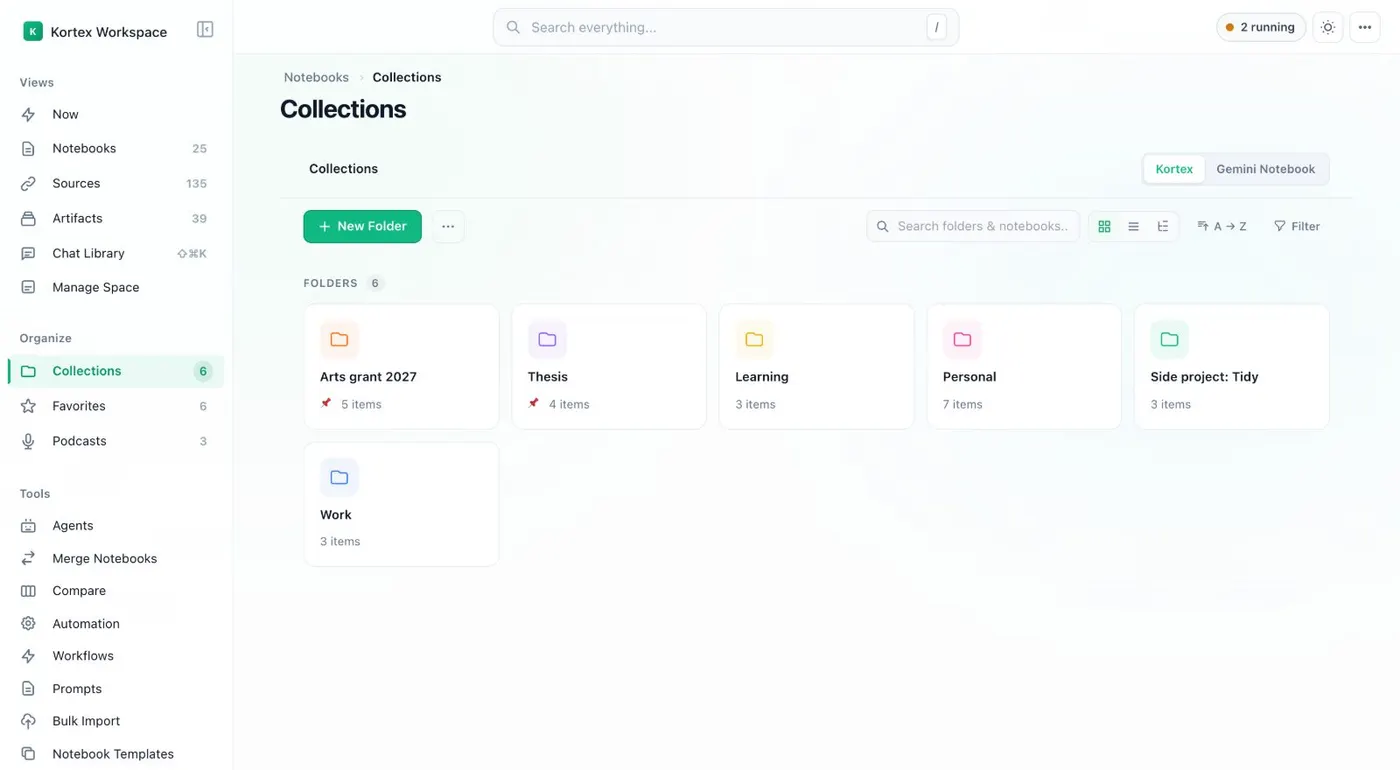
Kortex collections are folders for your Gemini Notebook (formerly NotebookLM) notebooks, in the Kortex Workspace. They can hold subfolders and have a color, and you can pin up to three. Source folders and artifact folders do the same for sources and Studio outputs.
What are Kortex collections and folders?
Collections are Kortex's folders for notebooks in the Kortex Workspace. They can hold subfolders and have a color, and you can pin up to three. Source folders and artifact folders do the same for sources and Studio outputs.
What you get
-
Group by project, not by date
Put the notebooks for a thesis, a client or a trip in one collection. Open them together instead of scrolling a long list.
-
Nest, color and pin
A collection can hold sub-collections and has its own color. Pin up to three so the ones you use daily stay on top.
-
Sources and outputs get folders too
Source folders group sources from all your notebooks. Artifact folders do the same for Studio outputs such as briefings and slides.
-
Works with Gemini Notebook's own collections
A switch on the Collections page shows Gemini Notebook's own collections, read live. A button can copy your Kortex folders across.
What is a collection?
A collection is a folder for notebooks. You make and manage them in the Kortex Workspace, the full-tab dashboard (the extension calls it the dashboard). Open Collections in the sidebar. You see two switches: Kortex, for Kortex’s own folders, and Gemini Notebook, for Google’s own collections.
Kortex folders can hold subfolders. A collection called Thesis can hold one folder per chapter. Each folder has a color, and you can pin up to three. The page shows each folder with its item count.
Folders for sources and Studio outputs
Notebooks are not the only thing that piles up. The Sources view has source folders (All Folders, Unfiled) that group sources from all notebooks. The Artifacts view has folders for Studio outputs, with New Folder beside the filters. Select rows and choose Move to Folder to file them.
Smart Collections
Choose Smart Collection when you make a folder, and give it rules. Notebooks that match all the rules are included without you moving them. Tags are the usual rule. Tag a notebook and it appears in the collection.
Generate for collection makes a Studio output, such as an Audio Overview or a study guide, for every notebook in one collection.
Gemini Notebook’s own collections
Switch to Gemini Notebook to see Google’s own collections, read live. Create collection using Gemini Notebook makes one there. Move your Kortex collections to Gemini Notebook copies your Kortex folders across.
How it works
Want every step? Follow the tutorial.
-
Open Collections
In the Kortex Workspace, choose Collections in the sidebar. Kortex shows your own folders. A switch shows Gemini Notebook's collections.
-
Make a folder
Click New Folder, name it and pick a color. Create it inside another folder to nest it.
-
File notebooks into it
In the Notebooks table, tick rows and choose Add to collection. On a notebook's own page, the Kortex bar has Add to collection for Gemini Notebook's own collections.
-
Let a collection fill itself
A Smart Collection collects every notebook that matches your rules. Source and artifact folders work the same way in the Sources and Artifacts views.
Questions people ask
Something we missed? Ask us.
What kinds of folders are there?
Collections for notebooks, source folders for sources, artifact folders for Studio outputs and prompt folders for prompts. Each kind can hold subfolders and have a color.
What is the difference between a Kortex collection and a Gemini Notebook collection?
Kortex collections live in Kortex and show in the Workspace. Gemini Notebook's collections belong to Google's product and show on its home page. The Collections page has a switch for each. A button copies your Kortex folders across.
Where do I find the Workspace?
Click the Kortex icon in the toolbar to open the side panel. Then use the dashboard button in its header. The Workspace opens in its own tab.
What is a Smart Collection?
A collection that fills itself from rules. Every notebook that matches all the rules is included. You can edit the rules later.
Do collections reach the Gemini Notebook home page?
Yes. That page gets a Collections from Kortex section that shows your Kortex folders as cards.
Can I make folders for NotebookLM notebooks?
Yes. A Kortex collection is a folder for notebooks in the Kortex Workspace. It can hold subfolders and has a color. The Gemini Notebook (formerly NotebookLM) switch also shows Google’s own collections.
Try it on your own notebooks.
100,000+ people use the Kortex extension. Install it and try collections and folders on a notebook you already have.
100,000+ users, rated 4.5 on the Chrome Web Store.