
How to organize NotebookLM (Gemini Notebook) notebooks into folders and collections
Quick answer
Install the Kortex extension and open the Kortex Workspace from the side panel. Choose Collections, click New Folder and name it. Then tick notebooks in the Notebooks table and choose Add to collection.
Watch it first
-
Open the Kortex Workspace
Click the Kortex icon in the toolbar to open the side panel. Then click the dashboard button in its header, called Open the Kortex dashboard. The Workspace opens in a full tab. It shows your notebooks in a table.
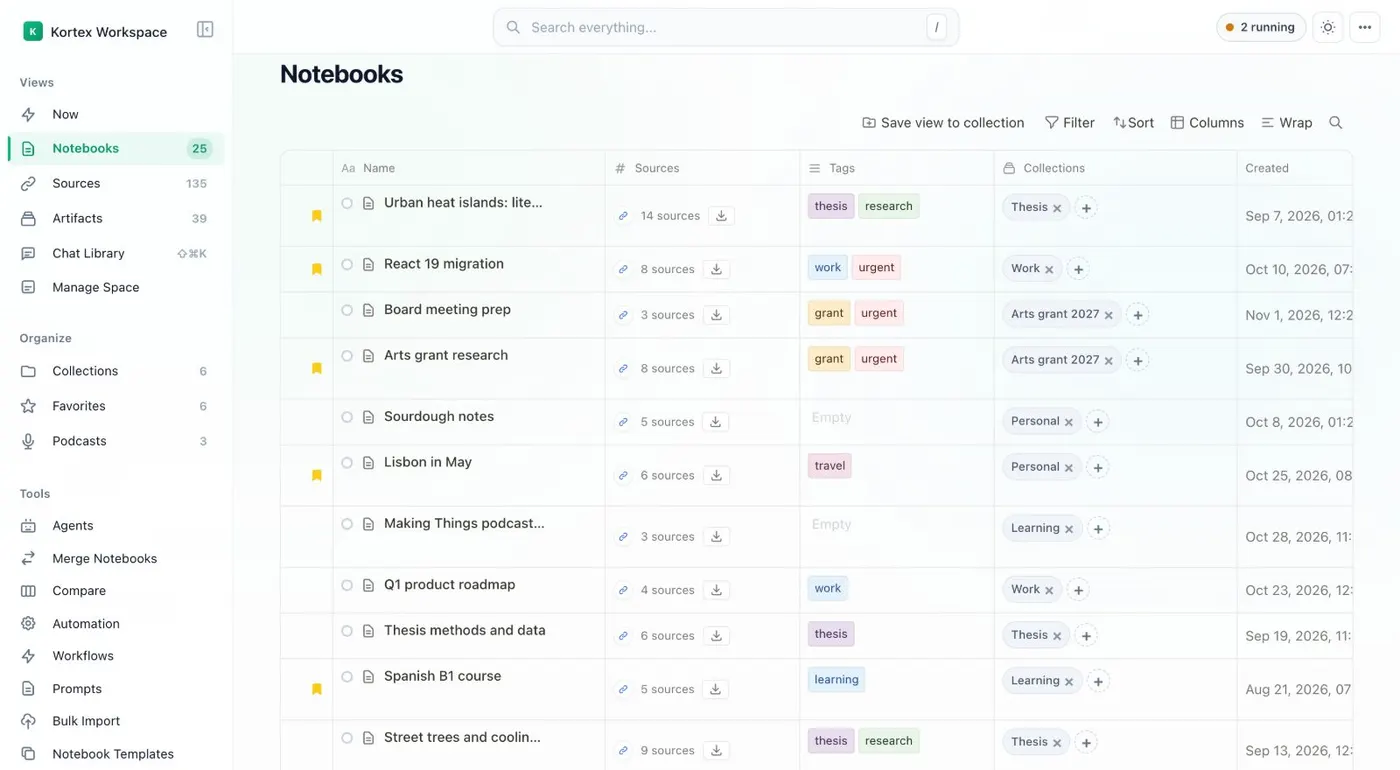
Every notebook in one table. -
Go to Collections
Choose Collections in the sidebar, under Organize. The Kortex switch shows Kortex's own folders. The Gemini Notebook switch shows Google's own collections.
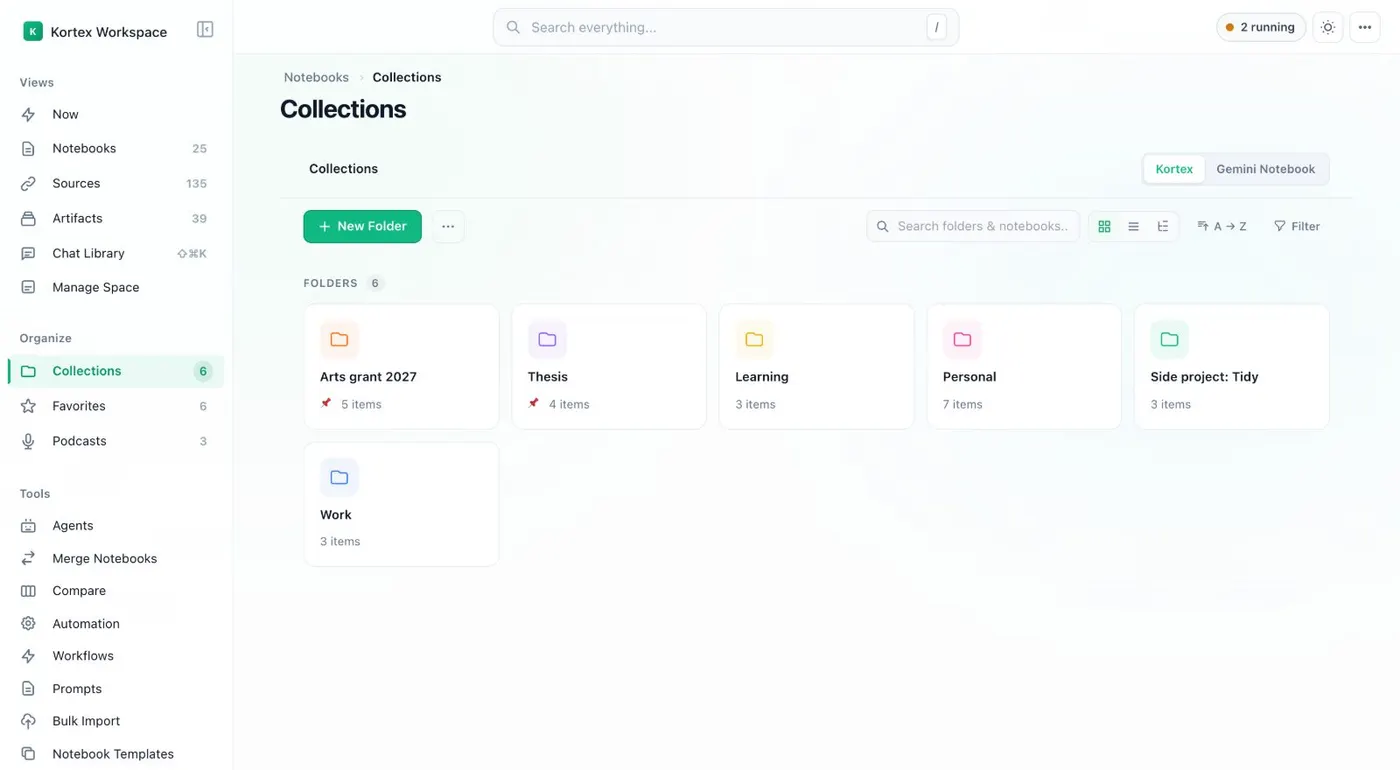
Collections group notebooks by project. -
Make a folder
Click New Folder, type a name and pick a color. To nest a folder, create it inside an existing folder. Pin the ones you use most, up to three.
-
File notebooks into it
Go back to Notebooks, tick the rows you want and choose Add to collection. To take one out, tick it and choose Remove from collection.
-
Try a Smart Collection
Back in Collections, choose Smart Collection and set rules. Notebooks that match all the rules join the collection on their own.
-
File a notebook from its own page
Open a notebook in Gemini Notebook. The Kortex bar under the title shows the notebook's collections as chips. Click Add to collection to find or create a Gemini Notebook collection.
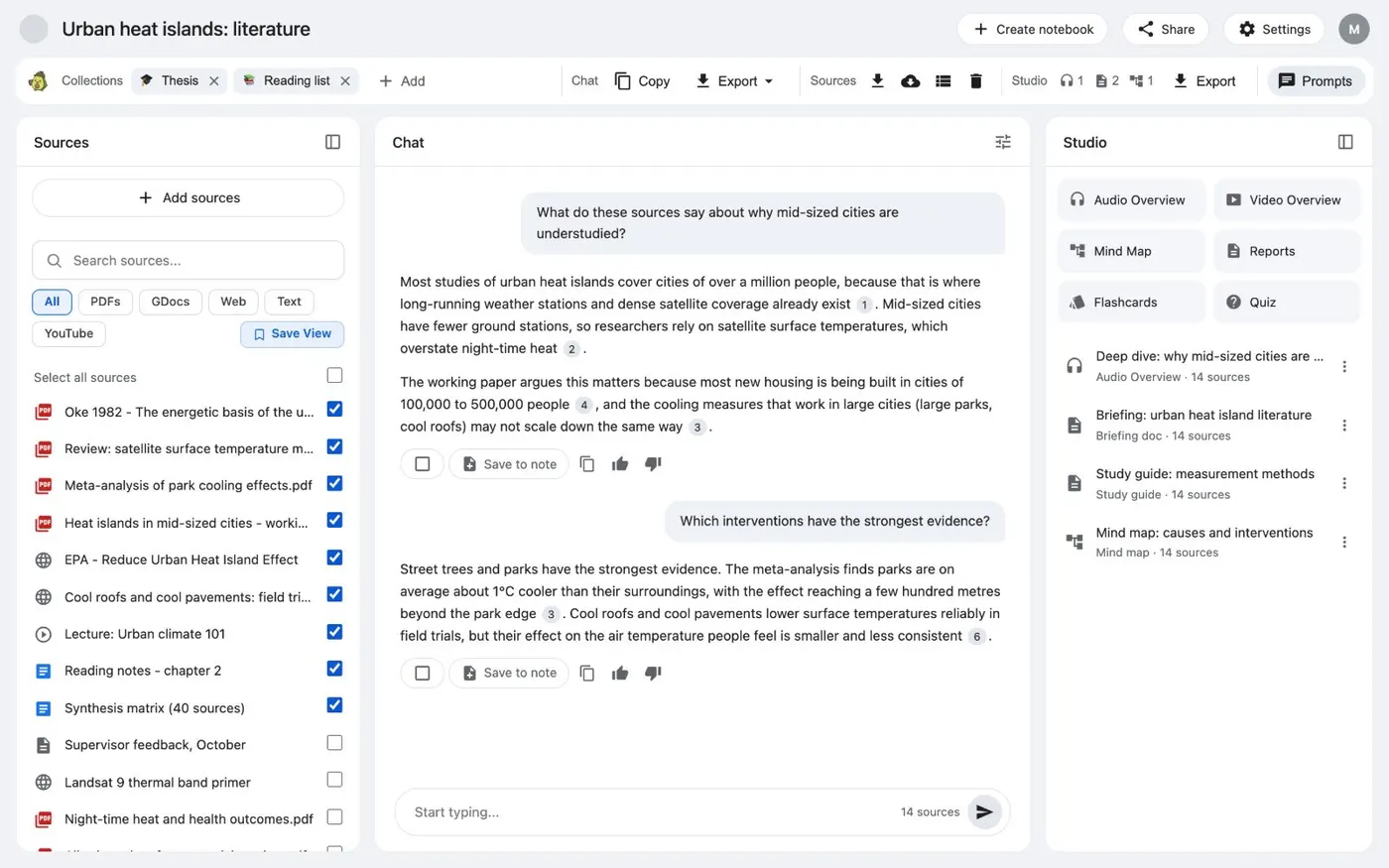
The Kortex bar on a notebook. Collections, chat, sources, Studio and prompts sit in one row.
If it doesn’t work
- My Kortex collections do not show in Gemini Notebook
- Kortex collections and Gemini Notebook's own collections are separate. On the Collections page, click Move your Kortex collections to Gemini Notebook to copy them over.
- The Workspace shows no notebooks
- Reload the Workspace and check that you are signed in to Kortex. If you use several Google accounts, check the Notebooks from switch at the bottom of the sidebar.
Questions people ask
Something we missed? Ask us.
Can a collection fill itself?
Yes. A Smart Collection holds every notebook that matches your rules. You do not move notebooks by hand.
Can I nest folders?
Yes. Kortex collections can nest and have a color. You can pin up to three.
Can I sort sources into folders too?
Yes. The Sources view has source folders, and the Artifacts view has folders for Studio outputs. Select rows and choose Move to Folder.
Keep going
More tutorials
Do it on your own notebooks.
Install the Kortex extension and follow these steps on a notebook you already have.
100,000+ users, rated 4.5 on the Chrome Web Store.