
Organize
Tags and source labels
Kortex tags are colored labels for notebooks in Gemini Notebook (formerly NotebookLM), with a separate set of tags for single sources. In the Kortex Workspace, select rows, add a tag, then filter by it. You can tag many rows at once, rename a tag or delete it everywhere.
What are tags and source labels in Kortex?
Tags are colored labels you put on notebooks, with a separate set for single sources, in the Kortex Workspace. Select rows, add a tag, then filter by it.
What you get
-
Labels that cut across folders
A notebook sits in one collection but can have many tags. Tag by topic, status or client. Then filter to find it.
-
Tags on single sources
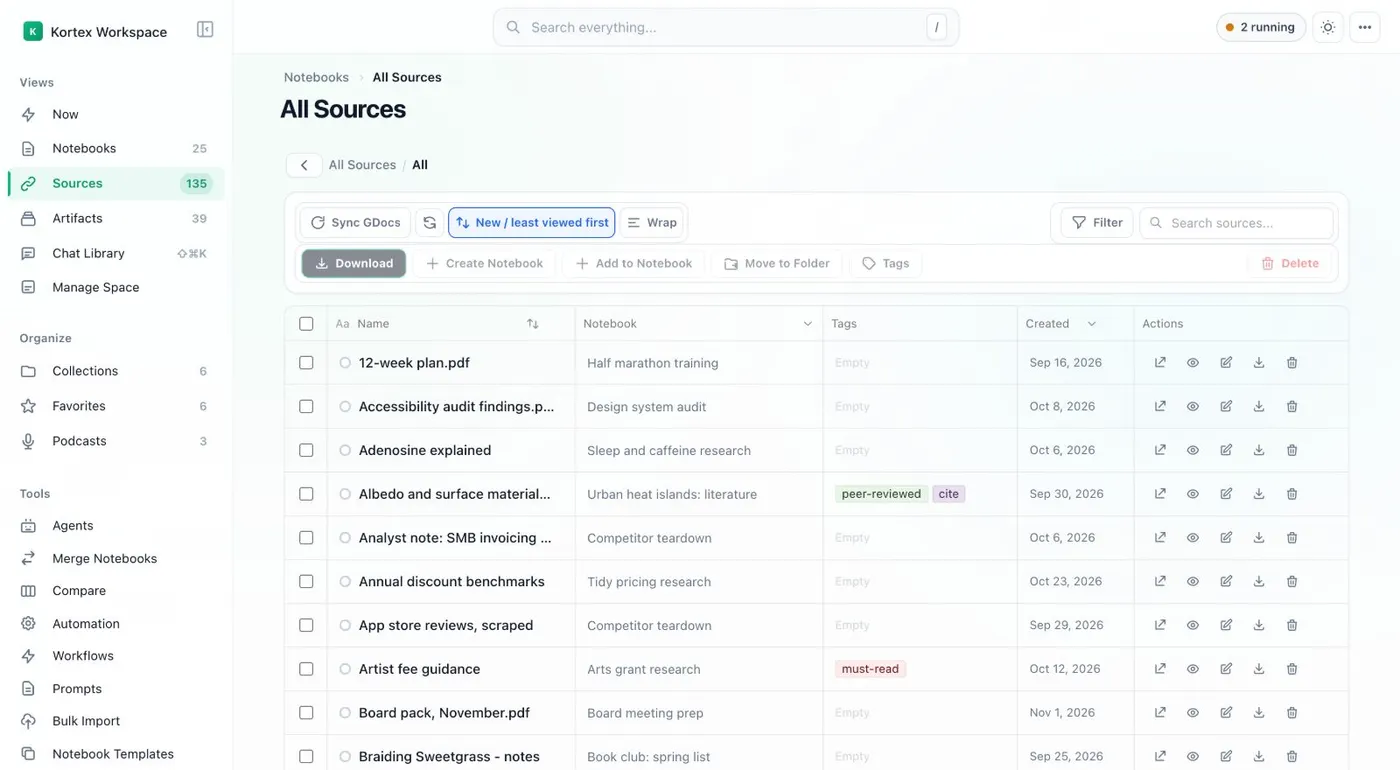
Sources have their own tags. The All Sources table shows them next to the notebook each source belongs to.
-
Tag many at once
Tick several rows in a table and choose Tags to label them all at once.
-
Tags can do work
A Smart Collection can fill from tags. An automation rule can file a notebook when you add a tag.
How many sets of tags are there?
Kortex has tags for notebooks and a separate set for sources. Open the Kortex Workspace. You see notebook tags in the Notebooks table. The All Sources table shows each source’s type, notebook, tags and folder.
Both work the same way. Tick rows, choose Tags, and pick a tag or type a new name. The tag then shows as a column in the table and as a choice in Filter.
How do I tag in bulk?
Select as many rows as you like. In Notebooks, Tags sits next to Merge, Compare and Delete. In Sources, it sits next to Download, Move to Folder and Delete. One action labels all the rows you picked.
What tags are good for
- Status. Use tags such as inbox, active and archive. Filter to the stage you are in.
- Themes across projects. A notebook lives in one collection but can have any number of tags.
- Rules. A Smart Collection can fill from tags. The Smart Sort automation moves a notebook into a collection when you apply a tag.
Where your tags live
Tags live in Kortex, not in Gemini Notebook. Sync and backup explains how your organizing data reaches a second computer.
Manage Space renames, deletes and creates notebook tags, source tags and artifact tags in one place. It is the quickest way to merge two tags that mean the same thing.
Finding tagged things
The Workspace search finds tags by name, along with notebooks and sources. See global search.
How it works
Want every step? Follow the tutorial.
-
Open a table
In the Kortex Workspace, open Notebooks for notebook tags or Sources for source tags.
-
Select rows and choose Tags
Tick one or more rows and choose Tags. Then pick an existing tag or type a new name.
-
Filter by tag
Use Filter in the toolbar to show only the rows with a tag. The tags also show as columns in the tables.
-
Tidy up in one place
Manage Space lets you rename, delete and create notebook tags and source tags in one place.
Questions people ask
Something we missed? Ask us.
What is the difference between a tag and a collection?
A collection is a folder for notebooks. A tag is a label you can put on a notebook or a source. A notebook can have several tags. Smart Collections can fill themselves from tags.
Are notebook tags and source tags the same set?
No. Notebooks and sources have separate sets of tags. A source tag labels one source. The All Sources table shows it next to the notebook the source belongs to.
Can I rename or delete a tag everywhere?
Yes, in Manage Space. It renames, deletes and creates notebook tags, source tags and artifact tags in one place.
Do tags appear inside Gemini Notebook?
Tags live in Kortex. They show in the Workspace and in Kortex's own search. They are not Gemini Notebook's own labels.
How do I tag NotebookLM notebooks?
Open the Kortex Workspace, tick the notebook rows, choose Tags, and pick a tag or type a new name. The tag then shows as a column and as a choice in Filter. Tags live in Kortex, not in Gemini Notebook (formerly NotebookLM).
Can I tag many sources at once?
Yes. Select as many rows as you like and choose Tags. One action labels every row you picked.
Try it on your own notebooks.
100,000+ people use the Kortex extension. Install it and try tags and source labels on a notebook you already have.
100,000+ users, rated 4.5 on the Chrome Web Store.