
Organize
Global search
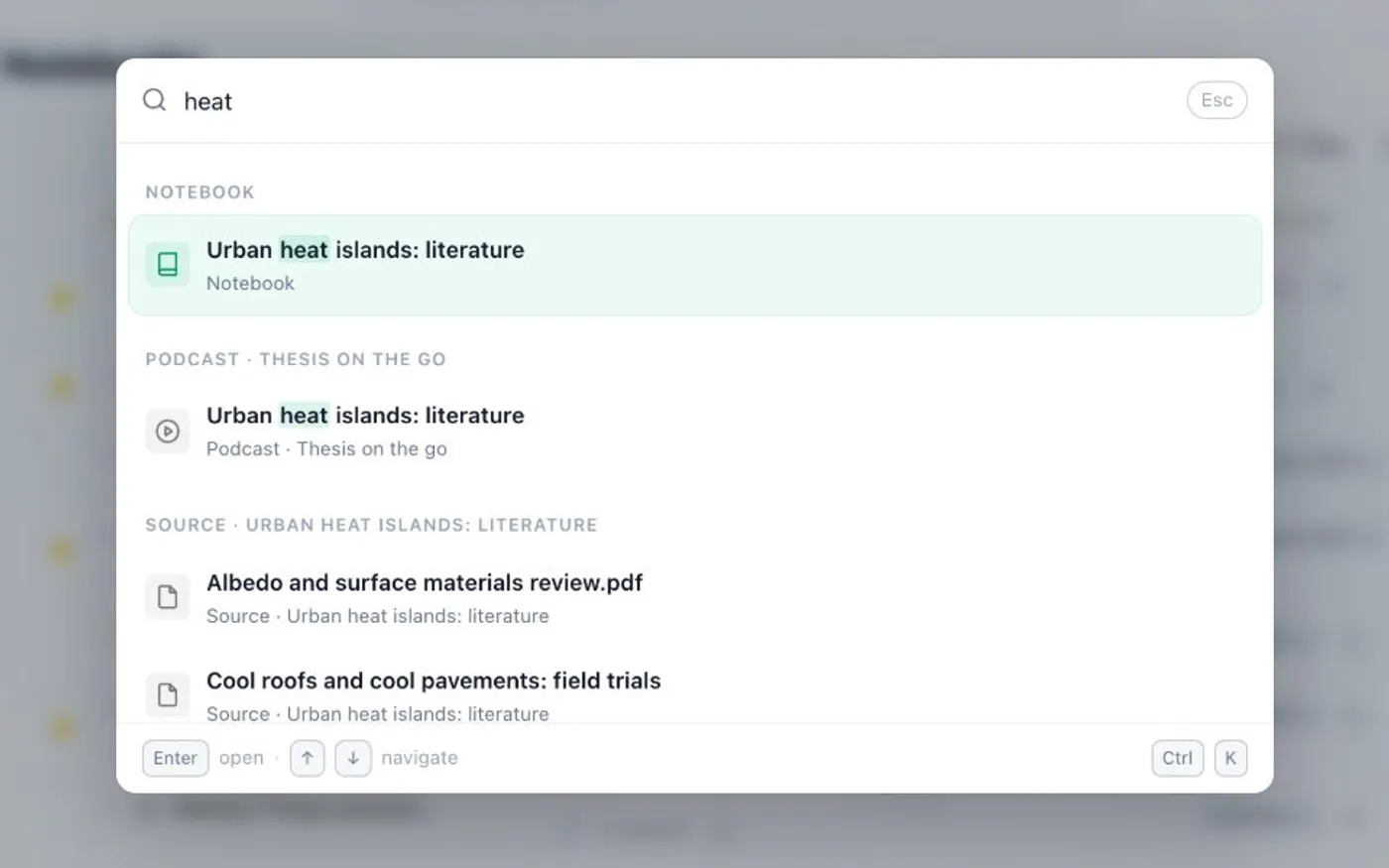
Kortex global search is one search box for every notebook, source, note, collection, tag and podcast in your Gemini Notebook (formerly NotebookLM) account. Press Ctrl+K (Cmd+K on a Mac) in the Kortex Workspace and matches appear as you type, in groups. After three letters, it adds related notebooks by meaning.
What does Kortex global search do?
Global search is one box in the Kortex Workspace. It searches your notebooks, sources, collections, tags, podcasts and Kortex notes at once. Press Ctrl+K (Cmd+K on a Mac) or /. After three letters, it also adds related notebooks by meaning.
What you get
-
One box for everything
You do not need to open notebooks to find the source you remember. Type a few letters and the matches show up in groups.
-
Finds by meaning, not only by name
After three letters, Kortex adds Related notebook matches below the exact ones. It picks them by meaning.
-
A command palette as well
With nothing typed, the box lists commands. Go to any view, create a notebook, collection or podcast, or switch light and dark mode.
-
Narrow one notebook too
Inside a notebook, a source search bar and saved source views shorten a long list of sources to the ones you want.
How do I open the search box?
Open it from anywhere in the Kortex Workspace with Ctrl+K (Cmd+K on a Mac) or /. Typing searches notebooks, collections, tags, podcasts and episodes, sources and Kortex notes. After three letters, Kortex adds Related notebook matches. It picks them by meaning, not by exact words.
Commands too
With nothing typed, the same box is a command palette. It lists commands to go to any view, create a notebook, collection or podcast, and settings such as light or dark mode, row density and the keyboard shortcuts.
Other keys work without opening it. Press g then n, s, p, a, c or f to go to Notebooks, Sources, Podcasts, Automation, Collections or Favorites. c then n, c or p creates a notebook, collection or podcast. Ctrl+R refreshes the data.
Can I search inside one notebook?
On a notebook’s page in Gemini Notebook, the Kortex bar adds a source search bar and Source views. The chips filter the source list: All, PDFs, GDocs, Web, Text and YouTube. Save View keeps the filter and which sources are ticked. You can bring it back in one click.
Filtering the tables
The notebook and source tables have their own Filter, by name, tag or highlight color. They also have sorting and column choice. Use search to go to one thing. Use filters to work through many. See tags and the Workspace.
How it works
Want every step? Follow the tutorial.
-
Open the search
In the Kortex Workspace, press Ctrl+K (Cmd+K on a Mac) or /. Or click Search everything in the top bar.
-
Type a few letters
Matches appear for notebooks, collections, tags, podcasts and episodes, sources and Kortex notes. After three letters, Kortex adds related notebooks.
-
Open the result
Pick a match with the arrow keys or the mouse. Leave the box empty to see commands, such as going to Sources or creating a collection.
-
Filter inside a notebook
On a notebook's page in Gemini Notebook, use the source search bar or the Source views chips to narrow its sources. Save View keeps the filter.
Questions people ask
Something we missed? Ask us.
What is the shortcut?
Ctrl+K on Windows and Linux, Cmd+K on a Mac, or / anywhere in the Workspace. Esc closes the box.
What does it search?
Notebooks, collections, tags, podcasts and episodes, sources and Kortex notes. It matches names and tags, and adds related notebooks by meaning.
Can I search from the side panel?
The side panel's Notebooks tab has its own search box and collection chips for finding a notebook. The all-in-one search is in the Workspace.
Can I find a notebook by its tag?
Yes. Search covers tags as well as names. Type a tag name and the tag appears. The tables also have a Filter for tags and highlight colors.
Is there a shortcut to jump between pages?
Yes. Press g, then n, s, p, a, c or f to go to Notebooks, Sources, Podcasts, Automation, Collections or Favorites. Ctrl+/ lists every shortcut.
Can I search all my NotebookLM notebooks at once?
Yes. Press Ctrl+K (Cmd+K on a Mac) or / in the Kortex Workspace. One box searches every notebook in your Gemini Notebook (formerly NotebookLM) account, plus sources, collections, tags, podcasts and notes.
Try it on your own notebooks.
100,000+ people use the Kortex extension. Install it and try global search on a notebook you already have.
100,000+ users, rated 4.5 on the Chrome Web Store.