Here's how to set up Kortex, the Chrome extension for Gemini Notebook, formerly NotebookLM. It takes about a minute. Open Kortex on the Chrome Web Store and click Add to Chrome.
Then click Add extension. A welcome page opens, and Kortex is installed. Now pin the icon.
Click the puzzle piece in the toolbar, find Kortex, and click the pin. Kortex now stays one click away. Click the Kortex icon, and the side panel opens beside your page.
Click Sign in on the web, and sign in on the Kortex website. The panel picks it up by itself. Now open Gemini Notebook.
Each notebook gets the Kortex bar, with your collections, chat, sources, Studio and Prompts. On AI sites like ChatGPT and Claude, and on YouTube, a NotebookLM button sends the chat or video to a notebook. The Dashboard button opens the Kortex Workspace, with every notebook in one table.
And the Chat Library keeps your AI chats on your computer. Kortex asks before it saves any. Here's the first thing to try.
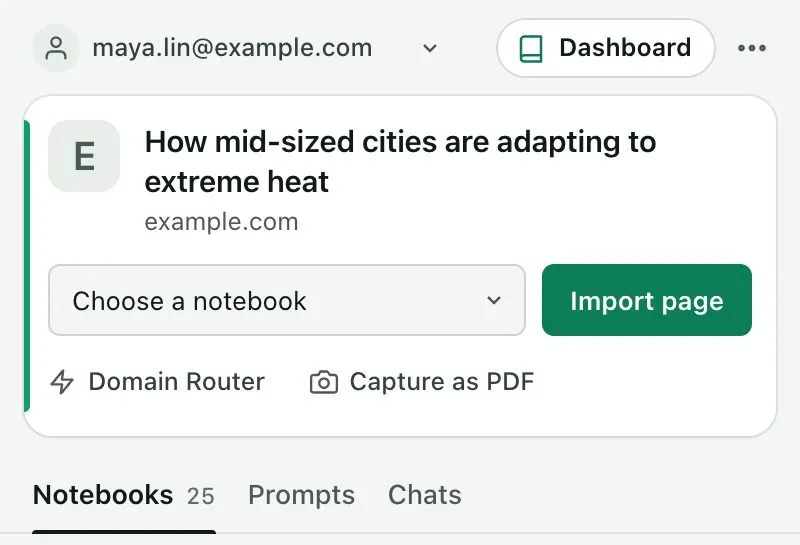
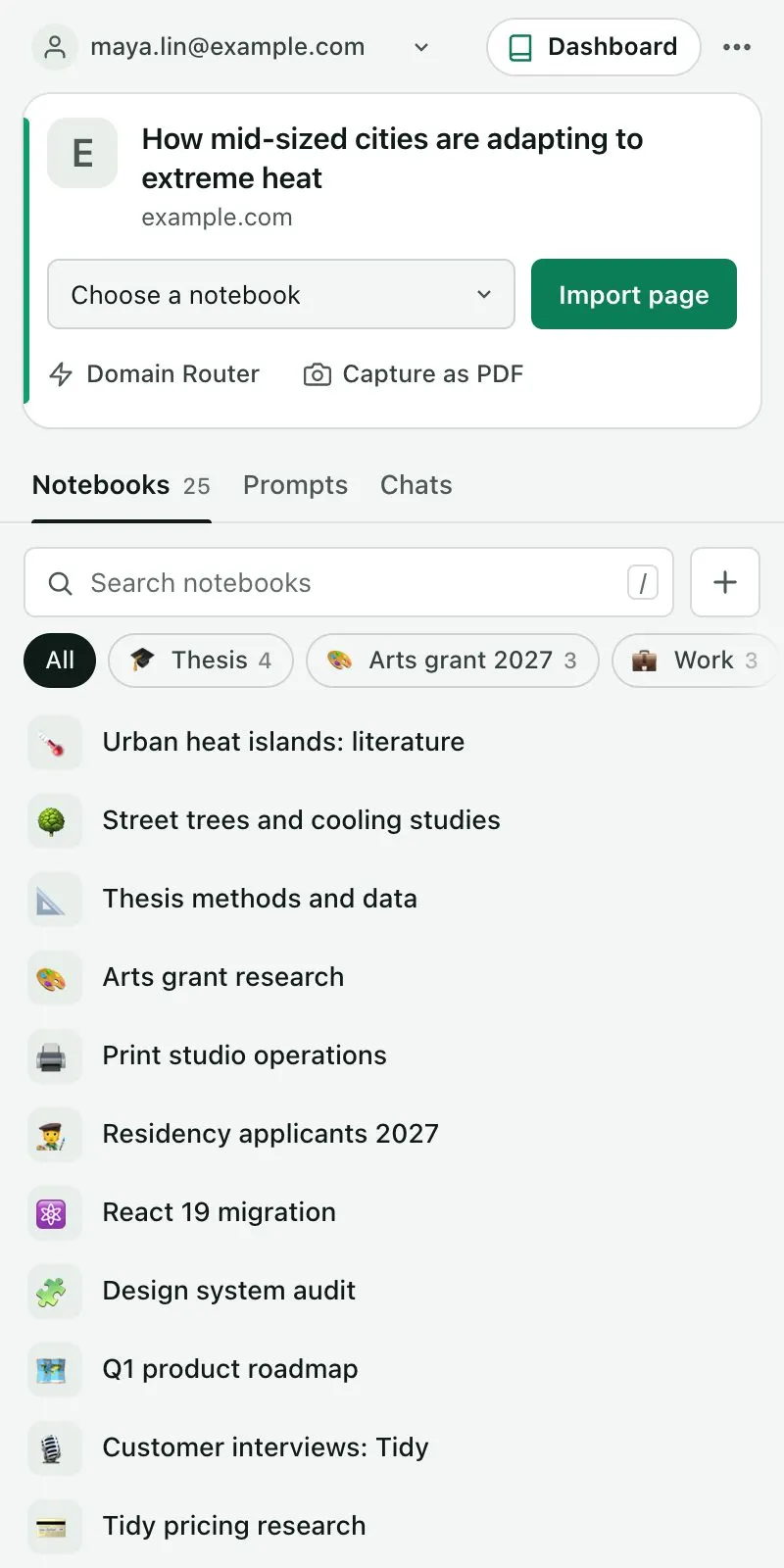
Open an article, and Kortex suggests a notebook in the side panel. Click Import page, and the page is now a source in that notebook. That's it.
Kortex is ready.