
Import
Bulk import
Bulk Import in the Kortex Workspace adds many sources to a Gemini Notebook (formerly NotebookLM) notebook at once. It takes pasted links, your open browser tabs, an RSS feed, a CSV file or a site crawl. The Domain Router picks a notebook for each link.
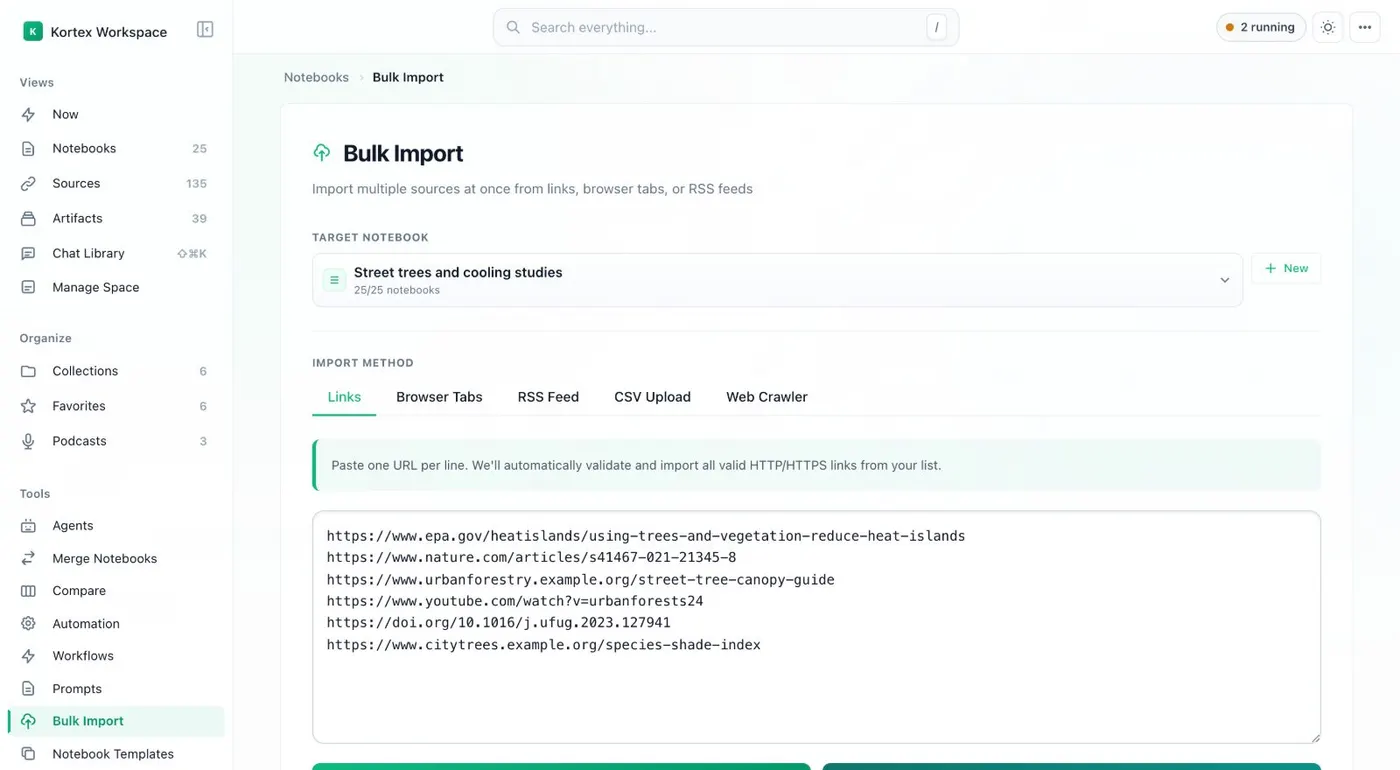
What does Bulk Import do?
Bulk Import, in the Kortex Workspace, adds many sources to one target notebook at once. Its tabs take pasted links, your open browser tabs, an RSS feed, a CSV file or a site crawl. The Domain Router picks a notebook for each link.
What you get
-
A whole research session at once
Paste a list of links, or import the tabs you have open. Every page becomes a source in the target notebook.
-
Feeds, files and sites
RSS Feed gets a feed's articles. CSV Upload takes a file of links. Web Crawler finds pages on a site.
-
Each link to its own notebook
The Domain Router sends every link to the notebook your rules pick, instead of one target.
Where do I find Bulk Import?
Bulk Import is a view in the Kortex Workspace, the dashboard you open from the Kortex icon. Choose a Target Notebook at the top. Pick one of the tabs. Then run the import. It adds sources to Gemini Notebook (formerly NotebookLM).
The five tabs
- Links. Paste web addresses into the box, one per line.
- Browser Tabs. Import the tabs you have open.
- RSS Feed. Give a feed address (an RSS feed lists a site’s new articles) and import its articles.
- CSV Upload. Upload a CSV file of links.
- Web Crawler. Start from a site and let Kortex find pages to import.
The button that runs the import reads Import Links. Next to it, Domain Router sends each link to the notebook your rules choose.
Before you run it
Check the Target Notebook before you run the import. Every link goes there unless you use the Domain Router. For a single YouTube playlist, the YouTube button is quicker. For one passage, use Highlight and send.
How it works
Want every step? Follow the tutorial.
-
Open Bulk Import
In the Kortex Workspace, click Bulk Import in the sidebar and choose a Target Notebook.
-
Choose a tab
Links takes pasted URLs. Browser Tabs takes your open tabs. RSS Feed, CSV Upload and Web Crawler take a feed, a file or a site.
-
Add your links
Paste the links into the box, pick the tabs, or give the feed, file or site to crawl.
-
Run the import
Click Import Links and wait while Kortex adds the sources. Open the notebook in Gemini Notebook to see them.
Questions people ask
Something we missed? Ask us.
Which tabs does Bulk Import have?
Links (paste web addresses), Browser Tabs (imports your open tabs), RSS Feed, CSV Upload and Web Crawler. The Domain Router sits next to the Import Links button.
How many links can I import in one run?
As many as you paste, pick or crawl. The whole run goes into the one Target Notebook. If you use the Domain Router, your rules split it.
What is the Domain Router?
An option that sends each link to the notebook your rules pick, or to a new one, instead of the single Target Notebook. It is also in the side panel's This tab.
Is there a Bulk Import in the side panel?
No. Bulk Import is in the Kortex Workspace. The side panel's Import page adds the page you are on.
How do I bulk import links into NotebookLM?
Open Bulk Import in the Kortex Workspace and choose a Target Notebook. On the Links tab, paste web addresses, one per line, and click Import Links.
Does Bulk Import work with NotebookLM?
Yes. Bulk Import adds sources to your Gemini Notebook (formerly NotebookLM) notebooks. Choose a Target Notebook at the top, pick a tab and run the import.
Try it on your own notebooks.
100,000+ people use the Kortex extension. Install it and try bulk import on a notebook you already have.
100,000+ users, rated 4.5 on the Chrome Web Store.