
Import
Google Docs sync
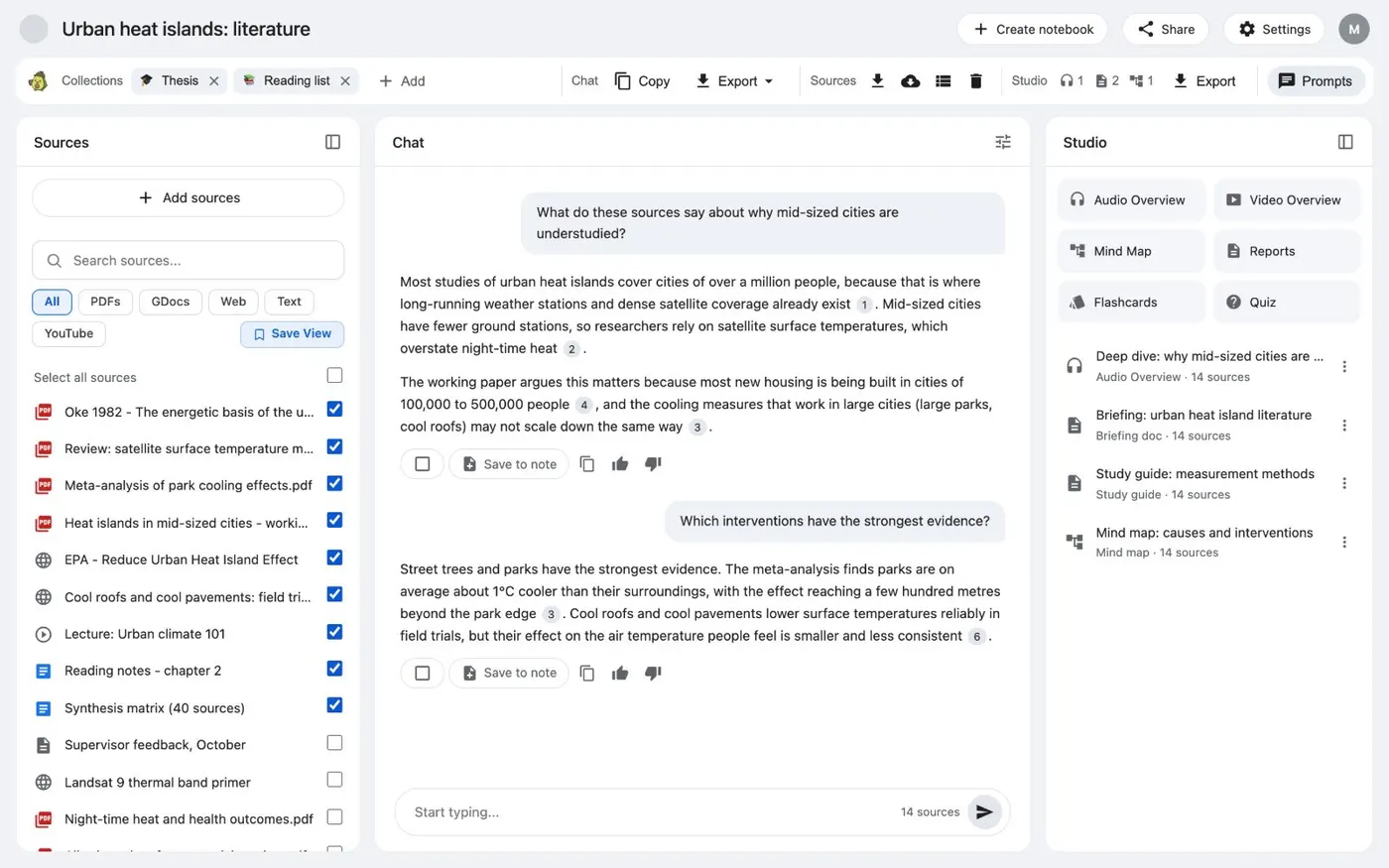
Sync Google Docs is a button in the Kortex bar on a Gemini Notebook (formerly NotebookLM) notebook. One click re-syncs every Google Doc source in that notebook, then reloads the page, so the edits you made in the docs show up.
What does Sync Google Docs do?
Sync Google Docs is a button in the Kortex bar on a Gemini Notebook notebook. One click re-syncs every Google Doc source in that notebook, then reloads the page. The edits you made in the docs show up.
What you get
-
Docs you edit stay current
A Google Doc source is a copy from the day you added it. Sync Google Docs brings every one up to date.
-
One click for the whole notebook
You do not open each source and refresh it. The button updates all the Google Doc sources in the notebook at once.
-
Answers use the latest text
Sync before you ask a question or generate a briefing. Gemini Notebook then works from what the docs say now.
-
Also in the Workspace
The Kortex Workspace does the same job with Sync GDocs, next to Import Link in the Add controls.
Where is the Sync Google Docs button?
Open a notebook in Gemini Notebook (formerly NotebookLM). Kortex adds a bar under the title. The Sources group has Download sources, Sync Google Docs, Source views and Delete sources. Sync Google Docs re-syncs every Google Doc source in the open notebook, then reloads the page.
The Kortex Workspace does the same job with Sync GDocs, next to Import Link in the Add controls.
Why do I need to sync?
A Google Doc source in Gemini Notebook is a copy of the doc from when you added it. If you edit the doc later, the source does not change by itself. Then a notebook can answer from last month’s draft. A sync refreshes the copy.
Good times to sync: after you edit the docs, before you generate a briefing or study guide, and when teammates keep changing a shared doc.
Adding the docs first
Kortex also has a button on Google Docs. It says NotebookLM, the name Kortex’s screens still use, and it sits before Share. Click it to add the open doc to a notebook as a Google Doc source.
What it leaves alone
The button handles Google Doc sources only. PDFs, web pages, pasted text and YouTube sources stay as they were. It does not edit your Google Docs. It reads them and refreshes the matching sources in the notebook you have open.
How it works
Want every step? Follow the tutorial.
-
Add your Google Docs
Add the docs to a notebook as Google Doc sources. On a Google Doc, the Kortex NotebookLM button before Share adds it for you.
-
Open the notebook
The Kortex bar under the notebook's title has a Sources group. It has Download sources, Sync Google Docs, Source views and Delete sources.
-
Click Sync Google Docs
Kortex re-syncs every Google Doc source in the notebook.
-
Let the page reload
When the sync finishes, the page reloads. The sources now hold the current text of each doc.
Questions people ask
Something we missed? Ask us.
Does it change my Google Docs?
No. It reads the docs and refreshes the sources in the notebook. It does not edit the docs.
Does it only sync the notebook I have open?
Yes. The button in the Kortex bar re-syncs the Google Doc sources of the notebook you are viewing. The Workspace has a Sync GDocs button too.
What about sources that are not Google Docs?
The button only handles Google Doc sources. PDFs, web pages and pasted text are left as they are.
When should I sync?
After you edit the docs, before you generate a briefing or study guide, and when teammates keep changing a shared doc.
Do I need to sync right after adding a doc?
No. A doc you just added is current. Sync later, after you edit it. The source then catches up.
How do I sync Google Docs in NotebookLM?
Open the notebook in Gemini Notebook (formerly NotebookLM) and click Sync Google Docs in the Kortex bar. Kortex re-syncs every Google Doc source in it, then reloads the page.
Try it on your own notebooks.
100,000+ people use the Kortex extension. Install it and try google docs sync on a notebook you already have.
100,000+ users, rated 4.5 on the Chrome Web Store.