
How to bulk import links into NotebookLM (Gemini Notebook)
Quick answer
Open the Kortex Workspace and click Bulk Import. Choose a Target Notebook, paste your links on the Links tab and click Import Links. The Browser Tabs tab imports your open tabs instead. Both go into the Target Notebook you pick.
Watch it first
-
Open the Kortex Workspace
Click the Kortex icon in the toolbar. Then click the dashboard button in the side panel's header. The Workspace opens in a tab.
-
Open Bulk Import
Click Bulk Import in the Workspace sidebar. The page has a target notebook picker and five tabs: Links, Browser Tabs, RSS Feed, CSV Upload and Web Crawler.
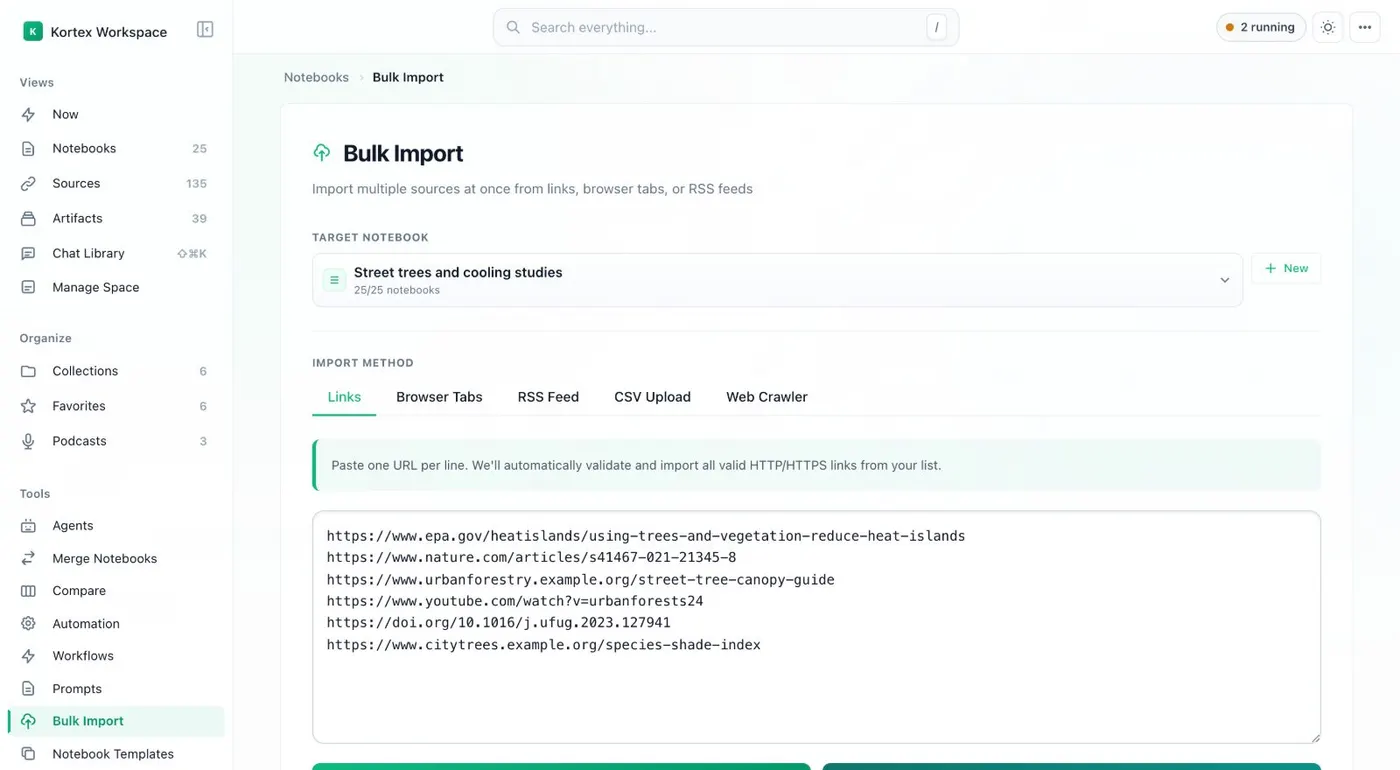
Paste links, pick tabs, or use an RSS feed, a CSV file or the crawler. -
Choose the Target Notebook
Pick the notebook for your links. Every source from this run goes there. If the links are a new topic, make a new notebook first.
-
Paste your links, or choose Browser Tabs
On Links, paste your URLs into the box, one per line. On Browser Tabs, first open the pages you want in one window. Kortex imports the tabs open in your current window.
-
Click Import Links
Kortex adds the links to the notebook. Wait for the run to finish. Do not close the Workspace until it does.
-
Open the notebook
Open the Target Notebook in Gemini Notebook. Each link is a source. Remove any you do not want before you ask questions.
-
Try the other tabs when you need them
RSS Feed imports a feed's articles. CSV Upload takes a file of links. Web Crawler finds pages on a site.
If it doesn’t work
- I cannot find Bulk Import
- Bulk Import is in the Kortex Workspace, not the side panel. Click the dashboard button in the side panel's header to open the Workspace. Then look in the sidebar.
- Some of my links did not become sources
- Check the notebook's source list after the run. Add any missing page another way, such as Import page in the side panel.
Questions people ask
Something we missed? Ask us.
How many links can I import at once?
The docs do not state a maximum for a run.
Can I import into several notebooks in one run?
Yes, with the Domain Router. It sends each link to the notebook your rules pick. Without it, a run goes to the one Target Notebook.
Can I import all my open tabs?
Yes. The Browser Tabs tab imports your open tabs.
Keep going
More tutorials
Do it on your own notebooks.
Install the Kortex extension and follow these steps on a notebook you already have.
100,000+ users, rated 4.5 on the Chrome Web Store.